Klient PSA at Agentforce World Tour New York 2026

Klient PSA at Agentforce World Tour New York 2026

Klient PSA is a proud sponsor of Agentforce World Tour New York 2026 at the Javits Center on April 29.

Klient PSA at Agentforce World Tour New York 2026

Klient PSA heads to the Javits Center on April 29, bringing the full Hybrid Project Delivery agent catalog to the Agentforce World Tour’s flagship U.S. stop.

Klient PSA will showcase Hybrid Project Delivery — its approach to running professional services with AI agents working alongside human consultants — at Agentforce World Tour New York on April 29, 2026, at the Javits Center.

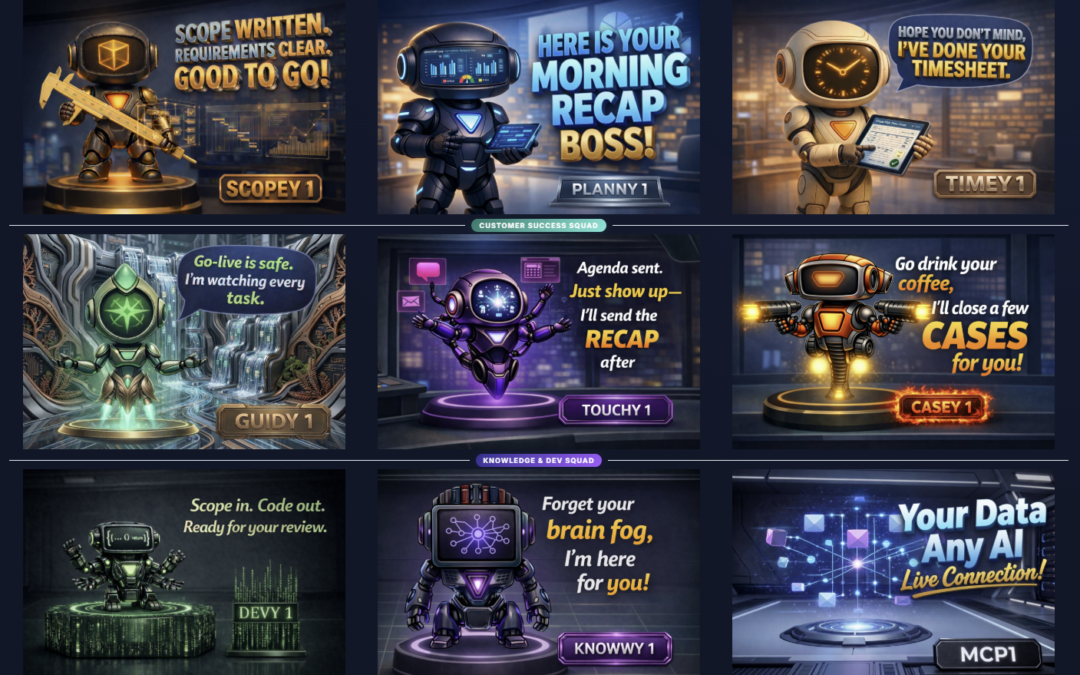
Following the product’s debut at Agentforce World Tour Utrecht on April 1, the New York stop is the first U.S. appearance of the full agent catalog: Planny, Scopey, Devy, Timey, Guidy, Touchy, Casey, and Knowwy — eight specialized AI agents that sit inside Salesforce as resource records, bookable and assignable like any human consultant.

What is Hybrid Project Delivery?

Hybrid Project Delivery is a model for professional services automation where AI agents and human consultants are managed as a single workforce inside Salesforce. Agents are represented as resource records, which means they appear on projects, capacity plans, and utilization reports alongside their human counterparts. Firms can assign work to whichever resource — human or agent — best fits the task, without leaving the Salesforce platform.

What we’re showing at the Javits Center

The booth demo walks through a full project lifecycle — from opportunity to invoice — with all eight agents in play:

  • Planny — project planning and schedule generation
  • Scopey — statement of work and scope definition
  • Devy — development and configuration tasks
  • Timey — timesheet and utilization tracking
  • Guidy — methodology and delivery guidance
  • Touchy — client communication and status updates
  • Casey — case and issue management
  • Knowwy — knowledge retrieval and documentation

Attendees can see a live, end-to-end scenario (quote through delivery) and explore each agent individually. The human-in-the-loop design is central: every agent action routes through a consultant’s approval before execution.

Why NYC matters

Agentforce World Tour New York is Salesforce’s flagship U.S. regional event, drawing over 130 expert-led sessions and thousands of attendees to the Javits Center on April 29. For Klient PSA — a Salesforce Navigator partner building 100% natively on the platform — it’s the venue to demonstrate what agentic AI looks like when it’s embedded in a vertical application, not bolted on.

The Utrecht debut validated the model with European consulting firms. New York extends the conversation to the North American market.

Meet the team

Yanick Abraham (CEO), Raul Acosta (Partnerships & Alliances), and Stephanie Pedneault (Growth Advisor) will be on-site throughout the event.  Book a demo to reserve time with the team before the floor fills up.

About Klient PSA

Klient PSA is the professional services automation platform built 100% natively on Salesforce. Consulting firms and professional services organizations use Klient PSA to manage the full project lifecycle — sales, resourcing, delivery, time tracking, and billing — inside a single Salesforce org. Hybrid Project Delivery extends the platform with AI agents that operate as managed resources alongside human teams.

Klient rock in space

Replace all your tools with Klient, Salesforce #1 PSA platform

Run your entire SaaS and consulting business on a single professional service automation platform native to Salesforce!

What is a PSA software ? Professional Services Automation

What is a PSA software ? Professional Services Automation

Industry Insight

What Is Professional Services Automation Software?

Your projects run on spreadsheets, your timesheets are late, and your utilization number is a guess until month-end close. Professional Services Automation software exists because that operating model doesn't scale.

By Yanick Abraham | Updated April 15 2026

Professional services automation (PSA) software is a category of business software that manages the full project lifecycle — from resource planning and time tracking through billing and revenue recognition — for firms that sell expertise instead of products. If your business delivers consulting, implementation, advisory, or managed services, PSA is the operating system for how that work gets planned, staffed, executed, tracked, billed, and measured.

Most services firms start with a project management tool, a spreadsheet for resource planning, a separate timekeeping app, and an accounting system for invoicing. That patchwork works when you have ten people. It falls apart at fifty. By the time you have a hundred consultants, the time spent stitching those systems together is a delivery problem in its own right.

PSA software replaces that patchwork with a single platform. One place where the project plan connects to the resource schedule, which connects to the timesheet, which feeds the invoice, which updates the revenue forecast. No re-keying. No reconciliation spreadsheets. No "let me check with finance" before you can answer a client question about budget.

This guide covers what PSA software does, how it compares to project management tools and ERP, who uses it, what benefits it delivers, and how to choose the right platform for your firm.

What Does PSA Software Actually Do?

PSA software covers six core capabilities. Each one matters not because it's a feature, but because the absence of it creates a specific, measurable problem in services delivery.

Project management. This is scope, milestones, work breakdown structures, Gantt charts, task dependencies, and progress tracking. The point is not just to have a plan — it's to have a plan that connects to the rest of the business. When a task slips, the resource schedule should reflect it. When scope changes, the budget should update. In a PSA, these connections are automatic. In a spreadsheet, they are someone's weekend.

Resource management. This means you can see at a glance who's available next week, who's overbooked, and what skill gaps you have going into a new engagement. Good resource management is the difference between a 65% utilization rate and a 75% utilization rate. At scale, that delta is worth millions in annual revenue.

Time tracking and timesheets. Every services firm bills for time — even fixed-fee firms need to track time against budget to measure project health. PSA software gives consultants a place to log time that connects directly to the project plan and the billing engine. No duplicate entry. No end-of-month guesswork.

Billing and invoicing. Services firms bill in different ways: time and materials, fixed fee, milestone-based, retainer, or some combination. PSA software handles all of these from the same platform. The invoice pulls from approved timesheets and project milestones, so what you bill matches what you delivered.

Forecasting and financial visibility. Revenue forecasting in services is hard because the inputs keep changing — scope shifts, people roll off, timelines move. PSA software gives you a real-time view of expected revenue based on what's actually happening on projects, not what was in the original SOW.

Reporting and dashboards. Utilization, margin, backlog, pipeline coverage, earned value, schedule performance — the KPIs that professional services leaders need to run the business. A PSA puts these in one place and updates them automatically from live project data.

How Is PSA Software Different From Project Management Tools?

If you only need to track tasks and deadlines, a project management tool like Asana, Monday.com, or Jira is sufficient. Those tools are excellent at organizing work. But the moment you need to bill clients for that work, track utilization rates, or forecast revenue, you've outgrown them. Project management tools manage tasks. PSA software manages the business of delivering services.

The gap shows up in three places. First, project management tools don't connect time to money. You can see that a task is 80% complete, but you can't see whether it's over budget. Second, they don't manage people as a financial resource. You know who's assigned to what, but you don't know your firm's utilization rate or who's available for the deal you just closed. Third, they don't generate invoices. Billing still happens in a separate system, which means someone is manually reconciling what was delivered against what gets billed.

Capability Project Management Tool PSA Software
Built for Internal teams managing tasks Services firms delivering client work
Time tracking Basic — hours per task Billable vs. non-billable, by rate card, with approval workflows
Resource management Task assignment only Capacity planning, skills matching, utilization tracking
Client billing Not included T&M, fixed fee, milestone, retainer — with invoice generation
Revenue forecasting Not included Real-time forecast from live project data
CRM integration Limited or via third-party connector Native or deep integration — deal-to-project handoff
Best for Product teams, marketing, internal ops Consulting, SI, IT services, agencies, any client-facing delivery

The decision point is simple. If your team delivers work for external clients and bills for it, you need PSA. If your team delivers internal projects with no billing component, project management tools are the right fit.

PSA Software vs. ERP — What's the Difference?

This is the comparison that generates the most confusion — and the most expensive mistakes. Enterprise resource planning (ERP) and professional services automation (PSA) overlap in a few places but serve fundamentally different operating models. Choosing the wrong one costs you years, not months.

What ERP does. ERP software — SAP, Oracle NetSuite, Microsoft Dynamics 365 — was designed to manage manufacturing and distribution operations. Its core strength is tracking physical goods through a supply chain: procurement, inventory, production planning, warehousing, and general ledger accounting. Over time, ERP vendors added project accounting modules and services features, but the architecture still assumes a product-centric business. An ERP thinks in terms of cost centers, purchase orders, and inventory turns.

What PSA does. PSA software was designed from the ground up for firms where the "product" is people's time and expertise. Its core strength is managing the human supply chain: who is available, what they cost, what they can bill, and how that maps to client engagements. A PSA thinks in terms of utilization rates, billable hours, project margins, and revenue recognition schedules. Klient PSA, for example, is 100% Salesforce-native and connects the opportunity record in your CRM directly to the project plan, resource schedule, timesheet, and invoice — with no middleware or integration layer.

Where they overlap. Both systems handle project accounting, revenue recognition, and financial reporting. Both can generate invoices. Both feed data to a general ledger. The overlap is real, which is why firms often assume one can replace the other. It usually can't — at least not without significant compromise in one direction.

When you need ERP, PSA, or both. If you are a pure services firm — consulting, implementation, advisory — PSA covers your full lifecycle and ERP is overkill. If you are a product company with a professional services division, you likely need ERP for the product side and PSA for the services side. If you try to run services delivery on an ERP project accounting module, you'll get weak resource management, minimal utilization tracking, and no native connection to your CRM pipeline. If you try to run manufacturing on a PSA, you'll get no inventory management, no procurement workflows, and no supply chain visibility.

Capability ERP PSA Software
Built for Product-centric businesses with manufacturing, distribution, or complex procurement Services firms that sell expertise and bill for time
Core strength Supply chain, inventory, general ledger, financial close Project lifecycle, resource utilization, time-to-bill, project margin
Time tracking Add-on module, often limited Native — billable/non-billable split, rate cards, approval flows
Project profitability Available but requires configuration Core metric — real-time margin by project, client, and practice
Financial close Full GL, AP/AR, consolidation Revenue recognition and project accounting; GL integration for the rest
CRM integration Requires middleware or custom build Native (Salesforce-native PSA) or deep integration
Who uses it Manufacturing, retail, distribution, large enterprises Consulting firms, SIs, IT services, agencies, SaaS PS teams

ERP manages the supply chain for products. PSA manages the supply chain for people.

The most common mistake is a services firm buying ERP because "we need financials" and then discovering that the project delivery, resource management, and utilization tracking capabilities are too shallow for a consulting operation. The second most common mistake is the reverse: a hybrid firm trying to run everything on PSA and ending up with no procurement or inventory system. Know what you are. Buy for that.

Who Uses PSA Software?

PSA software is used by any organization where the primary revenue model is billing clients for the work of skilled people. The specific pain points vary by firm type, but the core need is the same: connect the plan to the people to the bill.

Management consulting firms. These firms live and die by utilization and margin. PSA gives them real-time visibility into both — across engagements, practice areas, and individual consultants. Without PSA, the partner finds out a project is over budget at month-end close. With PSA, they see it mid-sprint.

Salesforce implementation partners and systems integrators. SI firms have a unique advantage when their PSA runs on the same platform they implement for clients. Klient PSA is 100% Salesforce-native, which means the CRM data — opportunity, account, contact — flows directly into the project without integration. For Salesforce partners specifically, this eliminates the irony of building on Salesforce for clients while running delivery on a disconnected tool.

IT services companies. Managed services and IT consulting firms juggle multiple engagement types — T&M, fixed fee, retainer — often for the same client simultaneously. PSA handles mixed billing models from a single project record and gives finance a clean view of revenue by engagement type.

SaaS companies with professional services teams. The PS team inside a SaaS company is often the most under-tooled group in the organization. Product uses Jira. Sales uses Salesforce. CS uses Gainsight. PS uses... spreadsheets. PSA gives the services team a proper operating system and connects it to the rest of the business.

Digital agencies. Agencies move fast, run thin margins, and manage dozens of concurrent projects. PSA gives them the resource visibility to avoid double-booking their senior designers and the financial visibility to catch scope creep before it eats the profit.

Engineering and architecture firms. These firms track time against phases, manage complex multi-discipline resource pools, and bill using structures like percentage-of-completion. PSA supports these models natively, replacing the custom Excel workbooks that most A/E firms have relied on for decades.

What Are the Key Benefits of PSA Software?

The benefits of PSA software are measurable. They show up in utilization rates, billing speed, forecast accuracy, and project margins. Here are the six that matter most.

Billable utilization visibility. You cannot improve what you cannot see. The average billable utilization rate across professional services firms was 68.9% in 2024, according to the SPI Research PS Maturity Benchmark. Top-quartile firms consistently hit 75% or higher. The difference between those numbers is not talent or process — it is visibility. PSA gives every resource manager, practice lead, and executive a real-time view of who is billing, who is on the bench, and where the gaps are. That visibility is the prerequisite for improvement.

Revenue predictability. Services revenue is inherently harder to forecast than subscription or product revenue because it depends on project timelines, staffing levels, and scope changes. PSA software builds the forecast from live project data — hours burned, hours remaining, milestone completions, rate cards — instead of from a sales team's pipeline estimate. The result is a revenue number that finance can trust before month-end close.

Faster billing cycles. Late billing is a margin killer. Every day between "work delivered" and "invoice sent" is a day your cash isn't working. PSA software shortens that cycle by connecting approved timesheets directly to the invoicing engine. When a consultant submits time and a manager approves it, the invoice data is ready. No spreadsheet reconciliation. No "let me check with the PM" before finance can bill.

Resource optimization. Under-utilization costs revenue. Over-utilization costs people. Both are expensive. PSA software shows you the balance in real time — across projects, teams, and skill categories. You can see that your senior Salesforce architects are booked at 110% for the next three weeks while your junior developers are at 40%. That insight lets you act before the architect burns out and the developer leaves.

Single source of truth. When the project plan lives in one tool, timesheets in another, billing in a third, and resource planning in a spreadsheet, every number is slightly different. The PM says the project is on track. Finance says it's over budget. The resource manager says the team is available. The client says they were promised a different timeline. PSA eliminates these discrepancies because every function reads from the same data.

Profitability by project, client, and practice. Knowing your firm's overall margin is useful. Knowing the margin on each individual project, each client relationship, and each practice area is transformational. PSA software calculates profitability at every level because it has the data to do so — hours, rates, costs, and revenue all in one system. That granularity is what lets you double down on profitable work and fix or fire unprofitable engagements.

The firms that outperform don't work harder. They see the numbers earlier and act on them faster.

How to Choose PSA Software — 5 Questions to Ask

The PSA market has dozens of vendors. Some are standalone tools. Some are modules inside larger platforms. Some are Salesforce-native. Some require extensive integration. Here are the five questions that separate the right choice from an expensive mistake.

1. Is it built natively on your CRM, or does it require integration? If your sales team uses Salesforce, your PSA should run on Salesforce. A native PSA means the opportunity record becomes the project record. The account record carries into delivery. There is no sync to break, no middleware to maintain, and no "let me log into the other system" when a PM needs client context. Klient PSA is 100% Salesforce-native — every object, every field, every automation lives inside your org.

2. Does it cover the full project lifecycle — from estimate to invoice? Some tools are strong on project management but weak on billing. Others handle billing well but lack resource planning. You need the full loop: scoping, staffing, delivering, tracking time, invoicing, and recognizing revenue. If any of those steps requires a separate tool, you've reintroduced the patchwork problem PSA is supposed to solve.

3. Can it handle your billing models? This is where generic tools fail. Services firms bill time and materials, fixed fee, milestone-based, retainer, capped T&M, and blended models — sometimes on the same project. Your PSA needs to support every model you use today and the ones you'll need as your firm evolves. Ask the vendor to demonstrate your most complex billing scenario, not a demo-day walkthrough.

4. How long does implementation take? A PSA that takes nine months to implement has a negative ROI for the first year. It should be operational — not just "live" — in weeks. Ask for the median implementation timeline across their customer base, not the best case. For Salesforce-native PSA platforms like Klient PSA, implementation is faster because there is no integration layer to build and your team is already in Salesforce.

5. Does the vendor serve firms your size and type? A PSA built for 5,000-person enterprises will be too heavy for a 50-person consulting firm. A tool built for freelancers won't scale to 200 consultants. Ask for customer references at your size, in your industry, with your billing complexity. The best predictor of your success with a PSA is how well it has worked for firms that look like you.

What About AI in PSA Software?

AI is changing how PSA software works — not by replacing the core capabilities, but by eliminating the manual effort that sits between them. The biggest time drains in services delivery are not strategic decisions. They are coordination tasks: writing up requirements, chasing project status, filling in timesheets, updating resource plans. These are the tasks AI agents handle well.

Klient PSA includes a set of Salesforce Agentforce agents — the PSA Squad — that operate directly inside the platform. SCOPEY handles requirements intake: a team member describes a request in plain language, and SCOPEY writes a structured requirement and creates a task held for human approval. PLANNY reads project health data across your portfolio and delivers a prioritized brief telling your PM what to act on first. TIMEY pre-fills timesheets by reading your schedule, calendar, and communication activity, then holds for your review before submission.

The critical design principle is that agents handle coordination and humans make decisions. No agent in the PSA Squad modifies a record without human approval. This is not AI for its own sake. It is a structural reduction in the overhead that makes services delivery slow and expensive.

Example: TIMEY and timesheet accuracy. A consultant finishes a week of mixed project work. Instead of reconstructing the week from memory on Friday afternoon, TIMEY has already drafted the timesheet from the consultant's Klient PSA schedule, calendar events, and Slack activity. The consultant reviews, adjusts one entry, and approves — in 15 seconds instead of 15 minutes. Multiply that across 100 consultants and you've recovered thousands of hours per year of more accurate time data.

What KPIs Should You Track With PSA Software?

PSA software gives you the data. But the data only matters if you're tracking the right metrics. Here are the KPIs that professional services leaders use to run the business.

Billable utilization rate. The percentage of available hours that are billed to clients. The single most important metric in professional services. Target: 70-80% depending on role. Anything below 65% signals a resource allocation or sales pipeline problem.

Project margin. Revenue minus all project costs — including internal cost rates for people, not just external expenses. Healthy project margins range from 30-50% for most services firms. PSA gives you this number per project, per client, and per practice in real time.

Revenue per employee. Total services revenue divided by headcount. This measures the productivity of your workforce. SPI Research reports a median of approximately $192,000 per employee across the industry. Top-quartile firms exceed $250,000.

On-time delivery rate. The percentage of projects delivered on or before the contracted date. Industry average hovers around 73%. Firms with strong PSA discipline and visibility consistently outperform this benchmark.

Days sales outstanding (DSO). How many days, on average, between invoicing and payment. Lower DSO means healthier cash flow. PSA reduces DSO by speeding up the invoice cycle — when time data flows directly into billing, invoices go out faster and with fewer disputes.

Backlog and pipeline coverage. Backlog is contracted revenue not yet delivered. Pipeline coverage is the ratio of weighted pipeline to revenue target. Together, they tell you how much visibility you have into future quarters. PSA software tracks both from live project and CRM data.

Frequently Asked Questions

What is PSA software?

Professional services automation (PSA) software manages the full lifecycle of client engagements — from resource planning and project delivery through time tracking, billing, and revenue recognition. It is purpose-built for firms that sell expertise and bill for time, replacing the disconnected spreadsheets and tools that most services organizations outgrow.

What is the difference between PSA and CRM?

CRM manages the sales cycle — leads, opportunities, and pipeline. PSA manages what happens after the deal closes: project delivery, resource allocation, timesheets, and invoicing. The best PSA platforms, like Klient PSA, run natively on Salesforce so there is no gap between the close and the kickoff.

What is PSA in Salesforce?

PSA in Salesforce refers to professional services automation software built on the Salesforce platform. Klient PSA is 100% Salesforce-native, meaning it runs entirely inside your Salesforce org with no external integrations, middleware, or data sync. Projects, resources, timesheets, and invoices all live as Salesforce objects alongside your CRM data.

Is PSA the same as ERP?

No. ERP manages manufacturing, inventory, procurement, and general ledger operations across an enterprise. PSA is purpose-built for services firms and focuses on project profitability, resource utilization, time tracking, and client billing. Some firms use both — ERP for finance and PSA for delivery — but PSA alone covers the full lifecycle for most services organizations.

What are the benefits of using PSA software?

The core benefits include real-time visibility into billable utilization, faster billing cycles, accurate revenue forecasting, optimized resource allocation, and project-level profitability analysis. Firms using PSA software report higher utilization rates and shorter days-sales-outstanding compared to firms relying on spreadsheets and disconnected tools.

How much does PSA software cost?

Pricing varies by vendor and scale. Entry-level tools start around $15-30 per user per month. Mid-market platforms range from $30-75 per user per month. Enterprise Salesforce-native platforms like Klient PSA are priced based on org size and configuration. The real cost comparison should include implementation time, integration maintenance, and revenue lost from poor utilization visibility.

YA
Yanick Abraham
CEO of Klient. 20+ years in the Salesforce ecosystem, leading product vision at Klient PSA. He measures success by one thing: customer happiness — which is why the product never stops improving.

See how Klient PSA manages the full project lifecycle.

From resource planning to invoicing — all inside Salesforce. Book a live demo and see your billing model, your team structure, your data.

Book a Demo →
Klient Newsletter – April 2026

Klient Newsletter – April 2026

Klient Newsletter – April 2026

×

Signup to our Newsletter

Get the latest Klient news delivered in your inbox every month.

April is here, and there is a lot to cover.
Let's go!

Product Update

Current version: 51.2
Upcoming version: 51.3

Klient PSA 51.3 is coming soon, with a focus on reducing everyday friction across timesheets, resource planning, and project management.

Highlights include:

⏱️ Timesheet: A Cleaner, Faster Experience
The timesheet module has been redesigned from the ground up. Expect a cleaner layout with clear visual cues for today's date, PTO, and holidays. You can now add and edit lines directly in Comments Mode and group rows by project and task to keep things tidy.

🔧 Workspace: Undo/Redo and Drag-and-Drop Assignments
Made a mistake on the grid or Gantt? Just hit CTRL-Z. You can also assign resources to tasks by dragging their avatar directly onto a task row, making project setup faster than ever.

👥 Resource Management: Group by Role and Comfy Mode
Managers can now group resource views by role to see total hours at a glance. A new "Comfy" display density gives you more details without extra clicks, with easy toggle back to standard or compact view.

📊 Kanban, Vendor Invoices and Integrations
Kanban boards now support enhanced sorting and shareable presets. The vendor invoice interface has new search, filter, and sorting tools. QuickBooks receipt syncing and improved Jira project mapping are also included.

Read the Release Notes


WEBINAR RECAP

March Webinar: Version 51.3 and the New Klient Community


Our March session gave a full preview of version 51.3 and unveiled the brand new Klient Community. If you missed it or want to share it with your team, the recording is now available on demand.

Watch the Replay

NEW KLIENT COMMUNITY

Your New Home for Product Knowledge

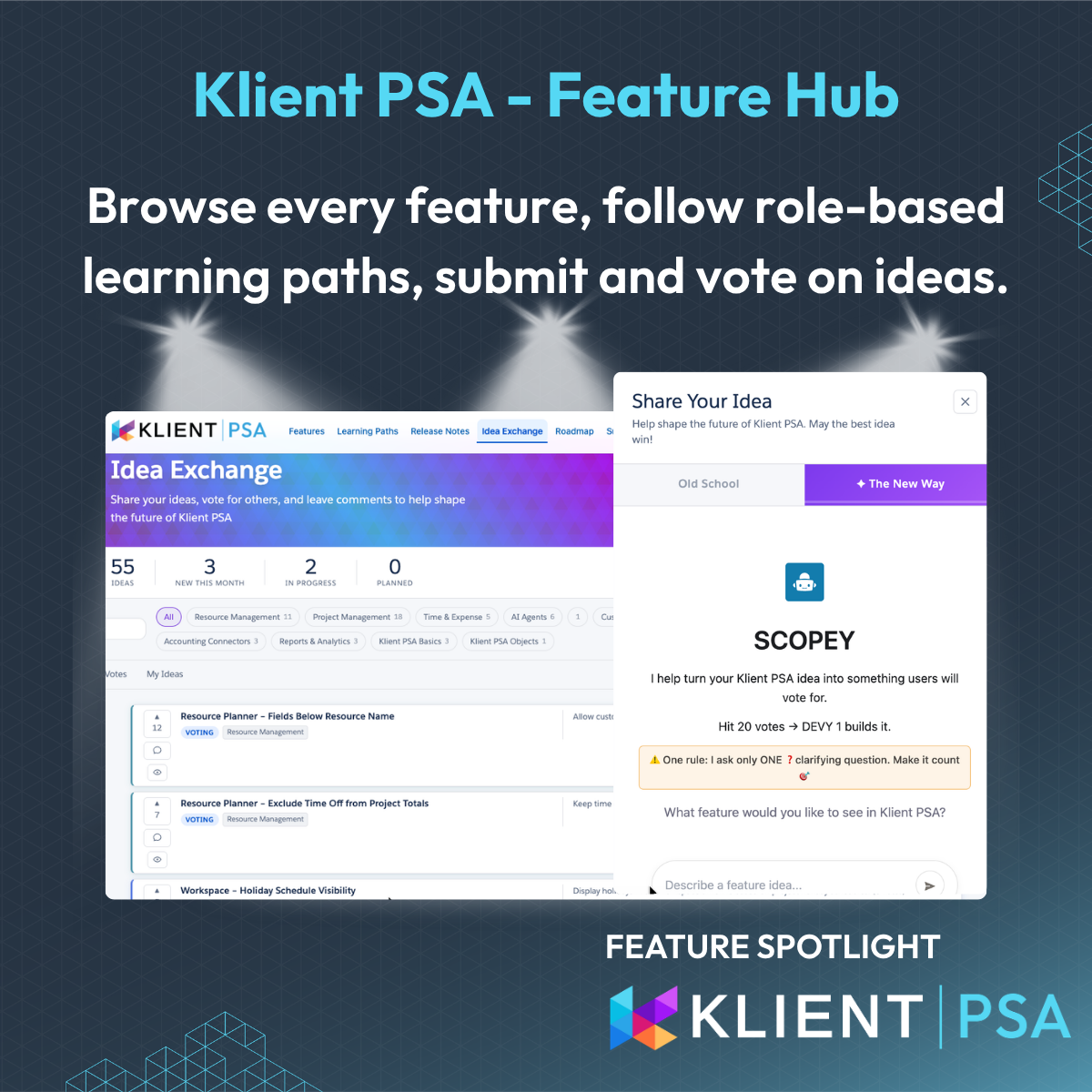
We have launched a brand new Klient Community, and it is a major step forward. It includes a redesigned Release Notes experience with smarter filtering, a new Feature Hub with structured documentation formats, and a fully revamped Idea Exchange to submit, vote, and track product ideas. Klara, our AI assistant, is also integrated directly into the Hub to give you instant answers.

The old community is still available during the transition, but this is where everything is moving. We recommend exploring it now and bookmarking it for easy access. Logging in unlocks personalized release note filtering and the full Klara experience.

Explore the New Community

EVENT RECAP

Agentforce World Tour Utrecht: A Great Success

We had a fantastic time at Agentforce World Tour Utrecht, where we demoed the future of project delivery, including our hybrid project delivery model and eight new AI agents. Thank you to everyone who stopped by our booth!
To know everything about Hybrid Project Delivery and our 8 new AI agents. It's here!

UPCOMING EVENT

Klient at Agentforce World Tour New York City — April 29th

We are proud to be a sponsor of Agentforce World Tour New York City on April 29th. If you are planning to attend, we would love to connect in person.

Reach out to your Customer Success team to let us know you will be there!


Next Product Update Webinar

Join us on Thursday, April 23rd at 11:00 AM ET for our next live product update session. Details on the agenda are coming soon. Grab your spot now so you do not miss it.

Register Now


Shape What We Build Next 💡

The new Idea Exchange is live in the Klient Community. Two minutes. Real impact.

Have a pain point that is not on the list yet? Submit it. Every idea and every vote gets read by our product team.

Vote on Ideas


Get More Out of Klient PSA Every Day 🚀

The customers who get the most out of Klient PSA are the ones who stay connected. Here is how to do that:

📚 Level up your team
Our free eLearning courses cover everything from admin foundations to advanced features. Whether you are onboarding someone new or filling a gap yourself, there is a course for it.

💡 Have your say on the roadmap
Browse and vote on ideas in the new Idea Exchange. Ideas with 20 or more votes are targeted for development.

📣 Stay in the loop
Follow us on LinkedIn and YouTube for feature highlights, tips, and product news between newsletters. Short, useful, worth a follow.

🗂️ Missed a previous issue?
Every newsletter is archived and searchable. Browse past issues to catch up on anything you might have missed.

Thank you for being part of the Klient Community
- The Klient team 💙

Klient rock in space

Replace all your tools with Klient, Salesforce #1 PSA platform

Run your entire SaaS and consulting business on a single professional service automation platform native to Salesforce!

Klient PSA Introduces Hybrid Project Delivery

Klient PSA Introduces Hybrid Project Delivery

Klient PSA Introduces Hybrid Project Delivery

Klient’s customers can now accelerate project delivery with an AI agent designed to enhance human performance and strengthen hybrid workforce collaboration.

Klient, the company behind Klient PSA, today announced Hybrid Project Delivery — a new operating model where specialized AI agents are assigned to project tasks as resources inside Salesforce, work alongside human consultants, and deliver outputs that humans review and approve before anything reaches a client or downstream system.

MANY SPECIALISTS, NOT ONE GENERALIST

The professional services industry doesn’t need one AI that tries to do everything. It needs focused agents that each do one thing exceptionally well. Klient PSA ships a catalog of eight agents today — each purpose-built for a specific part of project delivery:

AGENT

ROLE

DISCIPLINE

SCOPEY 1

Business Analysis Agent

Scoping & Requirements

PLANNY 1

Project Manager Agent

Planning & Scheduling

TIMEY 1

Timesheet Agent

Time Capture & Compliance

GUIDY 1

Customer Onboarding Agent

Client Onboarding

TOUCHY 1

Touchpoint Agent

Client Communication

CASEY 1

Customer Support Agent

Case Resolution

KNOWWY 1

Knowledge Agent

Knowledge Management

DEVY 1

Software Development Agent

Development & Deployment

The catalog is designed to grow. As firms identify new gaps, Klient will add new agents — and as each discipline advances, new versions ship alongside them. Every agent added to the catalog makes the model more complete.

HOW HUMANS STAY IN CONTROL

Two things keep humans in charge. First, every agent is a Salesforce Resource record — visible in Gantt charts, task boards, and resource reports, managed through the same interface project managers already use for human consultants. No new tool to learn.

Second, nothing an agent produces goes anywhere without explicit human sign-off. When an agent completes work, it surfaces an Outcome Review — a structured approval step where a human reads the output, edits if needed, reengages with the agent, and approves or rejects before the result moves forward.

“This is what the next decade of professional services looks like — human consultants who focus on judgment, relationships, and the work that matters most, with AI agents handling the structured, repeatable delivery around them. We built Hybrid Delivery because we believe the firms that adopt this model first will define the standard everyone else follows.”

— Yanick Abraham, CEO, Klient

KLIENT AS CUSTOMER ZERO

Every agent shipped to customers ran inside Klient’s own operations first — on real projects, with real deadlines. Klient started with a single generalist agent and learned that breadth comes at the cost of quality. The pivot to a catalog of focused specialists is the direct result. What ships today is the model Klient already runs on itself.

$1,000 PER AGENT. YOURS FOR LIFE.

Each AI agent is $1,000 USD — a one-time purchase for everything that agent delivers. No subscription. No AI surcharge. The only ongoing cost is Salesforce Flex Credits for runtime, purchased directly through Salesforce.

Klient PSA starts at $15 per user per month with a standard go-live of three weeks. All eight agents are available today at klient.com/agent-catalog/.


Klient psa 8 agents for professional services
Klient rock in space

Replace all your tools with Klient, Salesforce #1 PSA platform

Run your entire SaaS and consulting business on a single professional service automation platform native to Salesforce!

The Best Time Tracking App for Salesforce: A Consultant’s Guide

The Best Time Tracking App for Salesforce: A Consultant’s Guide

Thumbnail - How to track time in Salesforce

The Best Time Tracking App for Salesforce: A Consultant’s Guide

Published on .

We all know that every untracked hour is lost revenue. But logging time inside Salesforce? It can feel like a patchwork of disconnected tools, clunky apps, or time-consuming custom builds. Let’s cut through the noise.
In this guide, we’ll show you how to make time tracking in Salesforce simple.

PODCAST EPISODE 🎧


Listen to Unplugged: Effortless Time Tracking in Salesforce. A deep dive conversation that covers all you need to know about time tracking.

Feature Spotlight Unplugged: Effortless Time Tracking in Salesforce

by Klient PSA

What Are Your Real Options for Salesforce Time Tracking?

Here’s what the typical search journey looks like for a business leader or PM:

  • “Can Salesforce track time?”

  • “Best time tracking app for Salesforce?”

  • “How to build timesheets in Salesforce?”

  • “Salesforce PSA tool with time tracking?”

All good questions. But the answers are not created equal. So let’s break it down visually: 👇

Feature / Capability Salesforce Time Tracking App Klient PSA (Full PSA Platform)
Built Natively on Salesforce ✅ Yes (usually) ✅ Yes
Time Entry Grid with Project Context ⚠️ Basic ✅ Weekly grid, keyboard nav, copy from schedule
Approvals & Audit Trails ⚠️ Sometimes ✅ Built-in approvals & logs
Estimates vs. Actuals Tracking ❌ Not supported ✅ Integrated with project plans and real-time updates
Margin Visibility & Calculations ❌ Not supported ✅ Track cost rate, bill rate, and see margins per task/project
PTO, Vacation, and Holiday Handling ❌ Rarely included ✅ Fully integrated (auto-submits)
Project Management Integration ❌ Separate tool or manual ✅ Gantt, WBS, task panels, Kanban
Resource Planning & Forecasting ❌ Not included ✅ Heatmaps, capacity, placeholders
Reporting & Dashboards ⚠️ Basic ✅ Real-time, native Salesforce reports
Ongoing Support & Updates ✅ Limited ✅ Advisory team, roadmap evolution

Why Klient PSA Isn’t “Just Another Time Tracking App”

Klient PSA isn’t a timer widget bolted onto your CRM. It’s a full Professional Services Automation (PSA) platform built natively on Salesforce, designed to run your projects, time, billing, and resources—all in one place. That means:

  • You log time in context: task, project, resource plan.
  • Time flows into forecasting and billing automatically.
  • Your entire team—from PM to CFO—has real-time visibility.

This isn’t just about timesheets. It’s about connecting effort to impact.

What’s New in Klient PSA 50.5

We’re making time entry even faster, more accessible, and more collaborative.

My Timesheet: Enhanced Keyboard Navigation

  • Navigate your timesheet grid with Tab, Shift+Tab, and Enter—no mouse needed
  • Quick entry of tasks, hours, and comments with full keyboard accessibility
  • Project & task dropdowns are now keyboard-optimized

Impact: Your team logs time faster, with fewer clicks & fewer excuses.

✅ Auto-Submission for Full Week Time Off

  • If your approved PTO + holidays = full scheduled hours (e.g. 40h), Klient PSA auto-submits your timesheet
  • No more “I forgot to submit” delays during vacation periods

Impact: Keeps approvals on schedule without requiring user input

Auto Re-Share Timesheets on Project Role Change

  • If a Project Owner or Resource Manager changes, all relevant timesheets are automatically re-shared with the new stakeholder
  • Also applies to the “Recalculate Sharing” button

Impact: Keeps delivery running smoothly even when roles shift mid-project

Other Time Logging Features You’ll Love

  • Copy from Previous Week: For recurring tasks
  • Copy from Schedule: Pulls in what you’re assigned to
  • QuickTime (Global Action): Log time from anywhere in Salesforce
  • Start-Stop Timer: For real-time tracking
  • Mobile Logging: Log time from your phone or tablet
  • PTO Integration: Vacation, sick leave, and holiday time flows into resource forecasts automatically

👉 Learn more about Tasks & Time in Klient PSA

The Ripple Effect of Better Time Tracking

When your time tracking process works for your team, you unlock:

  • Faster, more accurate invoicing
  • Stronger project forecasting
  • Improved resource planning
  • Happier consultants and clients

No more chasing down hours. No more gaps in reports. No more delayed billing cycles.

Final Thought: You Don’t Need a Time Tracking App.

You need a smarter way to run delivery—and time tracking is just the start.
With Klient PSA, your team gets:

  • A centralized timesheet interface built for speed
  • Automation that saves hours and ensures accuracy
  • Full integration with project plans, billing, approvals, and forecasting

FAQ: Salesforce Time Tracking with Klient PSA

What is Klient PSA, and how does it improve time tracking and project delivery?

Klient PSA is a 100% Salesforce-native Professional Services Automation (PSA) platform that unifies time tracking, project management, resource planning, and financials. Unlike standalone time tracking apps, Klient connects time logs to every part of the delivery cycle—from task to invoice.

  • Individual contributors can log time easily through My Timesheet, with smart defaults, automated categorization of billable vs. non-billable, and mobile access.
  • Project Managers gain real-time visibility into team activity and availability, speeding up approvals and enabling accurate budget tracking.
  • Professional Services Leaders can track utilization, monitor project profitability, and forecast resourcing needs with confidence.

Klient PSA supports all major project types (Time & Expense, Fixed-Fee, Retainers, Recurring) and integrates with QuickBooks, Sage Intacct, and Xero to streamline billing and revenue recognition.

How does logging time off in Klient PSA benefit the organization?

Logging time off isn’t just about HR tracking—it’s a critical part of effective project delivery. With Klient PSA:

  • Contributors ensure their availability is reflected accurately, avoiding misassignments.
  • Resource Managers avoid scheduling conflicts and can proactively rebalance workloads.
  • Directors and executives get precise utilization data across both billable work and time off.
  • The business gains clarity, avoids delivery disruptions, and improves forecasting.

All time off entries go through a built-in approval workflow and automatically update project availability and utilization dashboards.

What are the different ways to log time in Klient PSA?

Klient PSA offers multiple flexible time logging options to suit your workflow:

  • My Timesheet Grid: The primary interface for weekly time entry with keyboard shortcuts, comments, and copy-from-schedule features.
  • QuickTime (Global Action Menu): Instantly access time entry or start/stop timers from anywhere in Salesforce.
  • Task-Specific Time Logging: Log time from within the task panel, Kanban board, or My Deadlines—perfect for deep focus or task-specific entries.
  • Mobile App: Capture time on the go using Salesforce mobile—ideal for consultants, field staff, or hybrid teams.

What are best practices for accurate and efficient time logging in Klient PSA?

To make the most of your Salesforce timesheet system, follow these proven habits:

  • Log time daily and submit weekly to avoid memory gaps and approval delays.
  • Track everything, even small tasks—missed minutes lead to missed revenue.
  • Use shortcuts like “Copy from Schedule” or “Previous Week” to save time.
  • Add clear comments—they improve transparency and can appear on invoices.
  • Be honest with your entries—log actual time worked, not estimates.
  • Follow internal policies—consistent practices ensure smoother approvals and reporting.
  • Track both billable and non-billable time to improve project visibility and identify process gaps.
Klient rock in space

Replace all your tools with Klient, Salesforce #1 PSA platform

Run your entire SaaS and consulting business on a single professional service automation platform native to Salesforce!

March 2026 Klient PSA Product Update Webinar

March 2026 Klient PSA Product Update Webinar

Professional Services Automation (PSA) Webinar

March 2026 Klient PSA Product Update

Klient PSA Webinar

March 2026 Klient PSA Product Update

    New Feature Hub, Undo/Redo, AI Agents, and Upcoming Version 51.3

    The March 2026 Klient PSA product update webinar delivers one of the most feature-dense releases in the platform’s history. With Version 51.3 approaching general availability on April 15, this session covers a sweeping set of UI improvements, workflow accelerators, and AI-powered capabilities.

    From a fully redesigned timesheet experience and workspace undo/redo to a contextual AI Project Agent that updates task details in a single click, Version 51.3 is built around one principle: removing friction from every daily interaction. Combined with the launch of a new Feature Hub and Idea Exchange — where documentation is interactive, AI-assisted, and community-driven — this release gives consulting firms and SaaS delivery teams a more intuitive way to plan, execute, and evolve their PSA workflows.

    Key highlights from this webinar:

    • New Feature Hub & Idea Exchange — A redesigned community with spotlight docs, quick starts, reference guides, and an AI assistant (Klara) for instant answers — plus a transparent idea voting system that fast-tracks popular feature requests into development
    • My Timesheet UI Modernization — A cleaner, streamlined interface with today-date highlighting, PTO color-coding, inline editing in Comments Mode, and visual row grouping that eliminates manual hour calculations
    • Resource Planner Enhancements — Group and sort resources by role to see team-level totals at a glance, and toggle between Compact, Standard, and the new “Comfy” display density for maximum visibility
    • Workspace Undo/Redo & Drag-and-Drop — CTRL-Z and CTRL-Y support on the grid and Gantt chart, expandable assignee columns for large teams, and avatar drag-and-drop for instant task assignments
    • Contextual AI Project Agent — A new icon embedded directly in the workspace opens a context-aware agent that can auto-generate task descriptions, update fields, and take action — all without leaving your current view
    • Kanban, Billing & Integrations — Shareable Kanban board presets with enhanced sorting by name, status, priority, and hours — plus vendor invoice search upgrades, QuickBooks receipt file syncing, and improved Jira time-tracking project mapping

    ⏳ TIMESTAMPS

    00:00 – Welcome & Agenda
    01:47 – NEW FEATURE HUB: Release Notes, Documentation, Idea Exchange & Klara
    15:00 – Version 51.3 Overview & Upgrade Considerations
    16:00 – MY TIMESHEET: UI Modernization, Comments Mode Editing & Row Grouping
    20:00 – RESOURCE PLANNING: Group by Role & Comfy Display Density
    23:50 – WORKSPACE: Undo/Redo, Drag-and-Drop Assignments & Expandable Assignees 31:35 – AI PROJECT AGENT: Contextual Task Actions from the Workspace
    33:50 – PROJECT ANALYTICS & IMPORT WIZARD Updates
    35:10 – KANBAN: Shareable Presets & Enhanced Sorting
    37:25 – BILLING & INTEGRATIONS: Vendor Invoice UI, QuickBooks & Jira
    39:40 – Ideas Voting, Product Roadmap & Agent Force World Tour
    42:40 – Conclusion

    Enjoy & register to our next professional services automation (PSA) webinar.

    Rosalie Chassat: Good morning, good afternoon, everyone, and welcome to our March Product Update webinar. I’m Rosalie, thanks for joining, we’ll wait a couple of seconds. Hi, Annik!

    Rosalie Chassat: Alright, shall we get started?

    Rosalie Chassat: Yes. All right, so let’s go to the next slide. All right, so, hi, yes, I’m Rosalie. As always, we’ll be hosting today’s webinars, and we also have Natalie in the chat, and Yannick. Hi, Yannick.

    Yanick Abraham: That was a exciting webinar. I’ve told you in one previous webinar on AI that it’s the era of creativity, and let’s say we have highly motivated people, and the pace of innovation is crazy, so, yeah, excited about this webinar.

    Rosalie Chassat: All right, and as I mentioned, Natalie is with us too, so feel free to drop questions anytime in the chat or use the Q&A.

    Rosalie Chassat: She’ll be able to answer you, and as always, make sure you participate in our polls, and use the reaction button at the bottom of your screens. And as always, let’s start with a little poll, quickly. Alright, so I’ll leave this on the side. We want to know if this is your first client webinar or not. And today, we have a very straightforward agenda. So we’ll talk about our new client community, and then what’s new in 51.8.

    Rosalie Chassat: treat.

    Rosalie Chassat: Thank you, everyone, for answering. I think we have a lot of people that are usuals that attend every month with us today.

    Yanick Abraham: only two… I think it’s only a two-agenda point, but it’s one of the busiest, or the most… the biggest release and showcase of feature we had in a long time, so…

    Rosalie Chassat: it’s a good one to join. So, thanks for coming back, and thanks for joining us if this is your first time.

    Rosalie Chassat: Alright, so, perfect. Let’s go back there. Okay, so, yes, as you can see on the screen, we have a new home, the Feature Hub.

    Rosalie Chassat: So, before we jump in the project, like we mentioned, we want to give you a sneak peek into our new community, which you can see some screenshots of here. Some of you may have seen it already, because we have some links out there that lead to different portions. This is going to change the way you interact with our release notes, how you find your information, and how you share your feedback with us. So we’ll spend a few minutes there.

    Rosalie Chassat: And then we’ll jump into the demo for 51.3. Yannick, do you wanna…

    Rosalie Chassat: Start by showing us what’s new on that release notes page.

    Yanick Abraham: Yeah, we’re gonna start by the release note, but this entire community, it’s been built for you guys, for our customer, to really simplify your onboarding, to make sure that you can learn and you can use the functionality as… you can use them as fast as possible, and make your team use them as fast as possible, so this is what has been put behind this, and the idea is that we remove barriers in terms

    Yanick Abraham: communication with you, so you will see later on, there’s a ton of innovation in regards of how we’re going to be sharing comments and ideas across this. But to start, let’s go through the release notes. So, in the menu, you have a link. In that release note, on the left side, you have the breadcrumb of all the different release items we add. One of the key ones that I like is the

    Yanick Abraham: workspace, avatar, drag and drop, this one here. Oops, I’ve double-clicked, I’m very sorry.

    Yanick Abraham: And this one here, that avatar, so you can scroll through the release notes, and you’ll see on top that there’s a menu, that’s gonna help you as well for searching. You’re gonna be able to, if I’m going back up, to expand all or collapse all the different releases, and there’s gonna be a new way of consuming that information. And Roselli, I’m sure you’re gonna love this, you can share pretty much

    Yanick Abraham: everything within this community. You can share it and send it to your colleague through social, or just copying the link.

    Rosalie Chassat: Nice.

    Yanick Abraham: There’s a ton of things, I guess, for you, Rosalie, that you’re excited about, you want to discuss, maybe the upgrades and the links here?

    Rosalie Chassat: Yeah, so a couple of things that are a nice addition that should have been there for a while, but they’re not there. So, when you log in, if you’re logged into the community, it’s gonna tell you which version you’re on, which is very useful. A lot of people are asking us, how do I know which version I’m on? There it is, and with that comes this nice toggle, what’s new since my version, that you can just turn on, and it’s gonna pop all the release notes

    Rosalie Chassat: Since that, well, in our case, 51.2.5, but, everything from your current version, you can show just the hot features only, you can show only upgrade consideration, very useful for the admins. On the left side, this menu that is now expanded, you can see, like, all the details, but Yannick, if you go up and just,

    Rosalie Chassat: Go up a little bit on the menu on the left.

    Rosalie Chassat: if people want to see all the releases, they can see, like, the dates. I don’t know where… oh, maybe that’s hidden. I think it’s because it’s, expanded, the left menu, with all the details.

    Yanick Abraham: Which one? You’re on the left?

    Rosalie Chassat: Yeah, that one, yep.

    Yanick Abraham: I, I give… yeah, I’m sorry.

    Rosalie Chassat: Perfect, yeah, so you can see on the left side all the major releases. You can see with the dates as well, so some people, don’t know, like, how old this version is. Well, it tells you right there. So a couple of, things like that, the collapse expand menu, yeah, on the left. So you can really play with that.

    Rosalie Chassat: And should be useful for everybody. I think that’s a…

    Rosalie Chassat: main thing about this one, and we’ve added a direct link to how to upgrade, so there’s a specific article how to do that. Even if it’s, like, your fourth time doing it, people still wonder how to upgrade, so you have that link right away.

    Rosalie Chassat: Yeah.

    Yanick Abraham: Right, okay, so under all this, that’s a new revamp of all our documentation. Okay, so this… those release, those are the, last one in that… those specific format that you see here. Moving forward, across the board, we are changing the way that we are creating documentation, and we’re servicing documentation for you.

    Yanick Abraham: And this goes with the feature hub, or the feature browser, which we… what we’re seeing here.

    Yanick Abraham: So in here, it’s, we’ve broken down our software based on feature and feature categories, so you can see here that we have plenty. This is a sneak peek to next week’s announcement, but we do have other… all our functionality are delivered here, such as, for example, the Snap workspace. Those are functionality within the system. You can see them at

    Yanick Abraham: or in a list format. As we saw before, pretty much everywhere in the system, you can search. And when you’re gonna open those, you’re gonna see different format of documentation, depending on your use case.

    Yanick Abraham: you’re gonna land on the spotlight. The spotlight is the marketing pitch of the feature. It’s no fluff, it’s what it does, but it’s a marketing business angle, what it’s gonna help you address in terms of performance gain, and some guidance. Key benefits for project manager in this case, the traditional way with Snap’s workspace, what’s gonna be

    Yanick Abraham: So, it’s a bit more business-oriented, but it’s giving you really a good highlight, so I’m… this is a good one to share to colleagues if you want to get people excited.

    Yanick Abraham: We also have a quick start, so we get things started, so, just to make sure that you understand the feature, so you do 1, 2, 3, 4, 5, and you’re gonna be able to create a snapshot, see your baseline tracking, so this is kind of of our quick start.

    Yanick Abraham: We have a full reference guide, so within the Snap Workspace, you can do a lot, as you guys know, but… and those… all those sub-features have been broken down. And if you are interested to understand how the SPI is calculated on the Snap workspace, you can just click on it. It’s going to bring you to that section. It gives you a little bit an idea of what it is used for, and then it gives you

    Yanick Abraham: A formula, the formula that is being calculated on.

    Yanick Abraham: Okay, so you might see, and this is something we’re gonna go deeper again next week with our first release, but you might see there’s a bubble here showing up.

    Yanick Abraham: Meaning that this is a direct way for you guys now to share information, and if, let’s say, you want more detail about, let’s say I want to move to the progress, I want to have more details, you can directly click on this bubble and leave us a comment.

    Yanick Abraham: And, as of next week, guess who’s gonna be reading those comments? It’s not just gonna be Roselle and I, it’s gonna be other…

    Yanick Abraham: People from the team, so we’re gonna be talking about this later on, but this is a direct communication on our documentation, so please feel free to leave us some comment if you want us to improve stuff.

    Yanick Abraham: Across our community.

    Yanick Abraham: Documentation ones.

    Rosalie Chassat: If it’s missing information.

    Yanick Abraham: There’s the admin guide, the release note for that specific feature, listing exactly what’s been delivered, and sometimes there’s an FAQ too, and you will see from the feature browser, when there’s an orange light, it means that the documentation is still a work in progress, and you’re welcome to leave some comments if you find anything misleading.

    Yanick Abraham: And we’re gonna automatically create it. This documentation is being created and updated automatically with our friends, the AI.

    Rosalie Chassat: And just to mention, like, the…

    Rosalie Chassat: we haven’t done all the documentation from the old community, but it’s a work in progress. So if there’s any documentation you don’t find in the new community and you want us to prioritize, like, feel free to let us know as well. We can do that one next.

    Yanick Abraham: Cool thing is that Clara is now binded to that, to the newest documentation, so what… what sort?

    Yanick Abraham: in the latest release, so you can still talk to Clara to get more information about direct communication, and if you want to dig deeper into the different functionality, you can easily have a recap showing up.

    Yanick Abraham: I’m impressed by the speed of all those Asian 4s, so you see they’re going very well.

    Yanick Abraham: Yeah, hopefully it’s gonna stay the same for the rest of the demo, but yeah, it’s going very well in terms of all our communication with those agents.

    Rosalie Chassat: We have a question, Yannick. Someone is asking if you will see your history of comments, or other users’ comments.

    Yanick Abraham: Yes, so this we’re gonna get a bit deeper, but if you just hit that bell, you’re gonna have it. We’re trying to gamify even this. We don’t give goodies yet, but I’m expecting that there’s gonna be a goodies basket available for the people that are

    Yanick Abraham: Using the platform, so yes, you’re gonna see that history, we’re tracking it, so.

    Rosalie Chassat: If Bobby leaves a comment, will he see a Johnny from another company’s comments as well in the…

    Yanick Abraham: Yes, it’s a community that everybody sees what the others are doing, absolutely.

    Rosalie Chassat: Perfect, so disclaimer, if you have any private question you want to ask or mention, don’t use the.

    Yanick Abraham: This is public stuff, this is crowdsourcing, but this is all public stuff, and the ideology behind it is that we can help each other grow, so that’s the concept.

    Rosalie Chassat: Perfect. And then for the last tab that we want to show, and then you can explore all the other tabs afterwards, but we want to chat a little bit about the Idea Exchange tab.

    Yanick Abraham: All growing, yeah.

    Rosalie Chassat: I’ve been, very annoying to the whole team about this one, so I’m glad it’s there now. So this ideas section, just to be very clear, as of now, you can kind of forget about the old ideas section and the old community, and this is the one we’ll be using moving forward. So it’s a brand new way to submit, track, vote on your ideas, going forward. So if you have an idea, you just hit the share your idea button.

    Rosalie Chassat: You type it in, you submit it, and then the idea’s gonna populate on this page. So you can see right now there’s 29 ideas.

    Rosalie Chassat: And then when you click on an idea… yeah, let me just see… if you click on an idea, let’s say the Snap workspace,

    Rosalie Chassat: you can vote on it, so you just click the vote button. You can add comments as well, so there can be a whole discussion about this. You can share it using the QR code that we’ve seen, or that button on the top right corner. So, ideally, you submit your idea, use the share button, share it with all your colleagues.

    Rosalie Chassat: And then all your colleagues vote, very easy. And then if you get 20 votes or more, then it gets, developed. I think it’s 20, I don’t know if that…

    Yanick Abraham: There’s a disclaimer around that one, but yes.

    Rosalie Chassat: That’s the idea. And what’s really nice as well is once you’ve voted, which we didn’t have in the old community, you can track what you’ve submitted. So, my ideas, which show all the ideas you submitted, then my votes, all the ones you voted for, and at any time you can see the progress.

    Rosalie Chassat: Like, if it’s in development, you can see as well if there’s more votes, if there’s some comments, so much easier to track that,

    Rosalie Chassat: And, I think we’ve dropped… yeah, we’ve dropped the link in the chat for that. If you’re worried that your ideas from the previous community have all disappeared, don’t worry, we’ve already added all of those here. And after the webinar in the next weeks or so, I’ll be sharing the links to all of these for the people that already voted, so nothing is lost, and you can make sure you continue following those.

    Rosalie Chassat: up and sharing them. And yeah, as I mentioned, I don’t… was there anything else? Yeah, there’s a couple of these filtering options, you can sort.

    Yanick Abraham: No, that was really ideas, there were some good ones.

    Rosalie Chassat: So you can look… something useful, you can search as well, so if you’re interested in a SNAP specifically, you can search for SNAP, and then it’s gonna pop all the specific feature requests related to that. So it’s just much faster to look for info, especially because we expect a lot of people to submit ideas, so the search function will get handy there.

    Rosalie Chassat: Yeah, I think that’s, that’s it for that section.

    Yanick Abraham: Yeah, I think, just so you know, if you guys are interested, with the help of our partners, this is a completely Salesforce product. It’s the evolution of a Salesforce community. It’s an experienced cloud based on LWR, if you wanted to be a technical community.

    Yanick Abraham: And it’s based on LWC components, so there’s some techie in the group. This is very exciting stuff. You can definitely build some of those yourself, or have one of our partners, or we can… we’re happy to guide you as well with our recipes.

    Rosalie Chassat: have a look after the webinar, everybody’s gonna be clicking around everywhere, and then I’m sure they’ll reach out if they want to set something up like this. And we’re, curious, of course, you can go and click on all the buttons. You’ll see some sections are still in progress. We’ll share more updates on that moving forward, but in the meantime, we just wanted to know which… if there’s a section you’re excited to check out here, everything, nothing, or some of these we mentioned, so I’ll just leave the poll on the side.

    Rosalie Chassat: And then we’ll move on to the demo of version 51.3.

    Yanick Abraham: Yeah, I should have started… Go back to the deck. Already, made some,

    Yanick Abraham: Show already, sorry about that.

    Rosalie Chassat: Good news, Yannick, at least nobody, yet has answered. They’re not interested in looking anything up. So they’re excited about something. Nobody answered nothing for what they want to explore in the community, so…

    Rosalie Chassat: Alright, okay, so let me end the poll.

    Rosalie Chassat: Perfect, thanks. Yeah, so for 51.3, we have 4 upgrade considerations, mostly around the integrations, and the Kanban that we’ll just briefly mention. Again, very easy way to filter these, out afterwards.

    Rosalie Chassat: And then we have quite a lot to cover on this release. It’s one of the most jam-packed. It’s all little UI things, mostly, but all super useful. So, we’ll get started, Yannick, with our timesheet-related ones, which I think that’s the biggest piece of 51.3, to be honest.

    Yanick Abraham: Yeah, in terms of look and feel, we have a new and improved, so without further ado, this is the new My Timeshaked look.

    Yanick Abraham: So it’s really… we’ve streamlined it, in terms of, remove some of the clutter that we had. If you see here, you only see comments bubble for the hours that you have. In the past, you had comments bubble everywhere.

    Yanick Abraham: The color coding, we’ve been playing with this, and some of those are configurable within your parameter, but you unify the look, so you have your My Timesheet, your utilization, and your logar area on top.

    Yanick Abraham: You have your bottom part as well that’s our color coded. When you’re taking vacation or time off, you can see it’s all purple in this one. We have an underline here, or a line on top of the today’s date, so this is today, so we can easily situate and locate ourself.

    Yanick Abraham: That’s my favorite one.

    Yanick Abraham: I’m sorry, was that it?

    Rosalie Chassat: Today is my favorite one. Often you forget which day.

    Yanick Abraham: DMI.

    Yanick Abraham: And you can also note that there is a lot less button in here. We’ve moved some of those buttons here directly from that gear icon. You can still do our copy from schedule directly from here.

    Yanick Abraham: to add your different line, you can refresh and easily move around. If we’re looking as well as in the comment mode, we’ve also revamped the look and feel of that comment mode, and we’ve added a functionality in the fact that you can add rows and you can edit some of those rows.

    Yanick Abraham: So if I want to just, let’s say, lug some hours on my face to prep.

    Yanick Abraham: 2 hours of prep, I can just go ahead and do this. And, yeah, so we’ve bonafide that comment.

    Yanick Abraham: Is it common mode?

    Yanick Abraham: Let me revert back, and let me just, as well, toggle the calendar. So if I want to add the calendar, I can just easily add the calendar at the bottom, and you can see that, again, I have some of that Phase 2 planning stuff that maybe I want to add to my timesheet, so…

    Yanick Abraham: Let me just select exactly the same task as just before. I’m gonna add this as a line.

    Yanick Abraham: And bear with me a second, I’m gonna do the exact same thing for this specific line, too.

    Yanick Abraham: So now I have those 3 lines that are being showing in my time, and you can see they’re all different lines, so this has been bothering some of you guys, because you can end up with a lot of lines, including Roselli, when you’re using our time and start timers, or stop clock. So now, you can easily group, so you can see that we have that icon here on the left.

    Yanick Abraham: that can easily allow me to group. Let me just remove the calendar.

    Yanick Abraham: So you can now see that, for example, I have my tree lines around those tasks that one I’ve just saved, the other two are not saved yet, they’re in yellow. They’re all grouped, so you can easily expand and group as well from within those two components.

    Yanick Abraham: So hopefully that’s gonna help you out in terms of figuring out what is happening and where you’re logging your hours, instead of doing manual calculation.

    Rosalie Chassat: These are just all excuses that… we’re just trying to remove all the excuses for not logging time, so we’re adding all these, so now there’s no more.

    Rosalie Chassat: No more excuse. I know the comment mode, the editing on the comment mode was one that a lot of people asked for, and it was up for voting, so…

    Rosalie Chassat: Happy that one got in, and for those of you that were looking at the calendar that Yannick was showing and have no idea how that ended up there, probably you’re an older version, but since January, you can integrate my timesheet with Microsoft or Google, so if you want that, you just need to make sure to upgrade and you have to set that up.

    Rosalie Chassat: No.

    Yanick Abraham: There’s a lot to unpack just in that small demo we just did.

    Rosalie Chassat: Alright, so, timesheet, we’re good, and I think we can move on to resource management side. Two small things.

    Yanick Abraham: Resource Planner…

    Yanick Abraham: Let me go back… so there’s two things, so a group by role, sort by role, and display density on the resource planner page.

    Yanick Abraham: Alright, just gonna reload my page, just give me a sec.

    Yanick Abraham: Okay, so, standard view here, nothing.

    Rosalie Chassat: bar.

    Yanick Abraham: of the ordinary in that view to show the two different items we’re talking about. One is within that group by, so we’re gonna be able to group by role now.

    Yanick Abraham: Meaning that you can have your different roles and the total of hours, and you get your different people underneath every one of your roles, so if you want to see your project in that your bench or your utilization within that way, you can do so.

    Yanick Abraham: So this is one new mode that you can group by. We’re gonna evolve that as well, because you can see that here on top, the color coding is not there yet, so we haven’t applied any rules for those color coding, but we’re gonna soon add those in. Plus, you can sort with multiple, multiple ways in terms of your,

    Yanick Abraham: Your, your different role.

    Yanick Abraham: What was the other one, wasn’t it?

    Rosalie Chassat: The Compact and Comfy, that’s my favorite one. Yeah, compact and Comfy.

    Yanick Abraham: We’ve added a button here on top, display density, compact confit, so let’s move to the standard way of doing things is what we’re looking at now, but so let’s me switch to confit. So confit, what it does, it’s confit, but for me, it’s also complete, because it’s really telling you everything that is showing. So if you want to make sure that you are not… there’s no specific filter.

    Yanick Abraham: Or if you really want to just easily switch between your representation instead of going through a menu. Let me just go back to my,

    Yanick Abraham: What did they change?

    Yanick Abraham: Sorry, let me just revert back to my NPS team.

    Yanick Abraham: If I wanna go back and confi-

    Yanick Abraham: And if I want to display, for example, just my hours, simply, if I want to sort my… and it made me figure it out that we do have functionality or sort that I wasn’t aware of, so if I want to sort by hours, total hours, you can do that directly from here, too. And you can easily switch between, and let’s say I don’t want to see my placeholder, I can just remove my placeholder right from here as well.

    Yanick Abraham: So, yeah, this is the comfy mode, where you can easily see what’s, being shown, what we’re showing in the,

    Yanick Abraham: In the interface.

    Rosalie Chassat: Just wanna launch a quick poll, don’t wanna…

    Rosalie Chassat: people to fight or anything, but I’m just curious to see which mode you prefer from looking at it. And a few, disclaimer, just keep in mind, again, this red little star on the preset, anytime you change one of those buttons, just make sure you save it so it saves as a preset. And also, if you are sharing your resource planner presets with others, when they open up

    Rosalie Chassat: this menu is much clearer what they’re looking at, so that’s also… I’m facilitating the whole sharing. So it looks like, oh, majority of people, Yannick, prefer the comfy mode. Well, now you can choose!

    Yanick Abraham: Yeah, I love it too. That’s, it’s a great…

    Rosalie Chassat: We added it.

    Yanick Abraham: right in front of you. I love it too.

    Rosalie Chassat: Alright.

    Yanick Abraham: Okay, that’s, customer ideas, right? So, this is great.

    Yanick Abraham: Oh yeah, that’s a lot of text, so let’s move out of that slide and go, and go into the details.

    Rosalie Chassat: There’s always a lot happening in the workspace every release, I mean, that one as well, but…

    Yanick Abraham: Okay, so, we’ll,

    Yanick Abraham: We’ll send you the deck afterwards, but so, what we’re gonna start with, it’s, on the workspace side of things, we’re gonna go into, editing one of our projects.

    Yanick Abraham: And, we’re not gonna inure this pop-up, so this is gonna be the first feature we’re gonna be looking at. So, nice flashy pop-up, and it’s a nice flashy functionality. You can now do undo and redo on the grid and on the again side of things. So, it’s our first introduction, it’s been a long time coming, a very exciting feature. It’s our first evolution, again, of this feature, because it

    Yanick Abraham: doesn’t undo everything. It skips some stuff, and we will be improving those notifications as well of what is being skipped within. We can look at the release note to look at the detail of it. But let me show you a few of those details. So first, you have those, Coach Marks that, that we love.

    Yanick Abraham: That’s gonna introduce you to those functionality. If I’m in here in that project, where I’ve logged some of my, my hours a few moments ago, in that Phase 2 prep, let’s say I wanna modify and make this bigger here on the left, on the right side.

    Yanick Abraham: And in my… oops.

    Yanick Abraham: Estimated hours, let’s say I’m going to change this to 12 hours.

    Yanick Abraham: And, those two statuses, we’re gonna… let’s say I’m changing it to just blocked, so we can see the crawler coding. And now I’m hitting on the keyboard, CTRL-Z,

    Yanick Abraham: For undo, like a traditional undo stack, you can see, no more red. Again, the 10 has reverted, and here on the right side, again, that timeline and Gantt has updated.

    Yanick Abraham: So, pretty neat, pretty cool.

    Rosalie Chassat: Looks like magic to me. And I see you sneak into, you sneaked as well the bulk updating functionality in your little demo as well, which we released a couple of releases back, so… combination of all of these makes the workspace now pretty usable.

    Yanick Abraham: And, I don’t know why in this release note, the undo is not as a fire…

    Rosalie Chassat: Professional shop.

    Yanick Abraham: Let me just find it again. So that, undo, redo, stack, but you have the list here. I just want to show you this, because you have the list of what is supported now. Like I said, we’re gonna make it more visual from what you’re not reverting back, so just be careful when using it, because we’re skipping

    Yanick Abraham: On top of the thing that we cannot revert.

    Yanick Abraham: So just be careful, but those are the things that are not tracked now, and we’re going to be adding up to the undo stack in the next few weeks.

    Yanick Abraham: Okay,

    Yanick Abraham: I’m gonna show a bunch of stuff, Rosely, and tell me which one I’m missing, okay, from the stats.

    Yanick Abraham: I’m gonna now look into the assignee columns from here, and you can see that here there’s the collapse with a plus 2 on top for my assignee.

    Yanick Abraham: We’ve added that now you can expand it, and it’s gonna show you your entire rooster. In this specific project, it’s not a big deal because there was only 3, but when you have a bigger project, when you have a bigger team, you’re gonna be easily be able to move things around.

    Rosalie Chassat: If I can add, if you do expand the assignee, column width, this is something, again, you can save on your presets to make sure that if you know this project has a lot of assignee, just save it so that when you’re looking at it.

    Rosalie Chassat: It’s capturing that. Yep.

    Yanick Abraham: And in our case, for example, another… this is for me, this is my, odd feature. You can now, for example, we have those two, Phase 2 projects that’s starting tomorrow. This is where I log my hours. You can see that nobody’s been assigned on those two tasks at the bottom. So now you can just take a resource.

    Yanick Abraham: And you can just drag and drop it on the resource. So, this is wonderful, and while it’s saving, I can then just do the same thing from here, and assign my people like this. So this, for me, this is one of my favorite ones. It also goes end-in-hand with next week’s release about who else we’re going to be able to assign on task.

    Yanick Abraham: We have a surprise there for, next week, as well.

    Rosalie Chassat: And a couple of things, like, if you just make the width even smaller, you can also click on the plus button, and it’s gonna… you’re gonna have a pop-up of who the plus people are.

    Rosalie Chassat: But yeah, if you click on that plus button, then it puts a list of everybody.

    Yanick Abraham: When you have a, yeah, a bigger project, and you have your list of everyone.

    Yanick Abraham: It’s very snappy, right? Everything we do, it goes fast. Speed is of the essence, and our interfaces are going fast as well. I’m very excited and happy about this. If you find some newness, just let us know.

    Rosalie Chassat: If anything on the demos, often customers mention it to me, but if there’s anything you see that Yannick is demoing, like a button, or a column, or a field that you’re like, oh, I don’t have this, take notes and send us a message afterwards, we can help you set this up on your view, because I know it happens a lot, like, I saw this in the webinar, I don’t have this, why? So just let us know.

    Yanick Abraham: And that’s also why we are redoing the community and the knowledge article, just to make sure that you’re gonna be able to find it, or at least you’re gonna be able to ask Clara, and she’s gonna tell you what to do and what you have to do, so…

    Yanick Abraham: Okay, so which one have we done? Undo, redo, this one, this one is done. Project agent, icon, we’re gonna come to it. Let’s…

    Rosalie Chassat: I’m tab. Enhancement.

    Yanick Abraham: Let’s just do time tab and the agent. So, let me go in that Phase 2 prep here, and let me open up that right side panel.

    Yanick Abraham: And you can see, just for the sake of the next step of the demo, you can see… I’m gonna delete this text here.

    Yanick Abraham: And you can see that on the time tab, we’ve added a few components.

    Yanick Abraham: To see, and actually… Sorry, run tests in my demo, I was supposed to open up this one here.

    Rosalie Chassat: 90 hours, that looks better.

    Yanick Abraham: More hours on this one. So, in that time tab, we have all the hours that have been logged, but now we’ve introduced, at the bottom, some tables that’s summarizing by resource, but also by role.

    Yanick Abraham: So a little bit the same thing of the timesheet where we’re grouping all your rows from the same task, but now you’re grouping those by role and by resources, so you can get a total instead of having to do some maths as well in your,

    Yanick Abraham: So, that time tab is something that we’ll introduce.

    Rosalie Chassat: We’ve added all the columns as well on the top, from columns. The… we added the task summary at the bottom, and then the column…

    Yanick Abraham: True, let me go back to…

    Yanick Abraham: Which one was that? This one?

    Rosalie Chassat: I think it’s the resource, role, and notes column that we added there. So if there was any notes as well before, you would have to look.

    Yanick Abraham: In the column area, absolutely, yeah, you’re right. Those columns here, we’ve added more columns as well.

    Rosalie Chassat: And if you had a custom field that’s shown on your timesheet, like a case, for example, that column is going to show there as well.

    Rosalie Chassat: No, you can… no, we’re good.

    Yanick Abraham: Okay, let me just… I thought I opened up the next thing…

    Yanick Abraham: I’m sorry.

    Yanick Abraham: Okay, the next, the next one is the project agent, and I was looking for my prompt…

    Yanick Abraham: I didn’t find it there, so let me come back here…

    Yanick Abraham: Sorry, it’s one of those demos that there’s a lot of different steps. Okay.

    Yanick Abraham: This is cool, this is Agent. We’ve mentioned that we will talk about Agents in every one of our webinars. This is the part with the snippet at the end, but this is the part. So if I press here, that small icon that’s been added, if you have Agent with us, or if you have one of our PS agents, you’re gonna have that tab popping up.

    Yanick Abraham: And it’s a contextual tab, meaning that it’s looking at the… that agent is looking at that Phase 2 prep in that project, so it has both contexts. And, let’s say I want to write a nice task description for that prep task that I’ve created. Sometimes you want to have customer-facing description, so you can see, just from that description, it created me that description.

    Yanick Abraham: And it already updated my task details, so you saw me save it before, so it updated right away. So this is an amazing agent to be able to talk to him and to be able to have him interact with your task.

    Yanick Abraham: This is the first entry of our project agent in a contextual way, either on the task-by-task basis, but you also have that project agent looking at the project itself, instead of just looking at that

    Yanick Abraham: each individual task. So, at the end, they can still roll back and go up, but the idea is to have them in context with a single click. So, this is exciting stuff from that 51.3 release.

    Rosalie Chassat: And I think technically, like, you had the name of the task in your prompt, but you don’t need the name of the task, because you’re already on the task, right? So you could have just written the description for that.

    Yanick Abraham: But it can do a lot of things, and a lot is to be seen.

    Yanick Abraham: Okay, coming back to the deck, now we’re gonna look at Project Analytics and Project Import Wizard, so opening up that specific project.

    Yanick Abraham: We’ve added a few,

    Yanick Abraham: a new line, or new columns of information, so task summary, so the total number of tasks, the number of open tasks, and completed tasks. So it’s a small update, but this we are,

    Yanick Abraham: dedicated to improve that KPI component. I’m not sure if it’s already an idea on the IDEXchange, but having it configurable based on the project type is definitely something that we would be open to do, so this is a small addition.

    Rosalie Chassat: You can vote for that idea already.

    Yanick Abraham: for it, now that you have a way to do so.

    Yanick Abraham: So, this is the first one, and the other one, it’s a simple thing, but if you’re using Project Import Wizard, even within a project now, if you want to add some test template, or add some…

    Yanick Abraham: additional project within an existing project, you can use this. And now we’ve added the fact that you can also look at any completed, cancel, or archived projects, so…

    Yanick Abraham: You can filter out for those and can look for those, type of project right from the project import wizard.

    Rosalie Chassat: Yeah.

    Yanick Abraham: Project site.

    Rosalie Chassat: Moving on to the Kanban!

    Yanick Abraham: Kanban! Okay, so share, save preset, and the other one, and then sorting with additional fields. So, same project. I’m going back here, and I’m opening up that Kanban.

    Yanick Abraham: Now, what we have, let’s look at presets first, because, again, we have a nice Coach Mark telling us that, oh, I should create one of my first presets. I didn’t have any, so,

    Yanick Abraham: Cool preset, let me save it, and then this is that now you can share it, right? That’s the news, Jose, so that now we can share that preset, and you can share it to the entire company, specific resources, and all our different options that we have in our other interface.

    Yanick Abraham: First one. And then the other thing is that we’ve added some, sort…

    Yanick Abraham: sort by, filters. I’m not sure exactly which one. Hours low, estimated hours, I’m pretty sure those are the…

    Rosalie Chassat: We added name, status, priority, hours.

    Yanick Abraham: Yeah, so a bunch. So we have a bunch to sort by, so this way you’re gonna be able to sort your card in different, with different angles. You’ve mentioned that maybe,

    Yanick Abraham: You wanted to see some of you… you mentioned, Rosalie, that showing how to add fields on the card might be something of interest.

    Yanick Abraham: If you want, I can take two seconds just to show you how to do it. So, those are based on our client tasks, right? So, if you go and setup, and if you look at your client task.

    Yanick Abraham: And a lot of our interface use this concept, so you have a concept of field set, and then you can go to your Kanban project Kanban card fields, for example. We might have a different one for global, and then you can decide which field you want to add into, so we had estimated hours before, so if you want to bring those estimated hours in, save it, and then it’s going to be showing in your

    Yanick Abraham: cards, so this is as simple as that. If you wanna.

    Yanick Abraham: If you want to show some of those additional fields in your Canva.

    Rosalie Chassat: Perfect.

    Rosalie Chassat: Yeah, and specifically for this one, there’s an upgrade consideration, they need to add those new fields we showed, to the field set for the sorting.

    Yanick Abraham: Integration?

    Rosalie Chassat: Yeah, last day.

    Yanick Abraham: flying by. So, billing and financials, we did a few things. So, QuickBooks now, we, we sync,

    Yanick Abraham: the receipt file from QuickBooks to Salesforce, so if you had PDF in QuickBooks, we bring those back over. And we have new project mapping on the expense line. You might have heard, and Rosely might have talked to you about it, but we have a Jira time tracker, so it’s a component in Jira where you can log time in client.

    Yanick Abraham: And for being able to sync projects, we added more options, and so there’s a new field. If you don’t use it, you don’t need to care about this one, but we’ve added a few functionality in that regard.

    Yanick Abraham: And then,

    Yanick Abraham: what I want to show you is that vendor invoice. We don’t show it often, but…

    Yanick Abraham: If you didn’t know that you can, for example, if you have an external consultant working, or external resources working on your project, you can use our vendors, and you can use… create vendor bills to create vendor invoice. And what a vendor invoice is.

    Yanick Abraham: It’s some hours that those external resources have lugged, and now you can easily, right from here, select which vendor you want to search for.

    Yanick Abraham: And now it’s going to only return those two vendors, and we’ve had… in our case, there’s only a few, doesn’t really matter, but a lot of you that are using that functionality, you have a lot of extra vendors, so it’s difficult to search, so now it’s going to be easier. And you even can do some filtering right from here, so some search, so it’s going to highlight which one.

    Yanick Abraham: And you can easily clear it. So, for those of you that are using this interface, it’s going to be really a game changer in terms of usability and how fast you can go to generate your invoice for your external consultant.

    Rosalie Chassat: Yay!

    Rosalie Chassat: All right, I think that’s what wraps up, 51.3, and I’ll just pull a quick little

    Rosalie Chassat: poll, because we’re just curious, always. We are curious, Yannigan, myself, but also the rest of the team, especially the product team, curious to know, like, of all the things we presented on 51.3, are there some of them that you’re really excited, to try out? So I’ll leave the poll on the side, and continue with the rest.

    Rosalie Chassat: of the presentation, so…

    Rosalie Chassat: All right, just a quick reminder, the version 51.3 currently is not yet available. As of next week, it will be available in beta, which means you can upgrade to it, but it will be generally available on April 15, mid-April. You can already look at all the release notes, though, and review that and decide in advance, game plan what you’re gonna start using or not.

    Rosalie Chassat: And okay, so I have the poll. Next thing, quick reminder, the roadmap, as always, you can look at the roadmap, from our community, check what we’re working on. Again, all those emojis of, which one are ideas, which one not.

    Rosalie Chassat: That one is available in the new community as well. It’s the same than the old one.

    Rosalie Chassat: And I think one thing we wanted to just touch on, before we finish the webinar, Yannick, was agents.

    Rosalie Chassat: So we will have a press release coming next week talking a little bit more about agents, and actually, our next webinar on April 23rd, will be fully dedicated to agents, so 51.4 will come later, in May, so we’ll talk about that in the

    Rosalie Chassat: webinar after, but April 23rd will be on agents. Is there anything, Yannick, you can already share with us about agents?

    Yanick Abraham: Yeah, you had a few sneak peeks, I would say, of what we’re releasing for next week. We are… we’re gonna be next week in Utrech, in the Netherlands, for the Agent Force World Tour. This is where we’re gonna do some of the press release. We have a booth there, so if any of you are in Europe, in the Netherlands, or Benelux, or even the UK, and you want to come and say hi.

    Yanick Abraham: We have a booth on the April 1st. We’re also throwing a happy hour the day before, on 31st, so please reach out if you want to come. You are all invited.

    Yanick Abraham: This is April 1st, but also on April 29th, we’re gonna be in New York.

    Yanick Abraham: So, if any of you are in New York on April 29th, there’s another Agent Force World Tour, and we’re also gonna be there with a boot again that time, and we’re looking for the Toronto one in May, 7th of May, where we’re also thinking of having a boot.

    Yanick Abraham: Well, yeah, let’s wait for next week for some nice announcements.

    Rosalie Chassat: Oh, that was the slide, you just sneaked it in like that? Alright, so, yeah, let us know in the chat, or reach out to us afterwards if you can make it to any of those events. And then, I’m just gonna launch the very last poll. We want to know, as always, how did you like the webinar, if you liked it or not? Especially if this is your first time joining the webinar, let us know what you think.

    Rosalie Chassat: As always, I invite you to register to the next webinar, April 23rd. We’ll send a follow-up email, I’ll send a follow-up email with all the links to the new community in case you missed it in the chat, and everything we talked about, and link to the recording, and all that fun stuff. And otherwise, I hope to see you all on the next webinar.

    Rosalie Chassat: And, go check out that new community. Yannick, anything you want to add?

    Yanick Abraham: Yes, please try the community. We’ve built that future up for you. This is part of the offering, it’s part… it’s included with your license price. The idea is to make your life easier, simpler. You have ways to reach out to us in terms of the documentation, just by leaving comments.

    Yanick Abraham: You can reach out and create ideas and vote on ideas, and you can see we’re developing fast, and we are delivering a lot of those, so…

    Yanick Abraham: please, test it, go around, try it out, try Clara as well, because for each case, Clara can spend helping you, then the rest of the team can work on building other cool stuff, so please use Clara as much as possible. She’s improving every week, the documentation is better. If you have problems, tell us, we’re gonna improve her, so this is the mode we are in, we are

    Yanick Abraham: We’re continuously improving, improving, improving all our processes.

    Yanick Abraham: So, and our agents, so please give us some feedback.

    Yanick Abraham: Exciting times.

    Rosalie Chassat: Alright, have a great rest of your day, and we’ll see you next time!

    Yanick Abraham: Thank you, everyone!

    Rosalie Chassat: Bye, bye.

    Yanick Abraham: Right?

    OUR HOSTS

    Yanick Abraham

    CEO – Klient
    Customer success

    Rosalie Chassat

    Customer Success – Klient

    DOCUMENTATIONS

    Klient rock in space

    Replace all your tools with Klient, Salesforce #1 PSA platform

    Run your entire SaaS and consulting business on a single professional service automation platform native to Salesforce!

    February 2026 Klient PSA Product Update Webinar

    February 2026 Klient PSA Product Update Webinar

    Professional Services Automation (PSA) Webinar

    February 2026 Klient PSA Product Update

    Klient PSA Webinar

    February 2026 Klient PSA Product Update

      Snap Workspace, Burndown Charts, and release 51.2

      The February 2026 Klient PSA product update webinar marks a significant milestone for professional services teams running on Salesforce. With the official launch of the Snap Workspace and the upcoming general availability of Version 51.2 (February 25).

      From Schedule Performance Index calculations and forecasted labor hours to five distinct visualization types — including resource heat maps and milestone-integrated burndown charts — the Snap Workspace transforms raw project data into actionable delivery intelligence.

      Key highlights from this webinar:

      • Snap Workspace with Project Performance Analytics — Track schedule vs. actual performance over time with SPI metrics, automated resource alerts, and data-driven hour forecasting across projects
      • Five Visualization Types — Multi-layer graphs, cash vs. hours, resource heat maps, burndown charts, and variance analysis give PMOs and services leaders multiple angles on delivery health
      • Version 51.2 Enhancements — Transpose projects directly from the workspace, reassign resources via right-click in the planner, and leverage remaining availability defaults in the resource compare UI
      • Resource Planning Improvements — Bulk reassignment through control-select grouping, enhanced compare views with current project visibility, and an editable My Schedule component for resource autonomy
      • AI Project Agent v0.3 — Update fields, create tasks, and retrieve project financials using conversational English — all natively within Salesforce
      • Ecosystem & Roadmap — A new Jira time-tracking integration on the Atlassian Marketplace, workspace undo/redo on the horizon, and an upcoming Touchpoint Agent for automated customer follow-up
      ⏳ TIMESTAMPS
      00:00 – Welcome & Agenda
      01:55– Support Agent Klara – Release Notes – Upgrade considerations
      03:40– PROJECT MANAGEMENT: Project transpose – Mass assignment notification
      08:40– RESOURCE PLANNING: Reassign TAS/PAS in resource planner – Project breakdown in resource compare
      14:15– TIME LOGGING: Configurable view timesheet link – Hh:mm support in mobile timesheet
      15:00– Snap Workspace
      39:50– PROJECT AGENT updates and enhancements
      43:15– Ideas Voting & Product Roadmap
      45:00– Conclusion

      Enjoy & register to our next professional services automation (PSA) webinar.

      Rosalie Chassat: Good morning, good afternoon, everyone, and welcome to our February product update webinar with Client. I’m Rosalie, and joining me, as always, is our CEO, Yannick. Hello, Yannick!

      Yanick Abraham: Hey, what’s it, heap?

      Rosalie Chassat: How you doing?

      Yanick Abraham: Very good, very good. Can be happier. I’m coming back from a week vacation with my friends, skiing in the Alps. I know we have a lot of Europe customers here, so I can’t believe you guys have this in your backyard. I really want to go again, so find me an excuse to go visit. I’ll go anytime. It was awesome.

      Yanick Abraham: If anyone has key trip suggestions as well, you can drop them in the chat.

      Rosalie Chassat: All right, and as always, we have Natalie as well, who will be in the chat to help you answer questions live, so feel free to drop questions anytime. And quick reminder, participate in the polls, don’t be shy with reactions, because we see them, so, yeah, just keep it interactive. Let’s start off with our very first, very first poll. As always, we are curious to know if we have new customers.

      Rosalie Chassat: Not new customers, if you’re, used to these webinars, so we want to know if this is your first client webinar, you can take a second to answer, and then we will move on to our agenda.

      Rosalie Chassat: And today, we have a really packed agenda. Actually, I’ll leave the poll on the side. But we will start with what’s new in version 51.2.

      Rosalie Chassat: Which would be officially released next week. Then we’ll, well, actually, Yannick will do a walkthrough of the Snap workspace, which we talked about last time, but we just mentioned it by name. Today, we are actually, showing it.

      Rosalie Chassat: And then we’ll give you a quick update on the latest improvement with our project agent, and we’ll finish off with product roadmap, ideas, and conclusion, a couple of other updates. So, we’ll fit it all in 45 minutes. Thanks for answering the poll. It looks like… oh, we have a lot of new people today, so welcome!

      Rosalie Chassat: Awesome. I like that. Welcome.

      Yanick Abraham: Perfect. Alright.

      Yanick Abraham: So if you want to start your webinar following career…

      Rosalie Chassat: We’ll see, we talk very fast, so that’s what feedback we have. All right, as always, we encourage you to review our release note when you are upgrading, and pay a special attention to those upgrade considerations with the red light emoji, which indicates when a system admin has to do something specific. So for this release, there are four upgrade considerations that we highlight on the slide to make your life easier.

      Rosalie Chassat: But, when you’re in the client community, you could also simply ask Clara, who’s our chatbot, what are the upgrade considerations for 51.2? So, I’m sure…

      Yanick Abraham: Our age, not.

      Rosalie Chassat: Our agent. Our agent, Clara. Alright, so I’m sure after today, everybody will go in and ask this very question to Clara, but you can ask her any other questions as well. All right, let’s move on to the next slide.

      Rosalie Chassat: 51.2. So this version, FYI, currently on beta, and it will be generally released next week on February 25th. This is something new, we are doing the beta release, so if you’re an early adopter, you’ll be able to upgrade right away when we release the beta version. You just need to email our support team to get the link. And then we really do welcome your feedback. And then two weeks later, we will always release

      Rosalie Chassat: the version, GA. So yeah, that’s about it. This is what we’re going to cover for 51.3 and, 0.2, and then we’ll move on to the next section of the webinar.

      Rosalie Chassat: All right. So, first off, project management. So, at the end of October, we released version 50.8, which had the transpose project functionality. I heard many customers are already using it, but on 51.2, we added it to the workspace. So, Yannick, do you want to show what that is about?

      Yanick Abraham: Yes, absolutely. And in regards of the beta link, for now you have to ask support, but eventually we’ll put it on the community, so this way you can try it out.

      Yanick Abraham: So this is the new period of time that we allow ourselves to play a little bit with the feature, get some early feedback from you, so don’t hesitate to, Albert.

      Yanick Abraham: Okay, the use case, you have a project, a project that you took time to schedule, plan, or maybe use a template, but it moved in time. We’ve released our transpose project that you can call even by API or by flow to transpose your project based on any kind of trigger you want.

      Yanick Abraham: But as well, in the past, what you needed to do was to select all of it like this, and you could move right and left.

      Yanick Abraham: But we’ve introduced that action, transpose project, directly from the workspace now, so if I just go in in my action, go transpose project, it’s gonna offer me to either transpose the entire project or some specific task.

      Yanick Abraham: Let me go for entire project. When it’s gonna ask me, it’s gonna tell me which date you want to transpose to, or I can even transpose by a certain number of days. So let’s now say I’m gonna move it to, to today.

      Yanick Abraham: and move it up, but before I do that, I just want to show you the other option. So you can decide to move just some section of your project, or some task, meaning the parent, the children, and the dependent task will follow through if you do that move. And again, you have the same thing, specific date or specific day. So let me go switch to today and save it.

      Yanick Abraham: So this new functionality is available from the action panel on the workspace.

      Rosalie Chassat: And it works independently of workspace filters, so if you have filters, it’s still considering the full project.

      Yanick Abraham: Absolutely. So now you see that the entire project got moved, and I forgot to mention at the beginning, but you can see that my project does do have some dependency, but you see that block phase 2, there was no dependency at all, and it still moved it, so it’s not a question of just dependencies, it’s moving everything, and we’re going to be talking about the scheduling a bit later on, so this moves all the schedule as well at once.

      Rosalie Chassat: Perfect, and you can do that from the global workspace as well, just if that’s… you need to do multiple projects at the same time.

      Rosalie Chassat: Yeah, next one.

      Yanick Abraham: Following up on the agenda was the new indicator. It’s just a visual indicator, so when you’re either sorting, or, like, in this case, I’m sorting by task name, you can see that the button here showed up, but now you can see it’s red, so to make, to, to make it easier to grasp that there is some sorting, or if I just want to see my project manager, if there is some filtering.

      Yanick Abraham: This way, now, those boxes are highlighted in red, so it’s easier to know, how come I’m not seeing all my tasks? It’s because you have to filter applied.

      Yanick Abraham: Good. I see a smile, was that Ian?

      Rosalie Chassat: Yeah, I know it happened a lot of times that you weren’t seeing the right result, and it was just, like, kind of hidden at the top, so I think that’s…

      Yanick Abraham: This is fixed stuff.

      Yanick Abraham: And the last thing here, okay, so when, let’s say I have this, again, from… from the workspace, let’s say I want to assign those three tasks, I can multi-select.

      Yanick Abraham: can right-click, and I can do choose assignee, and then let’s say I wanted to assign maybe a Jenny Red on this. I can also add… we have a… we’ve added that checkbox in that FI Resource, so she’s going to receive an email for every task that she’s been assigned, as soon as I’m gonna save. So, this is… we had that functionality available from the task panel, and from initial assignment.

      Yanick Abraham: On the task panel, you have it here on the right, next to the resource name, so it can load.

      Yanick Abraham: Just reopen it.

      Yanick Abraham: Time to take a sip of coffee, I guess.

      Yanick Abraham: So, that small arrow here, in this case it’s grayed out because there’s no email address associated with my resource, but it’s the same behavior. It’s sending that email out to your resources.

      Rosalie Chassat: Perfect.

      Yanick Abraham: Okay. And to conclude on the project management side of things, we add, added some support on the homepage. Do you want to go through it, Jose?

      Rosalie Chassat: Yeah, this is actually an idea that had been submitted and got enough votes from our community, so we did add it. It’s, when you’re creating the new project, the depending… we added the dependent picklist, support, in it, so that only the relevant picklist values are shown, not everything. So it should save a little bit of time and confusion for those early creation of projects.

      Yanick Abraham: This is a good feature of Salesforce, picklist and dependent picklist.

      Rosalie Chassat: Yeah. Yeah, switching gears to resource planning now, and the first one is actually one we had a lot of requests from customers. So, Yannick, we can now reassign task assignment and project assignment directly from the resource planner, right?

      Yanick Abraham: Yes, absolutely, and I was playing with it this morning, I even updated my color scheme, so I’m excited about that, too.

      Yanick Abraham: But the thing is that we are adding cool functionality to really simplify your work and your job. So, in this case here, we can see I’m in the Global Resource Planner, but it does work from elsewhere. You can see that in my resources, Jenny Redd, she’s overbooked.

      Yanick Abraham: She’s 133% next week, 110% the week after. She hasn’t work a lot this week, so for those two weeks, it might be okay, but early March, 175, this is way too much, so what’s happening here? Can I do something about it? So if I expand January.

      Yanick Abraham: I can see, for example, that I have those two projects here that’s building up, and we have 40 hours full-time assigned for that website redesign. If I expand it again, I can see she was assigned to the menu bar design and production of it.

      Yanick Abraham: I can see it’s 40 hours, and most probably, because it’s a design and production, maybe I can split it in two and assign some portion to somebody else. I can see here that Roxanne Green has a perfect all within, so what I can do is that we have,

      Yanick Abraham: since we’ve introduced grouping, you can select, control, select, for example, those two blocks.

      Yanick Abraham: I can group them, so it’s gonna change the grouping, so now I’m gonna have those two grouped together, and those two are gonna remain the same. And if I right-click, and I do reassign, it’s gonna reassign my entire group, and then I can just assign which resource I want to reassign it to, so I can reassign to Roxanne Green.

      Yanick Abraham: You can see the dates are here, and there’s a checkbox, distribute imminently. By default, it’s going to do… apply the exact same pattern of scheduling, it’s going to reapply it to Roxanne, but if I just want to apply the distribute imminently, I can do that too.

      Yanick Abraham: So just by doing this, now those two blocks, will be dispatched to Roxanne Green, and now I’ve solved two problems. Roxanne is in green, and we have Jenny red, that’s black and green. Like, it’s for magic.

      Yanick Abraham: So yeah, what’s new is the right-click option that wasn’t there before, but combined with the grouping makes it, like, super powerful. Yeah, exactly. So it’s the, it’s the right-click reassign, that’s been introduced, so you can reassign. If you want to just reassign a block, for example, you can ungroup.

      Yanick Abraham: And then that block is going to be ungrouped, and then I can just reassign it, that specific block itself.

      Rosalie Chassat: Perfect.

      Yanick Abraham: So the next one also is…

      Rosalie Chassat: Yeah, staying in planning, we also improved the… it’s with the resource request page. We’ve made some improvement to that for parents.

      Yanick Abraham: Resource request, resource compare, it’s the intermediate UI when you’re assigning people. So you can see here that I have my resources. We’ve looked at Jenny and Roxanne, but I have my placeholder projects, so projects that are in ping that are not been sold yet, so pipeline project, but here in red, I have one that is, it’s in red because it’s ready to be staffed, and

      Yanick Abraham: And then I can see that I have some hours, and if I expand, I have my different tasks in it, but it’s for my project manager. So what we’ve introduced is

      Yanick Abraham: from that new button as well that’s been introduced a few releases ago, the compare resource, it’s bringing our…

      Yanick Abraham: This is the resource request, or the compare page, where you can see all your project manager.

      Yanick Abraham: You can see what is the project we were looking at, the new project to staff, the hours needed by that project manager.

      Yanick Abraham: The maths here are already done, meaning that we already know if the people can do it or not, because if we’re looking for the people, the…

      Yanick Abraham: the older user. In the past, there was only one option, it was resource availability, and you needed to do maths in your head, so now we’re defaulting to remaining availability, so we’re already applying the maths to see if it fits.

      Yanick Abraham: And what we have introduced here now is that, for example, if we want to know what’s happening here with Kenta, because she seems to be the only one that’s able to take it.

      Yanick Abraham: If I expand Kenta now, I can see which project she’s assigned on. So that’s the part that we’ve added. For now, we’re only showing project, we don’t go one level deeper. We most probably will. There’s no link either to go directly to that project. Most probably we’re going to add one too, but at least you’re starting to have some visibility, and you can just have another browser on the side with the full resource planner.

      Yanick Abraham: Or you can just always go back to change, can, the other resource, Scheduling.

      Yanick Abraham: Cool.

      Yanick Abraham: Still there, wasn’t you?

      Rosalie Chassat: for getting out. Yeah, my schedule.

      Yanick Abraham: Yep. And then editable my schedule. Last thing, on the homepage, we’ve added a few components a little while back.

      Yanick Abraham: And in the My Schedule now, if you have that… it’s a custom setting you need to enable, our customer asked for that, that My Schedule can be editable, so now you can have an editable schedule, so you can create your own thing before it

      Yanick Abraham: By default, it’s read-only, but if you want to make it editable and give some more power to your resource to use it, either on the schedule mode or on the plan mode, you can do that.

      Yanick Abraham: Let’s concludes, I think, the new release.

      Rosalie Chassat: That one, there’s a…

      Rosalie Chassat: I’m sorry? I’m sorry, that one has an upgrade consideration for the editable workspace that you need to enable.

      Yanick Abraham: This I’m not gonna demo, so, in the timesheet, we’ve introduced a menu where that’s redirecting you. Some people wanted to ask… customer wanted to hide that timesheet link.

      Yanick Abraham: So now this is configurable, too. And, latest release, we’ve introduced the hours and a way of adding time in the timesheet. Mobile timesheet is also supported.

      Rosalie Chassat: Yay!

      Rosalie Chassat: All right, and this is what wraps up 51.2. I have a poll, but I think we’ll skip it and just jump in the Snap workspace, which I think people are more excited about.

      Yanick Abraham: Okay. As you wish.

      Yanick Abraham: You can do it at the same time if you prefer.

      Rosalie Chassat: For the Snap Workspace, let’s talk about that famous Snap Workspace. I’ve talked about it, Yannick has talked about it, you may have heard about it. We’ll just start off with a, quick poll.

      Rosalie Chassat: So before we dive in, we’re curious to know, how do you track project performance today? We added a couple of options, you can select, only one option, maybe I should have put it multiple, but Salesforce Dadboard Report, Excel report, Power BI, Tableau, mostly manual, feel-good, or you don’t really track that. That’s gonna give us a good idea where people are at, and I will show the result for that one.

      Rosalie Chassat: But, otherwise, for this specific portion, if you have questions, comments, things you want to see, please use the chat. We’ll try to integrate that into the presentation, and if we can’t follow up now, we will do it after.

      Rosalie Chassat: And maybe, Yannick, while people finish answering, you can start by explaining why we built the Snap workspace in the first place?

      Yanick Abraham: And, you can access it through the app launcher. If you have the rights, there’s a permission set. We have 3 new items here. We have the Snap workspace that we’re gonna explore, the snaps, and the daily snap. So, first, I’m gonna just start, like you asked Jose, just to explain the idea. We’re gonna look at how it’s built.

      Yanick Abraham: And then we’re gonna look at the cool part, the graphic. So the idea with Stacked Workspace, it’s really to give you visibility, a better visibility, but also to get your project to tell you the story, to tell you the… what’s happening, and so you can take action immediately, and you have that information right in front of you.

      Yanick Abraham: So, what we’ve, we’ve created is, those snaps, so you can create a new snap.

      Yanick Abraham: And a snap can be based on project or resources, so you can pick any resource, or you can pick any one of your projects. At this point, it’s one project at a time, but you can also call this via batch, so you can create those projects per batch.

      Yanick Abraham: Those pro… those SNAP that are created.

      Yanick Abraham: this one. Those snaps that are created, this is the one that we’ve just created. We list here the first top three snaps, but you can see all the different snaps you’ve created. You can create them within a schedule. So the idea is to have an historical tracking of your project, and how… what is built.

      Yanick Abraham: And, it’s, it’s built of a snap object, which is the envelope, kind of the batch, with all the details of total, scheduled revenue, log, etc, but for that specific batch.

      Yanick Abraham: But it includes daily snap, and this is the key, because you can use the Snap workspace like I’m going to show you, but also if you want to do additional report on top, you can just use the daily snap object to report. And there’s different SNAP types, so you can see project billing are included, task information, project information, timesheet, etc.

      Yanick Abraham: So this is the anatomy of it.

      Yanick Abraham: This is, let me just go back to my other tab. So this is the… how it’s built. So now, let’s go more on the fun stuff. So, no, actually, let me open up the one that we just created. So when you’re landing here, you can see that we’ve dropped the component as well in that

      Yanick Abraham: SNAP object that’s related to a project, so meaning that you can have your list in your project, a related list of all your SNAP, so easily accessible from your project. And from here, we’ve introduced something, great, and, oops, which project?

      Yanick Abraham: Not the last one.

      Yanick Abraham: Alright, welcome.

      Rosalie Chassat: You have to make snaps.

      Yanick Abraham: Let’s see if I… Oit.

      Yanick Abraham: Phew! So, okay, let me go with this view. Okay, so you saw I dropped the component on my snap object, but here, for example, you can see that I’m back in the UI, and let me show less. I have my list of all my different staff across my project.

      Yanick Abraham: And there’s a checkbox. When you select the checkbox, it’s going to pick the first one within the list, and this is what is going to be plotted in the graph that we’re going to be looking at in a few seconds. Okay, so you can only plot one per project at a time, but you see those checkbox here? We’re going to be able to compare across, so we’ll come back to that.

      Yanick Abraham: What we’ve introduced, with this

      Yanick Abraham: is we’ve introduced the notion of earned value within the client product. So here, for example, we have

      Yanick Abraham: the earned value for this project with the scheduled performance, and there’s nice help information, so the scheduled performance index, so in terms, if you’re tracking between your logged hours and your scheduled hours, you can see we’re pretty much on top with, we want to be close to 1, so at .93. We’re under budget, we’ve increased progress, estimation, and completion.

      Yanick Abraham: And you’ve also introduced some highlights here. So we’re on track, but we can see that Genu Red is over schedule across our project, to be careful. So there’s even intelligence that’s being shown. And you can see that everything we’ll be seeing in a few moments, it’s always broken down in different categories of hours, revenue, or cost. And you can see within that, we always have the dimension of

      Yanick Abraham: plan.

      Yanick Abraham: schedule, log, and invoice. And I’m not sure if Jason is there from Operators, but he’s using a lot the plan, and he was always asking us to make sure that we include plan in what we do. So, Jason, within here, we have plan and schedule, so you can easily see your variance between what you spend and schedule, and for now, we’re looking at as of today.

      Yanick Abraham: Okay, so this is the, the new KPI information that’s coming into the SNAP workspace.

      Yanick Abraham: Next, the, the, the graph itself. Okay, so here, this is the core of the Snap workspace, and let me just put it full screen.

      Yanick Abraham: So here, from here, what you can see is that we have our… the graph of our project, and we can see we have two button pressed, the schedule button and the log button. The schedule button, the dashed line, is your schedule.

      Yanick Abraham: And the other one is the hour that’s been logged. And you can easily show your variance in between, between what was supposed to happen and what happened. In this case, we’re over, billing. Might be okay, it depends on the scope. You can see at the end, we are, going pretty good.

      Yanick Abraham: And we can see where we’re going in the future as well.

      Yanick Abraham: The variance can be shown this way, but they can also be shown as a bar graph. So you can see that we’ve run over logging hours in the past, but what’s the problem here is that we’re not billing enough at the end here. So let’s investigate this for a little bit. Okay, so I’m going to go do the last 30 days.

      Yanick Abraham: And you saw that

      Yanick Abraham: You didn’t see it, but let’s say I’m going in my, up to today, I’m doing very well overall in the project, but if I’m doing the last 30 days, you can see that my scheduled performance now is dropping, because I’m not lugging enough hours versus what was scheduled.

      Yanick Abraham: Okay, so already this… you can see that the, the Snap workspace can bring insight into what’s supposed to happen, and are you tracking or not.

      Yanick Abraham: Or so good, Jose?

      Rosalie Chassat: Yep. We had the… some questions, but we can wait until the end.

      Yanick Abraham: Yeah, let me… I’ll finish this line of button here, I’ll take the question after. So, what you can see as well is that we have other buttons. So we have one billable, so now it’s plotting another line underneath, and it’s tracking, so it means that we didn’t do a lot of non-billable.

      Yanick Abraham: So if I want to isolate and look… just look at the non-billable, I can right-click, and now you see it’s gonna only show my non-billable line, which is very tiny, which is what you want at the bottom here. And you can see, when you hover, you can see there’s always some nice pop-up.

      Yanick Abraham: And if I click on that data point, it’s gonna bring me into what’s building this. And you can see here that I have 6 hours of Roxanne Green of non-billable hours.

      Yanick Abraham: If I wanted to explore, I could just click that link to explore. So, you will see everywhere in the, in the,

      Yanick Abraham: the Snap workspace, you’re gonna be able to click and have more information as well.

      Yanick Abraham: Another key thing is what’s been invoiced.

      Yanick Abraham: So it’s okay to log hours, plan hours, but what are we invoicing? And you can see we had two invoices. If I hover over as well, I can see that we’ve invoiced 221 hours.

      Yanick Abraham: So those are the hours, not the cash. We’ll see the cash in a second. But since that date, which was November 16, we haven’t invoiced anything, so we’re lagging. So absolutely, we should be running another passive invoices now.

      Yanick Abraham: This is problematic.

      Yanick Abraham: Okay, this, again, should bring a lot of insights.

      Yanick Abraham: We’ve been talking about, cash, but, hours. Now, you can see on the right side, another access as shown, so cash.

      Yanick Abraham: So, schedule and log cache. And we can, whoops, we can hide if we want, the other side and just focus on cash for now. And I have the same invoice line, but now just on the cash side of things. But what’s also cool is that this is not just for hours, like.

      Yanick Abraham: other tools we had before. You can even add your milestone billing, so you can see my curve is changing now if I want to show my milestone billing, and even my project billing.

      Yanick Abraham: So here, if I’m highlighting that point, you can see that I have, first, this is a milestone here, and you can see there’s $15,000 associated with it, and you can see here that this small dent here, it’s because of a project building that got invoiced for $4,444.

      Yanick Abraham: That got charged, not invoiced, because you can see that we haven’t invoiced them, there’s nothing since November 16th, like we said before.

      Yanick Abraham: The same thing we can do with, with those things here on top, you can do with costs, so if you want to plot your schedule cost, or your log costs, or your plan cost, which can be different, or the same as your schedule cost, you can do it.

      Yanick Abraham: We also have another, line for,

      Yanick Abraham: Estimated hours across the board, so this is the targeted line of 519, so you can see that in the future we’re overbooking.

      Yanick Abraham: And we do have some filter, so if you just want to see the contribution of Ben Gray, for example, I can just select Ben Gray, and then only Ben Gray will show, and you can filter by task or by role.

      Yanick Abraham: So this brings you a little bit more flexibility, so you don’t need to recreate a snap all the time, you can just filter directly from it.

      Yanick Abraham: Okay.

      Yanick Abraham: This is what is also cool. So, based on the, the SPI as of today, so 91, 93 a year for the schedule and for the cost, what we are able to do now is that based on the schedule hours, because this we already added, now we’re just representing it, we can even show you

      Yanick Abraham: forecasted logged hours, which is awesome. So this is purely

      Yanick Abraham: out there, those are not records that existed in the system. We just calculated based on those snap value. And with our other information here, you can see that I… we can see the data. So, forecasted schedule hours is 569, forecasted logged hours will be 526 at the end here, 4526-4. So, again, a lot of

      Yanick Abraham: for… Foresight or future visibility in terms of what can be done.

      Yanick Abraham: On top, we have another button here that can show you what is your FTEs, or your resources that are allocated. So this is my scheduled people by role, so you can see that I have project manager and developer that were scheduled.

      Yanick Abraham: And I can see the difference between what was logged in terms of hours between my resources, so we even have that level of FT showing.

      Yanick Abraham: And because with, reports and, plotting, there’s always a scale thing.

      Yanick Abraham: So you can see here that we have the scaling. If you prefer having really steps instead of having a smooth line, you can do it. And this has an impact depending on the scale that you’re looking at. So if you’re looking at the weekly value, or if you’re looking at the monthly value, and depending if you want a step or curve, you’re going to see the data a little bit differently.

      Yanick Abraham: But we offer all options within our subconscious.

      Yanick Abraham: Okay, so this is the first one of six… of…

      Yanick Abraham: 5 that we’re gonna demo today, but the five different graphs that we have. This one is called Multilayer.

      Yanick Abraham: Is there a question that I absolutely need to answer at this point, Rosalie, before I move to the other one?

      Rosalie Chassat: No, I think we can cover those, generally for now.

      Yanick Abraham: I’ll try to come back to them, but I’ll go on on the other one. So, another button you have here on top, you can put yourself full screen. I’m going to move to our resource, our EAT map. So, we are introducing an EAT map, okay? This EAT map is based on what has been logged versus what is scheduled. So again, earned value, this is where we’re going with this. So, and this is the base on the resources.

      Yanick Abraham: And it’s on a daily basis. But what’s fun with that is that you can group it, because it’s okay if I overworked this week, but I didn’t do anything in the last

      Yanick Abraham: 3 weeks, I’m… my performance is still bad. So, by grouping it in different, scale, you’re gonna see that. So, that’s from a weekly to a monthly, so I can see that

      Yanick Abraham: This is all future stuff, it’s fine, but you can see here that Roxanne in December didn’t do very well. Her variance is 110 hours, she was scheduled 110, she logged 0.

      Yanick Abraham: So you can see at a glance here that December was not a good month on this project by Roxanne, and again, I can go and I can, like, group, but on overall performance, on a yearly performance, we’re not that far, though.

      Yanick Abraham: We’re 14 hours apart, so… The plan itself was a bit off. The overall goal, though, was good.

      Yanick Abraham: What else you have here is that… let me go back maybe to a monthly. What you… you can also group by role. So instead of looking at my people here on the left, I can see my role, my business analyst, same thing, where… which role is on track in terms of their schedule, which one is not.

      Yanick Abraham: And here, you can click on it, and by clicking on it.

      Yanick Abraham: It’s gonna show at the bottom.

      Yanick Abraham: Here, some, of that cumulative graph that we saw before, with the schedule hours and with the logged hours. So if you want to see another perspective of those specific lines, and this work as well if you’re not looking at role, but if you’re looking at different resources. And you can group by project, by task, and we have a concept of

      Yanick Abraham: Phase 1, Level 1, so you can even drop it by phase, so you can see

      Yanick Abraham: Plan design was good, bill was good, delivering, this is where we struggled in December. Pretty cool one.

      Yanick Abraham: Love this.

      Yanick Abraham: Okay, so let me go back to role and switch to the next graph. This one is a bit more standard, but this is just purely to have everything at the same UI, so if you just want to compare easily based on your scale, this is all time, but it could be the last 30 days.

      Yanick Abraham: What is… what was scheduled, what… versus what was… got logged.

      Yanick Abraham: You have that, that graph with those bar charts.

      Yanick Abraham: This one, we’ve, just removed it, since we’re in beta. This one was not really from prime time at this point.

      Yanick Abraham: Variance analysis, let me go back to a weekly,

      Yanick Abraham: Oops.

      Yanick Abraham: Go back to all time. So, so this is the variance overall in your project for everyone. So, if you were over, lug versus schedule, or under lug versus schedule.

      Yanick Abraham: There shall always be, as well, some good legends, so if there’s some missing, or it’s unclear, let us know. But quite often, there’s some good legends. You can always hover and click, as well on it, so you can see the details, and pretty much all of our craft.

      Yanick Abraham: And the last one… how much time do I have left, Rose Ali? 5 minutes? Okay. This one is exciting, exciting, and I think,

      Yanick Abraham: A lot of people wanted that, and a lot of people have been using this with other tools that I won’t name at this point. But, then they are called Burn Down Chart, and we’ve introduced the,

      Yanick Abraham: We’ll introduce a burndown chart in client. We’re gonna change the icon because it seems to be a burn up, but it is a burndown.

      Yanick Abraham: But we’ve introduced a burn-down chart, and this is the frame of it, so without any other layers that we’re providing, because we cannot just introduce a simple burn-down chart, we needed to bring it to the next level. So, what you see here is the ideal line for your project. Again, it respects the timeline you specify, so you can always see it. And then the purple line is the hours logged.

      Yanick Abraham: And we can see that based on that ideal line, and I mean ideal, in agile world, it’s like you’re supposed to always do the same number of effort per week, so that’s why it’s ideal, but the real world is rarely ideal. But in the ideal world, we’re behind by 95 hours, okay? So you can easily, as well, show the, again, the labels, so you can track hours better.

      Yanick Abraham: But as well, if you just want to have your milestone showing, we have that dimension. I’m clicking on the top right now.

      Yanick Abraham: If you want to see the variance better, you have that to be showing. On the left side, you see the legend, it’s hours. If you want to see it in percentage and going up, so we’re at 59… not 9% computed in terms of hours.

      Yanick Abraham: We should be more around 80% a year. You can do that.

      Yanick Abraham: We have this line, and we’re gonna come back to it later, but so far, this means that the project is going pretty well.

      Yanick Abraham: This one I like a lot. This one is also showing your task, and it’s based on either the completion date of your task, so you can see that those at the bottom are darker, because they’re completed, while those tasks here, they’re still open.

      Yanick Abraham: And what’s cool is that you can see what was, if I allied that card, I can see that there was one task completed, estimated hours was 76, and we lugged 90. So the purple, again, is lug, it’s higher than the blue, no good. We went over budget by 14.

      Yanick Abraham: But you can even see your future. So this task is supposed to close in March 6, but we’ve estimated 60, and we log already 40 hours, so this one needs to be, needs to be, checked, and validated to make sure that we don’t go over budget.

      Yanick Abraham: And the line that I love on top, like I said, the target line is not the idea… the…

      Yanick Abraham: That ideal line doesn’t exist in the real world all the time, so now you can also add that

      Yanick Abraham: schedule line that we’ve been working, but in a burndown way, meaning that we’re combining earned value with everything that the burndown brings us. So, we have that schedule, so even if with the ideal we’re off, we can see that we’re very well tracking with your schedule line. We saw that in our previous graph.

      Yanick Abraham: But now we’re combining that level, too. And for Jason, if you’re listening, if you prefer working with your plan line, you can also work with plan. The only thing, you’ll be missing all your nice tasks here at the bottom. If you’re not using tasks, you won’t add this, but you can still go ahead and work with this system.

      Yanick Abraham: Fullscreen, I’ve shown. We also have a dark team. It takes a few seconds for the eyes to address, but you have a dark team, and you can download any one of our graphs. Let me just escape the full screen mode.

      Yanick Abraham: This one, too…

      Yanick Abraham: You can download, and depending if you’re a DART team or not, and whatever you’re seeing, this is exactly the same PNG that’s going to be downloaded. So, this is all part of that workspace, Snap workspace, that’s all coming with your licenses.

      Yanick Abraham: So hopefully you will have fun with it. We are looking forward to your comments. The portion I didn’t mention, maybe just to conclude, and those are the parts that we’re gonna keep improving. It’s… you can see, you can mark some as baseline. Now we’re, we’re looking at that first one here.

      Yanick Abraham: But I can compare as well with my… let me go back to my mids layer.

      Yanick Abraham: In my multi-layer, I can compare with my baseline, or any other variation of my project, so I can compare with several other variations of my project, and you can see that the blue line, the dotted blue line at the bottom, was my baseline, so I’m over…

      Yanick Abraham: booking, but at the end, I’m gonna be very close. And the orange line, that other version, was way off.

      Yanick Abraham: What… of what we’re tracking, but this is also… and you can even trigger the revenue, the cost of those comparison lines.

      Yanick Abraham: This we’re gonna…

      Yanick Abraham: add more functionality to it, some more subtility to it as well in the next evolution, but I think this gives you a good wrap-up of what can be done with desktop workspace.

      Rosalie Chassat: All right, what I will do is I’ll just, start a quick poll, because we’re just curious, after seeing all this, we want to know, like, which of all these things that Yannick showed, you think you’d like to use the Snap workspace for, so, you have the list, you can have a look, you can select as many options as you want. And in the meantime, Yannick, I don’t know if you can answer one question that there was some plus one on is, this.

      Rosalie Chassat: If we have an annual target allocation for each team member, how can we easily insert or set that data for these to work properly for comparison with plan? I don’t know if that’s something they can already do, or maybe that’s a roadmap.

      Yanick Abraham: I’ve been looking at the project snap. We also have a resource snap. For now, the… I think it’s the same as the task estimate line, is that… I think, what’s the… it’s kind of the goal, the end goal, but it would be for a resource that you’re asking for. So, now it does, look for a schedule, project schedule, or a task schedule, but we don’t have that goal, but that’s a good idea. Maybe we can introduce a…

      Yanick Abraham: a target goal in that resource plan. We didn’t have time to dig into it, but a resource

      Yanick Abraham: snap, it’s a bit different in terms of what you can see. There’s no burndown, there’s… so the resource snap is something that we’re gonna improve as well, so ideas are welcome.

      Rosalie Chassat: Yeah, and again, if you have any feedback, just send us our way, feature request, all that, and Natalie is gonna drop… we have a documentation as well that is a bit more extensive than what we have in the release notes, so go have a look at that, there’s more details. We could spend, like, 3 hours just talking about the Snap workspace, so…

      Rosalie Chassat: Have a look at that, it will be in the chat shortly. Did you have anything else? Yeah, go ahead.

      Yanick Abraham: You’re still seeing my screen? You might see on LinkedIn a post that looks like this, and it would be very appreciated if you can just like it.

      Yanick Abraham: If you can like it, it’s good, but reposting it, it’s even better, and our little mascot, Taimi, is telling you that reposting with your thoughts, it’s even better. So, we’re trying to do push on marketing side, so if you guys can just maybe like.

      Yanick Abraham: you, we’re trying to promote this, so if you can help us out to, to put it out there, we do believe that this is a game changer. We have…

      Yanick Abraham: We’re… you know that the Jira is something that is doing very well. We have now a Jira Sync, like Rosalie will mention in a second, but now we also have a great burndown that you can couple with the client.

      Yanick Abraham: To, put your project in sight.

      Rosalie Chassat: All right, okay, I’ll try to wrap everything up in 5 minutes. I know there’s some questions, if you have questions, you can drop them in the chat, we’ll make sure to answer them. Quick update on the project agent. So, we officially, and I’ll let Yannick demo it while I explain a few things. So, we officially launched the project agent in January. We demoed it a little bit in December and January, again.

      Rosalie Chassat: From now on, we’ll always include a little update in every product update webinar on what’s new in the agent, so you can stay up to date.

      Rosalie Chassat: I know some of you already installed the agent, which is fantastic. If you have already installed it, keep in mind that Project Agent versions are upgraded separately from the client package. So if you already installed it, you need to upgrade your agent to get the latest improvement, and the upgrade link can be found in the client community, same place where you can see the upgrade link for the client package.

      Rosalie Chassat: The agent release notes will be available in the community eventually, but in the meantime, just send us a message, we’ll send you, like, more explanation on upgrade date, upgrade notes.

      Rosalie Chassat: And if you’re not using the agent and you would like to use it, just manifest your interest somehow in the chat, say, hey, I want to know more. We’ll reach out to you after, or you can always send us an email.

      Rosalie Chassat: So essentially, since we launched the project agent, we’re now on version, 0.3. We’ve done some, improvements, but now the biggest one is you can update project and tax fields directly using natural language. So actually, Yannick, can you tell us, like, you’ve asked a couple of things, what you’ve asked so far?

      Yanick Abraham: Yep.

      Yanick Abraham: And the first thing I’ve asked is, give me a project status for the name of my project, so, he can… he’s gonna also recommend some project if you don’t have the name perfectly. And then it brings back some, the status, the percentage complete, budgeted cost, actual cost, so it returned me pretty much all the good information. Go live.

      Yanick Abraham: date as well. There’s quite often… usually there’s a link as well, so you can click and access it directly. Then I’ve asked him what’s the task in the project, and then it returned me, the different tasks.

      Yanick Abraham: That we have, and you can see that this is something we have implemented, so you need to be aware. We’re just to make sure that we’re… there’s a question of token, context, and everything with AI, so we’re returning by batch of 10, so if you want to have more, you can just always say, show more. I’ve asked if, what’s the description of my project? There’s none, so the minus question is, I can say, for example.

      Yanick Abraham: Based on the task name of my project.

      Yanick Abraham: suggest a description, and then I could just ask him to update that description. You can ask him to create tasks as well, so you can say, add a task to that project. You can ask him how many times I’ve been logged on my project. We already seen it here, but you can even ask by whom, so in this specific case, we had 305 hours logged, but you can ask by whom.

      Yanick Abraham: And it’s gonna return that information.

      Yanick Abraham: So, it’s interesting,

      Yanick Abraham: it’s interesting to just explore what you can do with it. It’s version 0.3, like you said, Rose. The speed, and sometimes it’s very fast, sometimes it’s a bit slower, but it’s like any other AI. We’re gonna continue to improve it. The next… we’re going to look at Roadmap, I’m guessing, Rosalie, so…

      Rosalie Chassat: Yeah, yeah, for the agent, normally the next version of the agent should be released, at the same time that the version 50.3, 51.3 for a client.

      Rosalie Chassat: So yeah, do share your feedback so we can incorporate in the roadmap. And speaking of, ideas and roadmap, before we wrap… we wrap up, we just want to share the roadmap, as always. So you can see version 51.2 will be GA next week, and then 51.3 will be GA first of April. So next webinar, we will do it again. It will probably be in beta state, and we’ll do it on that version.

      Rosalie Chassat: Couple of things, because I won’t go through everything, but you can see the little robot emoji there, which is what’s coming, for, the agent.

      Rosalie Chassat: Couple of things I want to mention is highly requested one, the undo, redo in the workspace, that’s coming. I think a lot of people are asking for that. In my timesheet as well, for everyone using the Google Outlook, Google or Outlook integration, we’re doing grouped rows, which is something I personally ask, and a lot of people on the team ask.

      Rosalie Chassat: So that’s coming, and we’re also working on a touchpoint agent, which is another separate agent than the project agent. I don’t want to say more, but it should help you do customer follow-ups and touchpoints. So,

      Rosalie Chassat: Coming soon. Beyond that, there’s a lot more in motion. You can check our roadmap on the website. I do encourage you to vote for your favorite ideas, as always, so we currently have 16 ideas for you to vote. We added 4 new ones just this month, so make sure after the webinar you take a couple of minutes and just go through them. You can filter, sort them to see the newest one at the top.

      Rosalie Chassat: So yeah, you can see the list there, and one of them I want to put your attention, we have the Snap Workspace preset functionality we want to add, so if there’s enough vote, we’ll do it.

      Rosalie Chassat: And then, conclusion, yeah, quick updates, two things we want to update you on, and we’re at 45, you need to drop, it’s fine. But, our client time, client, Jira time tracking app, is now available on the Atlassian Marketplace. We will drop the link in the chat, so if you are using Jira, and you’re thinking, maybe we want to test this out, there’s a 30-day trial, free trial.

      Rosalie Chassat: So you just click the link, follow the instructions, you can let us know if you have any questions. Second thing is…

      Rosalie Chassat: Two weeks ago now, we launched a new customer Slack channel, where we share product update, upcoming features, key announcements, I usually post a couple of interesting things, so if you want to stay up to date and you’re big Slack users, make sure you… you can ask in the chat or ask in support if you want us to invite you if we haven’t invited you yet.

      Rosalie Chassat: And finally, I invite you to register to our next webinar, which will be March 26, so in 5 weeks, again, Thursday at 11 a.m. EST. We will be sending a follow-up email after today. I will include answers to most of the questions that went through the chat.

      Rosalie Chassat: And a couple of useful links. I see there was some question. If you have some questions, we’ll stop the recording, but you can add them in the chat, still.

      Rosalie Chassat: And then before, we finish up, I will just, put… maybe I should have put it before.

      Yanick Abraham: My bad, sorry, I’ve talked too much. I got excited with the Snap Workspace.

      Rosalie Chassat: We put the… but it’s okay, because customers are really excited about the Stop Workplace. We put the, survey here. I know there was, well, quite a lot of, first-time webinar attendees, so we’re particularly, interested in your feedback, if you can take a couple of seconds.

      Rosalie Chassat: We do know we speak really fast. You can still mention it in the feedback, but we are aware. And yeah, otherwise, was there anything else you wanted to add, Yannick, to finish off the webinar?

      Yanick Abraham: We’re late, so thank you very much, everyone. It’s been a pleasure.

      Rosalie Chassat: All right, I will stop the recording, but leave it, on.

      Yanick Abraham: you, everyone.

      Rosalie Chassat: No.

      OUR HOSTS

      Yanick Abraham

      CEO – Klient
      Customer success

      Rosalie Chassat

      Customer Success – Klient

      DOCUMENTATIONS

      Klient rock in space

      Replace all your tools with Klient, Salesforce #1 PSA platform

      Run your entire SaaS and consulting business on a single professional service automation platform native to Salesforce!

      Klient Newsletter – February 2026

      Klient Newsletter – February 2026

      Klient Newsletter – February 2026

      ×

      Signup to our Newsletter

      Get the latest Klient news delivered in your inbox every month.

      What is new in Klient PSA?

      January probably moved fast. Projects progressed, numbers changed, and status meetings came and went. Keeping a clean picture of project health did not always sit at the top of the list... Below is your February roundup. New features, key fixes, helpful resources, and upcoming webinars, all in one place so you can catch up quickly and decide what to act on.

      Product Update Current Version: 51.11

      Klient PSA 51.1 is now available, bringing deeper project analytics and important fixes to improve day-to-day workflows.

      Highlights include:

      📊 Snap Workspace  Capture, compare, and analyze project performance over time with snapshots, KPIs, and interactive charts

      📆 Outlook Calendar integration fix  Resolves the Outlook sync issue introduced in version 50.11.

      👉 See the Release Notes
      Tip: Always review the upgrade considerations marked with the 🚨 icon in the release notes before updating. Don't hesitate to use KLARA via the Chatbot in the Klient Community.

      Articles & Resources

      KLIENT PRODUCT UPDATE WEBINAR

      January Product Update Webinar. Release 50.11

      January’s webinar covers the most useful enhancements from version 50.11, with live demos.

      Use the chapters to jump directly to the features you care about. No need to scrub through the recording.

      🎥 Watch now

      NEW IN THE COMMUNITY

      Your fastest way to get answers

      Release notes are useful, but searching through them is not always the best use of your time.

      KLARA, our Klient Live Assistance and Response Agent, is designed to help you get clear answers instantly, right when questions come up. Whether you are planning an upgrade, reviewing what changed, or trying to understand how a feature works, KLARA helps you skip the digging and get straight to what matters.

      Try asking KLARA things like:

        • What should I know before upgrading to 50.11?

        • What are the most important changes from the last five releases?

        • When was version 50.11 released and what did it introduce?

      How to try it:

        1. Log in to the Klient Community

        1. Open the chat with KLARA

        1. Ask your question in plain language and get an immediate answer

      KLIENT FEATURE SPOTLIGHT

      Meet the Project Agent. A smarter way to stay on top of your projects.

      project-agent

      The Project Agent is designed to help with that. It works alongside your project data in Klient PSA to surface insights, highlight risks, and help you understand what is happening without pulling everything together manually.

      Instead of digging, you get context. Instead of reacting late, you can act earlier.

      📖 Read the blog post  | ❓ Explore the FAQ

      HOW-TO GUIDE

      New free eLearning course: Klient PSA Admin Foundations

      We just launched Klient PSA Admin Foundations. Learn the core admin fundamentals that prevent the most common issues, from access and licensing setup to permission sets, user provisioning, and Project Resources. If you manage Klient day to day, this course will help you reduce guesswork, avoid admin headaches, and keep planning, time tracking, and utilization running smoothly as your team scales.

      📖 Start the Admin Foundations course


      Next Product Update Webinar

      🎥 Register now upcoming webinar sessions 
        • Thursday, February 19 at 11 AM ET
        • Thursday, March 23 at 11 AM ET
        • Thursday, April 26 at 11 AM ET
      🎟️ Register Now

      Product Roadmap and Idea Voting

      Customer feedback continues to drive what we build next. Here’s what was recently delivered and what’s open for voting.

      🎉 Winning ideas

      v51.2 (February)
        • Reassign PAS/TAS in Resource Planner
        • Dependent Picklists on New Project Page
      v51.3 (March)
        • Timesheet Comment Mode Editing
        • Kanban Sorting (Text & Numbers)
      v51.4 (Apr)
        • Vendor Invoicing Enhancements
      End of Q2
        • Flexible Work Schedules
      💡 New ideas up for voting
        • Highlight overdue tasks in Workspace Gantt
        • Exclude time off from project totals in Resource Planner
        • Preserve assignee & task assignments on task copy/paste
        • Show organization holidays in Workspace timeline
        • Filter & sort surveys in Configure Survey

      Klient Community

      📚 Become a Klient Champion Explore our eLearning courses and share one with a colleague. 💡 Shape the roadmap Your ideas directly influence what we build. Visit our community to vote for improvements and share the challenges you want solved next. 📣 Stay connected Follow @KlientPSA on LinkedIn and YouTube. 🗂️ Catch up on anything you missed View past Klient PSA Newsletters Thank you again for helping shape the Klient community. Your engagement this year has guided our roadmap, strengthened our platform, and inspired what we are building for 2026. - The Klient Team 💙
      Klient rock in space

      Replace all your tools with Klient, Salesforce #1 PSA platform

      Run your entire SaaS and consulting business on a single professional service automation platform native to Salesforce!

      Capture, Compare, and Analyze Project Performance Over Time

      Capture, Compare, and Analyze Project Performance Over Time

      Klient PSA Snap Workspace blog thumbnail showing a Salesforce dashboard used to capture and analyze project performance over time. The image includes the text Klient PSA Snap Workspace. Capture, compare, and analyze project performance over time. Feature spotlight Klient PSA.

      KLIENT FEATURE SPOTLIGHT

      Snap Workspace: Capture, Compare, and Analyze Project Performance Over Time

      Track project health with Snap Workspace. Create snapshots, monitor SPI and CPI, and visualize trends with six interactive charts in Klient PSA.

      Published on .

      Project data lives in the moment. Task statuses change, hours accumulate, costs shift. By next week, you’ve lost the snapshot of where things stood today. Without historical preservation, you’re managing projects blind to how you got here.

      Snap Workspace solves this by capturing point-in-time snapshots of your projects and turning them into visual analytics. Track progress, compare baselines, and identify variance before it becomes a crisis.

      What is Snap Workspace ?

      Snap Workspace is a Salesforce-native analytics tool within Klient PSA that captures project state at specific points in time. Each snapshot preserves hours, revenue, cost, and task data in daily granular records. You can then visualize this data through six chart types, compare snapshots to baselines, and monitor key performance indicators.

      Unlike static reports, Snap Workspace provides interactive charts with toggleable layers, filterable data, and multiple visualization modes for different analytical needs.

      How It Works: Capture, Compare, Analyze

      Snap Workspace integrates directly into your Klient PSA workflow. Create snapshots from existing project data, then use the dashboard to visualize and analyze performance over time.

      See Project Health at a Glance

      The KPI Dashboard shows the metrics that matter most: Schedule Performance Index tells you if you are on track with hours, Cost Performance Index shows budget status, and the composite Project Health Score gives you a single number from 0-100.

      No more digging through reports. Open Snap Workspace, select a snapshot, and immediately see where your project stands.

      Compare Snapshots to Spot Trends

      Select up to six snapshots to overlay on your primary view. Each gets a distinct color so you can track how metrics have changed over time. Answer questions like: How did hours compare between last month and this month? Are we trending better or worse than the baseline?

      Six Ways to Visualize Your Data

      Different questions need different views. Snap Workspace includes six chart types:

      1. Multi-Layer View — Stack hours, revenue, and cost data with toggles for planned, scheduled, logged, and invoiced amounts
      2. Resource Heatmap — See resource allocation as a color-coded grid with drill-down capability
      3. Scheduled vs Logged — Compare what was planned against what actually happened
      4. Utilization Rate — Track resource utilization percentages with FTE stacking
      5. Variance Analysis — Highlight deviations from baseline to identify where things went off track
      6. Burndown — Monitor remaining work with health-based color coding

      Key Benefits for Project Managers

      ✅ Instant Project Health Assessment

      The composite Health Score provides a single number from 0-100 that combines schedule performance, cost performance, and other factors. See at a glance whether a project is On Track, At Risk, Off Track, or Critical.

      ✅ Historical Trend Analysis

      Compare any two time periods to understand how performance has changed. Identify patterns like end-of-month hour spikes or gradual budget creep before they become problems.

      ✅ Data-Driven Forecasting

      Estimate at Completion (EAC) and Estimate to Complete (ETC) metrics help you forecast total project costs based on current performance. Make informed decisions about resource allocation and budget adjustments.

      Screenshots


      How Project Managers Use Snap Workspace

      Consider a typical weekly project review. Before Snap Workspace, gathering the data required multiple reports and manual comparison.

      The Traditional Workflow

      Without point-in-time analytics:

      1. Run reports manually each week to track project status
      2. Export data to spreadsheets for comparison
      3. Calculate KPIs manually or skip them entirely
      4. Struggle to answer “how did we get here?”
      5. No consistent metrics across projects

      Time-consuming process with limited historical visibility.


      With Snap Workspace

      Point-in-time analytics built in:

      1. Create snapshots with one click
      2. Select snapshots to compare visually
      3. KPIs calculated automatically

      Immediate insights with full historical context.

      What Changes

      Snap Workspace transforms project reviews from a data-gathering exercise into an analysis session. Instead of spending time collecting information, you spend time understanding it.

      The feature is additive, meaning it works alongside your existing Klient PSA setup without requiring changes to your current processes.

      Teams that adopt Snap Workspace report faster identification of at-risk projects and more productive status meetings. The consistent KPI framework also makes it easier to compare performance across different projects.

      Ready to see how your projects are really performing?

      See it live in a demo.

      Project Agent FAQ

      How is Snap Workspace different from standard Salesforce reports?

      Reports show current data. Snap Workspace captures point-in-time snapshots so you can compare performance across different dates. The KPI dashboard also provides calculated metrics like SPI and CPI that would require complex formulas in a report.

      How much storage do snapshots use?

      Each Daily_Snap__c record is approximately 2KB. A project snapshot covering 90 days with 10 resources creates roughly 900 daily records (1.8MB). The storage indicator in Snap Workspace helps you monitor usage.

      Can I create snapshots automatically on a schedule?

      The current release supports manual snapshot creation. You can use Salesforce Flow to call the snap creation service on a schedule if needed. See the Admin Guide for Flow integration details.

      What happens if I delete a snapshot?

      Deleting a Snap__c record also deletes all associated Daily_Snap__c records. Use the “Don’t Delete” checkbox to protect important snapshots like baselines from accidental deletion.

      Can I compare snapshots from different projects?

      Yes. Use Project Aggregation mode to select multiple projects and see cumulative metrics. Each project gets its own snap selection, and the dashboard combines the data for portfolio-level analysis.

      Klient rock in space

      Replace all your tools with Klient, Salesforce #1 PSA platform

      Run your entire SaaS and consulting business on a single professional service automation platform native to Salesforce!

      January 2026 Klient PSA Product Update Webinar

      January 2026 Klient PSA Product Update Webinar

      Professional Services Automation (PSA) Webinar

      January 2026 Klient PSA Product Update

      Klient PSA Webinar

      January 2026 Klient PSA Product Update

      In the January 2026 Product Update Webinar, Klient CEO Yanick Abraham and Customer Success Manager Rosalie Chassat unveiled the latest release — version 50.11, with bonus highlights from version 51.1 — designed to simplify project delivery, elevate user experience, and integrate even more tightly with the tools your teams already use.

      Version 50.11 delivers meaningful improvements across the platform:

      • Revamped Project Workspace UI with dark mode.
      • Smarter Assignment UI and Task Panel for easier scheduling and tracking.
      • New Public Project Workspace allows teams to share branded timelines externally.
      • Outlook Calendar Integration now live, time tracking becomes faster and more accurate.

      Together, these updates signal Klient PSA’s evolution toward autonomous project delivery, seamless integrations, and a user-first design philosophy.

      ⏳ TIMESTAMPS
      00:00 – Welcome & Agenda
      02:05 – Support Agent Klara – Release Notes – Upgrade considerations
      04:33 – PROJECT WORKSPACE: New themes – Assignement UI – Task panel
      10:40– PUBLIC PROJECT WORKSPACE: Site Template – Logo & branding
      13:07 – KANBAN: Card indicators upgrades
      16:00 – MY TIMESHEET: Microsoft Calendar Integration – Google Calendar Sync – Time Entry upgrades
      23:30 – RESOURCE PLANNER: Clearer Filter Visibility
      25:20 – SURVEY: Survey as form
      27:55 – ACCOUNTING CONNECTORS – Quickbook: Class Mapping on Invoice Line Items
      28:21 – SNAP WORKSPACE: Available in release 51.1
      31:05 – Ideas Voting & Product Roadmap
      36:35 – Conclusion : Project Agent – Jira Time tracker

      Enjoy & register to our next professional services automation (PSA) webinar.

      Rosalie Chassat: Alright, good morning, good afternoon, everyone, and welcome to our January

      product update webinar. I’m Rosalie, your host for today, and joining me, as always, is Yannick. Hi,

      Yannick!

      Yanick Abraham: I was ready, IP 2026.

      Rosalie Chassat: Thank you, you too. As always, if we go to the next slide, we also have Natalie that

      will be… yeah, there we go. Natalie that will be manning the chat with us today, and the Q&A, helping

      us answer any questions that you have. And quickly reminder before we start, on the next slide, we do

      encourage you to participate to our polls.

      Rosalie Chassat: Also, as we’re showing you different functionalities, please use the emojis to say

      how excited you are about those.

      Rosalie Chassat: And drop your question anytime in the chat and Q&A. And let’s get started with our

      very first poll, if you can take a second to answer this. We want to know if this is your first client

      webinar. And while you’re answering this, I just wanted to mention a quick resource that we have that

      is new. Before we continue with the webinar. We just launched our new e-learning course.

      Rosalie Chassat: called Client PSA Admin Foundations. Great starting point if you’re an admin or

      supporting an admin team, so we’ll drop the link in the chat in case you’re interested, you can look at

      that afterwards, we’ll include in a follow-up email, but just wanted to mention that. And really exciting,

      we have a lot of new, customers joining, so hi everyone!

      Yanick Abraham: Yeah, welcome.

      Rosalie Chassat: Yeah, a lot, actually. New year, new resolutions. Love it. All right.

      Rosalie Chassat: So, today we’re presenting version, 50.11.

      Rosalie Chassat: All right. We’re presenting version 50.11, which was released last week on January

      13th, yeah. And please note that version 51.1 was actually released today.

      Rosalie Chassat: Which, it includes a couple of fixes on Outlook Sync and the Snap workspace. We

      will mention it throughout the webinar if it’s relevant, but, today’s walkthrough really focused on 50.11.

      Rosalie Chassat: Alright, yeah, let’s move on to the next section.

      Yanick Abraham: A lot to cover.

      Rosalie Chassat: You’re sending me those little… okay, got it! So, you may remember Clara, our client

      live assistant and response agent that we launched last November. We talked about it briefly on that

      webinar. As of this week, she can now help you find what you need inside our release notes.

      Rosalie Chassat: faster. So, Yannick, can you show us, what that means?

      Yanick Abraham: Yes, very exciting. So, yeah, Clara, she’s available from your website, it’s available,

      it’s available, she’s available, not sure. And you can ask her a ton of questions, and now she’s

      considering information regarding the release. So, for example, what are the upgrade considerations

      for 5011? She’s going to be looking in our database, but now she’s able to provide you all

      Yanick Abraham: all that information based on a different release notes. So, you see we have 6 today,

      so we’re going to be covering those 6 during this webinar. But she also can provide you things like

      what is the odd stuff from the last five releases, and now she’s going to also provide you a great list.

      Yanick Abraham: And you will see that, that list also, and you have it on the upgrade consideration, but

      you have all the description already, but if you want to look at the full link, you have access to that.And as soon as she’s gonna come up with those odd stuff, we have, like you mentioned, the Snap

      workspace that’s coming in 50.0, so it’s gonna bring you to that, specific page for that Snap

      workspace with all the documentation, so…

      Yanick Abraham: Clara, she’s becoming very, very useful. She’s gonna also be able to help you a lot

      more with documentation, and we have new stuff we’re gonna be advertising in the next webinar in

      regards to our community and our documentation.

      Rosalie Chassat: Perfect, and yeah, the direct links, I don’t know if you saw in the chat, we have direct

      links to the release notes, which historically was really hard to get those, you had to copy-paste them

      really manually, so hopefully it saves you some time next time you upgrade.

      Rosalie Chassat: And all right, so let’s move on. Yeah, release notes and upgrade considerations. So,

      version 50.11 has 6 upgrade considerations. We’ll walk you through those, as we demo, but you can

      have the full list here. And this is what we’ll talk about, so I’ll pass the baton to Yannick for the demo

      portion, but yeah, we’ll talk project workspace, task panel, Kanban, My Timesheet, which are the main

      thing in

      Rosalie Chassat: and resource planning, a few…

      Yanick Abraham: A lot of, small improvement, but improvement that should help you go faster, and, to

      be, that we can help you do more,

      Yanick Abraham: Your business… help you run your business easier.

      Yanick Abraham: So, we’re going to start with the project workspace. We’re introducing Teams for a

      UI, and we are reintroducing the assignment UI with usability improvement. It’s something that we

      haven’t covered in a long time, so I’m excited to show you that now it’s up to par with our other

      interface in terms of usability.

      Yanick Abraham: So the first thing we’re going to start with… sorry, I’m on the wrong page… we’ll go

      back to the Global Workspace, and we’re going to talk about themes, so…

      Yanick Abraham: You might notice already in this grid here that there’s some subtle change in terms

      of the look and feel, but as soon as I’m gonna expand, maybe you’re gonna notice that we have

      dropped the kind of sheet of paper icon that we had in the past, and the folder icon for the collapse.

      Those have been removed.

      Yanick Abraham: But let me dig in into this specific project, and so we can see more of the changes.

      Let me open up my timeline and execution, so with the Gantt part. So you can see now that this Gantt

      section has been also revamped.

      Yanick Abraham: In terms of the, look and feel, so more a bit rounded box, a different color scheme.

      Yanick Abraham: And those teams are being controlled by this picklist here, so we’re looking at

      terrace now, but you can switch as well to a dark mode, so if you guys prefer a dark mode, you can

      also put it in full screen, so it’s even darker. And we have a material mode as well that you can use,

      which is a bit more suiting to the eye, and that’s gonna help you. We might introduce other teams.

      Yanick Abraham: Other one that we just scrapped for this first release to keep with kind of the basic

      one, but if you have some special requests.

      Yanick Abraham: Don’t hesitate to share it, and we might be able to execute it.

      Yanick Abraham: So those are…

      Rosalie Chassat: Yeah, those ones you can save in your presets as well, as always. Do not every timethere’s something new in the workspace.

      Yanick Abraham: Absolutely. Consistency.

      Yanick Abraham: So now let’s switch to the assignment UI. So the assignment UI, it’s that on the right

      side, and I think we have a survey as well, Rosadi, right?

      Rosalie Chassat: We have a, yeah, a quick poll, after you show.

      Yanick Abraham: Perfect. So, the idea of that assignment UI that you can trigger here from the listing,

      you just need to pick Assignment UI, and it’s showing you all your resources that are assigned on your

      project, so those are project assignment on top, and you can see there’s some rate, there’s some role,

      you can even go ahead and edit those rates and role if you wanted to.

      Yanick Abraham: But you can also see there is some hours listed, so those are estimated hours and

      scheduled hours broken down by your people. You can see it here, so you can see, for example, that

      Yanick Abraham: In this specific task, Roxanne has 8 hours for an estimated of 9. We’re gonna need a

      genre for 1 hour, so I can easily go and add her schedule, add 1 hour or schedule it right here. I can

      move, and this is what the improvement is all about. It’s about keyboard navigation and speed of

      being able to change those values and go around that grid. This grid is very useful.

      Yanick Abraham: When you do estimation at the beginning of a project, when you have, like, all…

      maybe just estimated hours, but you want to break it down

      Yanick Abraham: by role, so this is a perfect interface to do so. You can also right-click to add a

      project assignment, to delete it, or move your cards, your columns from left to right. So this is the

      assignment UI. If you haven’t been using it, please do. We haven’t been talking too much about it

      because there was some of those glitches with the UI. You could use it, but it was a bit painful.

      Yanick Abraham: Now it’s going very well, very excited, very happy about it.

      Rosalie Chassat: Yeah, I think the one thing that, like, for me is, like, the bad… is, like, the image that

      you have at the top, so before it was really, like, meh, now you have all the images, you can clearly see

      who you’re assigning to those tasks, which is the… yeah, that’s one of the new things. Alright.

      Rosalie Chassat: There was…

      Yanick Abraham: Do you want to go at it with the poll before I move to the…

      Rosalie Chassat: That’s fine, that’s fine.

      Yanick Abraham: So, let’s move to the next one, which is the task assignment. So, you have that task

      panel that you have from everywhere, in every one of our interfaces, you have access to that task

      panel here. I’ve clicked the green panel here on the left, but if I click the resource page, I’m gonna…

      the resource…

      Yanick Abraham: icons, I’m gonna land into the schedule tab, where I see all my different resources

      and with their hours.

      Yanick Abraham: This is linked with your resource planner. As you all know, those are task

      assignments, and you have a schedule underneath your assignments with the start and end date, and

      the number of hours. Now we’ve introduced another menu here, which is the task assignment

      schedule, to bring you all the flexibility and,

      Yanick Abraham: possibility that we have in our other interface, being able to reschedule your

      resource, so either based on our standard scheduling or time-based scheduling, so you can now applythose patterns directly from that task panel in here, instead of going into the resource planner, which

      we used to have to do for task scheduling, a specific pattern. By default, it’s always doing the spread

      across.

      Yanick Abraham: peanut butter spreading, but now you are able to change that pattern directly from

      that right side panel.

      Rosalie Chassat: For that specific feature, by the way, I know assigning a resource can be a pain, or

      there’s different ways to do it in client. If anyone starts using this new way, and this is, like, the way

      they were waiting for, like, we love to hear that type of feedback, so please do share.

      Yanick Abraham: And, I’ve checked with the development team again. We have a new mode as well to

      making sure that the resource planner and the GAN don’t

      Yanick Abraham: coming to conflict. We already have ways to do so, but we call it the prompt mode,

      so it’s going to be a more proactive way of rescheduling your resource, so this, the development is

      starting soon.

      Yanick Abraham: So this is for the project workspace and the task panel.

      Rosalie Chassat: Yep.

      Yanick Abraham: Now, alongside the…

      Yanick Abraham: project workspace, as you released in the previous release, I think, was that it?

      Rosalie Chassat: Yeah, 50.9 in December, we released a public project workspace, yeah.

      Yanick Abraham: This being said, now you are able to add logo and branding for those, projects. So,

      let me open up that project we’ve been looking at, that,

      Yanick Abraham: that, like, May project here. In that… on the project now, and we saw that last week,

      you have access to a new field called Public Project Workspace, and there’s another one called Public

      Project Preset, so that’s define the look and feel that’s going to be represented by that public

      workspace. And if I click on that link, you are able to expose this

      Yanick Abraham: it’s any kind of workspace, now I’ve exposed purely the timeline, based on the preset

      I’ve selected, but you can expose,

      Yanick Abraham: with a unique URL, doesn’t require any login, so it’s, there’s no license linked to that,

      so you can now share this. And now you can see that I’ve… we’ve only put a simple logo, but you

      have access to your header and footer, so you can brand it the way you want, and you can wrap it as

      well the way you want. So if you wanted to wrap it some… in a page or in another way, you can also

      wrap it

      Yanick Abraham: to make it even a better format. So now you’re going to be able to send this link and

      be able to maybe the new changes to play with the template itself.

      Rosalie Chassat: I think people were already excited, and any customer that I’ve mentioned it, it’s an

      exciting feature, but it’s nice we’ve added those few things, and these are, of course, based on

      feedback we received already, so whenever we release something, the faster you give us the

      feedback, we can incorporate on the next release, so…

      Yanick Abraham: mentioned there was a few new customers with us. So, first thing you do is set up

      your foundation, your project, properly manage your project internally. Then you can think of exposing

      it. Before, you could expose it with the community, but now you can expose it with the simplest way,

      just to expose your timeline or your list of Gantt and chart. You can even have some filtering in there ifyou wanted to.

      Yanick Abraham: So you can expose this to your customer as a step one, before jumping in a full-

      fledged community, where you can do a lot more.

      Yanick Abraham: So, we do encourage you to use that functionality if you are one of our newest

      customers.

      Yanick Abraham: Okay, moving on, Kanban,

      Yanick Abraham: So, we have, new, indicators on the card that show currency percentage and

      milestone, and we’re gonna see that we see more information as well on our different views on the

      CAD ban, or on our cards. So let me open up that specific project we’ve been looking at before.

      Yanick Abraham: Previously, you could only see the owner of the task, so there was only one picture,

      so now we’re showing, additional resources that are assigned on those tasks. You can say as well

      that the look and feel has been embellished, including that percentage complete that’s now showing

      as a,

      Yanick Abraham: track bar instead of just a number, and you can see as well that numbers and

      currency are now showing properly with locale look and feel, so it’s a lot easier to see what you’re

      looking at across our different cards on the Kanban side of things.

      Rosalie Chassat: And Yannicky is using emoji in his task name, so it’s even clearer what you’re looking

      at. That’s like a…

      Yanick Abraham: Before I forgot, there’s another, things that we’ve also showing up on the card now,

      is those milestones are also showing as the diamond, of color. Black means there’s some cash

      associated to it, while purple means that, it’s purely just a date milestone to track.

      Rosalie Chassat: Perfect.

      Yanick Abraham: Anything else I’m missing here, Jose?

      Rosalie Chassat: Just the coach mark, just a quick mention that, yeah, I don’t know.

      Yanick Abraham: So, we’ve…

      Yanick Abraham: mentioned this in the past, so now in our interface, again, for the new people, and

      that’s why we didn’t see it in my environment, because I did have some preset, but now if you don’t

      have any preset on your Kanban, it’s going to show that coach mark, so it’s a guide that’s telling you a

      way that you can use client in a more efficient way. So in this case, it’s to create a preset on the

      Yanick Abraham: the Kanban itself.

      Rosalie Chassat: Yeah, and speaking of preset, we will be adding preset sharing in the Kanban in the

      next few months. It’s been added officially to the roadmap, so stay tuned for that if this is something

      you were waiting for. And those coach marks as well, every release, I expect, will have, like, their bit,

      like, spread across the platform, so yeah.

      Yanick Abraham: So we had a lot of effort a few years ago about streamlining how we operate and

      how you guys can use the platform, but now, even more so, we want you to use all our feature set. We

      know we’re adding a lot, so we want to facilitate that onboarding on new features, not for a new

      customer, but for a new user of new features, and those Coach Mark and the documentation, we’ll be

      talking next month.

      Yanick Abraham: It’s all about, facilitating that for you, for you to onboard on our newest stuff.Rosalie Chassat: And speaking of facilitating life for our customers.

      Yanick Abraham: That’s like…

      Rosalie Chassat: Like, wait.

      Yanick Abraham: So, our calendar, right? Microsoft Calendar, this is the one you’re talking about?

      Yeah. So, let’s jump back into our demo environment, and let’s open up my timesheet, and let’s look at,

      let me just open up a specific week,

      Yanick Abraham: This is a demo environment, so I’m not connected live on my calendar, but the

      concept is the same. So here in our My Timesheet, we’ve mentioned in a few releases that we have

      that calendar, so it’s syncing your calendar, so you can see your calendar event in…

      Yanick Abraham: client, and it’s a good point to say that you are seeing your calendar. It doesn’t

      create calendar event in Salesforce, it’s just showing you your calendar year.

      Yanick Abraham: And what we’ve just added is that if you add that calendar open, that toggle here,

      this is how you can show that and see that calendar. And that gear is how you configure it. And what’s

      been added now, it’s the Outlook calendar, so I would say maybe half and half is between Google and

      Outlook.

      Yanick Abraham: In terms of usage of calendar. So now half of our customer can now benefit from

      that cool feature. So you can just add your Google Calendar, with the add button. When you start, you

      won’t have this, but you do add, you’re gonna see that card, it’s gonna ask you a few,

      Yanick Abraham: A few things to connect, and then it’s gonna make it as active.

      Yanick Abraham: It’s syncing automatically, but there’s a Sync Now button. If you ever have any

      problem, or if you were on one of the previous releases, and 51… before 51.1 that we just released

      today, you might need to hit that remove button and just reconnect.

      Yanick Abraham: And it’s the same for the, we had for Google Calendar an event sync issue, so same

      thing, just hit the remove button and just press Add again.

      Yanick Abraham: Just to reconnect, it’s just a connection thing, so it won’t mess up anything. And the

      feature itself is that, you see that I have blue and green event. The green one means that they already

      logged on my timesheet, but I can see I delivered that workshop here on Thursday. I can simply just

      add it on my timesheet.

      Yanick Abraham: I can pick manually for now, automatically, eventually, a project, or a task, or I can

      just pick the project. You can see that it’s putting the name of the meeting as my notes in my

      description here, and it’s creating that line automatically, so I can easily save and submit.

      Yanick Abraham: You can see now it’s in yellow because I haven’t saved it yet. As soon as I’m gonna

      save it, it’s gonna turn green, meaning that I’m doing my job of billing all my hours and making sure

      that

      Yanick Abraham: No money fall through the cracks.

      Rosalie Chassat: Let me launch a quick poll, actually, because we did mention we released Google

      Calendar Sync before the holidays, now we have the Outlook, so I was just curious to know if, since

      we’ve released it, anyone is using the Google Calendar Sync in my timesheet already? Yes, no, but

      you’re planning to. Or maybe you were waiting for the Outlook that we’re just showing today, or maybe

      you’re just not interested. It looks like a lot of people were, yeah, we’re… you’re right, we’re aboutRosalie Chassat: have half with the Outlook and the Google. I thought it was more Outlook, but…

      Rosalie Chassat: All right, well, now after today, everybody, and if you have any issues, I think this turn

      on and off remove is just, like, a basic good troubleshooting, solution.

      Yanick Abraham: remove it. It’s not, like we said, it’s not creating any event. It did in the first release

      we did, we removed that, so now it’s just, visibility only, and it’s when you press that we are creating a

      link to it, but it’s, there’s no creation of object or anything.

      Yanick Abraham: Cool.

      Rosalie Chassat: Right.

      Yanick Abraham: We’ve improved as well, hours. In the previous, release, we had some, hours, no,

      colors showing, depending on the range and if you’re reaching your targets in terms of billable and

      utilization. So now I’m still in the red because I’m… I’m below, my target utilization rate. We had some

      feedback, thank you for providing feedback. We were putting red as soon as you were going above

      100%.

      Yanick Abraham: Now we said, yeah, sometimes we like people doing more than 100% utilization, so

      we don’t want it to be red, so now you can configure all those colors, so the same thing as any one of

      our color coding, you just need to hit the color mapping, and you’re gonna see as soon as it’s open, it

      selects all the color, so you’re gonna find those My Timesheet,

      Yanick Abraham: Code colors right there, you can change it there.

      Rosalie Chassat: Perfect.

      Yanick Abraham: So, and the last one, I think this is going to be very useful. It’s, for a lot of people, so

      you always needed to do maths to enter time in client. With time, it’s second nature, you know that 45

      minutes, it’s .75.

      Yanick Abraham: But now, you are able to enter 45 minutes, so you just need to punch in zero and

      then columns, and go out of it. It’s going to convert it, so it’s not… but the input now can take

      whatever format, so if you want to do 2 hours 28 minutes, you don’t need to do maths anymore, it’s

      going to do that magic for you.

      Yanick Abraham: Now, like I said, it’s just a conversion to that value. If it’s a request, I was thinking

      about it when I was, like, going back to my demo strip today, so we don’t have a toggle to show in that

      format versus the… but if it’s a request, we can eventually maybe bring it in. At least now you can do

      it.

      Yanick Abraham: And I… and if I’m not mistaken, all of our interface, including the QuickTime, are

      also supporting those, those, yeah, as you can see in the legend here, those as well also support that,

      that convention of, double duct.

      Yanick Abraham: Cold.

      Rosalie Chassat: Oh, that was the… oh, yeah.

      Yanick Abraham: I’m sorry?

      Rosalie Chassat: No, I think that was the quick kebab menu on the left, but maybe that’s not.

      Yanick Abraham: Yeah, yeah, true, true. In the past, okay, I’ve logged time in here, and I’m missing

      information, right? It’s not providing everything I need in terms of how much estimated hours, so… so

      you needed to search or find it back in different ways, so now you can easily just hit that kebab menuhere, that three dots.

      Yanick Abraham: to view your project, view your task, or directly, to see the, the timesheet record. So,

      this is the,

      Yanick Abraham: Again, to simplify your life so you don’t have to search, you can just go and reach

      directly to your task or project from here.

      Rosalie Chassat: Did you mention the resizable columns as well?

      Yanick Abraham: Nope, I didn’t.

      Yanick Abraham: I forgot about those, so we can now…

      Rosalie Chassat: We’re working on that real estate, that’s what the release is about, like, we’re clear.

      Yanick Abraham: So, as you can see as well, it does a better job at reformatting. In the past, it was,

      like, a big mess as soon as you were going, like, a bit deeper on a smaller screen. If you’re on a laptop,

      sometimes you wouldn’t see anything.

      Rosalie Chassat: Holy God.

      Yanick Abraham: introduce those, say that again, Jose?

      Rosalie Chassat: You had to scroll, horizontally here, weird, yeah.

      Yanick Abraham: So now we’ve introduced those sliders, but also it’s more responsive, and we’re

      gonna keep getting it even better and more intuitive in the next few weeks.

      Yanick Abraham: That’s it for Timesheet now. That is, yeah.

      Yanick Abraham: Simple line, but let us stop here.

      Rosalie Chassat: It’s enough, it’s enough.

      Yanick Abraham: Okay, another thing for, bringing into perspective the data you’re looking at, making

      sure that what you’re looking at is,

      Yanick Abraham: represent the reality, and again, to simplify your life. So, in the Global Resource

      Planner and the Resource Planner, you can spot it already, we’ve introduced here a list of filters that

      are applied as some small pills.

      Yanick Abraham: That you can easily, for example, let me just add, let’s say I want to see all the

      projects in the Play Around account.

      Yanick Abraham: So I can just apply my new filter here, and you can see now that account is showing

      as related.

      Yanick Abraham: as a filter. If I want to just remove it back, I can remove it back. I can clear all my

      filters, so I’m gonna see my entire company. And as you can see…

      Yanick Abraham: We can save those in presets, so it’s all linked, so if I’m going back to my other

      filters or other views, it’s going to show me what I’m filtering on all those reviews.

      Rosalie Chassat: I think we had to add this functionality, because every release, we added some filters

      and toggles and options for the resource planner, and then we had so many that then we had to…Yanick Abraham: Yeah, we make it a bit more visible, absolutely.

      Rosalie Chassat: Yep.

      Rosalie Chassat: Alright.

      Yanick Abraham: I saw a question from Matt, if we’re looking to reorder the rows of the timesheet.

      This is something of interest. I know we’re working on grouping timesheets under the same project

      task, so we can have a better summaries of Roundup.

      Yanick Abraham: Reordering, it’s an interesting concept.

      Yanick Abraham: And,

      Yanick Abraham: You can see it. I think maybe sorting, might be something that’s gonna be easier

      than maybe just reordering, but…

      Yanick Abraham: That’s an interesting question.

      Rosalie Chassat: Alright, the next one is really fun.

      Yanick Abraham: Survey as a form. Okay, so surveys. Surveys are great for, getting feedback, so we

      use survey a lot at clients, so we use survey to send you NPS, so we just sent one, I think, a few weeks

      ago, maybe before the break.

      Yanick Abraham: But we also use it internally for getting employee feedback at the end of the week,

      so every week we send a survey to see, are you happy with client? Is there something you can

      improve? You can send a survey when you’re going live, so a post-go-live survey, so there’s multiple

      ways of using it, but it’s usually sending it via email to a list of

      Yanick Abraham: Email address for contacts, and sending it out for the response. So, it’s to get

      feedback.

      Yanick Abraham: This being said, there’s other needs, such as, for example, submitting a request for

      something, submitting maybe to declare something, like we have our ethic committee, we have a

      page that if you notice anything, you can always submit, so it’s a form that you can submit. So it’s not

      just feedback, it’s a form, so we have that new functionality now, so if I’m opening up that stakeholder

      Yanick Abraham: survey that’s been configured already. I won’t go through what the survey is and how

      to configure it, we’ve covered that in the past. But now you have that new link here, survey distribution

      URL.

      Yanick Abraham: That you can just open up, and you can automate it, and you can send it via a button,

      or you can just copy and paste it and send it. And what it does, it’s bringing you to a site page. Again,

      no license required for this.

      Yanick Abraham: It’s gonna ask for that email address of that person that’s starting that form, so you

      can track who’s doing it.

      Yanick Abraham: And then it’s going to bring that survey. And then that survey can be seen as a form

      and not just a survey. This depends totally to the type of question you’re asking for. If it’s an intake

      form to develop a new project, then just put requirements form, an input text box with requirements.

      Yanick Abraham: If there’s dates, you just can ask it. In this case, I’ve reused one of our surveys for a

      stakeholder. But what this means is that, let’s say you’re doing a workshop with a group of 20 people,

      you don’t need to create those 20 contacts to send a survey, you can just send it live during the

      meeting, and the customer can go ahead and submit their response.Rosalie Chassat: Thanks.

      Rosalie Chassat: We’re wrapping up to our last one, I think.

      Yanick Abraham: Yep, the next one is the accounting connector. So we’re keep, keeping to improve

      our connector, so now there’s class mapping with the invoice line item in QuickBooks, QuickBooks.

      So,

      Yanick Abraham: Like I said, we’re always improving our connectors, so…

      Rosalie Chassat: Yeah, you can read the release notes for the financial… it’s always easier reading

      the release notes, you know exactly what’s new. All right, and before we wrap up, quick housekeeping

      on something we teased last time, if you remember, if you were there, the Snap workspace. I’ve been

      talking about it to every single customer. So, just FYI, Snap was released today as part of version 51.1,

      so this is what I mentioned at the beginning of the webinar, yes.

      Rosalie Chassat: We’re not demoing it today because we want to give it the proper time, focus, there’s

      a lot to it, so we’ll be doing a dedicated walkthrough on our next webinar, or we’ll do, like, a separate

      webinar, but we did want to acknowledge that it’s officially here, so if you do upgrade after today, you

      will have this available.

      Yanick Abraham: bet.

      Rosalie Chassat: Did you want to add anything? Because I know this is your, base.

      Yanick Abraham: Yeah, no, but I would, I would say…

      Yanick Abraham: we’re thinking of introducing, because we’re going fast, right? And we want to

      improve, and we want to be role model, and we want to use it as a first beta customer. We’re

      customer zero, so we’re using everything on our side. This being said, we had a small glitch, for

      example, the Outlook connector. Because we were a Gmail shop, we didn’t test it in specific

      scenarios, so there was some small glitch.

      Yanick Abraham: So I’m thinking of introducing a beta period where customers can upgrade to… and

      I know that a lot of people here on this webinar, they love to be beta tester, so I’m thinking, and I would

      see that Snap workspace kind of at beta stage as well, just as a forward warning. It’s the first time

      we’re putting in the end of all our customers, so… see it as a beta stage, but as soon as we come

      with the next

      Yanick Abraham: webinar, or whatever format we decide to go, all the bugs, if there’s any, will all be

      cleared. This being said, the user snap workspace. The documentation is not yet there either, so be

      careful with it, but it’s there, it’s useful, it’s very easy to use, you can try it out.

      Rosalie Chassat: And we do have the small, release notes, and also for this, like, it’s a separate

      interface, so it’s not like it’s gonna mess up anything in the rest of what you’ve got set up, so it’s not

      that risky if you want to test it. And yeah, do, if you have any feedback, send an email to support at

      client.com, can put in a subject line, Snap Workspace, and just tell us, like, what you like, what you

      don’t like, anything, and yeah, that would be useful. And I did launch a quick poll, because I was just

      curious to know what you’re excited about.

      Rosalie Chassat: In this release, and it looks like, yep, Outlook Sync, of course, Project Workspace, oh,

      new teams, nice, and then Snap Workspace, so thanks for taking a couple of seconds to answer, I

      appreciate it. And we’ll move on. Yeah, as always, we have our fixes and adjustments. We added the

      full list here, and you can see them in the release notes. You can also ask Clara what those are, and

      she’ll, like, pop the list for you, if you want.Yanick Abraham: Perfect, and you can access all that from our community.

      Rosalie Chassat: And perfect, looks like everybody wants to upgrade, so that’s really good news. I

      would expect so, but you never know. All right, so, I mentioned it on the last webinar as well, 2026,

      we’re in January, we’re kicking off the year in strength, we have a million features that we’ve already

      talked about.

      Rosalie Chassat: But I wanted to take a few minutes today to talk about ideas and roadmap.

      Rosalie Chassat: So, essentially, we’ve added some of our ideas, they moved to our roadmap, so they

      will be developed. We also closed or removed some of the ideas, because they didn’t have enough

      votes, sorry. And we’ve also added new ideas for you to vote on, so I just wanted to do a little, like,

      recap.

      Rosalie Chassat: So good news! Everything you see here was voted by customers in our community,

      and then will be developed, you can see when.

      Rosalie Chassat: So first, the drag-and-drop reassignment of project and task assignment in the

      resource planner, that will be developed. We also have the pick list on new project page, that’s just

      making it much faster. We had a lot of people ask for that. Then, if we look at March, so in about 2

      months.

      Rosalie Chassat: In my timesheet, being able to edit or add lines directly when you’re in common

      mode, so I don’t know if you guys are a fan of the common mode, we’ve had that feedback a couple of

      times, so you’ll be able to edit more there. In the Kanban, you’ll be able to sort the cards by text and

      number fields, not just dates.

      Rosalie Chassat: And then in April, we’ll add… I’m not sure about this one, but enhanced vendor

      invoicing, that was something that people asked for.

      Yanick Abraham: This is a topic we never covered in the webinar, right?

      Rosalie Chassat: People voted for it, so I guess.

      Yanick Abraham: No, no, no, it’s very useful, we should talk about it during a webinar.

      Rosalie Chassat: Ramjol, I’ve been, so insistent with the product team and Yannick and everybody else

      on the team, that they finally agreed to put the number one voted idea, in the roadmap, and they’ve

      stamped a date to it, so end of Q2, flexible work schedules is coming.

      Yanick Abraham: I can really thank Rosalie for that one. She really put.

      Rosalie Chassat: It was our most voted one, and it’s good that we’re mentioning it today, because it’s

      good in the back of your head for your setup and everything. When you’re gonna be, like, managing

      your resource, you will be able to set up multiple ones, so maybe there’s some things you want to wait

      until that’s available, but…

      Rosalie Chassat: FYI. It’s coming.

      Yanick Abraham: We waited, we know it’s useful, we never question it, it’s just it’s a bigger, like, it

      seems simple like this, but when you’re dealing with scheduling over across, like, multiple years.

      Yanick Abraham: It’s, it’s a…

      Rosalie Chassat: Now that we work with AIMIC, nothing’s.

      Yanick Abraham: Well, yeah.Rosalie Chassat: It’s football, right?

      Rosalie Chassat: Alright, and like I mentioned, we also removed a couple of ideas that we didn’t get

      enough traction.

      Rosalie Chassat: So maybe we’ll put them again later, but yeah. It doesn’t mean it wasn’t valuable

      feedback, so keep sending your ideas, but we have to focus here. And then new ideas open for voting.

      So we’ve added 5 ideas, and we will be adding more in the next, months, so keep logging your feature

      requests.

      Rosalie Chassat: The first one, one request was, that we’ve added, and then after today, you can just

      go and vote for them if they’re interesting to you. So, highlighting overdue tasks directly in the

      workspace, in the Gantt, so that they, you know, they’re highlighted. I don’t think it needs explanation,

      to be honest.

      Yanick Abraham: Anyway, just to mention, it’s on the right side, right, on the Gantt itself, because on

      the grid, you have that indicator now, if you do.

      Rosalie Chassat: Yeah, yeah.

      Yanick Abraham: Ask and Skater, you see it there.

      Rosalie Chassat: Yeah. Another is the resource planner, so keeping time off visible, but excluding it

      from the total, and that one, I put a screenshot so it’s really clear what we mean. But it’s just a, yeah, a

      visual thing that it can be confusing the way it is now. We also added a request to improve the task

      copy-paste.

      Rosalie Chassat: So that the assignee and task assignment are preserved automatically when you’re

      copying tasks. So right now, we released a copy-paste a couple of versions ago. It’s copying

      everything but that, so…

      Rosalie Chassat: maybe if you want that, this is one you can vote for. And there’s another one around

      holiday visibility in the workspace timeline that we had, questions about, so right now, in the

      workspace, you don’t see anything about holiday. This is something we could develop if there’s

      enough votes for it.

      Rosalie Chassat: And finally, admin-focused requests to add filtering and sorting to the survey

      configuration screen.

      Yanick Abraham: And the reports. I would add reports also.

      Rosalie Chassat: Yeah, I actually put a note, that’s probably one we’ll add for the next one. The

      surveys, like, the actual experience for the customers is great, but if there’s other things, you know,

      just keep submitting your feature.

      Yanick Abraham: It’s like a dashboard to properly represent surveys, so, yeah.

      Rosalie Chassat: Do we even need to log in? Yeah, so log feature requests, especially, I know there’s a

      lot of new customers. As you join every webinar, you will see we develop a lot of things, so just keep

      logging your feature requests if you want those to be added to ideas and then Roadmap. So this is

      where you go, if you have your community user, you just log in, go to the Ideas tab. On the right side,

      you have the filters, so you can filter by popular or by more, most recent, if you want to see the most

      recent.

      Rosalie Chassat: And right now, we have 12 ideas, because we did that little cleanup, but as I said,

      we’ll be adding more in the next webinars. And then if we go to the next slide, this is just a reminder.You can see our roadmap live in the community. We update it at least once a month, usually before

      the webinar, when I nudge the product team.

      Rosalie Chassat: And yeah, little reminder, version 51.1 is available today.

      Rosalie Chassat: And 51.2 will be available mid-February. And then I couldn’t even capture in my

      screenshot all the things in the roadmap. You would have to scroll down to see the rest. That’s how

      much stuff we have on the roadmap. Perfect.

      Rosalie Chassat: Okay, yeah.

      Rosalie Chassat: Okay, now, quick update. Before the holidays, we did tease you on, the Jira, the

      project agent, and the Snap, so we just wanted to do a little recap.

      Rosalie Chassat: Alright, so, good news! Some of those have now crossed the finish line. So, first one,

      Project Agent is now live.

      Rosalie Chassat: So we’ve talked about the project agent before, you can get better Project Insight

      guidance, you can ask a couple of questions, you can help you create, projects, and we’ll do much

      iterations. If you’re interested to know more, we won’t do the demo today, just contact me directly, or

      support, so you… yeah, Rosalie, that Chessa.

      Yanick Abraham: I was trying to send some emojis icon, like you guys are doing. I don’t have the

      button as a host, but this is very exciting. We launched it. You might have seen we have a press

      release out as well.

      Yanick Abraham: joint with Salesforce in terms of the way we operate with AgentForce. I’ve been

      using it and demoing it. The other demo the other day was, we have a complex project a customer

      approached us with in the engineering to order, so I just took a verbal description, typed it, and then

      the agent created that project, the task, the description of the task, and

      Yanick Abraham: So it’s, it’s working very well. Clara has made a lot of progress. Our project agent is

      getting very useful as well, and as you might have seen in the roadmap.

      Yanick Abraham: We do have an update task that is coming out. I think it’s already released, but not

      officially, but we’re already testing it. Being context-aware as well, so you’re going to be able to chat

      with it in the

      Yanick Abraham: tasks panel, this is very exciting, so you’re going to be starting to be able to assign

      agent on your task, so this would be great. And that press release, I just said, is based on a little bit of

      that documentation or project feature spotlight that we have, so if you want to know…

      Rosalie Chassat: just, put it in the chat if you’re curious. This is, like, from a few days ago, so you may

      not have seen it yet.

      Rosalie Chassat: So I have a few screenshots, a few descriptions, and how it can play out, and what

      it’s gonna help you out. It’s based on our new documentation template as well, so if you have any

      question about it, or any comments, we’re…

      Yanick Abraham: Looking forward to it.

      Rosalie Chassat: Yeah, and then in the same vein, also a quick update on Jira Sync and Time Tracker

      on the next slide. So we did talk a little bit about that last time. There’s two things for the time tracker.

      You can log time directly in Jira, and then this thing is just information communicating between, Jira

      and client. So if you want to explore doors, again, you can just contact me for more information. We

      do also have a blog article, that this one IRosalie Chassat: I believe we shared it last time on the Jira time tracker specifically, yeah, the one

      that Yannick is showing. And then for the Jira sync, we don’t have documentation, like, live on the

      website, but if you ask me, I will send some documentations, so just let me know. And then, as we

      mentioned earlier, the Snap workspace is available as of today. You have the release notes for now,

      but that’s also an update. So everything is basically available now.

      Yanick Abraham: So, if you’re interested in that… Very exciting.

      Rosalie Chassat: Just, li- let us know.

      Rosalie Chassat: And then I think we’re moving on to… oh, our conclusion. So, yeah, you can already

      register for upcoming webinars until April, so we’ve published the dates already. Invite colleagues, you

      can also watch the recording, of course, but it’s always better if you can join live. We will send a

      follow-up email after today, that’s kind of a recap of today with a couple of useful links that we

      shared.

      Rosalie Chassat: And then I’ll just finish with, of course, the webinar feedback. That’s super important

      to us, especially if this is your first webinar. We are eager to learn. Was this helpful? Was it not? Do

      you have any things you would want to see in the next webinars?

      Rosalie Chassat: So please take a couple of minutes slash seconds to answer that. Yannick, I’m

      talking a lot in this last part of the webinar. Did you want to add anything?

      Yanick Abraham: please upgrade and try the feature, but even more, try Clara for support cases.

      We’ve made it work very well for release, and the, all the different odd stuff that we mentioned, and

      upgrade consideration, but now we really want to turn it up for everything regarding support. We’re

      going to have a new passive documentation coming soon as well, that should help a lot.

      Yanick Abraham: This being said, at this point, if you can create cases and let us know, we are

      monitoring it, but let us know if you don’t have success so we can improve.

      Yanick Abraham: It’s all about improving and getting our rules better, so… and we’re working actively

      on it, so please provide feedback.

      Rosalie Chassat: And just, like, our support team is not going anywhere, but… and I don’t know if I’m

      supposed to say that, but if you write a case, the first thing they do is actually ask Clara about it,

      because we’re training her anyways, so that’s what we’re doing anyway, so you can do it first, we’ll do

      it, and then we’ll answer if it doesn’t answer properly, but that’s just a funny anecdote, I think. All right,

      so hopefully we see everybody on the next webinar.

      Rosalie Chassat: Otherwise, we’ll see you on calls and support, etc. And have a great rest of your

      week.

      Yanick Abraham: Everyone.

      Rosalie Chassat: Yeah, that’s it. I’ll leave the… oh yeah, I’ll stop the recording.

      Yanick Abraham: Thank you!

      OUR HOSTS

      Yanick Abraham

      CEO – Klient
      Customer success

      Rosalie Chassat

      Customer Success – Klient

      DOCUMENTATIONS

      Klient rock in space

      Replace all your tools with Klient, Salesforce #1 PSA platform

      Run your entire SaaS and consulting business on a single professional service automation platform native to Salesforce!