KLIENT FEATURE SPOTLIGHT
Klient PSA 50.6: Custom Project Status Reports, Automated Timesheets, and Easier Resource Planning in Salesforce
PODCAST EPISODE
Listen to our Feature Spotlight Unplugged: Release 50.6 episode. A deep dive conversation that covers all you need to know about this release.
For consulting firms and SaaS businesses, the biggest headaches usually come down to three things: reporting blind spots, manual timesheet entry, and inefficient resource allocation. Teams waste hours chasing data, fixing errors, and juggling disconnected tools, when all they really need is one system that works with them—not against them.
That’s why Klient PSA 50.6 is a game-changer. Built natively on Salesforce, this release focuses on automation and flexibility—helping you deliver projects on time, on budget, and without the administrative drag.
What’s New in Klient PSA 50.6
-
-
Customizable Project Status Reports – tailored reporting built your way.
-
Automated Timesheets with Salesforce Events Calendar – no more manual entry.
-
Smarter Resource Planning tools – effortless scheduling and visibility.
-
& more.
-
Looking for earlier updates? Explore the Klient PSA feature spotlight archive.
Customizable Project Status Reports – Reporting Built Your Way
Every consulting leader knows the pain of static reports that don’t tell the full story. Traditional systems force you into rigid templates, leaving executives blind to crucial details like project risks, resource bottlenecks, or milestone progress.
With Klient PSA 50.6, reporting finally adapts to you. The new Project Status Configuration object gives you granular control over your project status reports:
-
-
Choose which sections to include (current week’s tasks, last week’s tasks, next week’s tasks, issues, milestones, risks).
-
Define custom fieldsets for each section, so your reports display exactly the columns your business cares about.
-
Create multiple configurations per project type, allowing tailored reporting for different client needs.
-
The result? Reports that are executive-ready, highly customizable, and always aligned with your project type. Whether you’re running fixed-fee, T&M, or hybrid projects, your reports now match the way you deliver—not the other way around.
Smarter Timesheets with Salesforce Events Calendar – Automating Time Tracking
Timesheet dread is real. Too often, employees waste time retyping meetings, tasks, or customer calls into a system that feels detached from how they actually work. Klient PSA 50.6 eliminates that friction by turning Salesforce Events into timesheet entries with just one click.
Here’s how it works:
-
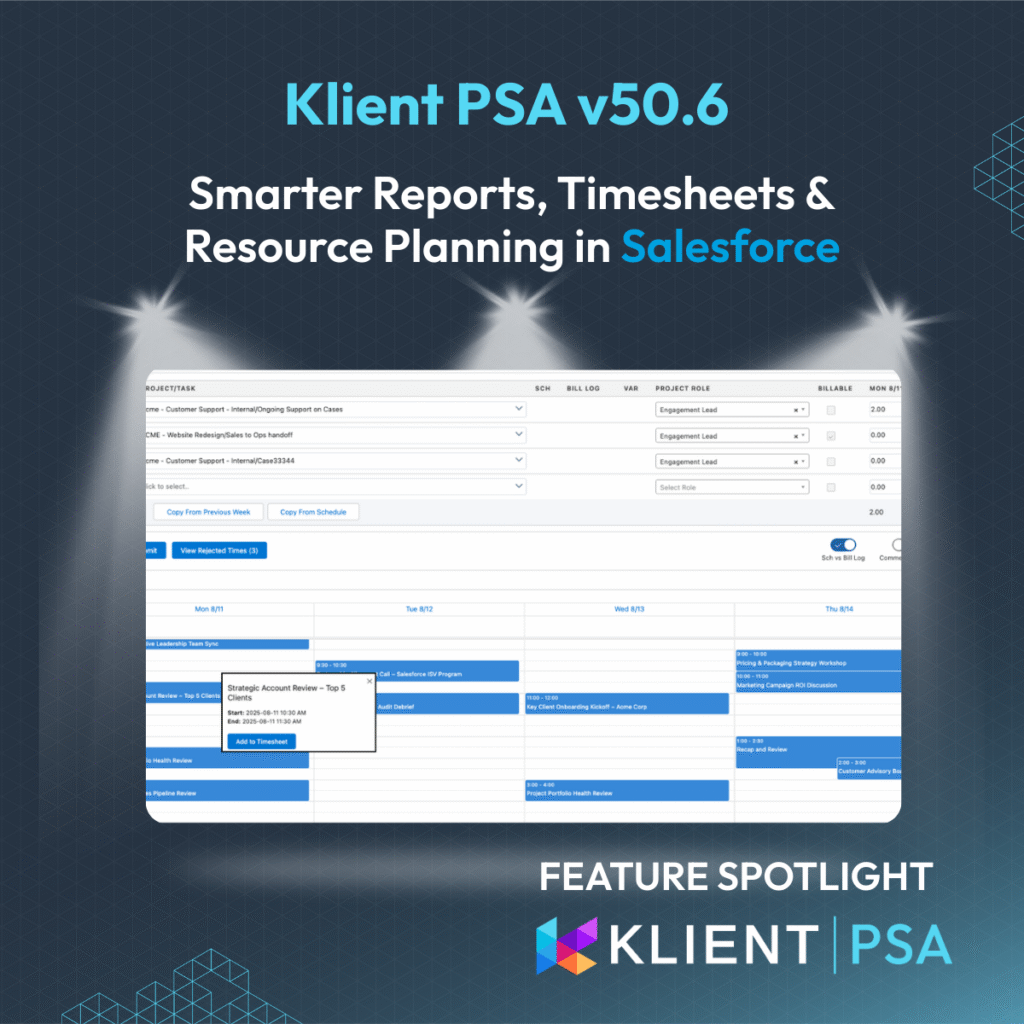
A new Calendar toggle on My Timesheet displays your Salesforce Events directly on the page.
-
Events are color-coded for clarity:
-
🔵 Blue = event not yet added
-
🟡 Yellow = event added but not saved
-
🟢 Green = event successfully saved
-
-
Click an event, and Klient PSA automatically pre-fills the timesheet with event details: notes, hours, and dates.
That means no more manual copy-paste, fewer billing errors, and faster submissions. Timesheets finally work the way people actually work—by pulling directly from the Salesforce calendar they already use every day.
On top of that, 50.6 introduces a View & Resubmit Rejected Timesheets feature in split approval mode. Instead of chasing down corrections manually, employees can see rejected entries, fix them, and resubmit instantly. It’s automation that removes bottlenecks and speeds up approvals.
The value is simple: less time tracking admin, more billable accuracy.
Related: Read our recent article on How to effectively track time in Salesforce.
Easier Resource Planning with New Productivity Tools
Resource planning is often where projects rise or fall. One miscalculation can leave consultants overbooked, underutilized, or burned out. Klient PSA 50.6 introduces several enhancements designed to make planning faster, clearer, and more reliable:
-
-
Hide Completed Tasks / 0-Value Blocks: Clearer views without clutter. Teams see only what matters, improving focus and usability.
-
Compare Resource Icon: Quickly compare resources side by side, whether in the project-level planner or global view.
-
Custom Color Mapping: Choose your own color coding for actual hours, improving visual clarity and aligning with company preferences.
-
Distribute Evenly Scheduling: Perhaps the biggest timesaver, this new checkbox automatically spreads scheduled hours evenly across workdays in week or month views. For example, scheduling 20 hours in a month now auto-allocates evenly—no more manual math.
-
Together, these tools cut down on tedious admin work, prevent planning errors, and give resource managers the real-time visibility they need to balance workloads with confidence.
Conclusion: Automation and Flexibility for the Modern Consulting Firm
With Klient PSA 50.6, consulting firms and SaaS businesses get more than just new features. They get automation that removes friction, visibility that drives smarter decisions, and planning tools that keep teams balanced.
From custom project reports that finally reflect your unique delivery model, to automated timesheets that save hours of manual entry, to smarter resource planning that prevents burnout, this release is all about helping your business deliver more value in less time.
Klient PSA is where automation meets visibility, all inside Salesforce.
Ready to See it in Action?
Explore our eLearning courses for detailed guides
Register for our next live product update webinar
VIDEO
Screenshots
RELATED DOCUMENTATION
– Read the Release Notes
– Explore the FAQ
Free eLearning courses:
– Learn how to log time in Salesforce
– How to structure your project in Salesforce
Release 50.5 FAQ
The Customizable Project Status Report introduces a new Project Status Configuration object, allowing users to define report generation based on project type. This object includes various checkbox fields to control the visibility of sections like current/last/next week’s tasks, issues, milestones, and risks. Additionally, it uses Fieldset API names to control which columns appear in each section, enabling tailored layouts. If multiple configurations exist for a project type, a pop-up allows users to select the desired report setup. If no configuration is found, a default report is used.
The “My Timesheet” experience has been significantly enhanced with Salesforce Events Calendar integration. A new “Calendar” toggle allows users to view events from their Salesforce calendar directly on the timesheet page. Events are color-coded (blue for not added, yellow for added but not saved, green for successfully saved). Users can click on blue events to view details and add them to their timesheet, pre-filling notes, duration, and date. The toggle is off by default an
A new “View Rejected Times” button has been added to the My Timesheet screen for users in Split Approval Mode (where Mass Timesheet Approval by Split and Enable Split Approval Process are enabled, and at least one rejected split exists). This modal displays all rejected timesheet splits, allowing users to select and resubmit one or multiple entries directly. If only Hours or Notes are updated, the original split is modified and resubmitted. If Project, Task, or Billable flag are changed, the original split is deleted, and a new one is created and resubmitted. The button disappears when no rejected splits remain.
The Resource Planner now includes a “Compare Resource” icon. In the Project Resource Planner, it appears at the resource level, opening the comparison screen. In the Global Resource Planner, it’s at the Project level (when grouped by resource) and at the Resource level (when grouped by project). Additionally, users can now customize the color used for displaying actual hours in the Resource Planner via a new section under the Color Mapping page, with a default color of #66a9e4 and built-in contrast handling for readability.
Found this helpful?
Here are some similar articles in our serie Klient Feature Spotlight
Replace all your tools with Klient, Salesforce #1 PSA platform
Run your entire SaaS and consulting business on a single professional service automation platform native to Salesforce!