Klient PSA Launches Project Agent on AgentExchange

Klient PSA Launches Project Agent on AgentExchange

Klient PSA Launches Project Agent on AgentExchange

Klient’s customers can now accelerate project delivery with an AI agent designed to enhance human performance and strengthen hybrid workforce collaboration.

Klient today announced the launch of the Klient PSA Project Agent on Salesforce AgentExchange, the trusted agentic marketplace built into Salesforce where Agentblazers can discover, try, and buy from hundreds of agents and agent tools built by partners.

The Klient PSA – Project Agent is now available on AgentExchange here.

AgentExchange natively extends Agentforce, Salesforce’s digital labor platform, enabling businesses to augment every employee with trusted AI agents. Through secure, partner-built agent actions and templates that have passed Salesforce’s rigorous review process, companies can transform into agentic enterprises faster and with confidence.

The Klient PSA – Project Agent: Designed for the Hybrid Workforce

Built for professional services and SaaS organizations, the Klient Project Agent helps project delivery teams do more and deliver faster inside Salesforce.

The agent supports core use cases such as:

  • Weekly Sprint Planning – reviewing priorities, milestones, and workload balance.

  • Time Entry Verification – validating billable hours and rate accuracy.

  • Resource Allocation Review – identifying gaps and overutilization in real time.

  • Rapid Project Creation from Flat Data – turning spreadsheets into structured Salesforce projects in seconds.

By combining structure, context, and AI-driven insights, the Klient Project Agent empowers teams to focus on collaboration and quality rather than repetitive administration.

Comments on the News

  • “The Klient Project Agent represents our vision of the hybrid workforce — where Human leads and Agent delivers.” said Yanick Abraham, CEO of Klient. “By embedding intelligence directly into Salesforce project delivery, we’re helping teams make better decisions, faster, while maintaining the human connection that drives successful projects.”

  • “AgentExchange enables customers to seamlessly integrate trusted AI solutions within their workflows,” said Brian Landsman, CEO of AppExchange and Global Partnerships at Salesforce. “Now companies can directly tap the expertise of our partner ecosystem to get the right industry-specific solutions like the Klient PSA – Project Agent, so they can build and implement AI agents and be the pioneers transforming their businesses into agentic enterprises.”

Additional Resources

Screenshot of conversational ai project management with Klient psa project agent
Klient rock in space

Replace all your tools with Klient, Salesforce #1 PSA platform

Run your entire SaaS and consulting business on a single professional service automation platform native to Salesforce!

Klient PSA 50.11: Clearer Project Delivery Through Smarter Time Tracking and Resource Planning on Salesforce

Klient PSA 50.11: Clearer Project Delivery Through Smarter Time Tracking and Resource Planning on Salesforce

thumbnail feature spotlight 50.11

KLIENT FEATURE SPOTLIGHT

Klient PSA 50.11: Clearer Project Delivery Through Smarter Time Tracking and Resource Planning on Salesforce

Published on .

3 Powerful New Features in Klient PSA 50.11 to transform Time Tracking and Resource Planning

In professional services delivery, small inefficiencies create long-term risk. Time is logged late or inaccurately. Planning views lack context. Teams spend time navigating instead of acting. As project volume grows, these gaps reduce confidence in reporting and make delivery management more reactive than it should be.

Release 50.11 of Klient PSA focuses on removing friction from core delivery workflows. The update improves how time is captured, how work is planned, and how delivery signals are reviewed directly inside Salesforce.

The goal is simple: make project, resource, and effort data easier to capture and easier to trust during daily operations.

🗓️ Logging time from real calendar context, not memory

The challenge

Most billable work is triggered by scheduled activities. Client calls, workshops, internal planning sessions, and recurring ceremonies often live in external calendars (Google or Outlook) . When that context is not visible during time entry, users reconstruct their week from memory. That is where missed billable time and incomplete effort tracking happens.

What’s new

Klient PSA 50.11 adds Microsoft Outlook Calendar visibility inside My Timesheet, alongside existing calendar options. See our release 50.8 for more on our Google Calendar integration. Outlook events can be connected and viewed directly where time is entered. Importantly, synced events are displayed in My Timesheet without being created as Salesforce Calendar event records, which reduces clutter and avoids duplication.

Why it matters

  • Easier to spot billable activities that would otherwise be forgotten
  • Faster daily time entry because the week is already structured by events
  • More reliable effort history for project delivery reporting and invoicing workflows

⏳ Entering time faster with consistent formatting across regions

The challenge

Time entry should be simple, but teams run into avoidable friction:

  • People naturally think in hours and minutes, not decimals

  • Locale differences (comma vs period separators) create errors

  • Timesheet insights are harder to interpret when visuals are rigid or unclear

These issues slow down time entry, create approval noise, and reduce confidence in utilization reporting.

What’s new

Klient PSA 50.11 improves time entry and clarity in My Timesheet with:

  • hh:mm input support (example: 1:30) with automatic conversion to decimal hours

  • Locale-aware decimal handling, accepting comma or period based on user locale

  • Configurable color mapping for daily totals and utilization indicators, so visual signals match how your team monitors performance

Additional usability refinements that improve day-to-day timesheet navigation and readability

Why it matters

  • Less friction means time is logged sooner and more accurately

  • Fewer formatting-related corrections during review and approval

  • Clearer utilization and daily-hour signals without extra reporting steps

📋 Using survey as forms

The challenge

When you need feedback from people outside Salesforce, the process often breaks down:

  • Links get forwarded

  • Respondents abandon halfway and you lose partial input

  • Teams spend time chasing responses or rebuilding context

Traditional survey delivery is not always suitable when the goal is intake, validation, or structured responses from external stakeholders.

What’s new

Klient PSA 50.11 introduces Surveys as Forms via public distribution links:

  • Surveys can be shared through a public URL

  • Respondents start by entering an email, then complete the form

  • Progress is auto-saved so they can leave and resume without losing work

  • Distribution URLs can be generated for new surveys and also added to existing ones

Why it matters

  • Higher completion rates because respondents can resume later

  • Less manual follow-up to recover missing answers

  • More consistent intake and feedback capture to support delivery processes

Before and after: operational impact

VIDEO


SCREENSHOTS


Before Klient PSA 50.11:

  • Time entry required manual cross-checking between Outlook and the timesheet

  • Global teams dealt with inconsistent time formats and avoidable entry errors

  • External feedback collection often resulted in abandoned responses and follow-up loops

After Klient PSA 50.11:

  • Outlook events provide immediate context for completing timesheets

  • Time entry supports natural formats and regional number conventions

  • Survey distribution links enable resumable, form-like feedback collection

Ready to See it in Action?

Release 50.11 is built to make day-to-day work smoother, from fast project adjustments to cleaner month-end workflows, more accurate financials, and effortless client transparency.

If you’d like to dive deeper into these improvements, you can join our next product update webinar or request a personalized demo.

See it live: Register for our next live product update webinar

Request a personalized demo

Release 50.11 FAQ

How does the new Outlook Calendar integration in My Timesheet work, and will it create duplicate events in my Salesforce calendar?

The integration allows users to view Outlook calendar events directly within the My Timesheet interface for easy time logging, but it is specifically designed not to create or save those events in the Salesforce Calendar, thus preventing duplicates.

My global team uses different time and number formats. How does the updated My Timesheet handle hh:mm entries and European decimal commas to prevent formatting errors?

My Timesheet now automatically recognizes and converts time entered in hh:mm format (e.g., “1:30”) to decimal hours and correctly interprets decimal commas or points based on each user’s individual locale settings.

When should teams use Surveys as Forms instead of standard project surveys?

Surveys as Forms are best used when collecting structured input or feedback from people outside Salesforce. Because responses collected through public links are not automatically tied to a specific project or contact record, they work best as form-like inputs. For example, collecting onboarding requirements or internal requests.

Klient rock in space

Replace all your tools with Klient, Salesforce #1 PSA platform

Run your entire SaaS and consulting business on a single professional service automation platform native to Salesforce!

Klient Newsletter – January 2026

Klient Newsletter – January 2026

Klient Newsletter – January 2026

×

Signup to our Newsletter

Get the latest Klient news delivered in your inbox every month.

What is new in Klient PSA?

Happy New Year from all of us at Klient 👋

As we kick off a new year, we want to start by saying thank you. Thank you for being part of the Klient community, for sharing feedback, voting on ideas, joining our webinars, and helping shape the product month after month.

We’re starting the year strong with Klient PSA v50.11 (releasing soon 👀), our first release of the year. It focuses timesheets, workspace usability, surveys, and planning views. The goal is simple. Help you start the year with more clarity, better accuracy, and smoother delivery.

Here is what is new this month. 👇

Product Update
Upcoming version: 50.11

Klient PSA 50.11 will be available in the nearest future and brings practical improvements across time tracking, workspace experience, surveys, and planning tools. These updates are designed to reduce friction, speed up daily tasks, and give teams better visibility from dy one.

Highlights include:

  • Outlook Calendar Integration (My Timesheet)
    View and sync Outlook calendar events directly in My Timesheet. Events are now displayed without being saved in Salesforce by default, keeping your data clean.

  • Flexible Time Entry Formats
    Enter time using hh:mm format like 1:30 for 1.5 hours. Automatic decimal conversion and locale-aware separators make time entry faster and more intuitive.

  • Survey Distribution Links
    Generate public survey URLs with auto-save support. Respondents can enter their email and resume later without losing progress.

  • Resource Planner and Kanban Enhancements
    Clearer filters with labels and quick-remove buttons, currency and percentage indicators on Kanban cards, visibility into all assignees, and task assignment scheduling from the side panel.

👉 See the Release Notes

Tip: Always review the upgrade considerations marked with the 🚨 icon in the release notes before updating.


Articles & Resources

KLIENT FEATURE SPOTLIGHT

Bulk Edit Tasks Faster: Introducing Mass Update Fields in Klient 50.9

Managing large projects often means updating the same fields across multiple tasks. This feature spotlight walks through how Mass Update Fields help you make bulk changes quickly, reduce manual work, and keep projects consistent.

Read the blog post

KLIENT FEATURE SPOTLIGHT

New Jira Time Tracking App

Jira Time tracking app

If your teams work in Jira but report in Salesforce, this guide shows how Klient PSA helps you bridge the gap. Learn how to centralize time tracking without disrupting developer workflows and maintain accurate reporting across tools.

Read the blog post | Explore the FAQ


Product Update Webinar

Register Now: January Product Update Webinar

Start the year with a walkthrough of what’s new in Klient PSA 50.11. This live session will highlight the newest enhancements and show how they fit into real delivery workflows.

📆 Thursday, January 22 at 11 AM ET

🎟️ Register Now

Missed the December Webinar?

Catch the full recap of the December webinar, including feature demos and exciting news:
🔥 V50.9 features
🔥 Upcoming AI Agent
🔥 Jira Time Tracker
🔥 Upcoming advanced analytics and project reporting feature

👉 Watch the december webinar

Product Roadmap and Idea Voting

Customer feedback continues to drive what we build next. Here’s what was recently delivered and what’s open for voting.

🎉 Ideas delivered this month

  • Enhanced Project Visibility in the Resource Planner
  • Display multi-select picklists as checkboxes on the New Project page

🗳️ Product roadmap

Klient rock in space

Replace all your tools with Klient, Salesforce #1 PSA platform

Run your entire SaaS and consulting business on a single professional service automation platform native to Salesforce!

Bulk Edit Tasks Faster in Salesforce: Introducing Mass Update Fields

Bulk Edit Tasks Faster in Salesforce: Introducing Mass Update Fields

Klientpsa 50.9 thumnbail

KLIENT FEATURE SPOTLIGHT

Bulk Edit Tasks Faster in Salesforce: Introducing Mass Update Fields in Klient 50.9

Published on .

Update Hundreds of Tasks in Seconds

Managing projects in Salesforce just got faster. The new Mass Update Fields feature in Klient PSA 50.9 lets you bulk update multiple tasks directly from the Workspace Grid. No more opening each task one by one.

In just a few clicks, you can select all relevant tasks, right-click, and choose “Mass Update [Field Name]” to instantly adjust due dates, values, statuses, or assignments across your entire project.

🎬 See It in Action

Watch how quickly you can bulk edit tasks in Klient PSA.

When You’ll Use It

  • Adjust timelines instantly — update due dates across a project phase when schedules shift.
  • Reassign team members quickly — change roles or assignments in one action.
  • Clean up data in bulk — correct misconfigured values or standardize picklists across projects.

Why You’ll Love It

  • Save hours of admin time. Bulk edit due dates, roles, or numeric fields for multiple tasks at once.

  • Stay accurate and consistent. Every update applies instantly across all selected tasks, ensuring clean project data.

  • React faster to change. When project timelines shift or staffing changes, update everything in seconds without breaking flow.

Built for Busy Project Teams

Whether you’re rescheduling a project phase or fixing a misconfigured field, Mass Update eliminates repetitive clicks and improves accuracy. It’s a faster, smarter way to keep your project data aligned — all without leaving the Workspace.

Klient rock in space

Replace all your tools with Klient, Salesforce #1 PSA platform

Run your entire SaaS and consulting business on a single professional service automation platform native to Salesforce!

December 2025 Klient PSA Product Update Webinar

December 2025 Klient PSA Product Update Webinar

Professional Services Automation (PSA) Webinar

December 2025 Klient PSA Product Update

Klient PSA Webinar

December 2025 Klient PSA Product Update

In the December 2025 Product Update Webinar, Klient CEO Yanick Abraham and Customer Success Manager Rosalie Chassat unveiled the latest release — version 50.9 — designed to accelerate delivery, streamline time tracking, and give teams more visibility into every aspect of their projects.

Version 50.9 introduces powerful new capabilities across the platform: from mass field updates in the Project Workspace and a modernized Task Side Panel, to read-only external project sharing and cross-month time entry splitting in “My Timesheet.” Many of these updates respond directly to community feedback and are designed to reduce manual work, improve clarity, and accelerate delivery.

Looking ahead, here’s three major initiatives planned for early 2026:

  • The first Klient Project Agent, capable of creating entire projects from natural language prompts. Powered by Agentforce.

  • The “Snap Workspace”, a new 4D project analytics and visualization tool for tracking performance against baselines.

  • A new Time Tracker for Jira with seamless two-way project and issue syncing.

Together, these innovations mark a strategic evolution in Klient PSA’s roadmap with emphasis on automation, data-driven forecasting, and deep ecosystem integration.

⏳ TIMESTAMPS
00:00 – Welcome & Agenda
01:45 – New Features in v50.9 : Project Workspace & Task Panel
11:21 – My Timesheet: Automatic Split Across
13:24 – Resource Planner: Coach Mark for Preset
14:20 – My Deadlines: Presets
15:58 – QuickBooks Bills → Expenses
17:00 – Fixes & Improvements
17:30– Ideas Voting & Product Roadmap
20:00 – Sneak peek into 2026 – Klient Project Agent
29:00 – Sneak peek into 2026 – Time Tracker for Jira
30:50 – Sneak peek into 2026 – Snap Workspace
40:00 – Q&A and Final Thoughts

Enjoy & register to our next professional services automation (PSA) webinar.

Rosalie Chassat: Good morning, or afternoon, everyone, and welcome to our December product update, webinar. I’m Rosalie, your host for today, and joining me as well is our CEO, Yannick. Hi, everybody!
Yanick Abraham:  Hi, everyone!
Rosalie Chassat: Good evening.
Yanick Abraham: Last one of the year.
Rosalie Chassat: Alright, I see some people are still coming in. Let’s get to our first slide.
a
Rosalie Chassat: Perfect, so I will be hosting the webinar today, we have Yannick, our CEO, and we also have Natalie that is in the chat today. Today is gonna have a… we’re gonna have a lot of things that we want to cover, so please participate as much as you can. Participate in our polls, it helps us know what you’re thinking. You can use the React button at the very bottom as well, and you can ask questions in the Q&A or in the chat.
Rosalie Chassat: And let’s get started with our very first,
Rosalie Chassat: Our very first poll. Let’s… Alright, let’s…
Rosalie Chassat: All right, sorry. Is this your first client webinar? Yes, no, I’m a regular. No, I’ve been to a couple, so just take a few seconds to answer that. And in terms of what’s on our agenda, while I let people answer, let’s… yeah, perfect. So we’re gonna cover major features and improvement, we’re gonna do a little demo for all of them.
Rosalie Chassat: We’re gonna show you our product roadmap, talk about your ideas that were voted, and then we’re gonna dedicate a portion of the webinar to a 2026 sneak peek. So we’re gonna show you the project agent, the Snap workspace, and the Jira integration, all on today’s webinar, so make sure you stay all the way to the very end.
Rosalie Chassat: Perfect, and thank you for answering. It looks like half the people that are joining today are, first-time webinar attendants, so welcome, everybody!
Yanick Abraham: Hi, everyone.
Rosalie Chassat: Alright, perfect. All right, so…
Rosalie Chassat: Today, please pay special attention. You will hear us mention upgrade considerations, which means when you see a new feature that has an upgrade consideration, you have to turn on something, add a button, change a setting for the admin to do that. On this release, so 50.9, we have four upgrade considerations. We will talk about them afterwards, but we share the presentation after, so you can always go back.
Rosalie Chassat: Today we will be covering a lot of different functionalities. We have the full list here, so we’ll talk a little bit, project workspace Task Panel, my timesheet, resource planning, my deadline, and we’ll end with the QuickBook, functionality. So, Yannick, shall we jump into it?
Yanick Abraham: Yes, we have a ton to show, so let me jump in the first trip. So we’re going to be looking at the mass update fields in the workspace.
Yanick Abraham: Plus the task side panel, and after that, the read-only access to, the project workspace.
Yanick Abraham: And we’re gonna jump right in in the project.
Yanick Abraham: And now, in the workspace, you are able to select multiple lines and change the value of the fields with a single click.
Yanick Abraham: So, for the ease of use, you can just right-click in a column when you multi-select with the control button of your keyboard, and you can see here we have a mass update, milestone payment value, so I can update to
Yanick Abraham: For asking for $10,000 for each one of those milestones.
Yanick Abraham: And you can see that they’ve all been updated. I can go ahead, I can, for example, select those three tasks here. You can do Shift, or you can do CTRL, right-click again, and update the percentage complete, so I’m 80% complete on those tasks.
Yanick Abraham: And I can even update dates, so my due date, let’s go ahead and update my due dates. I’m gonna be done a bit earlier, so let me just go ahead and change dates, and depending on dependency, they’re gonna readjust, and I might have an error.
Yanick Abraham: I might be going too fast. And you can also do the things, I’ve shown it on the currency fields, on percentage complete field. You can also do it on the next step, which is a text field.
Yanick Abraham: So you can update text field as well, so waiting for customer, or maybe validation, so let me just save that.
Yanick Abraham: And you can even update, also, checkboxes, so, for example, billable and non-billable.
Yanick Abraham: The only two kind of fields that you cannot update for now are the rich text area, so the description field, for example, the one that have HTML and a rich text concept of bold and those things, and the lookup fields. Those are the two that you’re not able to update at this one.
Yanick Abraham: It’s a gain of efficiency over the year, right?
Rosalie Chassat: I think since I started at Client, I’ve been asking for the bulk update, so I’m so happy it finally got delivered, especially the time one. Historically, you can drag the timeline on the right, but being able to bulk update the dates is incredible.
Yanick Abraham: Perfect. So, this is the first of the three topics. The next one is the test side panel.
Yanick Abraham: Task site panel, from the, and this is a new feature we’ve introduced in 2025, that task indicator that’s telling you which ones are overdue with that red circle, but also which tasks do have times logged on it, or checklist item that needs to be completed.
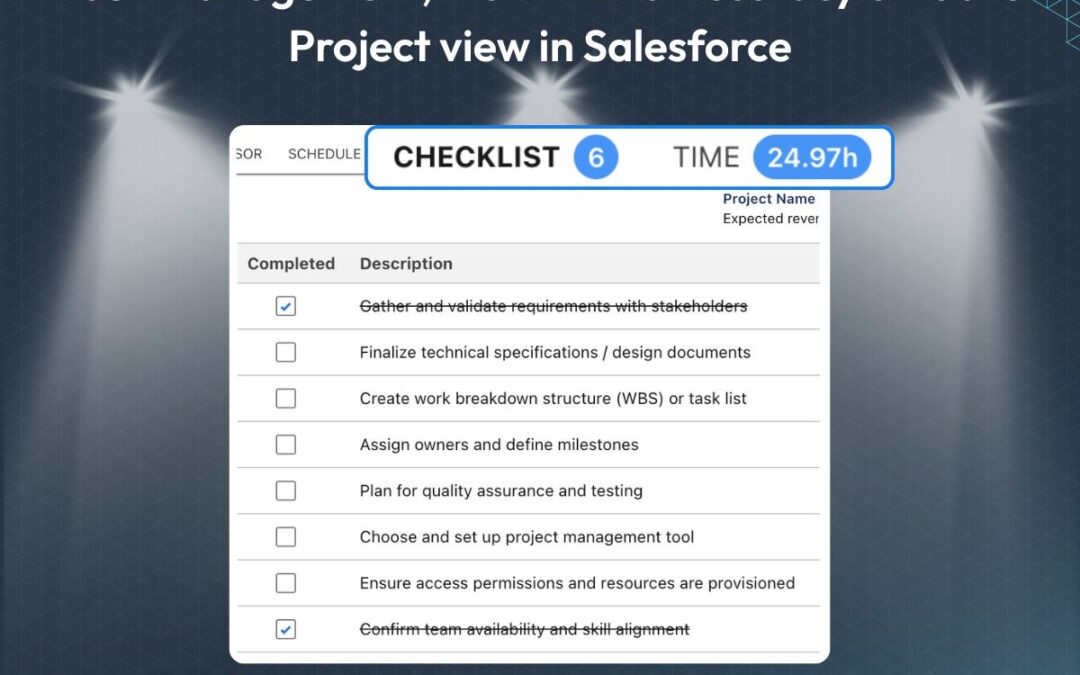
Yanick Abraham: And as you can see, I’m just gonna jump in into that task and look at my checklist, and you can see that we’ve updated here with some cool indicator that’s telling you how many open checklists there is for that specific task. But also, on the time side of things, you can see that there’s 3.5 hours that’s been logged.
Yanick Abraham: We’ve also updated and created that modern look that we are doing pretty much across the platform, so updated a little bit the look and feels of some of those tabs, including the schedule tab with some editors, but also you can now sort, so you can sort by the different columns, and you can sort pretty much all the table the same way if they have some value.
Yanick Abraham: Including… including those, search here that you have for the, display resources with, let’s say you want to search by the available hours.
Yanick Abraham: you are able to do all of this, so we’ve improved those tabs in the task panel, and we’re going to continue with some of the other ones. This one has been beautified as well.
Rosalie Chassat: And just out of curiosity, because I know not all the customers are using the task site panel, so we’re just curious to see if you’re using the task site panel all the time, sometimes never have no idea what we’re talking about. There are other ways to get to that information, but we were just curious. And I think, yeah, the task indicators, if you’ve never heard or seen those, by the way, just make sure you probably don’t have that column, so just add it to your workspace view and make sure you save
Rosalie Chassat: As a preset.
Rosalie Chassat: Perfect. Okay, it looks like most people I’ve heard are using the task icon.
Yanick Abraham: If you are using the workspace, usually you are aware of that task panel. The options may vary depending on how you set up, but it’s all it is.
Yanick Abraham: Next one, was that it?
Rosalie Chassat: Yeah, so the next one, yeah, really nice. So public project workspace, read-only external access. That one is, like, snuck in to that release, but a very exciting one. So, anyone that want to share their project timeline.
Rosalie Chassat: with their customers, you can now share a read-only project workspace externally, and Yannick is going to show you how to do that, and what it looks like, so…
Yanick Abraham: Exactly, so there is a couple of steps that you need to follow in our release notes. They’re well-defined, I’ve read them this morning, and you need to create a site, and if you don’t already have one, and then link it. And then, on the page layout, you’re gonna have two new fields, so public, project, workspace.
Yanick Abraham: where we’re gonna have a URL, and then you have a public project preset that’s gonna define which preset it’s gonna be… who’s gonna be used.
Yanick Abraham: The concept here is, let me open it up so you understand what we’re showing. So it’s exposing our workspace with the presets you want in a read-only way, and this is a unique URL, and actually, I should have done the demo by
Yanick Abraham: right-clicking and doing open in incognito mode, so you don’t need to be logged in to see that workspace, and you cannot do anything with it. You can change maybe the months and the way you’re looking at things, and zoom in, zoom out, but you cannot change any of the data.
Yanick Abraham: within. So this is the public project workspace, so for people that don’t have a customer community, or if you want to share
Yanick Abraham: just a project to someone external, you can just go ahead and share it, and you’ll see that just by changing the, the preset, so any preset that you have access in the system, if you just change it to, let’s say, I’m gonna take this one, the timeline customer, let’s say I just want to show, solely the
Yanick Abraham: the timeline and no grid. I can just, by updating it, now you can see that I don’t have my grid on the left side anymore. I only have that timeline showing. So, the concept is that you can use those as a URL and send it via email, so if you’re using Activity in Salesforce.
Yanick Abraham: This is a merge field you can take and easily send it. You can send it once, the URL won’t change, so you can send it once at the beginning of a project.
Yanick Abraham: And, you can, as well, depending on the project type, you can define which preset you want to share, or after that, the project manager might want to even change the preset himself, so he can do it… you can do that as well.
Rosalie Chassat: And especially relevant if you’re already using the export function on the workspace, and you’re already familiar with, like, export… you’re already exporting the screenshot and then sending it via email, this is just, like, one probably better way, because that, sharing is live, so any update, you don’t have to reshare that project, like, you don’t have to export it every time.
Yanick Abraham: Or it’s like, can be also a bit dangerous, as you said it? So, yeah. This being said, it’s very useful. A lot of customers were asking for that, so this has been…
Yanick Abraham: There’s gonna be some upgrade to it in the next release, so I would recommend maybe waiting for the next release. There’s gonna be fine-tuning for that one, but we said we decided still to demo it today, but there’s a small tweaks happening in the next demo.
Yanick Abraham: In the next round.
Rosalie Chassat: Just another neat one we sneaked in while we’re talking about workspace. We just added a project owner. You can now display the project owner column in the global workspace. So, historically, the assignee column, the person that was in orange was the owner, but it’s not always 100% obvious who that person is, so you can now add that column in your global workspace.
Yanick Abraham: Oh, and in this example, it’s worse than anything.
Rosalie Chassat: Especially there’s no image.
Yanick Abraham: But, the idea is that it’s, you can see it’s a mix of project and task, so there’s a new merge column called owner, so it’s showing whatever it’s… you’re looking at a project, showing the project owner, and if it’s a task, it’s showing the task owner.
Rosalie Chassat: Nope.
Yanick Abraham: Good. Another one that was top of the list, right?
Rosalie Chassat: Yeah, that was, like, one of the most voted ideas. We finally delivered it, hopefully. I already know some customers that tested it and are using it, so…
Yanick Abraham: Perfect. Yeah. So the concept is that, a month can spread across several,
Yanick Abraham: several… across two weeks, so across a single week. So, for example, if we look at our timesheet, and if we go back in September, I have to go back in September to find this, but you can see that the month of September, Monday, Tuesday, is on September, and then, October for Wednesday, Thursday.
Yanick Abraham: The problem we had in the past is that
Yanick Abraham: sometimes you want to approve just a full timesheet, and you cannot approve it because there’s a mix between those two months. So the team at Develop needs functionality that’s gonna simplify the work, so if I just put some hours here across my different days.
Yanick Abraham: And I just save up… oops.
Yanick Abraham: And then just save…
Yanick Abraham: It’s gonna… what it’s gonna do is it’s gonna take, and when the setting is enabled, so this is important, you need to have a setting enabled, so don’t worry if you don’t want that behavior to happen, it won’t happen by default, you need to have the setting, and you can see it’s splitted my lines in two, so one for the month of September and the other one for October. Those ones, it says as well, it’s small, but it says that it’s different.
Yanick Abraham: to another month, so you can add hours in here. You can always come in here and change the number of hours until you submit it, if you needed to. So this is a really simple…
Yanick Abraham: fix for a problem or some, some issue that people had for approving and, for, reporting on data, so…
Yanick Abraham: This was top of the list on the IDEO community, so we’re happy that we’ve delivered a pretty good
Yanick Abraham: You’re welcome. That’s what you say.
Yanick Abraham: Good. Going back to the deck.
Rosalie Chassat: Resource planning.
Yanick Abraham: Resource Plan. Okay, so, this is something we’re going to be introducing across the
Yanick Abraham: platform, so it’s for adoption, it’s for your new users, if when we’re introducing new functionality. It’s a coach mark, so we’re giving you some information, trying to coach you on best practices. The first one that’s going to be shown is that on the resource planner, so if you don’t have any preset, we’re going to tell you to create one, and we’re going to link to our articles and all that
Yanick Abraham: articles. Don’t show again if you don’t want to see it again. If you have a preset, you should not see it either. This being said, we’re going to be introducing those. We have some that will come on the timesheet. We have a new release of a timesheet, and most likely on the project snap, we’re going to see, those are going to be introduced as well.
Yanick Abraham: User adoption is the key.
Rosalie Chassat: Yeah, if you have new people on your team as well.
Yanick Abraham: growing, pretty quickly, but we have a lot to show at the end, so presets on my deadline.
Rosalie Chassat: This is one we got a lot of, the moment we released, my deadlines, my work, like, we had so many questions already about, like, can we have the preset? Can we have the preset?
Yanick Abraham: So, we have presets everywhere in the system, so it was just a question of time of when we’re going to be introducing that preset on the deadlines interface.
Yanick Abraham: So you can see now that we have that preset button, you can… same concept as everywhere else, you can save and create a new one, you can rename it, and you can see, for example, I’ve created one that’s showing just my key account, so that my deadline’s just for my key account, and you can see that the filter is now being applied, and my filter is for the account ACME and Play Around.
Yanick Abraham: So it’s just filtering for those two, so now I can see. So depending on what is open, it’s gonna remember some of those settings on top of that filter. We’re gonna be adding more stuff on top, such as the sorting of columns that’s not stored on the preset yet.
Yanick Abraham: But this is gonna come in the next few releases. For now, it’s mainly used for the filtering, so I’m really able to… next time I’m gonna come back, it’s gonna remember, so it’s gonna load back my key account, so I don’t need to…
Yanick Abraham: Removing some clicks for new users.
Rosalie Chassat: Yep.
Yanick Abraham: Bolden enough.
Rosalie Chassat: Nope.
Rosalie Chassat: Okay.
Yanick Abraham: And the other one, we’ve been regular on our upgrades on the accounting connectors. This one is to sync, now the bill object from QuickBook.
Yanick Abraham: So, in QuickBook, there’s part purchase object, which is quite often some credit card transaction, and you have some bill, which sometimes are made, for example, external consultant that will invoice you, so that might be more on the account payable side of things. So now we’re syncing those and creating expenses linked to it, and there’s the procedure to follow if you want this to be enabled.
Yanick Abraham: It’s in the integration details, and you can decide from when you want to sync, and after that, it’s going to be syncing automatically.
Rosalie Chassat: Perfect. Well, that’s it for our new functionalities. What I’m gonna do is I’m just gonna launch a quick poll, just curious to know, of all the functionalities we just demoed, which one you’re most excited about, and also we just want to know, did you already upgrade?
Rosalie Chassat: Are you planning to upgrade? And as always, we also have this page in our presentation that includes all the improvements and fixes. You can access our release notes directly, and you have a full breakdown with a description for each of each one of those. And yeah, so… just leaving a couple more.
Yanick Abraham: There’s cool things in there, like, it’s all small liners, but there’s, like, for example, now we support queues for projects, so, if you have that concept inside your environment, so there’s still some cool stuff in those one-liners.
Rosalie Chassat: Oh, well, I think everybody answered that the most exciting one is the mass update fields, which isn’t surprising. I think the workspace is used by most customers, so… Alright, thanks everybody for answering. Okay, so moving on to our next section.
Rosalie Chassat: As always, your feedback shapes where we’re going next. So let’s move to the next slide. Perfect. Okay, so right now, again, we’re talking about, the ideas on every webinar, but from our community, on the ideas tab, you can see a bunch of ideas that are open for voting for customers. Some of the ones we mentioned earlier of the features came from that list.
Rosalie Chassat: So this month, we retained two ideas that, were on that list and now have been added to our roadmap. So we have the Enhanced Project Visibility in Resource Planner, which is going to be released, in December, well, at the end of December, so in the next release. That has to do with displaying the project names directly in the Resource Planner.
Rosalie Chassat: And then the second one, the display, sometimes the names are not super clear, but display multi-select pick list as checkbox in New Project Page. This has to do when you’re creating your project at the very beginning, just making it easy to select different options, so having the, the checkbox, there.
Yanick Abraham: That mirror is just very long as a title.
Rosalie Chassat: It’s already super long. And that one will be on the next version. And if you have any ideas, feature requests, be sure to email our team. They may make the list here eventually, and then we pick those to add to our roadmap. And if we go to the next screen…
Yanick Abraham: And we’re looking closely at this one here, the flexible work schedule. Thank you, Jose, for not putting me on the spot, but we’re looking.
Rosalie Chassat: Is it?
Yanick Abraham: It’s the top-boarded one, but it’s, it involves a lot of change on the back end, so not necessarily a lot of change, but a lot of effort.
Rosalie Chassat: All right, and then at any time, you can look at our product roadmap, which is the other tab next to the ideas tab. You can see with the little arrows, those are the two ideas I just mentioned, and you can see they have been added to the roadmap, which means they are happening. And then in blue, it’s the things that are coming on the next release. So we have,
Rosalie Chassat: And then my timesheet, if you had a call with me recently, I talked about the Outlook sync to every customer, but we released the Google Calendar, and the Outlook is coming at the end of the month.
Rosalie Chassat: So, if you are a Outlook user, stay tuned for that. We have a couple more My Timesheet improvements that we made as well. Some workspace, Kanban, and then the last two we will talk about, next. But yeah, at any time you can consult our roadmap from our community. So, speaking of the bottom two ideas, we’re moving on to our next section, which is giving you a sneak peek of what’s coming up
Rosalie Chassat: in 2026. So there’s 3 major functionalities that are coming. We have the client project agent that is coming on our next release, which is December 29th-ish. The Jira time tracker, the time tracker on Jira, also on the same release, and we have the Snap workspace that will be coming, at the end of January.
Yanick Abraham: Just to be a… we’re targeting and December for this official release of the project agents, because we like transparency, but it’s gonna be a January.
Rosalie Chassat: It’s December 29th, so that means, like, when everybody is back from the holidays, let’s put it that way. And for the next portion, really important, these are, like, things that are not in the product yet, they are, like, finalized, or we’re finalizing the build, or there’s still things we can improve. So be sure to, like, use the reaction button, use the chats if you have, like, comments, questions, etc. And yeah.
Rosalie Chassat: So, let’s get started with the agent, Yannick.
Rosalie Chassat: Yep.
Yanick Abraham: Let’s start with our project agent. So, we’ve been talking about how we’re going with AI, so a platform where we’re gonna always be leading, but we’re gonna have agents helping us.
Yanick Abraham: So this is what we’ve discussed in the past. It’s where we stand. We are customer zero, so we’re trying everything on us first before releasing anything for you guys.
Yanick Abraham: We’ve been developing with AI for quite a time now. We’ve released Clara, our support agent, recently. And now, today, we’re announcing, and we’re going to be releasing in January, officially, our client agents. Our first one will be the project agent.
Yanick Abraham: I saw a demo last week of our hybrid delivery, so having agent assigned on our task, and agent delivering tasks by themselves, so we’re close to that, to eventually go to helping you deliver a project even more smoothly with autonomous project delivery. So this is our roadmap where we stand. I think we have a poll, and I’m very curious. I know several, because we have
Yanick Abraham: looking at the stats, several customers are using Clara, our support agent, we’ve talked about the other time.
Yanick Abraham: Do we have a poll, Rosalie, on that?
Rosalie Chassat: Not a poll, but we’re just curious if you have used her, like, let us know in the chat, or send us a message. We’re always keen for feedback, because we keep on improving, her. So, yeah.
Yanick Abraham: So, we’re improving on tree side, we’re improving the source documentation, and then the understanding of questions, so instructions, so yes, please provide feedback. I think it’s improving value, it’s not 100% perfect yet, but definitely proving value.
Yanick Abraham: And what we’re announcing today, and what we’re going to be showing today, it’s our first client agent. It’s based on the Agent Force platform, and you’re going to be able to purchase this from us, from client.
Yanick Abraham: And the goal is that, based on that secure and trust platform, Salesforce, we’re gonna be able to have agent doing project work for you.
Yanick Abraham: And let’s start with a demo and see how it goes. And we’ll see how the agent can help you out. So I’m sure in the,
Yanick Abraham: happened to everyone, like, the sales team comes with, to you on the delivery side and said, I sold that, and it’s coming from an Excel document, and it’s not yet a project template, and you told them to use the template, but they still did it in Excel.
Yanick Abraham: But now what you can do is that you can take that, you can talk to our project agent.
Yanick Abraham: And I’m just gonna paste that CSV file.
Yanick Abraham: And I’ve already pre-written in my questionnaire, so we’re gonna… my prompt here, so we’re gonna read it together. So, create a project name, GoProject GO, using the following grid for task.
Yanick Abraham: Add the column PC and Exec. If I’m just going back to the document, you can see that they had 3 columns for 3 roles with number of hours.
Yanick Abraham: I add also a start and end date columns in here. So add the column PMPC exec to get the estimated hour of the task.
Yanick Abraham: and write a non-agile description in the description field. Told you we’re a customer zero, right? So our team developed first for that, so we’re writing, like, a project manager as a project manager. Non-agile description.
Yanick Abraham: And then this is it. Usually, it takes around 40 seconds to a minute, so let’s look at other few use cases we have identified and that you can ask for. Jose, you wanna… you want me to read it, or…
Rosalie Chassat: That’s fun. Yeah, so we have a couple of things, and there’s more. These are just, like, examples. So, weekly sprint planning, you can ask the agent to show you all your high-priority tasks for a specific project for a specific week. You could also ask questions that are related to time entry, so show me time entries for this specific project.
Rosalie Chassat: It can tell you the logged hours, billable status, rates, all that information, and then when it comes to resource allocation, like, who’s assigned to this specific task, and it can tell you what the role is, the allocation percentage, etc. Let’s see…
Yanick Abraham: So we have the results, so I’d like to look at time, we’re gonna play on this, but 2058, so, like, a little bit less than a minute. So he created that project and task. This is a beta version, so we don’t have clickable URL, but let me just open up that new project that he created, our project agent created.
Yanick Abraham: So, it’s gonna load me in that project, and if you notice at the end, I was asking a description, right? So, just from that, from the understanding of our project, it created a project description automatically.
Yanick Abraham: Then, if I open up the workspace, you’re gonna see that the agent, within 50 seconds, created all my different tasks. It properly did all the total of hours and the assignment. Without me saying anything, he figured out the start and due date, so he already planned everything in time.
Yanick Abraham: And on top, ERA also included a description for each one of my tasks, and created that description that can at least be a good basis for me to come and modify it.
Yanick Abraham: So this is the kind of thing that our project agent is able to do right now, and that’s going to be available to you in January. So, plus all the other use cases that Jose mentioned.
Yanick Abraham: For now, you saw me calling it from an interface, from a one page. This is going to be available as well through Slack.
Yanick Abraham: So you’re gonna be able to, to call it and talk to it through Slack and other means. So, yeah, pretty impressive. We’re still tweaking it, and they’re still making mistakes, but, it’s pretty impressive what you can get, and what you can do with it.
Yanick Abraham: Well, Philippe, you guys will like it.
Yanick Abraham: Definitely.
Rosalie Chassat: Certainly if you would have created a project live on this webinar.
Rosalie Chassat: All right, yeah, so if you are interested in knowing more about, the project agent, and you want to be, you want to be part of our first group of users.
Rosalie Chassat: We have an exclusive offer for you. So, if you buy 100, 100,000 Flex credits, which cost $500, you get 250 credits, 50,000 free credits on top of that. So, all that, you’re paying $500, but you’re getting worth $1,750 worth of credits. So, really nice. All you need to do is, like, sign up before the end of the year. What I’ll do is, I’ll also launch a little poll just
Rosalie Chassat: to gauge interest, please take a second to answer it if you are interested, because after today’s webinar, I will send a follow-up email for people interested in the agent.
Rosalie Chassat: So just let us know if you want to sign up ASAP, you’re interested, but you cannot commit yet, it’s complicated, I don’t know your situation, or you’re not interested. And again, if you have questions after today’s webinar as well, it’s a lot to digest, but you can always email us afterwards.
Yanick Abraham: So the goal here is really for… we made it accessible, so we can really try it in 2026. So, if you plan to try AI with client in 2026, I absolutely recommend you guys to benefit from this offer and just invest that $500.
Yanick Abraham: Those credits are going to be good with all our agents, and they’re going to be good across the entire 2026. So, yeah, if you plan to just try it, that’s gonna be the best offer we’re gonna have.
Yanick Abraham: The idea here is not… we’re not making pretty much any money out of it. We just want to get it out there for you guys to try and test things and help us evolve it. So, yeah, it’s available for pre-order, and it’s going to be shipped in January.
Rosalie Chassat: And in that email follow-up, we’ll include, like, what the agent can currently do, and we’re really keen to know, like, what else you’d like it to do on top of that, because we’re, like, we’re all about that collaboration for this, portion of it. Alright, thanks for answering the polls. If you didn’t manage to answer the poll, but you’re still interested, just reach out to me after.
Yanick Abraham: Alright.
Yanick Abraham: Next one, and we’ve been introducing new products, as per se, and add-ons, so that’s one of our first add-ons in a long time, the Agent Force one. The other one is this one, Time Tracker for Jira, so for people that are using client and Jira, and would like the developer to have a way to easily enter their time against client tasks, we have that time tracker for Jira that is now available.
Yanick Abraham: It’s going to be a two-screenshot for today. We’re gonna be doing a live demo next year, so those are just preview of 2026, right? This one, though, is… the time tracker is already available. We also have a sync component, so it’s going to be able to sync projects from client to Jira, and from Jira to client, and syncing the issue in both ways as well, with some parameters.
Yanick Abraham: So this way, it’s gonna simplify the work for those of you that are using Jira, to have one place to look at project data in client, including actual schedules.
Yanick Abraham: And it’s gonna simplify the work of your developer for logging their time. So, if you’re interested in this as well, Rosalie has been talking about it during their customer success call, but, yes, please do reach out for this offer as well.
Rosalie Chassat: Yeah, we’ll be sending a separate email for that as well, and, so we just have a quick poll if you’re using Jira or not, because if you’re not, then you don’t care about that. And then if you’re interested in Time Tracker, anyone that says yes, or maybe I’ll send a follow-up about that.
Rosalie Chassat: And then if we can just drop, Natalie, the link, we have an actual page where you can read more about that time tracker. The link is in the slide, but we’ll drop it, in the chat as well.
Rosalie Chassat: All right, thanks for answering, and let’s move on to our next one, the Snap Workspace. That’s Yannick’s personal pet project for the last weeks. We’ve had a lot of internal demos about it already, but…
Rosalie Chassat: Now it’s finally ready to be demoed out in the wild… out in the wild. And just to mention, there’s no extra fee for this, so it’s, like, part of the product, so when you upgrade and it’s in the release, you’ll just be able to start using it. So, yeah, if you’ve ever… if you’ve created your projects, you have milestones, you scheduled your resources, which you should, the resources have been logging their time, and then your project is ongoing, and you’re
Rosalie Chassat: looking for, like, more specific data, this is what this workspace is for. So, Yaneng, do you want to show us what it does?
Yanick Abraham: This is the glue that’s putting everything together, so it’s everything that you always wanted to see, your project, not in 2D, not in 3D, but in 4D. This is it. So, like you said, it’s my pet project. It’s my Christmas gift to you guys, our customer, before time. So, the concept here is that we have a snap workspace, so you’re taking snapshot of your project to look at the story
Yanick Abraham: of your project, and you know that Salesforce reporting, there is some limitation. This is to circumvent all those limitations and really dig deep, deep, deep into your project.
Yanick Abraham: So we have a concept of SNAP, of Project Snap and resource snap, so you’re going to be able to create some snapshots of your project, and you’re going to be able to plot those proj… so those projects within our interface. You can see that by selecting a project, it gives me a list here of KPIs, so key performance indicator.
Yanick Abraham: Including, for example, if the project is on track. You will see as well that we can group
Yanick Abraham: And plot different projects at the same time in this, and having some indicator as well that, oh, you can see that we are 3 overdue milestones, so it’s not something for the past, it’s something that you can act on.
Yanick Abraham: We are introducing new performance indicator and new, things that are gonna help you understand if you’re on track or not.
Yanick Abraham: And you can see here that we have some pills or some cards that’s showing you where you differ between your plan, your schedule, your lug, and your invoice.
Yanick Abraham: Because this is what it is about. You can see as well, we’re missing the estimated part, so there’s going to be phase two, with the kind of the task snap that’s coming in a later phase.
Yanick Abraham: So, so far, it’s interesting, right? But, I’m guessing everybody is looking more for this portion here, which is the graphic component, so being able to plot, in this case, our schedule versus log, schedule being in dash, and the full line is the log, and you can easily see your project within that lens.
Yanick Abraham: But what you want to see is quite often, it’s another layer, so you want to see what’s been invoiced as well, so you can add other dimensions, so you can see when the hour got invoiced for.
Yanick Abraham: In hours, but maybe you want to see them in the, in cache. Let me, let me do something here. Let me put it full screen. So maybe I want to see it in cache, instead. Now you can see I have another, axis on the right that showed, so I can see my logged even hours in cache.
Yanick Abraham: Maybe I want to see my costs, my logged costs, and all this can be date sensitive, so I can filter out across my dates. Okay, so let me reset my filters.
Yanick Abraham: And now maybe what I’m interested in going back to what’s schedule versus log, actuals versus schedule, so maybe I want to see my variances.
Yanick Abraham: But, this is giving me a great idea to see, but maybe I want to see it in another lens with a bar chart to see how far I am for my target. I might want to add some labels. This is something we’re going to improve, the numbers are very small, but I want to… maybe I want to show labels. I want to hide or show my milestone across my project.
Yanick Abraham: We even have a FTE graph that we’re working on, so full-time effort per employee across your project. You can see it in a schedule lenses or in a lug lenses.
Yanick Abraham: I’m gonna take questions after. Different ways of looking at your data, so, like, if you want to see it with these steps, or maybe if you prefer a DART mode, so improving that one as well, and you will be able to export it.
Yanick Abraham: So, all this, it’s, from that specific multi-layer, look, that we’re looking at, that we’re talking about. But we have other levels as well. So, this one is called the, heat map.
Yanick Abraham: So you can see for this project that I’ve selected in my snap, so I’m looking now at that… I was looking at that, like, May project here, I can see now a resource heatmap of if people got… if they were on track in terms of their utilization of hours logged versus schedule.
Yanick Abraham: I can have it grouped by resource, but I can have it grouped by role.
Yanick Abraham: or even by task, I can group it the way I want it. Let me go by resource, but what’s cool, too, is that we have an aggregation, so you can see it by month, or if you can see it by quarter, so you can have, like, grouping instead of smaller increments, so it’s give another perspective.
Yanick Abraham: So I have all of this, plus you have other dimensions, including the logged hours, and other dimensions.
Yanick Abraham: We have, fear…
Yanick Abraham: Estimated versus log, or schedule versus log, in a bar chart format, but also you can look at it with different angles, so the resource angle, or the role angle overall in your project.
Yanick Abraham: Something we add in reports and dashboards, but we’re trying to put everything in there. Utilization, again, so you can smooth your utilization curve, and we have variation, so looking at what was scheduled versus what got logged, and the variation of it across your entire project, or the data lens you’re looking into.
Yanick Abraham: So that’s what the Snap workspace and the Snap visualization tool does. Hopefully you guys see some value to it.
Yanick Abraham: It’s a lot, I’ve been talking a lot.
Rosalie Chassat: But maybe you want to rewatch that portion of the webinar afterwards in a more calm setting, or share it with your team. One thing we do want to know, just out of curiosity, based on the demo that Yannick did, do you think you’ll be using the Snap workspace? Absolutely, I’m not sure, no. It’s okay, like, there’s a lot in there, and we’ll talk about it again on the webinar when we do release it in January.
Rosalie Chassat: So stay tuned for that. And from what you’ve seen, if you, like, after digesting, you have some questions, feel free to email us, like, oh, is it gonna do this and that? Am I gonna be able to see this information? Just, send your question to us, that’s no worries.
Rosalie Chassat: And one thing…
Yanick Abraham: Yeah, I forgot to mention, Jose, because it’s about the story of your project. So now I’m looking at my latest snap about my log versus schedule, so this one is tracking pretty good. My L-score is not too bad, but what I can do is that I can compare it against my baseline. So you can see now that blue, small blue dot here, this is my baseline, so I can compare.
Yanick Abraham: it.
Yanick Abraham: And you can see as well that the other, there’s a lot of information in the other, pills, but when there’s a data point, you can even click, and you can see the details of what happened.
Yanick Abraham: across the board. So, those are also, like, a hidden gem that you can easily see and click, so there’s other places you can click with the added value and added dimension, so…
Rosalie Chassat: Can you show them the view that is showing the today and you’re seeing the future? I don’t know if you’ve.
Yanick Abraham: Yeah. I’m not sure if my project is working well for this one.
Rosalie Chassat: So that’s one thing that’s pretty cool about the snap. You can choose which time frame it’s selecting, but…
Yanick Abraham: So you see, for example, this is my log hours, my solid one, this is my schedule, and based on my different indicators, I’m not sure… it forecasts my future logged hours as well.
Yanick Abraham: So that small dot, it’s a forecasted of future based on my schedule, with my… so there’s a math to it, but…
Yanick Abraham: Very interesting.
Rosalie Chassat: That was my favorite one, I think, this little section there. All right, perfect, thank you so much. So, yeah, so stay tuned for the project agent follow-up email, the Jira follow-up email for this step. We’re not going to have a follow-up email, but if you talk to me or support, you can always ask questions about it, as I mentioned. In terms of next step, yeah, so speaking of the next year as well, we will be continuing to host our monthly product update webinars.
Rosalie Chassat: You have the dates for the upcoming one, so you can put on your calendar January 22nd. It’s always going to be Thursday at 11 a.m. EST.
Rosalie Chassat: We don’t have the registration link yet, but in the January newsletters, we’ll share that, and we usually send invitations before as well, and you can always access all our previous webinars and upcoming webinars from the website there on the screenshot, you can see. If you can please take a moment to answer our webinar feedback poll, it would be really appreciated. This is our last webinar of the year. Also, I see there’s a lot of people, it’s their first webinar.
Rosalie Chassat: So we’re really keen to know what you think of these. We can adapt the format, always, and otherwise, I want to wish everybody a Happy New Year, and Yannick, did you want to add anything?
Yanick Abraham: Oh, hopefully you’re gonna have a great break if you have the opportunity to take some time off, so I wish you all the best, and if you can just answer that feedback, it would be appreciated. All your feedback is always welcome, so we can always adjust.
Yanick Abraham: Thank you, Jose.
Rosalie Chassat: Okay, thank you so much, everyone. I will stop the recording and wait a couple of seconds more for you to finalize the webinar feedback, so have a great day.
Yanick Abraham: Thank you. Bye, everyone.

OUR HOSTS

Yanick Abraham

CEO – Klient
Customer success

Rosalie Chassat

Customer Success – Klient

DOCUMENTATIONS

Klient rock in space

Replace all your tools with Klient, Salesforce #1 PSA platform

Run your entire SaaS and consulting business on a single professional service automation platform native to Salesforce!

Klient Newsletter – December 2025

Klient Newsletter – December 2025

Klient Newsletter – December 2025

×

Signup to our Newsletter

Get the latest Klient news delivered in your inbox every month.

What is new in Klient PSA?

2025 is closing with exciting momentum at Klient. While v50.9 brings helpful improvements to scheduling, timesheets, and financial workflows, the most anticipated update is what arrives next: the Klient Project Agent, launching in Q1.

This new AI co-pilot is built directly inside your task and project panels. It can build complete project structures, surface risks, find similar past projects, flag overdue work, and even answer everyday questions like “What should I work on next?” or “Who owns this task?” Early access is a paid beta designed only to cover usage, and the real value comes from partnership. Early adopters get to shape how the agent learns, behaves, and supports real-world delivery teams.

We’re limiting the first wave to 10 customers in January. If you want faster setup, smarter planning, and instant project insights built around your workflow, reach out to our team to be considered for early access: support@klient.com.

Thank you for your contribution, your feedback, and your trust this year. We look forward to supporting your growth and your projects as we move into 2026.

Here is what is new this month. 👇

Product Update
Current version: 50.9

Release 50.9 delivers improvements that make it easier to update project data at scale, keep accounting records accurate, and give customers a clear view of progress.

  • Mass Update Fields in Workspace Grid. Update multiple task fields like dates, assignees, or picklists in one action. Reduce repetitive edits and keep data consistent across projects.
  • 🚨 QuickBooks Sync: Bill to Expense Integration. Extend your QuickBooks Online integration so Bills can be pulled into Klient as Expenses. 
  • Timesheet Automatic Split Across Month Boundary. Delivered directly from a customer idea💡. Weekly timesheets that cross two different months now split automatically into linked monthly records. 
  • 🚨 Public Project Workspace (Read Only External Access). Share a read only project workspace link with customers or partners. Provide real time progress visibility while keeping internal data protected and showing only what is relevant.

👉 See the Release Notes

Tip: Always review the upgrade considerations marked with the 🚨 icon in the release notes before updating.


Articles & Resources

KLIENT FEATURE SPOTLIGHT

Faster Timesheets and Smarter Task Updates

Feature Spotlight: Automate Project Schedules

This month’s Feature Spotlight celebrates one of our favorite customer ideas: automatic timesheet splitting! When weeks stretch across two months, your timesheets now handle the messy part for you so finance can breathe easy and teams stay focused. And much more...

📖 Read the blog post  |  🎧 Listen to the audio summary  |  ❓ Explore the FAQ


Product Update Webinar

Last live product update webinar of 2025 !!!
Here is a special word from your host, Rosalie:

"Be sure to join our next Product Update Webinar on December 11th, during which we'll present our latest Klient version 50.9, and give you a sneak peek into our 2026 roadmap including Klient’s Project Agent, your AI co-pilot for project management."

📆 Thursday, December 11 at 11 AM ET

🎟️ Register Now

Missed the November Webinar?

Catch the full walkthrough of the November product update (50.8) with demos, use cases, and a deep dive into Klient's AI vision.  

👉 Watch the November Recap


Klient Community

The Klient Community keeps getting stronger, and this month is a great time to explore everything available.
Partner spotlight: November was a big month for new partnerships. Learn more about 28 North Consulting and Cobra in our Partner Hub.

👉 Visit the Partner Hub

📚 Build your expertise Explore our eLearning courses and share one with a colleague.
💡 Shape the future of Klient Your ideas directly influence what we build. Visit our community to vote for improvements and share the challenges you want solved next.
📣 Stay connected Follow @KlientPSA on LinkedIn and YouTube.
🗂️ Catch up on anything you missed View past Klient PSA Newsletters

Thank you again for helping shape the Klient community. Your engagement this year has guided our roadmap, strengthened our platform, and inspired what we are building for 2026.

– The Klient Team 💙

Klient rock in space

Replace all your tools with Klient, Salesforce #1 PSA platform

Run your entire SaaS and consulting business on a single professional service automation platform native to Salesforce!

Klient PSA 50.9: Faster Timesheets and Task Management in Salesforce

Klient PSA 50.9: Faster Timesheets and Task Management in Salesforce

Klientpsa 50.9 thumnbail

KLIENT FEATURE SPOTLIGHT

Klient PSA 50.9: Task Management, Month-End Accuracy, and Public Project Workspaces in Salesforce

Published on .

4 Powerful New Features in Our 50.9 release to transform your workflow

Klient PSA 50.9 focuses on removing the everyday friction that slows teams down like those repetitive edits, month-end corrections, and manual reporting cycles that quietly drain productivity. Each enhancement delivers cleaner workflows, more predictable operations, and better alignment across project management, finance, and client communication. Here is how these upgrades make an immediate, tangible difference for your team.

🔃 Banish Repetitive Clicks With Mass Update

Every project manager knows the pain of making the same update across dozens of tasks. A simple change like a due date adjustment, a role update, a corrected value can quickly turn into a time-consuming, error-prone routine.

Mass Update changes that dynamic completely. Instead of opening tasks one by one, you can now select as many as needed and apply the update in a single action. The process feels natural: multi-select, right-click, update, done. It’s fast, consistent, and eliminates one of the most frustrating parts of task management in Salesforce.

This new feature directly improves schedule accuracy and frees PMs to focus on more valuable work. Whether you’re realigning an entire project phase or correcting a misconfigured field across hundreds of tasks, what once took minutes or hours now happens in seconds.

Explore the Klient PSA feature spotlight archive.

🗓️ The Magic of Seamless Month-End Timesheets

Timesheets that stretch across two months are a classic source of financial headaches. Normally, the burden falls on consultants to split their entries or on finance teams to clean them up later. Leading to inconsistent reporting and avoidable errors.

In this release, Klient PSA introduces an elegant fix: the system now handles the split automatically. Users still work with a single, simple weekly row, while the platform quietly creates the correct monthly records behind the scenes. Even better, dates outside the active month appear greyed out, so consultants always know what they can edit.

This single improvement removes one of the most common month-end pain points:

– Finance teams get clean, accurate periodization every time.

– Consultants keep their familiar workflow.

– Management gain better visibility into true utilization and billing.

💰 A New Level of Flexibility With QuickBooks Bill Sync

For many organizations, vendor Bills originate inside QuickBooks. Until now, that meant project expenses weren’t always reflected accurately in Salesforce, creating disconnects between delivery data and financial records.

Release 50.9 bridges that gap by introducing a two-way Bill sync. You can now pull Bills directly from QuickBooks Online into Klient PSA as Expenses, ensuring that project costing reflects real vendor activity without double entry. The system automatically avoids duplicates and keeps a complete log of each sync event, giving accounting teams full confidence and clear auditability.

This enhancement strengthens your financial foundation.

Project margins become more accurate.

Expense reconciliation becomes faster.

Both finance and delivery teams work from the same source of truth, instead of stitching together data from two systems.

💰 Share Project Progress Securely With Public Workspaces

Clients increasingly expect real-time visibility, but traditional sharing methods either require too much manual work or expose more system access than you’re comfortable giving. This read-only link is designed to solve that tension.

You can now generate a secure, read-only preview that shows your project workspace exactly as you want it to appear. Clients or partners can follow progress, review priorities, and stay aligned. Without a login, without a license, and without changing your internal views.

* If needed, presets let you control precisely what information is visible.

Status updates become faster. Alignment improves. And your clients stay connected to the project without needing full system access.

Ready to See it in Action?

Release 50.9 is built to make day-to-day work smoother, from fast project adjustments to cleaner month-end workflows, more accurate financials, and effortless client transparency.

If you’d like to dive deeper into these improvements, you can join our next product update webinar or request a personalized demo.

See it live: Register for our next live product update webinar

Request a personalized demo

VIDEO


SCREENSHOTS


AUDIO SUMMARY


Release 50.9 FAQ

How does the new Mass Update feature improve task management in Klient PSA?

The Mass Update feature allows project managers to edit multiple tasks at once directly inside the Salesforce-native Workspace Grid. This eliminates repetitive manual updates, reduces data inconsistencies, and helps teams realign schedules or assignments in seconds instead of minutes.

What problem does the automated month-end timesheet split solve?

When a work week spans two months, teams traditionally face billing and reporting issues. Klient PSA 50.9 automatically splits the timesheet on save, ensuring accurate periodization for finance while keeping the user experience simple and unified for consultants.

How does QuickBooks Bill Sync help finance teams using Klient PSA?

The new two-way integration allows Bills created in QuickBooks Online to sync back into Klient as Expenses. This keeps financial data aligned across systems, prevents duplicate entries, and improves margin tracking for project-based organizations.

What can clients see in the new Public Project Workspace?

The Public Project Workspace provides a secure, read-only link that displays real-time project progress without requiring a Salesforce login. You can control which fields appear through presets, ensuring stakeholders see only the information relevant to them.

Klient rock in space

Replace all your tools with Klient, Salesforce #1 PSA platform

Run your entire SaaS and consulting business on a single professional service automation platform native to Salesforce!

November 2025 Klient PSA Product Update Webinar

November 2025 Klient PSA Product Update Webinar

Professional Services Automation (PSA) Webinar

November 2025 Klient PSA Product Update

Klient PSA Webinar

November 2025 Klient PSA Product Update

In the November 2025 Product Update Webinar, Klient CEO Yanick Abraham and Customer Success Manager Rosalie Chassat unveiled the latest release — version 50.8 — featuring smarter automation, enhanced usability, and even more connected project insights.

From AI-ready reporting to streamlined resource forecasting, this release continues Klient PSA’s mission to help consulting firms and SaaS teams run their entire business on Salesforce — faster, more profitably, and with total visibility.

Highlights from this webinar include:

  • Project Transpose: Instantly shift entire project timelines when start dates change — no manual updates required.

  • Google Calendar Integration for Timesheets: Connect Google Calendar events directly to “My Timesheet” for faster, more accurate time logging.

  • QuickBooks Purchase Record Sync: Automatically sync purchase records and receipts from QuickBooks to capture every project expense and maintain a complete financial picture.

TIMESTAMPS

00:00 – Welcome & Agenda

02:07 – New Features in v50.7.2

03:10 – Project Status PDF Improvements

06:59 – New Cost & Revenue Fields

10:40 – Page Layout Tips for New Fields

12:13 – Bug Fixes & Release Summary

12:40 – Ideas Voting Update

14:26 – October Roadmap Preview

15:00 – Deep Dive: AI in Klient PSA

26:41 – Q&A and Final Thoughts

33:00 – Upcoming Events & Webinar Dates

Enjoy & register to our next professional services automation (PSA) webinar.

Rosalie Chassat: Good morning, everyone! My name is Rosalie. Welcome to today’s client product update webinar, where we will be presenting version 50.8. I’m Rosalie, your host for today, and joining me as well, we have Yannick. Hi, Yannick!
Yanick Abraham: Happy to be back. A lot of things to show again today.
Rosalie Chassat: Yes, I’ll let a couple of people come in. Shall we go to the next slide?
Rosalie Chassat: Yeah, perfect. So, we have myself, Yannick, as always, and today we have Natalie that will be in the chat, our change advisor. She will be answering your question in the chat and Q&A, and you must be familiar with her by now. Perfect, and as always, to be a great webinar participant, just participate in our polls, use the React button, and drop your question in the Q&A or chat. So, let’s get warmed up with a little
Rosalie Chassat: poll. As always, we are curious to know who’s joining us.
Rosalie Chassat: So, is this your first client webinar? Yes. No, I’m a regular. No, I’ve been to a couple.
Rosalie Chassat: And… I love it, we always have a couple of new faces. So welcome if this is your first time, hopefully not your last.
Rosalie Chassat: All right, let’s have a look at our agenda for today. Perfect. So, last month, we covered version 50.7, which wasn’t as robust, but we used the rest of the time to talk about AI, and we will do that again today. This month, we present to you version 50.8.
Rosalie Chassat: That was released last week, so Monday, October 27th. And we’ll talk about major features, improvement for that version, a couple of minor improvement and fixes, and we’ll finish with what’s in our roadmap for, 50.9.
Rosalie Chassat: All right, and release note upgrade considerations. So, as always, you can find our release notes, in our community and scroll through that after the webinar. For this release, important, I do the little flasher, very important. There are three upgrade considerations, client project transports, my timesheet calendar integration, and the QuickBook. So those three will come back to them during the demo with Yannick, but, just keep that in mind, that you need to do, like.
Rosalie Chassat: Little things, to have access to those features.
Rosalie Chassat: If you upgrade.
Rosalie Chassat: Alright, let’s move on to our next slide.
Yanick Abraham: You wanna close the poll, maybe, Roselius?
Rosalie Chassat: Yeah, right? Good point.
Yanick Abraham: Today.
Rosalie Chassat: We’re gonna touch upon three of our interfaces today. So, My Timesheet, Project Management, and Finance. So, we’ll look at My Timesheet. We made it look better and a bit more functional for our Google Calendar users. Then we’ll dive into project management, we’ll talk about Project Transpose, that’s a very exciting one, and a couple of tweaks we did to the workspace. And then finally, we’ll talk a little bit about QuickBooks.
Rosalie Chassat: So, shall we get started with our demo portion of the webinar? Yannick?
Yanick Abraham: Yes, absolutely, and stay till the end, because at the end, we’re introducing somebody new in the team, so we’re looking forward to that last bit as well.
Yanick Abraham: So, let’s start with my timesheet. So, in My Timesheet, we’ve introduced a new, fresher look, and a smarter indicator to help you make sure that you stay on track in terms of your timing. So, just from the get-go, you can see that we have a little revamp in terms of the UI of the timesheet.
Yanick Abraham: Just give me a sec, I’m gonna change… So, a lot cleaner, a lot simpler, but also you can see there’s some coloring, there’s some color now. And here, for example, you can see for Monday, I was targeting 8 hours, I’m on the green, because it’s aligned with my schedule. Every project resource and client has a work schedule.
Yanick Abraham: So, this one is a line, this one is a bit lower, and for Wednesday, I’m aligned as well, but let’s say I’m lagging an additional hour here, and I’m burying this to 9, it’s gonna become red.
Yanick Abraham: Some people might argue that if you work more, then you’re… supposedly, it might not be red, maybe a green, so in the next release, we’re going to introduce you that you’re gonna be able to change the color coding. For those, for now, it’s red. When you’re over, it follows the out-of-the-box color coding of our utilization.
Yanick Abraham: So, over, usually it’s read in our utilization code.
Yanick Abraham: And let’s say I wanna… let’s say I’m adding another 8 hours here for Thursday, and I’m saving, you’re gonna see that the top portion now is gonna be updated, and the color coding will also change, because unsave.
Yanick Abraham: We, recalculate your total utilization, and your logged hours, and what is your targeted build rate, and then we change the color coding in regards of that. So, green, you’re gonna be spot on, yellow under, and red over. This is gonna be configurable as well.
Yanick Abraham: And one feature that we’re gonna add on the next release will be to calculate it live in terms of which day we are during the week, because you could say that now, at this point in time, I’m in green, because Friday, it’s tomorrow, it’s normal, it’s zero, so I should be green.
Yanick Abraham: So now we just take the total, and the next release, or the release after.
Yanick Abraham: It’s gonna change based on the number of hours, depending on the day.
Yanick Abraham: Make sense? Forgetting anything here, Jose?
Rosalie Chassat: No, it reminds me of when we added all the colors to the workspace. It was a bit the same concept, so hopefully people like it. I… yeah, really fun one.
Rosalie Chassat: And yeah, I think one that’s really related to that, now that you’re in the time today, is talking about the Google Calendar integration, Yannick.
Yanick Abraham: Yes.
Yanick Abraham: Yes, and it’s not over in terms of revamping it, so the next release has a lot of improvement as well on the timesheet, so you will see in our next webinar.
Yanick Abraham: So, another exciting feature, we’ve talked about the calendar sync with Salesforce the other time, but now we also sync with Google. So, if you put on the calendar view in your My Timesheet, and you’re adding this, and you just… let me just remove my Google Calendar, and now you have an Add button, so you’re gonna be able to add a new component, so this one is gonna be a link to
Yanick Abraham: Google Calendar.
Yanick Abraham: You can go ahead, it’s secure and trusted, so you can go ahead and proceed with the signing.
Yanick Abraham: And when it’s gonna resume, it’s gonna refresh my page, and you’ll see that now I have all my calendar events that are being back into
Yanick Abraham: client for me to be able to log those into my timesheet. So now we’re currently doing that webinar, so let’s say I’m gonna spend an hour and a half with the prep.
Yanick Abraham: and everything on that webinar, I can pick up my project that I want to log this into, my task, and then add it. It’s going to turn yellow, because it’s been added in here with the description of the same title as my calendar event was.
Yanick Abraham: And when I’m saving, now it’s gonna turn green, same for the line above, so turn green.
Yanick Abraham: And one other improvement that we did is that if you over and click, or if you hover or click on top of this, you’re gonna have a lot more details now in terms of where it’s been saved, and you have even a link to your timesheet details if you need to go granular. This being said, it is accessible here on top as your new line that has been added. So, this is the configuration of Google Calendar.
Yanick Abraham: The next release, or that we release after, we’re gonna have the Microsoft, Outlook, so before the end of the year, we’re gonna also have Outlook, connection.
Rosalie Chassat: Yeah, I think there’s a couple of chat about it. I think people are interested. Yeah, asking as well about the Microsoft, I don’t think that one is on the roadmap just yet, but…
Yanick Abraham: It is now it’s gonna be completed before the end of the year, so we’re gonna have it, and we have two released left, one that’s gonna be next week, I believe, or the week after, and then one just before the Christmas break, or the new year, so…
Rosalie Chassat: Yeah, and someone is asking, I think it’s still related, if the meetings can automatically be added to the timesheet. I don’t think we’re there yet, but…
Yanick Abraham: Not yet, but this is also one of the time agents, like the AI agent, even select which project and task should be selected, the AI agent has a better success potential of adding it, so you can look at who’s the attendees, and then try to figure it out, so the AI is going to do some part of it, so this is our time agent that we’re going to also talk about a little bit later.
Rosalie Chassat: Eventually, yep. Perfect, and I think there’s an upgrade consideration for that one, Yannick, that’s pretty important, right?
Yanick Abraham: Let me just go back.
Yanick Abraham: What’s up?
Yanick Abraham: Oh.
Yanick Abraham: The, upgrade consideration for the calendar, yes, and the pop-up improvement, mainly for the calendar. So, there’s two things at this point in time. So, first, you need to go… one admin in your company needs to go do and add a remote site settings, for, the connection.
Yanick Abraham: So this is mandatory. So if you don’t do this, then your user won’t be able to connect to Google Calendar, meaning that if you don’t want to enable that feature, just don’t do that. If you want to enable it, then you need to do this.
Yanick Abraham: And at this point in time, for this release, you need to send us the information, so you need to send us a support ticket with the information below.
Yanick Abraham: This is not gonna be, necessary in, the release before, the break as well, so,
Yanick Abraham: But at this point, if you want to use that functionality, you need to send us a ticket, so we can make some back-end change. But again, if you wait until the end of the year, you won’t have to do that.
Rosalie Chassat: Perfect. Let’s move on to our next topic, project management, so specifically the project transpose. I just wanted to do a quick poll about this one before, we move forward. Out of curiosity, we’re curious to know, how often do you need to shift an entire project timeline?
Rosalie Chassat: Rarely, monthly, weekly, every day, because this is what this functionality is about, so we’re curious to know how… great, okay, so it looks like…
Yanick Abraham: The key thing is that you said entire project, right, for this one? Yeah.
Rosalie Chassat: Yeah, yeah, yeah, because I imagine if I said, if you need to challenge, like, any dates of any task, then everybody’s gonna say every day, but yeah, so we have the people say rarely, and then the rest monthly, weekly, some every day, so we’re all over the place here.
Yanick Abraham: And I’m gonna talk about one specific use case that happened quite often, and this is one of the main reasons why we, we, released that, that app.
Yanick Abraham: added functionality, and it’s usually linked with the sales process. So, this is a Salesforce opportunity that we’re looking at, and during that sales process, during the negotiation review, even sometimes during the proposal price quote stage.
Yanick Abraham: Our customer would create projects, either create them automatically based on the type or the product in the opportunity.
Yanick Abraham: But, also, they might just create them manually to do some estimation, and you know that when you’re using a project for estimation and planning, you spend a lot of time aligning dates and time and timeline and properly setting up, as well, some utilization, so you can really track your future usage.
Yanick Abraham: But then what…
Yanick Abraham: Quite often happens is that a sales guy is telling you that it’s gonna close tomorrow.
Yanick Abraham: But actually, no, it’s gonna be postponed for at least a month if it’s not 2, so in December. So then, in this case, in the past, what you had to do is that when you had a proper setup like this, you could just change the date and move it around, so let me just move it a little bit. Or you could have selected several tasks and moved them, but this was a bit messy, and it cannot be automated in the past.
Yanick Abraham: So now, what you have is that you have access to our new interface to change this.
Yanick Abraham: And I’m gonna show you two ways of doing it. So, first, let’s open up the project.
Yanick Abraham: And look at the new button that, if you want to have that button, you need to add it in your page layout, but you have a new button, transpose project.
Yanick Abraham: And it’s gonna bring that interface that’s gonna ask you what do you want to do? Transpose the entire project?
Yanick Abraham: or transpose from a specific task, so all the child of the task. So, for example, if I want to move all my workshop and all the days within my workshop, I could select this, and then decide if I want to transpose to a specific date, or by a certain number of days, so… and then I could just save and it would do it.
Yanick Abraham: In our specific example, what we want to do is that we want to transpose the entire project to a specific date. So, let’s say I want to push it to December 1st, I’m going to save it.
Yanick Abraham: the system is gonna say it’s done, and then if I just refresh my page, you’re gonna see that everything has moved to December, and my signature and everything followed. Okay, so that’s, that’s if you want to use it manually.
Yanick Abraham: the real…
Yanick Abraham: plus value and the automation part is to tie this with the change of date, right? So you don’t have to go and press the button, and so this is the real change. So let’s say it changed again, and now it’s gonna be just a January deal instead. So now, if I just…
Yanick Abraham: change the close date here. There’s an automation, if you look at the date here, if I just save…
Yanick Abraham: then the date of the project will start, will change, and be aligned specifically at the date I’ve changed it. And again, if I open up the My Project.
Yanick Abraham: I’m looking at my, Gantt, it’s gonna be changed for January start, and everything as follows.
Yanick Abraham: So this is really useful, should save a ton of time to your project manager. It should provide you, and maybe this is even one reason that you were not creating your project before selling them, because there was too much maintenance to try to forecast.
Yanick Abraham: But with this now, you can absolutely forecast future revenue, future effort for all your resources and your utilization.
Yanick Abraham: So you should absolutely do it. Before I switch to the technical part on how to set it up, I don’t know, Rosalie, is there anything else?
Rosalie Chassat: Yeah, there’s just a couple questions. Someone’s asking if it only works if you’re using proposals.
Yanick Abraham: No, not at all. And this is the opportunity object, and the button is on the project object, and you can call, as you will see, it’s a flow that’s calling in the background, so this is gonna be what I’m gonna show you in a sec. The flow I built this morning. It took me 2 minutes to do that change.
Yanick Abraham: So, I’ll show you this in a second.
Rosalie Chassat: Someone’s asking if it only works if you have dependencies in your project or not.
Yanick Abraham: No, that’s the beauty of this one. Transpose really transposed everything, and it doesn’t recalculate the rescheduling, though. It’s gonna reschedule, but as is, it’s not really gonna recalculate everything. You might need to do other operation on top, but it’s really a transpose.
Rosalie Chassat: Perfect, yeah, let’s… let’s see what you built.
Yanick Abraham: Okay, how do you set it up? It’s, you’re gonna see it’s very easy. So, in the UI that I’ve shown you, we were, it was asking a few questions, right? So, it’s gonna be pretty much the same thing in the flow. So, it’s a flow, depending on your object, if you’re using the proposal, it’s gonna be on the proposal. If it’s on the opportunity, you’re gonna have a record-triggered flow.
Yanick Abraham: And, you need to, look for the, close date. So, if the close date is changed, then something’s gonna happen. So, then we’re gonna get the projects that are linked to that opportunity. In this specific example, I did it very simple into a single project to transpose.
Yanick Abraham: And then you can just call our apex action, called transpose project.
Yanick Abraham: And then you pass the parameter. So, the date method, you just need to write exactly the same text that you see in the help, so in this case, I want a specific date. I pass my project ID as text, then transpose type, again, the same text that I want, so the entire, not just specific task.
Yanick Abraham: the start date I want to pass based on the opportunity close date, and then the rest I can leave empty, I didn’t need them, and that’s it. And just with this, it’s going to do that transpose. If you have multiple projects, look into your opportunity, and perhaps you want to put some filtering, making sure that close one opportunity don’t change, or…
Yanick Abraham: That, some opportunities don’t change, you can just build the flow you want, and you have access with our Apex H action called transpose project.
Rosalie Chassat: I love it. I know so many customers as well had come up with some workarounds that were kind of working, but this is great.
Yanick Abraham: Yeah, and
Yanick Abraham: We were talking about flow, and you’re gonna see later on, we’re coming back for a fun and interesting and learning trip at Dreamforce, the team, and for building flow, I’m gonna just talk about it in a second. There’s new tools as well that’s gonna allow you to build flow very easily, even if you’re not a technical person, so…
Rosalie Chassat: Stay tuned for that as well.
Rosalie Chassat: Okay.
Yanick Abraham: Going back to the deck, I think the,
Yanick Abraham: Other two things were on the global workspace, so I had the… another toggle, and then the… just a simple help,
Yanick Abraham: That’s gonna be useful as well for knowing what you can do with our workspace.
Yanick Abraham: So, in the global workspace, if I’m just filtering some of my projects, you can see here I have a list of projects based on my filter, and I have one here as a template, and in the past.
Yanick Abraham: We just made it really a simple toggle to really hide and show those, templates, so it’s easier to filter them out.
Yanick Abraham: There’s also another list here that’s available by default, which is your template project, so this one is going to list all your template projects, so if, this is just to simplify the life of people when they would easily toggle option that we introduce pretty much everywhere.
Yanick Abraham: And the next one is that if you hit F1 on your keyboard, it’s gonna bring that help pop-up, and then you can follow all the different shortcuts that we have, including the workspace grid keyboard shortcut.
Yanick Abraham: The task side panel, and then if you add to move tasks together, you also… you could select multiple lines and move it just with drag and drop.
Yanick Abraham: But this is a small improvement for getting ELP based on standard F1 help, F1 Trigger ELPS, pretty much everywhere, just following the same standard.
Rosalie Chassat: Yay!
Yanick Abraham: Okay, another exciting topic.
Yanick Abraham: QuickBooks Sync. Purchase Record Sync.
Yanick Abraham: Okay, we, continue to expand on our bridge, our accounting bridge, and now we’ve seen back for some of our customers. They’ve been asking this to be able to get from QuickBooks the purchase record.
Yanick Abraham: And a purchase record could be a credit card that you’ve received in QuickBooks, so it doesn’t originate from something you bought in…
Yanick Abraham: client or in Salesforce, it’s something that your bank and your
Yanick Abraham: QuickBook would know, so bring… trying to bring back those expands, so you can then assign them to your project, so you can count for their cost, so that’s the goal of this purchase record thing.
Yanick Abraham: In the integration setting page, you have two new checkboxes, so get expense from Purchase and Sync Receive File with QuickBooks, so those two are new in regards of this release.
Yanick Abraham: And the concept is that, like I said, let’s say you have in QuickBooks a credit card line with some amount,
Yanick Abraham: this can be done automatically, there’s an initial setup, but after that, it can be done automatically. It can gather all your expenses, and it’s just gonna create an expense record object in client, the same expense record, and there’s a new field here that’s the accounting system purchase ID, so it’s gonna map to that specific
Yanick Abraham: link in QuickBook.
Yanick Abraham: And just like that, the information’s gonna…
Yanick Abraham: come back, and then you can do whatever you want with it, if you want to associate it to a project. And if you want to get the files as well, it’s going to be the same thing, you just need to enable the checkbox on the,
Yanick Abraham: And the configuration I showed you just before.
Rosalie Chassat: Perfect. Simple enough, then do a live demo.
Yanick Abraham: So, but .
Rosalie Chassat: All this is in the release notes as well, so…
Rosalie Chassat: Alright, so that was kind of our main features there. We also have… all of these are, like, less notable improvements and fixes. We won’t go through all of them, but we’ve kind of ordered them in a logical way, so you can have a look at that afterwards.
Rosalie Chassat: And let’s move to our ideas, voting, and roadmap. So, as always, your ideas are helping us develop our roadmap. A lot of the ideas we just presented were all coming from feedback, actually. I think most of them, the majority, and in our upcoming releases as well. This month, we retained one idea, which is enhanced project visibility in Resource Planner, so that was quite a popular one, as you can see on the screen.
Rosalie Chassat: So this one will be added to the roadmap,
Rosalie Chassat: And I don’t know, Yannick, if you have some more details on that one?
Yanick Abraham: It’s, the resource planner, we’ve improved it, but there’s another layer that’s quite often interesting, so let’s say you have a resource, but you want to see other roles, availability under that specific to under… you could switch right from there, so we’re gonna add more into this, so we can look at the description here, it’s gonna be very similar to the description, but there’s gonna be some, added, functionality as well, but
Yanick Abraham: The idea is to be able to consume in the resource planner, seeing one assignment, but then maybe seeing other people to see if we can swap them or assign them right from there. So this is what we’ve been working a little bit on, and I think with the proof of concept we saw, it’s,
Yanick Abraham: It’s good enough that now we can put it in the roadmap and be confident that we can develop something very cool for our customers.
Rosalie Chassat: Perfect. And yeah, you can log into our community, upvote these, and please continue to,
Rosalie Chassat: send your feature request to our support team. I saw an example, Marjorie was saying that, you know, this transpose project is gonna save her one hour for our whole team. That’s great. If there’s other things that you’re doing on your day-to-day that is taking you way too much time, maybe it’s time to just log a feature request, tell us how we can, like, shorten that for you. But yeah, just keep sending those.
Rosalie Chassat: And then let’s have a look at our roadmap, of what’s coming up. Yeah, so we have a couple of things coming up for timesheet, workspace, resource planning. Next release should be November 21st.
Rosalie Chassat: And then we’ll have our webinar about 2 weeks after that. So what’s coming? Really exciting, I know Yannick is really into that one. The first one, the Jira app. Anyone that’s using Jira, watch out for this one, we’ll talk about it on our next webinar.
Yanick Abraham: but I still want our people to only work in client, but…
Rosalie Chassat: It’s kind of a…
Yanick Abraham: feeling about it, but yes, it’s exciting and an exciting application.
Rosalie Chassat: Yeah, the mass update fields in Workspace, we’ve talked about it a couple of releases, so hopefully it’s coming on the next one. Presets in my timesheet and my deadline, so presets are great, why not spread them around in all our interfaces? Quickbooks bill sync to expense.
Rosalie Chassat: We also have a resource planner. When you’re filtering your, your resource planner, it’s hard to know what you’re filtering right now, what you’re looking at, so just more visibility on that.
Rosalie Chassat: And, we’re having, as well, the timesheet split spanning 2 months, so this was a winning idea that we’re finally delivering on the next,
Yanick Abraham: Finally, but we’ve picked it in the last webinar.
Rosalie Chassat: No, I mean…
Yanick Abraham: It’s already ready.
Rosalie Chassat: I mean, it’s been on the top of the votes for a while, then we pick it up, and the next ver- like, the next release we’ve released.
Yanick Abraham: Yeah, the development went very well. I’ve been following it up, the development is going very well on this one, so, yeah.
Yanick Abraham: Should be released, in the next one.
Rosalie Chassat: Yay! And then there’s a couple more things coming up. You see our last release is planned for, like, New Year’s Eve, or something like that. So there’s a couple of cool things coming up, that have been there for a little while, but, the Outlook thing that we were mentioning earlier, so before the end of the year. Yay!
Yanick Abraham: New scans for the workspace. We’re trying to get some, teaming as well in the workspace, so we should see.
Rosalie Chassat: All right, Yannick, passing you the ball.
Yanick Abraham: Yes! So I was, saying that we made a great trip, so, we’re back, it was already 2 weeks ago, we’ve been to Dreamforce for a week, so it’s the biggest Salesforce event, and then we’ve been to TSIA, which is the biggest professional service event in Vegas.
Yanick Abraham: We did more than just go see Metallica. We decided Metallica versus Benson Boone, but we’ve learned a lot. It was very inspiring. The AI is real this year. We can really do a ton. They showed us Salesforce Vibe, so now there’s a new interface that you have some created for free that you could, for example, ask him to develop the flow that we just talked about.
Yanick Abraham: It would develop the flow automatically with that prompt.
Yanick Abraham: So this is Salesforce Vibe, so there’s a ton of new stuff that came in. And KSIA, we had a boot, it was great, great attendance, but we’ve learned a lot as well, and the professional service is changing, right? So AI is changing everything, so now flows that used to take us hours to develop, with Salesforce Vibe, it’s gonna take us 5 minutes to develop, so we need to, to realign, and…
Yanick Abraham: This is, as well, where we launched our AI initiatives, and where we launched our new messaging, which is the new era of services, where humans will lead, but agents will deliver. So this is really, really where we’re going, and we’re putting a… you’ve seen it in our latest webinar, we are all in on AI.
Yanick Abraham: and where we are at in terms of deploying that AI, and this is a process for us to really learn, try things out, but also share with you. So, even if it’s not ready, I think we’re all in this together, it’s all new stuff, nothing has the truth, the absolute truth, so we need to experiment, and I’m…
Yanick Abraham: I like to be, share… I like to share, I’m being transparent, so I want to share with you. Please do the same with us if you’re experimenting stuff.
Yanick Abraham: And this is our roadmap. So, we’ve talked about it before, but we are using AI to develop our software. Roselli is going to talk about us, our new customer support agent we just released. We are currently developing awesome agents, and one that we’re currently developing, it’s an agent.
Yanick Abraham: It’s a discovery agent that’s listening to a recording of a call.
Yanick Abraham: package, or a project, create a project with a work breakdown structure based on the discovery of the call. So this is one of the agents that I saw a demo this week.
Yanick Abraham: And where we’re going is that we’re gonna have a hybrid human and agent delivery, so we’re gonna assign agent and human on task to eventually go to that autonomous project delivery, which is a goal for us in 2026. So, and the technology is ready now. Salesforce has some really cool stuff.
Yanick Abraham: And we have something exciting to announce as well, Jose?
Rosalie Chassat: Yay! So, yeah, speaking of AI, we’re entering, and that’s the era where human leads, agent delivers, so we want to keep you informed on everything we’re doing. This is the first thing we’re doing, official thing. So, we have Clara.
Rosalie Chassat: our new AI agent, and Clara stands for Client Live Assistance and Response Agent, so… But we treat her as one of our colleagues, so she’s built right into client, she’s ready to help you find your answers faster when you need them. So you see, when you logged in the community, you see the little chat icon at the bottom right.
Rosalie Chassat: So when you log into the community, you can just click on it, start a conversation. She can help answer your questions about client, guide you through different features, hopefully she saves you time searching through our documentation. Don’t worry, you can still reach out to our customer success or support team anytime, we’re not going anywhere. Clara hopefully just gives you a little,
Rosalie Chassat: faster help. A few quick things to know, like any AI, she can make mistakes, so think of her as your helper, but she’s not, like, the absolute source of truth. So disclaimer, I think all the agents do that. Your chat history is going to stay active when you’re in a session, if you, but it’s going to reset if you log out and come back in. And then, last thing, very important, we would love to get your feedback, so she’s in training.
Rosalie Chassat: This is her very first, second day, so please share your feedback, how we can make her better and be more helpful to you. If anyone on your team wants to use Clara and doesn’t have community login, just send us a message, we’ll,
Rosalie Chassat: create the login for you. And in the meantime, we’re just curious to know, I’m curious to know, we’re all curious to know, will you give Clara a try after today’s webinar?
Rosalie Chassat: So I want to know if you will. And then what kind of questions are you looking to ask, Clara first?
Rosalie Chassat: So, if you can take a few seconds and just let us know that. So, we’re curious. And then, again, like, we’re very much in a continuous development mood, internally, so we’ll be looking at feedback every day and trying to improve her.
Yanick Abraham: and make her even better. And I think, Yannick, you’ve tried something, right?
Yanick Abraham: It takes a little bit of time, but it gave us a great response. So, how to configure Google Calendar for my timesheet?
Yanick Abraham: So here in the description, it even linked the release note, this is what I was showing in the background. The cool thing is that it gives you a confidence level as well, so we don’t want our agent to hallucinate or make up some stuff, so we’re trying that as a confidence level, so be aware of that confidence level when she’s answering. We know that she doesn’t understand everything.
Yanick Abraham: and she doesn’t, like, give me the coolest stuff in the latest release. She was still struggling, so it’s like, what’s the analogy you gave us? It’s like a… not a toddler, but an intern, you know?
Rosalie Chassat: But she’s very motivated to learn, and she’s very eager, but she’s not, like, at level just yet.
Yanick Abraham: We still need to train her a little bit, so every day we’re gonna be training her, but having your feedback in terms of if it works, in terms of what she gave you.
Yanick Abraham: And what didn’t work, we’re interested in both, so please just write to support. We’re trying to have, like… this is based on Agent Force, so this is based on the Salesforce technology.
Yanick Abraham: The…
Yanick Abraham: there’s still functionality that we haven’t used, like, the feedback is not properly there yet, but we want to have, like, a thumbs up, thumbs down, so we’re gonna also continue improving. The goal is to help with support, but also to help with adoption. How can I introduce surveys to my team, or what is needed to configure those surveys, so all of this is gonna be what Clara is going to be able to,
Yanick Abraham: To help you out with. So please, give it a try, tell us what you think.
Rosalie Chassat: Perfect. Yeah, and I see already people are chatting about the… the edits.
Rosalie Chassat: So, yeah, anything you want to share, feedback, anything, you can just email us afterwards, or… I mean, I talk to you on calls, we all talk to you on calls, so informal feedback is also great. This kind of wraps up our version 50.8 webinar. That was a shorter one, great. Get time back. As always, we’re just curious to get feedback on the webinar, so how engaging it was, if you… what do you enjoy most, and…
Rosalie Chassat: how we can make the webinar better. As always, we’re going to send you a follow-up email.
Rosalie Chassat: With the recording, presentation, slide, summary, etc. Be sure to register to our last webinar of the year, December 11th. Again, we’re gonna have really fun things to, showcase, like you saw on our roadmap. So we’ll see you there. Yaning, did you want to add anything else?
Yanick Abraham: No, we’re gonna keep you, appraised as well of our progress on AI, so every week we have new stuff, so we’re gonna keep you,
Yanick Abraham: Updated.
Rosalie Chassat: Perfect. Have a great day, everybody. Bye-bye.
Yanick Abraham: Thank you, Leslie. Thank you, everyone.
Yanick Abraham: See you soon.

OUR HOSTS

Yanick Abraham

CEO – Klient
Customer success

Rosalie Chassat

Customer Success – Klient

DOCUMENTATIONS

Klient rock in space

Replace all your tools with Klient, Salesforce #1 PSA platform

Run your entire SaaS and consulting business on a single professional service automation platform native to Salesforce!

Time Tracker for Jira | Klient PSA Time Tracking App

Time Tracker for Jira | Klient PSA Time Tracking App

Feature spotlight graphic for Klient PSA Time Tracker in Jira, illustrating the process of selecting a task and clicking the "Log Time" button. The image emphasizes seamless time tracking between Jira and Klient PSA within Salesforce.

KLIENT FEATURE SPOTLIGHT

Klient PSA Time Tracker for Jira. Streamlining Time Entry for Consulting Firms

Published on .

When delivery teams work in Jira and finance lives in Salesforce, every hour logged in the wrong place weakens your business intelligence. Forecasts become guesswork, billing accuracy suffers, and leaders lose visibility into project profitability.

The Klient PSA Time Tracker for Jira changes that. It lets consultants and engineers log time directly from any Jira issue into Klient PSA on Salesforce, without syncing or duplicate data. Every hour tracked fuels forecasting accuracy, billing precision, and end-to-end visibility across your service business.

See it live on the Atlassian Marketplace.

For consulting firms and SaaS delivery teams, it’s the simplest way to connect work execution with financial performance, finally aligning Jira activity with Salesforce insights.

How It Works: Time Tracking Built Into Your Jira Workflow

The Klient PSA Time Tracking App eliminates the gap between development work and revenue recognition by embedding time logging directly into Jira’s interface. When developers open any JIRA issue, they see a dedicated Klient PSA time tracking button that connects securely to their Klient PSA environment.

  • One-Time Authentication Setup

The integration uses OAuth 2.0 device flow authentication, designed specifically for enterprise applications. Your team connects to Salesforce once using a secure verification process no passwords stored, enterprise-grade security maintained throughout. This one-time setup automatically handles token refresh and maintains persistent connections across browser sessions.

  • Live Project and Task Data

The system pulls current Klient PSA projects and tasks in real-time, ensuring developers always see accurate, up-to-date options. Projects are filtered to show only active, non-archived items where time entry is permitted, while tasks are dynamically loaded based on project selection. This live data connection respects your existing Klient PSA security model, project hierarchies, and user permissions. If a Jira issue has been linked to a Klient PSA task before, the integration pre-selects that project and task automatically.

  • Direct Time Entry Process

The time entry interface appears as a panel within any Jira issue:

  1. Open the time tracker — Access the Klient PSA Time Tracker panel from the Jira issue
  2. Select your project — Choose from active Klient PSA projects (or use the pre-selected one)
  3. Pick the task — Filtered list based on selected project
  4. Enter hours and date — Date defaults to current day, calendar picker available for backdating
  5. Add notes — Optional work description field
  6. Submit — Time entry is created in Klient PSA via the API

The integration submits the time entry to Klient PSA including the Jira issue ID, issue link, and issue name, creating a reference between the Jira work and the Klient PSA time entry.

Key Benefits for Consulting Firms


Eliminate revenue leakage by staying in your workflow
When developers log time without leaving Jira, you capture every billable minute that would otherwise slip through administrative cracks. No more lost hours from forgotten time entries or delayed logging.

✅ One platform for visibility and profitability
Time entries post directly into Salesforce, powering utilization dashboards, resource forecasts, and billing summaries.

Accelerate Team Adoption Without Training Overhead
Your developers continue using JIRA exactly as they always have, while time tracking becomes an invisible part of their existing workflow. Zero learning curve, immediate productivity gains.

Screenshots


How Consulting Teams Use Klient PSA Time Tracking app for Jira

Consider a professional services firm where delivery teams use Jira for project management and ticket tracking, while project managers and finance use Klient PSA in Salesforce for time tracking and billing.

The Traditional Workflow

A consultant completes work on a Jira issue. To log time, they:

    1. Open Salesforce in a separate browser tab
    2. Navigate to Klient PSA
    3. Find the correct client project from a dropdown
    4. Select the appropriate task
    5. Enter hours and date
    6. Add notes about what was done
    7. Submit the time entry
    8. Return to Jira to continue working

This requires switching contexts between Jira and Salesforce every time they need to log hours.

With the Klient PSA Time Tracker

A consultant completes work on a Jira issue. To log time, they:

  1. Click the Klient PSA Time Tracker panel in the same Jira issue
  2. Verify the pre-selected project and task (if previously linked)
  3. Enter hours
  4. Submit

They stay in Jira throughout. The time entry appears in Klient PSA with the Jira issue reference included.

What Changes
Teams can log time as part of their natural workflow—when they close a ticket, update a status, or finish a task for the day. The integration removes the barrier of having to switch to a different application just to record hours worked.

For firms where team members previously delayed time entry because of the friction involved, embedded tracking makes it easier to capture time when work is completed rather than reconstructing hours at the end of the week.

Klient PSA Time Tracker for Jira turns time entry into a strategic advantage. By capturing every hour directly in Salesforce, you gain the real-time insight needed for accurate forecasting, efficient billing, and proactive delivery management.
End the quarter with visibility, not uncertainty.
See it live in a demo.

Klient PSA Time Tracker for Jira FAQ

Can teams log time to both projects and tasks?

Yes. The tracker supports both project-level and task-level entries. This flexibility lets delivery teams record administrative time at the project level while linking billable work to specific tasks for precision billing.

What makes this PSA time tracking solution different from generic Jira time tracking apps?

Unlike basic time tracking tools, this integration connects directly to your Klient PSA system with live project data, automatic audit trails, and enterprise-grade security. It’s specifically designed for consulting firms using Klient PSA for billing and project management, not just simple time logging, ensuring seamless integration with existing financial and reporting workflows.

How secure is the connection between Jira and our Salesforce org for sensitive client data?

The integration uses OAuth 2.0 device flow authentication with encrypted token storage in Atlassian Forge’s secure environment, meeting enterprise security requirements. No passwords are stored, all data transmission uses enterprise-grade encryption, and the system automatically handles token refresh without compromising security, ensuring client data protection throughout the time tracking process.

What's the implementation timeline for consulting firms wanting to deploy Jira Klient PSA time tracking?

Initial setup requires approximately 30 minutes for Salesforce Connected App configuration and Forge application deployment. Once configured, team members authenticate once and can immediately start logging time without training, as the interface works within existing JIRA workflows that developers already know and use daily.

Klient rock in space

Replace all your tools with Klient, Salesforce #1 PSA platform

Run your entire SaaS and consulting business on a single professional service automation platform native to Salesforce!

Klient PSA Launches Time Tracker for Jira

Klient PSA Launches Time Tracker for Jira

Klient PSA time tracker  for jira thumbnail

Klient PSA Launches Time Tracker for Jira

Work in Jira, forecast & bill in Salesforce

We’re excited to announce the release of the Klient PSA Time Tracker for Jira, now available on the Atlassian Marketplace. This new app makes it easier than ever for teams to capture time in Jira while keeping billing, utilization, and project data seamlessly connected in Salesforce.
With this launch, consulting firms and SaaS companies can eliminate frustrating double time-entry, reduce lost billable hours, and give finance teams the accurate data they need without disrupting your team workflows.

Why it Matters

For many teams, Jira is the center of daily work. Developers manage issues and tasks there, but finance and operations rely on Salesforce for billing, forecasting, and reporting. That gap creates challenges:

  • Developers are forced to switch tools or re-enter hours.
  • Ops and finance teams struggle with incomplete data.
  • Leadership loses visibility into utilization and margins.

The Klient PSA Time Tracker for Jira solves this by connecting the two worlds. Every Jira issue becomes a billable, traceable entry in Klient PSA, instantly visible for project managers, finance teams, and leadership.

Key Benefits

1. No More Switching Tools
Log hours directly from the Jira issue panel. Developers stay focused in Jira, while Salesforce automatically records every time entry.
2. Accurate, Billable, Traceable
Ensure every billable hour is captured. Improve billing accuracy, resource utilization tracking, and margin protection with real-time data.
3. Fast Setup, Zero Learning Curve
Deploy in minutes from the Atlassian Marketplace. Connect to Salesforce once and your team is ready to log time. No training required.

Who It’s For

  • Consulting firms that deliver projects in Jira but bill and report in Salesforce.
  • SaaS companies with dev teams in Jira and leadership, finance, and delivery teams in Salesforce.

With this app, delivery teams can keep working where they’re comfortable while the business stays unified in Klient PSA on Salesforce.

How It Works

  • Log time directly from the Jira issue panel.
  • Select the related project and task.
  • Hours are instantly visible in Klient PSA’s timesheet, workspace & resource planner

Unlike generic Jira time trackers, Klient PSA brings more than simple hour logging:

  • Resource Management: Track utilization in real time.
  • Project Forecasting: See where effort is spent and predict future needs.
  • Margin Protection: Ensure billing accuracy by capturing every hour.

This integration isn’t just about saving clicks, it’s about connecting your dev team’s effort to the bigger picture of project delivery and business performance.

Get Started Today

The Klient PSA Time Tracker for Jira is now available on the Atlassian Marketplace.

Request a demo

Klient rock in space

Replace all your tools with Klient, Salesforce #1 PSA platform

Run your entire SaaS and consulting business on a single professional service automation platform native to Salesforce!