August 2025 Klient PSA Product Update Webinar

August 2025 Klient PSA Product Update Webinar

Professional Services Automation (PSA) Webinar

August 2025 Klient PSA Product Update

Klient PSA Webinar

August 2025 Klient PSA Product Update

In this August 2025 Product Update Webinar, Klient CEO Yanick Abraham and Customer Success Manager Rosalie Chassat showcase the latest enhancements designed to make your day-to-day even more productive.

This month’s release v50.6.2 introduces major updates like calendar integration with timesheets, configurable project status reports, and new Resource Planner toggles that improve visibility and control.

Let’s dive into what’s new!

TIMESTAMPS

00:00 – Introduction & Agenda
02:34 – Salesforce Calendar Sync for Timesheets
08:52 – Review & Resubmit Rejected Times
12:15 – Timesheet Auto-Submit & Notification Templates
15:06 – Resource Planner Enhancements & New Toggles
20:18 – New Project Comparison & Scheduling Interface
24:45 – Align Schedule with Logged Hours
27:33 – Workspace Filter Improvements
29:00 – Customizable Project Status Reports
35:20 – Ideas, Roadmap & What’s Coming Next
39:30 – Content Preferences & Wrap-Up
Enjoy & register to our next professional services automation (PSA) webinar.

Rosalie Chassat: Good morning, good afternoon, everyone. Welcome to our August product update webinar. Thank you, everyone, for joining us. Today, we will be presenting version 50.6.2, which was just released, like, this morning. So our timing is just perfect.
Rosalie Chassat: My name is Rosalie, I’m Customer Success Manager at Client, and I will be your host today. And as always, we have Yannick. Hi, Yannick, our CEO.
Yanick Abraham: Exciting, yeah, it’s been just out for everybody today, but we’ve been playing around with this release, and it’s quite feature-packed and exciting release, so it should be a good one.
Rosalie Chassat: Yep. And our Customer Success Manager, Isabel, will be answering your questions in the Q&A and chat, as always.
Rosalie Chassat: A little reminder, if you want to make the most of the webinar, just make sure you participate to the polls, use the React buttons, and ask questions in the chat or Q&A, whatever you prefer. Before we move on, we want to do a little poll to get started.
Rosalie Chassat: And get to know who’s joining us today. So, is this your first client webinar? Yes? No, I’m a regular. No, I’ve been to a couple. I’m expecting maybe some people that joined client a couple of weeks ago, and now the summer is over. Maybe we have a couple first-time attendees? Or not?
Yanick Abraham: I’m in.
Rosalie Chassat: Alright, so…
Rosalie Chassat: Perfect. It looks like most people are regular, but we do have a few new faces, so welcome to you if this is your first time, and thank you for answering the poll.
Rosalie Chassat: And let’s move on. Perfect, so what do we have on the agenda for today? We’re gonna… well, Yannick is gonna demo most of our notable new features and improvements from this new version, and then we’ll talk a little bit about our product roadmap and what’s coming up in the next release.
Rosalie Chassat: And then, just to talk about, yeah, the release notes. Because the version we’re presenting today was actually released today, I don’t expect anyone to have already gone through those notes. If you already did, great job, I’d love the motivation, but otherwise, you can always check up our release notes from the community. Isabelle is gonna drop the link to our release notes in the chat.
Rosalie Chassat: And then also, just a reminder, always look for those, red light emoji, as you can see. For this release, there’s 6 upgrade considerations, so that’s quite a lot, don’t be scared. But, just make sure if you’re a system admins to really read through those upgrade considerations. It means you have to actually do something special, too.
Rosalie Chassat: … It’s true.
Yanick Abraham: It’s really just that if you want to benefit from the new functionality, which there’s a lot that we do recommend, so… but if you don’t do something here, it won’t break anything, so you should be good to go.
Rosalie Chassat: Nope.
Rosalie Chassat: Perfect. Okay, so let’s actually get started. So these are our new, notable new features and improvements.
Rosalie Chassat: Most of our new features, you can see, are in the timesheets and related to Resource Planner, and then we also have a small improvement in the workspace, as you can see, and then we have quite a big one, Project Status Report, which is now customizable. We’ll spend a little bit of time on that. And that’s kind of it, so very focused.
Yanick Abraham: Super focused, still a lot to show, and.
Rosalie Chassat: Yeah, yeah, it’s a lot, but it’s both if you don’t have it.
Yanick Abraham: Yeah, yeah, a lot of ideas delivered for the customer, so that project status report, it’s one of the first ideas we picked up from the idea exchange, so exciting about this.
Rosalie Chassat: Perfect. And as we’re gonna start talking about our very first, feature, which is the Salesforce Events Calendar Sync, we just wanted to start with a quick poll, just to know where our people are at. So, is your Google or Microsoft calendar already synced with Salesforce?
Rosalie Chassat: This is just gonna help us, …
Rosalie Chassat: you know, know where you’re at right now. I’ll just leave you a couple more minutes, and I’ll actually share the results for that one. So it looks like, no, most people, the majority of people said, no, it’s not synced, but we do have a couple of customers that have it synced.
Rosalie Chassat: With me.
Yanick Abraham: Yeah, and they changed a little bit the model on the Salesforce side about that sync, so it’s getting more powerful with AI on top, but some of the previous interface we had, some don’t exist anymore.
Yanick Abraham: This being said, it doesn’t matter for this release, it does matter, but for the future I’m gonna demo, it’s gonna be pretty much calendar agnostic, whatever you are syncing to Salesforce or not.
Yanick Abraham: Okay, so, time to go, Rosalie, on the… to demo that first functionality. So, you are… this is our My Timesheet. What we’re going to be looking at, it’s really the calendar integration, so it’s a new component that we’ve dropped.
Yanick Abraham: So far, the best way that we surface information for you to know what you should be logging time on, and you must be familiar with this button, is the copy from schedule, which is looking at your assignment schedule, and it’s bringing you up all the projects or tasks that you’re assigned on, and with our different columns here, you can see, for example, that I’m scheduled 6.6 hours on this specific reporting and scheduling task.
Yanick Abraham: So far, how much hours have been logged, etc. And also, if you want to see the breakdown of those hours across, so that security risk assessment should be on Monday, Tuesday, Wednesday, we have that task component that we trigger. But we know that schedule doesn’t always represent reality, right? So, quite often, you’re gonna be, your calendar is gonna be driving some of your
Yanick Abraham: to-do list, and as your calendar is going to be also driving what you should be logging in your timesheet. So, we’re bringing up this new functionality, that, calendar sync on the My Timesheet UI. Let me just refresh my page.
Yanick Abraham: Real quick, and go back one week.
Yanick Abraham: And we can look, and what we can see in here is that we can see all our different calendar events that we have. Now it’s syncing with the Salesforce calendar, so for the people that have that sync with their Google or Microsoft calendar, you’re going to be able to benefit from it.
Yanick Abraham: In our next release, we’re going to be able to connect to Google Calendar, and the release after is going to be Microsoft Calendar. This being said, this is a representation of your calendar. You can see those meetings in blue that you add, or that you have, and the one in green, it means that it’s been added to your timesheet. So what’s cool with this is, let’s say I had that pre-sales meeting, just to help one of my colleagues, but I need my company, the
Yanick Abraham: me to log even my pre-sales call, so I’m gonna pick up my Acme pre-sales project. As an architect, it’s a non-billable hours, and you can see from the bottom as well that the note has been pre-populated with the name of the event, plus the duration as well has been pre-populated with the length of the event. And just like this, I can easily add this line to my timesheet here on top, and you can see in yellow, because I haven’t saved yet.
Yanick Abraham: But let’s go ahead and just save it, and as soon as I save it, it reverts to green, meaning that now I have my new line of work being tracked and recurred, meaning it’s going to be a lot easier for you to do that conversion. I know a lot of people are tracking with Calendar what they’re doing, they’re looking at their meeting, but now it’s going to be in one simple screen.
Yanick Abraham: Pretty cool, huh?
Rosalie Chassat: Yep, I think during our internal webinar, Yannick, you were really excited about that one and called it a beautiful piece of art!
Yanick Abraham: Yeah, it does look pretty. And if you add to delete, for example, this specific line, and everything follows, right, so the line is going to be delete, reverted to blue.
Yanick Abraham: And we’re gonna bring… this is our first release, we’re gonna add those two connectors I’ve mentioned, so Google and Microsoft, so we’re gonna talk about it again. But also, we’re gonna add functionality, on top, so, first exciting release.
Rosalie Chassat: Yeah, and for those few people that said their calendar is synced, you’ll have a chance to test it out. Let us know, like, if you have any feedback, we’re really geared to, hear from you. So, yeah.
Yanick Abraham: Okay, next one, you might have, seen here, there’s a new button, View Rejected Times, that’s showing with, number 3, so let me go back one week.
Yanick Abraham: And you can see here in my timesheet, I’m just gonna remove some of my components.
Yanick Abraham: You can see here from my timesheet that I have two red cells. And if I over on top of it, there’s a note, meaning put a meaningful note on it, meaning those timesheets have been rejected. You can see from the icon here on the left, too. So they’ve been rejected. I have two of those in this specific timesheet.
Yanick Abraham: But you can also… oops, I have an error, it seems.
Yanick Abraham: So, let me go back now again, very sorry about that.
Yanick Abraham: Okay, so you can see here that I have my, my red lines here, and I have review rejected time, which is number 3. So for those two, I can just go ahead, and instead of having the test, change it to something else.
Yanick Abraham: But I have that button now that I can click. That’s gonna bring you all those three, lines, the 2-1 with test here, with the put a mini phone load.
Yanick Abraham: But also, anyone
Yanick Abraham: other lines that you might have in the past, that’s been rejected. So, for example, in this one, the notice, the customer said, we can’t work on this anymore, I’ve logged 8 hours, so let me switch it to maybe my, my internal project for, …
Yanick Abraham: That’s not here. Let me do a… put it again on my Acme pre-sales, let’s say, and as a non-billable, and then I can just go ahead and resubmit it, resubmit that specific line, to be able to, to track that, that, that new information and that new line, via that rejected button. So, now we’re back to two, those two lines that I need to, resubmit.
Yanick Abraham: This work with our approval process on top, and it does help you really try to figure out if you do have some splits that’s been rejected. So, maybe a quick comment for customers. This works with the split mode of approvals.
Yanick Abraham: Which is enabled by custom settings.
Rosalie Chassat: This is also a good reminder that you should definitely have approval processes set up in client. If you don’t have those yet, please go set it up. It is a best practice. We even have a course, e-learning course, on approval processes. So this, of course, only works if you have that in place.
Yanick Abraham: Perfect. So, this is the approval side of things, and you saw me play with some of the toggles. Now we’ve introduced this toggle as well that’s gonna allow you to remove or show that schedule versus bill information in your timesheet. Before, it was only controlled by a custom settings. Now we are giving you the ability to just toggle it, so
Yanick Abraham: If the custom setting is on, you’re gonna be able to have that button on your page.
Yanick Abraham: And again, those are kind of matrix and columns that we’re bonifying, so…
Yanick Abraham: The timesheet is going to be receiving a lot of love in the next few releases, a little bit on every release, but those control fields are going to be very useful also.
Rosalie Chassat: Yannick, just to mention, to go back to the approval, the splits, we have a question, which, someone is asking, like, will it eventually be possible to review rejected times if we don’t have approvals by split?
Yanick Abraham: This could be a possibility. It’s not on the roadmap yet. For now, it’s enabled by split. Maybe, yeah, we can double-check if there is something already available, otherwise it could be one of the ideas to vote on.
Yanick Abraham: We’re not too far away. We can also just evaluate the effort and see if we can make it easily. But yeah, good point, good question.
Rosalie Chassat: Alright.
Yanick Abraham: Okay, … On the My Timesheet side, if I’m going back to the deck.
Yanick Abraham: It’s a bit, full slide, but if we’re… there’s a few, things that have been delivered, so…
Yanick Abraham: In the last release, when you, if you recall, if you have a full week of vacation of PTO submitted, it was auto-submitting it.
Yanick Abraham: So, this way, there was nothing falling into the cracks, so if you were not there during that week, during your holiday, you didn’t have to come and submit it. So, some customers said that they didn’t want it to be this way by default, so we just added the custom settings to have it on or off.
Yanick Abraham: So, by default, it’s going to be off. If you want to put it on, you can go to auto-submit Timesheet on TO approval, and we’ve introduced that custom settings.
Yanick Abraham: And the other one that we’ve just introduced is that, and I’m not sure if we have some APR folks on the call today, but this is for them, it’s one of their ideas. So the missing timesheet notification, now you can use custom emails template.
Yanick Abraham: You can see here on the left side, there’s another configuration, custom setting that you can change the ID of your email template.
Yanick Abraham: So, if you look on the right side, this is our standard email template. You can clone it, make some change to it, change the image, change the text, and then just take the ID here, and put it in the custom settings, and the missing timesheet notification, the send-to-sender, and the incomplete timesheet notification.
Yanick Abraham: Can be controlled by those email templates.
Yanick Abraham: Cool.
Yanick Abraham: It’s finally deliverable.
Yanick Abraham: Okay, next.
Rosalie Chassat: Nope.
Yanick Abraham: Resource Planning.
Yanick Abraham: So, we, we did add a few, functionality on the resource planner, on the Global Resource Planner, but also on some of the project resource planners. If we were going to our global one.
Yanick Abraham: And let me just go back one month…
Yanick Abraham: We’ve added a few toggles, so… toggles… the intent of this scheduled mode of Resource Planner, it’s really to see what’s been scheduled, mainly in the future, but we’ve added functionality to also see the past very well, so past scheduled utilization, but also actual hours, so we have those toggles.
Yanick Abraham: And now we’re adding more, because, just to control a bit more, the visibility. So, for example, if you focus on those cells here on the left side, July, the bottom part, so if you’re looking, and I’m toggling the IC completed task.
Yanick Abraham: You can see that the total of hours is changing, because in the past, you would only see the open task, because it was for mainly future scheduling. But now, because we want you to see the past, we have those toggles, so you can hide completed project, but you can hide completed tasks now, so this is new in this release.
Yanick Abraham: The other toggle we’ve introduced, and this one, I’m guessing it might be a temporary toggle, but because now you can realign the schedule with what has been work, and also because we’re tracking timesheets split now with the schedule, sometimes it happens that you have some zero-hours schedules in your view.
Yanick Abraham: And by default now, this hide zero hours will be on.
Yanick Abraham: This being said, we have a few customers that take notes on the schedules, so we cannot just hide them forever. We need a way for those customers to be able to see it, so that’s why we introduced that ID 0 hour toggle, but usually, in main scenarios, it should be left on by default.
Rosalie Chassat: And don’t forget, like, all these toggles can be saved as presets, so… As always. As always.
Yanick Abraham: So the next one, let me just use one of those toggles to display my actual hours. So you can see now that I have my hours showing next to my schedule hours, and if I’m opening up my resource, Roxanne Green, now I can see that I have the schedule hours, 16, but now I have my 38 hours.
Yanick Abraham: We can now configure the color of this logged hour. So this is now part of our color configuration, so you can now configure it the color you want, so it’s going to be better for you to just align everything in terms of your color coding for your business.
Rosalie Chassat: Yeah, and on the last release as well, a couple, a few releases ago, we talked about color mapping, and we’ve kept adding new things in there. We actually have an article that we created, and Isabella’s gonna share it in the chat, but it shows you the recommended default value for all the color mapping, that we’ve mentioned, so…
Rosalie Chassat: If it’s still all white for you, or if you’re just looking for…
Rosalie Chassat: Model, just have a look at that, article.
Yanick Abraham: So it’s not… the default was not white, it was aggressive red, aggressive orange.
Rosalie Chassat: Whatever it was.
Yanick Abraham: Okay, the next functionality in terms of the resource planning, is the distribute schedule event lead. So, when you’re planning on the Gantt and in other UI, you could do it, distribute event lead the number of hours, and we brought this functionality back on this specific interface of the planner. So, let’s say I have, my, …
Yanick Abraham: Managed services here, my project managed services. I know I need for the month of October and November, I’m going to need to work 100 hours on this project, so I can just easily create my range of dates.
Yanick Abraham: select that I wanna… I’m gonna work 100 hours, and now I’m not sure about the exact schedule, but I would just want a peanut butter spread that, those hours across those two months. So on an existing task, I can just go ahead and do it. In the past, you could do it when you initially created the task, but you cannot do it on the spot like this.
Yanick Abraham: It does show me 56 hours and 43, because actually what it’s scheduling on, it’s on a week.
Yanick Abraham: basis, so if I’m going back to those weeks in October, let’s say I’m starting October 1st, you’re gonna see that I have 12.20 every week up to the last day of November, with a few hours on Wednesday, Thursday, Friday of the week before, but everything has been split across daily, actually.
Yanick Abraham: So this is the new mode, align, distribute evenly, directly from the, the planner.
Yanick Abraham: Don’t forget as well that those are groups now, right? So you can move groups, you can delete groups, you can unbreak your groups, so don’t forget that the right click is very useful in a lot of places in the software.
Rosalie Chassat: Yeah, like, if your organization is using the resource planner a lot, and you haven’t upgraded since, like, a couple of months, like, go do that. It’s definitely worth it with all the stuff we, like, release every version. Yeah.
Yanick Abraham: Yeah, a lot of change, a lot, still coming, but, those are very, …
Yanick Abraham: Efficient and, tools that’s gonna…
Yanick Abraham: save you a ton of time, but also give you a clearer picture of the reality, future reality.
Rosalie Chassat: Nope.
Yanick Abraham: Okay, …
Yanick Abraham: The next one is the compare. We do add a compare schedule and a compare skills interface, but it was kind of hidden in the…
Yanick Abraham: project resource planner. So now you can see, for example, that in my schedule, I can see that I have this pink project in pipeline that’s been assigned to me for the month of December and January, but actually, I’m planning to be off the entire month of December. I didn’t tell my boss yet, so they scheduled me, so before going to see my bus, probably it’s better to see if somebody is available
Yanick Abraham: available to cover me instead. So now we brought that new icon that you’re gonna find here in the Global Resource Planner, but also in the Project Resource Planner.
Yanick Abraham: So this is gonna be the new way to access to this interface, which brings you all your different project managers in your system that you can, if you recall, filter and add more resources to it.
Yanick Abraham: the effort that’s required for the project we just saw, and then the schedule of your colleagues to see who can do it or not. From the get-go, we see that Tracy can do it, and that’s a neat feature as well, that if you use the remaining availability.
Yanick Abraham: It’s gonna subtract what they had available minus what is required to tell you how much is gonna be left after you
Yanick Abraham: book that resource. So, as you can see, everybody’s tight. I should go see my boss right now to ask for my month vacation, otherwise the team might not be able to tackle this project at all. So, this is what the compare resource does. You were not able to do it from the Global Resource Planner in the past, and now we brought it on the project level of the different assignment
Yanick Abraham: Of your resources.
Yanick Abraham: This is also a pretty cool interface. I didn’t show you skills, I think we showed skills enough in the past webinar, but …
Yanick Abraham: Okay, while we’re still on this…
Yanick Abraham: interface, let’s just go through looking at the filters. So, if you have that filters list, if you recall, there’s different things that you can filter around, so, but there is some value that are lookups, but some are based on pick lists.
Yanick Abraham: And you need to… needed to remember what was those values. Now, when you’re gonna click on some picklist value, you can just select which project you want to see, or if there is, the project status is going to be the same thing. You don’t need to recall what were your projects, but you can just select it from a picklist instead of a, …
Yanick Abraham: trying to search for it. It’s still the case for a lookup value, so accounts, you still need to start and search, but for at least the picklist, it’s simpler than ever to use our filters.
Rosalie Chassat: And we’ve added so many filters in the last releases, so that’s actually good timing.
Yanick Abraham: Yeah, exactly.
Yanick Abraham: I’m always zooming in and out, so that’s why I’m sorry I’m refreshing my interface often. The next one would be to be looking at something outside of the planner, but still that relates to scheduling. So it’s our functionality about
Yanick Abraham: aligning the schedule with logged hours. That’s available from here in one of the buttons. So now we’ve… this UI existed, but now we’ve added the availability to select your date range.
Yanick Abraham: So, if you recall, what this does, it looks at what you’ve logged in terms of hours, and it’s gonna align the schedule hours, and if you were scheduled and you didn’t log any time, it’s gonna wipe it to zero, like we were discussing before.
Yanick Abraham: So… but now you can say that I’m gonna do it, but from the beginning of the project, which is the start date, and I can do it up to today, if I just want to keep my future intact, but I could also wipe it for the future as well, so now you can select it.
Yanick Abraham: Plus, when you’re using the per task, because this was for the entire project, if you want to do it per task, we’re already… we’re going to show you in yellow which… which ones are not aligned in terms of what schedule and what’s got logged.
Yanick Abraham: So, we have that layout that’s gonna help you as well to align schedule versus log.
Yanick Abraham: With the visual representation of those ones.
Rosalie Chassat: Yeah, so what’s new is the color, yeah, the color bit.
Yanick Abraham: Okay, so I think we’ve done pretty much everything on this one, with the highlight mismatch and making gesture.
Rosalie Chassat: Yep.
Yanick Abraham: We’re well on time as well, so we have the workspace left, project status, and then I have an important… you have an important question that we don’t want to know about your social media consumption, so I’m going to make sure that we have some time left for this.
Yanick Abraham: This one is, pretty neat, but very simple. In our global workspace, so let me go back to our workspace.
Yanick Abraham: In the global workspace and every workspace, in the past, there was a few filters that you could right-click and do a few fields that you could right-click and do a filter, so let’s say I just want to see my in-progress or a few of my task type, I can just filter it this way. Now we added the support of checkbox as well, so if you want only to see the billable project.
Yanick Abraham: you’re gonna be able to see and use those filters. You can always clear your filter. There’s an icon here on the left side as well to clear all your filters. But, yeah, we added the support to… for any checkbox,
Yanick Abraham: or Boolean field that you add in the platform, to be able to easily filter through those.
Yanick Abraham: So we also, depending on what you want to do, it might be… give me only the over budget, only the one that have some hours logged, but not hours logged, but overdue. So, you can play around with that new filter.
Rosalie Chassat: Perfect. And I think we’re at our last, very last feature, and for that one, we actually want to do a quick poll that’s going to help us.
Rosalie Chassat: There, so the last feature is about the project status report, so we just want to know, if you’re using it.
Rosalie Chassat: So yes, you’re using it in client, or yes, you’re using it, but you’re doing it some other way outside of client. No, you’re not using it, but would like to. No, you don’t want to use it, or you don’t even know what project status reports are. I think you do, but hopefully everyone does, but… Alright, so that’s kind of the introduction. I’ll pass the baton to you, Yannick, but, it looks like most people said they’re not using it, but they would like to, so hopefully after
Rosalie Chassat: After today’s demo, everyone is gonna be convinced that they should set that up, in client.
Yanick Abraham: And that’s actually why we went ahead and developed this functionality, because people are not using it because there was lack of configuration possible, but now you’re gonna be able to pretty much do everything. And this release, it’s all about the configuration. Next release is gonna be about the look and feel of the PDF, so we’re gonna even increase or beautify
Yanick Abraham: our PDF, … of project status in the next release. So, for this one.
Yanick Abraham: You have a new object now, that’s gonna be called status… Project Status Configuration, so if you open up this new object, it’s gonna be empty when you start, so by… if you don’t have anything, we’re going to use the default value that we were using, in the past, so you don’t have to do anything with that upgrade consideration.
Yanick Abraham: If you were not… if you want to start using it, you need to create new records for this, okay? You can see here that I have a few that I’ve created in this example. So, for example, the different project types are, for example, internals, or customer full transparency, and customer limited visibility. So, depending on if it’s an internal project, I have two project statuses.
Yanick Abraham: But for a project type of customer, full transparency, and the limited visibility, you’re gonna be able to pick those, and you decide what you want to show.
Yanick Abraham: Let me zoom out for this one.
Yanick Abraham: So, all those checkboxes, for example, display last week task, so those are all the different components that we already had in the system, so display current week task, but also there is the issue, the milestone, so you can say if you want to see it or not.
Yanick Abraham: But also, you’re gonna be able to define which field set per project type you want to use for your project.
Yanick Abraham: But not only for your project, you’re going to be able to define the field set, so which column you want to see for the project, which column you want to see for the current week task, last week task, the issue, the milestone, and the rest, so you have full control of what you’re showing, in terms of your project statuses.
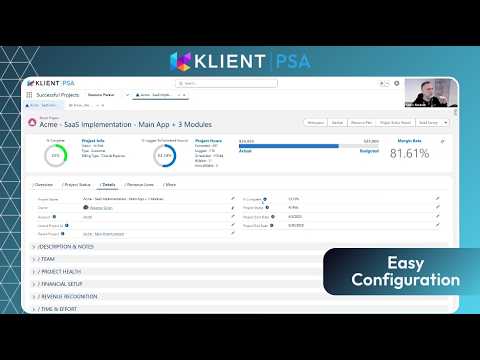
Yanick Abraham: And the way it works, if we open up one of our projects, that ACME SaaS implementation project, which is defined as a time and expense project, but with customer full transparency.
Yanick Abraham: It’s a billable project. When I’m gonna generate the project status report, based on my configuration, it’s gonna show me a subset of fields, and here at the bottom, it’s gonna show me a subset of groupings or related information, including the milestone, the issue, and the rest.
Yanick Abraham: Yeah, so let’s say, this is… this project is, … actually, we don’t want to do the full transparency with this one, we want to provide only limited visibility, so I can change the project type, and if I’m going back and regenerate that project status report, you’re gonna see now that it’s not
Yanick Abraham: at all the same project status report. There’s a lot less fields that we’re seeing here. We’re only seeing milestone, issue, and risk. We don’t see the current task, so this might be more relevant for a fixed fee project, for example, because you don’t want to show hours, you don’t want to show budget, you don’t necessarily want to show which task you’ve worked on.
Yanick Abraham: But you just want to show overall the different dates, if there is any blocker. So, this is a good example for a fixed fee project.
Yanick Abraham: Okay, all this is going to be also reflected in the PDF. We’ll talk about the PDF in the next release.
Yanick Abraham: So far, so good. I didn’t see any thumbs up. I’m hoping that you guys like the flexibility on this interface. Now, let me show it on a…
Yanick Abraham: an internal project, a non-billable project, because if you recall, I had two project statuses related to internal type projects, so if we’re looking at a project type, it’s internal. So for those two, when you have more than one project status report.
Yanick Abraham: it’s gonna tell you to the one that you have, so we had two, and I can select which one I want to show. So for internal, we’re giving the availability to have a few options, for example. So if I want to show what is a non-billable customer work internal project, I’m going to show the project summary, current week task, and last week task, but not the rest.
Yanick Abraham: Well, if it was a training, or I want to see the training view for the project, I could do it. So this means as well that you can use the status report for internal projects as well. So you can see there’s 3 hours that’s been logged on non-billable customer work, so you can play around with those, those values as well as even for internal projects, but I wanted to show you that interface that allows you to… asking you to pick up
Yanick Abraham: which…
Yanick Abraham: Project status you want to… if you have more than one for a time and expense project, you might have a different version, so your project manager can decide which one to send.
Yanick Abraham: So you’re not limited to only one per project type.
Rosalie Chassat: Which is one of the complaints we had gotten from customers. So now there’s no excuse anymore not to use their project status report.
Yanick Abraham: Is that okay?
Rosalie Chassat: And…
Rosalie Chassat: I can add as well, for those that says they want to set up Project Status Report, in the release note from this version, like, there’s really good release, detailed release notes for the customizable project status report with screenshots and arrows and everything, so it’s really well done. Our product team always does a good job with the release notes, but these ones are particularly very good, so have a… have a look at it.
Rosalie Chassat: Definitely.
Yanick Abraham: Excellent.
Yanick Abraham: So, this is in terms of bigger functionality. This is what we had for this week, this month. Still a lot for only a month, but we also have a lot of other improvements, Ali?
Rosalie Chassat: Yep, so yeah, we have a couple of those that we’ve added in the line. These are all the ones that are also available in the release notes, and you have direct links to all of them as well, and I think the next slide is for the fixes, I’m pretty sure. Yep, there you go. So you have the full list. As always, we won’t go into details, with those.
Rosalie Chassat: And then just a quick poll, just because we want to know which ones were, everyone is most excited about, which feature we presented. So you can just go and quickly, like, select the ones that you’re excited to check out, so coupled with timesheet, coupled with resource planning, we have a little bit…
Rosalie Chassat: have a less complicated poll than usually. And we also want to know if you already upgraded to our latest version, which I’m assuming nobody did yet, because it was released this morning, but you never know.
Yanick Abraham: Very awful.
Rosalie Chassat: really eager people in the webinar. So, I’ll just leave the poll, a little bit there.
Rosalie Chassat: And then we can start talking about the ideas, but I’ll just leave that one on the side.
Rosalie Chassat: All right, so ideas voting and product roadmap. So, as a reminder, as always, we invite you to vote for your favorite ideas. Right now, we have 25 ideas that are up for voting in our community, so it’s, again, very well indicated, but you just need to go in the ideas tab, and you can sort it by the most recent, if you want to see the most recent ones.
Rosalie Chassat: This month, our team actually retained two ideas,
Rosalie Chassat: So, the project import wizard, create project and test template without assignment, and, shocker, another feature, another idea related to project status report.
Rosalie Chassat: So issue list improvements. So, yeah, you may get the hint that we’re trying to improve our project status report from this. So this is what our team has selected from the ideas and will be developing in the coming, weeks or months.
Rosalie Chassat: Alright, and then if we move on to our roadmap, yep.
Rosalie Chassat: So, again, you can access our product roadmap anytime from the community from the roadmap tab. It’s always updated just before the webinar, every month. And there you can see what’s coming up. So, in the little blue rectangle is what’s coming for the next release, which will be around September 19th.
Rosalie Chassat: So these we already talked about in other webinars, the one coming on the next release. They’re all from ideas that were, quite popular. A couple of other things that are coming up, in following release, just in a nutshell, we have optimization with,
Rosalie Chassat: QuickBook purchasing, so we did a little bit in the past release, we just continued our work. Our team is also working on a client Jira app to log time. I don’t know if any of the Jira people are on the webinar. If so, I would expect some, like, thumbs up and hearts, but this is something that comes up from customers.
Rosalie Chassat: The project status report, general look improvements, so Yannick mentioned it earlier, we’re working on that. Last time we talked about, mass update fields in the workspace, which this one I’m really excited about, that’s coming up. And then, of course, the timesheet calendar, Google Outlook, sync, and then more Resource Planner color, improvements,
Rosalie Chassat: Yeah, so we have a little bit from every interface, I think, from there. I don’t know if there’s anything.
Yanick Abraham: We had a question about how many votes does an idea need in order to be implemented. We know, and I’m wondering which one it is, but we know that we have a few ideas on top that have a lot of votes. They will be implemented, but those are more, …
Yanick Abraham: effort-driven in terms of what it requires, so it needs to have a proper timing, to be able to develop those efficiently. So, they are on our mind. We know customer and our CS team are pushing for those top ideas to be developed right away. It’s just we need to find a proper timing, they will be. But, yeah.
Rosalie Chassat: Yeah, but to be clear, like, if one of the top ideas was, like, not that much work for the dev team, for sure it would be implemented, right?
Rosalie Chassat: It just happens to be the ones that are on top. It takes a little bit more time, so…
Rosalie Chassat: Perfect.
Yanick Abraham: There’s another question about prompt-based scheduling. It’s a new, kind of a schedule… it’s not a new scheduling mode, but it’s to remove some conflicts or friction between the planner and the Gantt, or the workspace.
Yanick Abraham: So, meaning that if you move something, we’re gonna prompt you and say, watch out, you’re gonna also… you wanna reschedule, you only wanna reschedule this, so this is a bigger, a bigger one.
Yanick Abraham: So, yeah, there’s a few good ideas as well in this. Plus, I’m not sure if you have another slide about AI, Ozeali, but in the next webinar.
Yanick Abraham: We’re gonna be able to talk a bit more about where we’re going with AI. It’s been on our mind, we haven’t released anything yet, but it’s coming. So we, most likely, next webinar, we’re gonna be about, able to talk about our AI roadmap also.
Rosalie Chassat: Perfect. That’s the… now we’re… yeah, moving on. Yeah, just a little reminder, the next webinar is on September 25th, but now is the time that is very… that’s the moment you were waiting for, Yannick. You want to know about the content from customers? So, if you can just take a couple of seconds, we have a lot of content, we develop a lot of content, this webinar is, like, one thing we do every month, but other than that, we’ve been trying a couple of different things, and we just want to make
Rosalie Chassat: sure, as a team, we put our energy to the right place when it comes to, like, client content. So we want to know three things from you. Where do you want to follow us on social media? So we have, like, a full list, but if you’re eager to follow us somewhere else, just let us know in the chat. So just select what applies to you. We also want to know what would be your preferred format, so do you prefer video, webinar, podcast, blogs, etc.
Rosalie Chassat: Whatever you prefer. And then the last thing we want to know is the content type.
Rosalie Chassat: So, are you looking for customer success stories, how-to, release notes, etc. We’re open to doing all of these, if there are the choices.
Yanick Abraham: Yeah, we’re trying to do all of these, it’s a lot of effort, but I was thinking that before trying to go crazy and build our Reddit page, if there’s no one of our customers on Reddit, maybe, …
Yanick Abraham: or Discord, then maybe we should not be there. But, yeah, looking forward to seeing your results. This is going to help us decide what we want to do content-wise.
Rosalie Chassat: Yeah, and some of these things we’re already doing, and we already have a presence, but some of them is just, like….
Yanick Abraham: We have nothing, so….
Rosalie Chassat: Yeah, would be good to know. So I’ll leave that one on.
Yanick Abraham: Spring.
Rosalie Chassat: And then, otherwise, like, for the webinar, that’s… that’s pretty much it. The next thing will be, like, when you close the webinar window, you’ll have, like, a prompt to fill in, webinar feedback, so we just want to know, like, how we did today, anything we can improve.
Rosalie Chassat: And yeah, we’ll hopefully see you in September. Now, there’s no excuse, summer’s over, so maybe there was a little bit less people in the summer, but we hope to see, like, a lot of you in September.
Rosalie Chassat: And that’s kind of it. Anything else there, Yannick, you want to add?
Yanick Abraham: No, it’s been great, thanks to the team, thank you, Roselli, and thank you for our customer to be here and listening to our new functionality.
Yanick Abraham: Philippe is gonna help you streamline your business.
Rosalie Chassat: Perfect. So I’ll end the recording, but I’ll leave the webinar open if you want to, finish answering that poll that’s very crucial to us.
Yanick Abraham: And Google.

OUR HOSTS

Yanick Abraham

CEO – Klient
Customer success

Rosalie Chassat

Customer Success – Klient

PODCAST EPISODE

Listen to our Beyond the Webinar – August edition podcast episode.

DOCUMENTATIONS

Klient rock in space

Replace all your tools with Klient, Salesforce #1 PSA platform

Run your entire SaaS and consulting business on a single professional service automation platform native to Salesforce!

Klient PSA 50.6: Smarter Reports, Timesheets & Resource Planner

Klient PSA 50.6: Smarter Reports, Timesheets & Resource Planner

KLIENT FEATURE SPOTLIGHT

Klient PSA 50.6: Custom Project Status Reports, Automated Timesheets, and Easier Resource Planning in Salesforce

Published on .

PODCAST EPISODE


Listen to our Feature Spotlight Unplugged: Release 50.6 episode. A deep dive conversation that covers all you need to know about this release.

For consulting firms and SaaS businesses, the biggest headaches usually come down to three things: reporting blind spots, manual timesheet entry, and inefficient resource allocation. Teams waste hours chasing data, fixing errors, and juggling disconnected tools, when all they really need is one system that works with them—not against them.

That’s why Klient PSA 50.6 is a game-changer. Built natively on Salesforce, this release focuses on automation and flexibility—helping you deliver projects on time, on budget, and without the administrative drag.

What’s New in Klient PSA 50.6

    • Customizable Project Status Reports – tailored reporting built your way.

    • Automated Timesheets with Salesforce Events Calendar – no more manual entry.

    • Smarter Resource Planning tools – effortless scheduling and visibility.

    • & more.

Looking for earlier updates? Explore the Klient PSA feature spotlight archive.

Customizable Project Status Reports – Reporting Built Your Way

Every consulting leader knows the pain of static reports that don’t tell the full story. Traditional systems force you into rigid templates, leaving executives blind to crucial details like project risks, resource bottlenecks, or milestone progress.

With Klient PSA 50.6, reporting finally adapts to you. The new Project Status Configuration object gives you granular control over your project status reports:

    • Choose which sections to include (current week’s tasks, last week’s tasks, next week’s tasks, issues, milestones, risks).

    • Define custom fieldsets for each section, so your reports display exactly the columns your business cares about.

    • Create multiple configurations per project type, allowing tailored reporting for different client needs.

The result? Reports that are executive-ready, highly customizable, and always aligned with your project type. Whether you’re running fixed-fee, T&M, or hybrid projects, your reports now match the way you deliver—not the other way around.

Smarter Timesheets with Salesforce Events Calendar – Automating Time Tracking

Timesheet dread is real. Too often, employees waste time retyping meetings, tasks, or customer calls into a system that feels detached from how they actually work. Klient PSA 50.6 eliminates that friction by turning Salesforce Events into timesheet entries with just one click.

Here’s how it works:

  • A new Calendar toggle on My Timesheet displays your Salesforce Events directly on the page.

  • Events are color-coded for clarity:

    • 🔵 Blue = event not yet added

    • 🟡 Yellow = event added but not saved

    • 🟢 Green = event successfully saved

  • Click an event, and Klient PSA automatically pre-fills the timesheet with event details: notes, hours, and dates.

That means no more manual copy-paste, fewer billing errors, and faster submissions. Timesheets finally work the way people actually work—by pulling directly from the Salesforce calendar they already use every day.

On top of that, 50.6 introduces a View & Resubmit Rejected Timesheets feature in split approval mode. Instead of chasing down corrections manually, employees can see rejected entries, fix them, and resubmit instantly. It’s automation that removes bottlenecks and speeds up approvals.

The value is simple: less time tracking admin, more billable accuracy.

Related: Read our recent article on How to effectively track time in Salesforce.

Easier Resource Planning with New Productivity Tools

Resource planning is often where projects rise or fall. One miscalculation can leave consultants overbooked, underutilized, or burned out. Klient PSA 50.6 introduces several enhancements designed to make planning faster, clearer, and more reliable:

    • Hide Completed Tasks / 0-Value Blocks: Clearer views without clutter. Teams see only what matters, improving focus and usability.

    • Compare Resource Icon: Quickly compare resources side by side, whether in the project-level planner or global view.

    • Custom Color Mapping: Choose your own color coding for actual hours, improving visual clarity and aligning with company preferences.

    • Distribute Evenly Scheduling: Perhaps the biggest timesaver, this new checkbox automatically spreads scheduled hours evenly across workdays in week or month views. For example, scheduling 20 hours in a month now auto-allocates evenly—no more manual math.

Together, these tools cut down on tedious admin work, prevent planning errors, and give resource managers the real-time visibility they need to balance workloads with confidence.

Conclusion: Automation and Flexibility for the Modern Consulting Firm

With Klient PSA 50.6, consulting firms and SaaS businesses get more than just new features. They get automation that removes friction, visibility that drives smarter decisions, and planning tools that keep teams balanced.

From custom project reports that finally reflect your unique delivery model, to automated timesheets that save hours of manual entry, to smarter resource planning that prevents burnout, this release is all about helping your business deliver more value in less time.

Klient PSA is where automation meets visibility, all inside Salesforce.

Ready to See it in Action?

Explore our eLearning courses for detailed guides

Register for our next live product update webinar

Request a personalized demo

VIDEO


Screenshots


Release 50.5 FAQ

How does the Customizable Project Status Report work?

The Customizable Project Status Report introduces a new Project Status Configuration object, allowing users to define report generation based on project type. This object includes various checkbox fields to control the visibility of sections like current/last/next week’s tasks, issues, milestones, and risks. Additionally, it uses Fieldset API names to control which columns appear in each section, enabling tailored layouts. If multiple configurations exist for a project type, a pop-up allows users to select the desired report setup. If no configuration is found, a default report is used.

What enhancements have been made to the "My Timesheet" experience?

The “My Timesheet” experience has been significantly enhanced with Salesforce Events Calendar integration. A new “Calendar” toggle allows users to view events from their Salesforce calendar directly on the timesheet page. Events are color-coded (blue for not added, yellow for added but not saved, green for successfully saved). Users can click on blue events to view details and add them to their timesheet, pre-filling notes, duration, and date. The toggle is off by default an

How does the new "View Rejected Times" feature in "My Timesheet" function?

A new “View Rejected Times” button has been added to the My Timesheet screen for users in Split Approval Mode (where Mass Timesheet Approval by Split and Enable Split Approval Process are enabled, and at least one rejected split exists). This modal displays all rejected timesheet splits, allowing users to select and resubmit one or multiple entries directly. If only Hours or Notes are updated, the original split is modified and resubmitted. If Project, Task, or Billable flag are changed, the original split is deleted, and a new one is created and resubmitted. The button disappears when no rejected splits remain.

How has resource comparison and visualization improved in the Resource Planner?

The Resource Planner now includes a “Compare Resource” icon. In the Project Resource Planner, it appears at the resource level, opening the comparison screen. In the Global Resource Planner, it’s at the Project level (when grouped by resource) and at the Resource level (when grouped by project). Additionally, users can now customize the color used for displaying actual hours in the Resource Planner via a new section under the Color Mapping page, with a default color of #66a9e4 and built-in contrast handling for readability.

What is the "Distribute Evenly" feature in the Resource Planner?


The “Distribute Evenly” feature is a new checkbox introduced when creating or editing Project Assignment or Task Assignment Schedules from the Project or Global Resource Planner in Week or Month view. Previously, users had to manually calculate and enter daily hour allocations. This feature automatically divides the total scheduled hours across all available workdays within the selected date range, streamlining planning, reducing manual entry, and minimizing input errors.


Klient rock in space

Replace all your tools with Klient, Salesforce #1 PSA platform

Run your entire SaaS and consulting business on a single professional service automation platform native to Salesforce!

Klient Newsletter – August 2025

Klient Newsletter – August 2025

Klient Newsletter – August 2025

×

Signup to our Newsletter

Get the latest Klient news delivered in your inbox every month.

What's new in Klient PSA?

From automatic task rescheduling to smarter time tracking and localized workspaces, Klient PSA v50.5 is packed with enhancements designed to help your team plan smarter, work faster, and bill with confidence.

This month, we’re rolling out helpful insights, resources, and a blog post to help you get the most from Release 50.5 — including quick tips, new workflows, and a deep dive into what’s changed.

If you missed last month’s update or want to revisit any past newsletter, all newsletters are available on our website:
👉 View past Klient PSA Newsletters

Here’s what’s new and worth checking out this month 👇

Product update
​​​​Current version: 50.5

Klient PSA 50.5 is officially live and t’s all about saving time, eliminating manual steps, and giving your team better control over delivery and financial workflows.

Highlights include:

  • Smarter Scheduling: Tasks now auto-reschedule based on changes to dependencies. No more manual updates or broken timelines.
  • Localized Workspaces: Currency, number, and date fields now follow the user’s locale—bringing better clarity for global teams.
  • New Time Tracking Controls: Auto-submit timesheets when PTO matches scheduled hours, plus easier keyboard navigation and search in timesheets.
  • Resource Planner Upgrades: Custom color mapping lets you visually spot availability with more precision.
  • QuickBooks Sync Enhancements: Purchase records now sync as Expenses in Klient, streamlining finance workflows and reducing manual entry.
  • Surveys with Personality: New emoji-based feedback questions boost response quality with one-click sentiment ratings.

👉 See the Release Notes


🔍 New Articles, FAQs & Fresh Podcast Episodes

We’ve added more than just product notes this month. If you want practical tips, real examples, and answers to common questions, here’s what’s new:

KLIENT FEATURE SPOTLIGHT

Klient PSA 50.5: Automate Scheduling, Timesheets & Expenses

Get a clear view of what’s new in 50.5 with an audio recap & FAQs so your team can get up to speed quickly.

👉 Explore the highlights

KLIENT HELP ARTICLE


Color Mapping – Recommended Default Values

With version 50.5, you can now customize the default colors in your Workspace and Resource Planner. To help you get started quickly, we’ve created a help article with our recommended color values — so you can apply them instantly and keep a clean, consistent look across your views.

👉 Read more

👉 Explore more Feature Spotlights


📣 Register Now: August Product Update Webinar

Next month’s webinar will highlight upcoming features V50.6. Register now to discover our impactful enhancements.

📆 Thursday, August 21th at 11AM ET

🎟️ Register now

🗓️ Missed the July Product Update Webinar?

We’ve Got You.

Catch the full walkthrough of Klient PSA 50.5 with live demos, real use cases, and answers to top customer questions. Use the link below to quickly watch the recording or if you prefer audio only, listen to our podcast episode - Beyond the webinar.

👉 Learn all about the July webinar


Product roadmap & Idea voting

💡 4 New Ideas Up for Voting 💡

- Assign additional contacts as billing recipients
- Workspace predecessor task column (view and edit)
- Global workspace toggle to hide templates
- Project Status Report - Issue list improvements

GO VOTE !


🏅 Become a Klient PSA Champion This Month

Here’s how to get more from Klient (and help shape what’s next):

📚 Complete one of our eLearning courses and share one with a colleague.
📢 Share a product idea or improvement request & Vote for your favorite product idea in our community.
👉 Follow @KlientPSA on socials. LinkedIn YouTube

Thanks for being part of the Klient Community.

— The Klient Team 💙

Klient rock in space

Replace all your tools with Klient, Salesforce #1 PSA platform

Run your entire SaaS and consulting business on a single professional service automation platform native to Salesforce!

Klient PSA 50.5:  Automate Scheduling, Timesheets & Expenses in Salesforce

Klient PSA 50.5: Automate Scheduling, Timesheets & Expenses in Salesforce

Thumbnail automate scheduling, timesheet & expenses in Salesforce

KLIENT FEATURE SPOTLIGHT

Klient PSA 50.5: Automate Scheduling, Timesheets & Expenses in Salesforce

Published on .

Klient PSA 50.5 is now live, delivering powerful upgrades that help consulting firms and SaaS professional services teams on Salesforce streamline project planning, ensure timesheet compliance, and keep financial data in sync with. 

PODCAST EPISODE


Listen to our Feature Spotlight Unplugged: Release 50.5 episode. A deep dive conversation that covers all you need to know about this release.

Why Automation Matters for PS Teams on Salesforce

Manual project updates, late timesheets, and mismatched expenses aren’t just annoyances — they quietly erode profit margins and slow your team down. For most consulting and SaaS professional services firms, these gaps delay invoices, cloud forecasts, and tack on hours of admin work each week.

Klient PSA 50.5 zeroes in on these problems. Built 100% native on Salesforce, it gives you new ways to keep your entire delivery operation in sync — automatically. That means fewer manual steps, more reliable data, and ultimately, faster billing and happier clients.

What’s New in Klient PSA 50.5

This release tackles some of the biggest delivery bottlenecks with:

Automated workflows that keep your project plans, timesheets, and expenses aligned without constant oversight.
Smarter usability & localization, so global teams see dates, currencies, and Gantt views exactly the way they expect.
Deeper financial alignment, ensuring what’s in QuickBooks precisely matches your PSA — down to each expense line.

Every improvement is designed to cut down the manual work that slows your team, so they can focus on delivery and growth. Want all the details? Check out the podcast episode, release notes, and FAQ on this page.

Automate Project Scheduling in Salesforce

When a client changes priorities or a task slips, it often triggers a messy chain: manually realigning dependent tasks, emailing updates, double-checking your forecast. Those delays cost more than time — they mean overlooked bottlenecks and misallocated resources.

With Klient 50.5, updates to a parent task automatically adjust all linked tasks. You won’t have to remember to click “Reschedule” or track down who’s impacted. Your Gantt charts, forecasts, and resource plans stay accurate by default. Less timeline babysitting, more predictable delivery.

Simplify Timesheet Management with Automation

Time tracking is essential for cash flow, but getting accurate & on-time timesheets is always a struggle. Klient 50.5 delivers two big automation wins:

  • Auto-submission for PTO & holidays: If someone’s out all week, their timesheet submits automatically. No follow-ups. No blocked invoices.

  • Streamlined entry: Better keyboard shortcuts, search in the Project/Task field, and faster comment popups mean your team logs hours in less time — without toggling from mouse to keyboard.

The payoff? Less friction for consultants, fewer reminders for managers, and invoices that go out right on schedule.

Keep Expenses in Sync. Automatically in Salesforce

Few things slow down finance like hunting down mismatched expenses. Manually exporting, reconciling, and fixing line items drains hours and invites costly errors.

Now, with Klient 50.5, purchases in QuickBooks can automatically create or update expenses in Klient. Each amount, billable status, and vendor ties up neatly — with synced QuickBooks IDs so future invoices link back exactly. Less double entry, fewer audit headaches, and more confidence that your invoices are bulletproof.

Measure What Matters: NPS, CSAT & Emoji Feedback

Great service teams don’t guess, they measure. Klient PSA has always supported best-practice surveys like NPS and CSAT to help you track client sentiment with consistency and rigor.

Now in Klient 50.5, we’ve added emoji-based survey questions for embedded emails — a faster, more intuitive way to capture feedback at key moments. Clients simply click 😊 😑 😒, and their response is instantly logged.

👉 See how surveys drive better project outcomes: Boost Project Success & Engagement: The Power of Project Surveys

The Benefits for Consulting & SaaS Teams

Klient 50.5 is all about removing the hidden costs dragging on your business. By automating project scheduling, timesheets, and expenses right in Salesforce, you get:

Invoices out faster, since timesheets and expenses handle themselves.
Healthier project margins, thanks to schedules that stay aligned without constant manual checks.
Accurate forecasts, because delivery data updates in real time.
Audit-ready records, with every expense traceable straight to QuickBooks.

That’s more revenue, fewer write-offs, and teams focused on high-value work  instead of chasing down admin.

VIDEO


Screenshots


Release 50.5 FAQ

What are the main areas of enhancement in the new release?

The new release, version 50.5, focuses on significant enhancements across automation, localization, and user experience. Key improvements include automated rescheduling of dependent tasks, expanded support for locale and currency formatting in the Workspace, enhanced keyboard navigation in My Timesheet, new color mapping options for resource availability, and deeper integration with QuickBooks for syncing purchase records as expenses.

How does the release improve task management and project workflows?

Project workflows are streamlined through several key updates. Tasks now auto-schedule when their dependent tasks are updated, eliminating the need for manual adjustments. The “+” icon in Workspace now creates sibling tasks by default at the task level for improved hierarchy management. Additionally, child tasks now automatically inherit start and due dates from their parent tasks, ensuring better timeline consistency. The ability to hide dependency lines in the Workspace timeline offers a cleaner visual layout.

How has the timesheet functionality been improved?

The My Timesheet page has seen several usability enhancements. Keyboard navigation is now fully supported, allowing for more efficient entry without a mouse. Timesheets will also be automatically submitted for users who have a full week of approved time off or holiday coverage. Furthermore, timesheet sharing logic has been enhanced to automatically re-share with new project owners or resource managers, ensuring accurate visibility. Organizations can also now use custom Lightning email templates for missing timesheet notifications, allowing for personalized and branded communication.

What are some of the other notable usability and accessibility improvements?

Beyond the major features, several smaller improvements enhance usability and accessibility. The “Align Schedule to Logged Hours” feature is no longer restricted to project owners, increasing its flexibility. The My Timesheet interface now includes search functionality in the Project/Task column for easier selection. The Notes utility bar has been removed from all applications to streamline the interface, and an issue where full URLs were truncated on the New Project Creation UI has been resolved. Invoice PDFs also have a cleaner layout with reduced extra spacing and the removal of the project name on the left side. Task indicators in the Workspace are now configurable as a column with updated display rules for better visual clarity.

What upgrade considerations should users be aware of for key features?

For the QuickBooks Purchase record sync, administrators will need to create a Salesforce Site, set Guest User Permissions, and configure webhooks in QuickBooks, as well as add new custom fields to relevant object page layouts in Salesforce. To use the new emoji-based survey questions, the “Emoji” picklist value needs to be added to the Krow__Question_Type__c field on the Survey Question object. For custom Lightning email templates for timesheet notifications, users need to enable Folders and Enhanced Sharing for Lightning Email Templates and share the KlientPSA folder with appropriate users. Existing customers should also add updated fields from the Prepayment object page layouts to related lists for improved visibility.

Klient rock in space

Replace all your tools with Klient, Salesforce #1 PSA platform

Run your entire SaaS and consulting business on a single professional service automation platform native to Salesforce!

August 2025 Klient PSA Product Update Webinar

July 2025 Klient Product Update Webinar

Professional Services Automation (PSA) Webinar

July 2025 Klient PSA Product Update

Klient PSA Webinar

July 2025 Klient PSA Product Update

Summer might be in full swing, but we’re not slowing down.

In this June 2025 Product Update Webinar, Klient CEO Yanick Abraham and Customer Success Manager Rosalie Chassat walk you through the most impactful new features, improvements, and customer-requested enhancements now available in Klient PSA.

This month’s release v50.5 is packed with powerful enhancements that make everyday project work easier, faster, and more intuitive—from currency formatting and visual clarity in the Workspace to auto-submitted time off and embedded surveys that boost response rates.

Let’s dive into what’s new!

TIMESTAMPS

00:00 – Welcome & Agenda Overview

02:45 – Upgrade Considerations & Release Notes Tips

06:00 – Workspace Enhancements (Locale, Currency, Dependency Toggles)

13:30 – Timesheet Updates (Keyboard Shortcuts, Auto-Submission)

20:55 – Surveys with Emojis & Embedded Responses

26:40 – Resource Planner: Color Mapping by Availability

31:00 – QuickBooks Integration: Prepayments & Expense Sync

36:15 – Roadmap Preview & New Ideas for Voting

Enjoy & register to our next professional services automation (PSA) webinar.

Rosalie Chassat: Good morning. Everyone. Welcome to today’s webinar. We’ll just wait a couple of seconds for more people to join, and we will get started.
Rosalie Chassat: Alright.
Rosalie Chassat: Okay.
Rosalie Chassat: Hi, everyone. My name is Rosalie. Welcome to today’s client, Webinar for July where we will be presenting version 55.1 that was released earlier this week on Monday. My name is Rosalie, and I’m customer success manager at client. I will be your host today. As always, our CEO Yannick will be joining me to demo some of our really exciting features. Hello, Yannick.
Yanick Abraham: Rosalie.
Rosalie Chassat: Looking forward to it. A lot of cool stuff to show again today.
Rosalie Chassat: Yes, we’re not slowing down, even though it’s summer. And finally, we also have Isabel from our customer success team as well. Who will be answering some questions. And QA.
Rosalie Chassat: All right, if we go to the next slide, perfect as a reminder. If you want to make the most out of this webinar, just make sure you participate to polls, use the react button. Tell us how you feel, and you can ask questions in the chat or Q&A. And as always, speaking of polls, we will be starting with our very 1st poll we want to know. Is this your 1st client, Webinar?
Rosalie Chassat: Yes, no, I’m a regular no. I’ve been to a couple, and I have a feeling that because it’s July and middle of the summer we’re gonna have mostly regulars. But I could be wrong.
Rosalie Chassat: Alright.
Rosalie Chassat: Actually, I’m almost right. Looks like, there’s a couple of 1st timers so welcome for you. But most people are regulars. So welcome back to everyone. So what do we have on the agenda for today. Let me just end the poll. All right.
Rosalie Chassat: What do we have on the agenda for today? So we’ll be demoing some of our most notable new features and improvements from version 55.1. So just so, you know, there’s a lot of things we release every time. We don’t have time to show everything. So we always make like a selection of what’s most relevant. We’ll also talk about your most popular ideas and what ideas are new for you to be voting on on our community. We’ll show the product roadmap talk a little bit about our next release. And then conclusion.
Rosalie Chassat: little
Rosalie Chassat: reminder about our release notes. So as always after the webinar. If you haven’t done it yet, we encourage you to review all the release notes
Rosalie Chassat: on our community. You can search for the red light emoji that you can see. Yeah, thank you for upgrade consideration which are the most important to know about, especially if you’re a system administrator that’s going to be performing the upgrade. And if you need to send any internal communication and then for release 50.5. We’ve highlighted. There are 4 upgrade considerations. So they’re on the slide there.
Rosalie Chassat: So for you to.
Yanick Abraham: And there is some some time. If you want to benefit from those functionality, you absolutely need to follow those links in this specific release as well. If the lightning emails template is not enabled in your environment, you will need to enable it. It’s been introduced a long time ago, so it should already be enabled. But please read the release notes upgrade considerations.
Rosalie Chassat: Yep, perfect. Now, let’s have a look. These are the new notable features. And improvements. In an instance, Yannick is gonna be demoing a couple of these. We’ve got things to show you in the workspace timesheet resource, planner and then some things related to surveys and financial to kick things off. We’re actually gonna be starting with a
Rosalie Chassat: Oh, about currencies, which is what we’re going to be talking about first, st what we’re going to be demoing first.st So very simple, easy question. We never talk about currencies really in these webinars. So 1st time we do, we just want to know if you have multi currencies in your salesforce org. So if you have one currency, 2 or more.
Rosalie Chassat: so we’re just kind of curious. I think it depends where you’re based in the world as well. But I’ll give a couple of seconds. And from what I’m seeing, yeah, we have about half people that only have one currency and then the other half that has 2 or more. So this should definitely be relevant to you. Then and I will be passing the baton to you. Yannick. Yeah, we’re about half half.
Yanick Abraham: Yeah. And actually, it’s not even for people that only have one currency. The 1st improvement which is working with locale and working with the representation of number is going to help a lot.
Yanick Abraham: So again, as we’re trying to do quite often, we’re trying to simplify the use of client, we need to. We want to increase visibility, clarity, legibility. And again, this is one of the main thing about this functionality, about the locale and the currency column. So
Yanick Abraham: you might already spot the difference. So if you’re looking at my workspace, and if we’re looking at the expected revenue column, the 1st thing you can see now is that we do have that currency symbol showing.
Yanick Abraham: But also we have the representation of numbers with the proper comas and numbers separation. And this is going to be based on your locale, so every user can change their locale based on their settings. So if I would be clicking on Roxanne Green, I could see my locale, the environment itself, as a default. Locale
Yanick Abraham: and projects do have currency set up. So you can see, for example, this specific project here. If I’m sorting my grid, I can see this one is in us dollar, and this one is in euro, and the representation of number like I said, there’s a comma separation. You can see as well in the number format. There are also separation with the different units. So the coma is being used with my specific locale, have in that environment.
Yanick Abraham: So again, for clarity and term, when you’re looking at numbers now, it should be a lot easier. This has not been done before, because supporting locale did require some effort. But now we have that functionality that’s going to help you make sense of all your numbers in the workspace. Hopefully, you’re going to find this a lot more easy to find your numbers and look at data.
Yanick Abraham: So this was the 1st thing. So, coming back to my slide. We have a few on this. So the other one, it’s gonna be the toggle, the I dependency lines and timeline task and skater, and then creation of task will be the the next one we’ll be looking at plus rescheduling, so I won’t be coming back to that deck. But let me show you a few of those functionality
Yanick Abraham: if I open up this project here, which is a bigger project, and then this is in regards of the dependency line between tasks. So when you have a project with a lot of tasks, this one is pretty intense. If I make it full screen and let me zoom out a little bit, and as well zoom out here in the workspace itself.
Yanick Abraham: So you can see while zooming out, have all those dependency line that sometimes create confusion, or it’s at least for visibility and clarity. It’s a bit more difficult to see. So we’ve introduced a simple toggle here idependency. So in this way it just removed those lines. They still exist. They’re still linked. Their dependencies still exist. So it’s just a representation, and you can easily.
Yanick Abraham: I or not those dependency line. So when you have a complex project, and you just want to have a bit more clarity, you can easily just hide those line with that toggle and.
Rosalie Chassat: Red star red asterisk. This means you can definitely save it in your presets.
Yanick Abraham: Exactly. So. This is the the functionality about that toggle.
Yanick Abraham: the other one. We’ve we’ve introduced that functionality in the last release, the task indicator column. This can also be toggled with
Yanick Abraham: that toggle button here. But now we’ve also included with the within the the context menu. When you right click on top so you can easily hide or show that task indicator. So if I wanna add it, I just can select that task, and skater is going to be added back to my layout, and I can move it around and we’ve also made some improvement already to that new functionality.
Yanick Abraham: First, st there’s the logic of the overdue has been a little bit improved. There was a new canceled settings that’s been introduced to to play around with that toggle of overdue. So when you have a red circle like this, it means it’s overdue
Yanick Abraham: but also, when you have let me just come back here when you have some milestone, and you wanna let’s say, put some payment information on it. You’re gonna have some color coding, and you will see that that color coding is going to be represented on both sides, too. So let me just open this test panel. I’m gonna put that milestone a payment of, let’s say, $12,000, and I’m gonna save it.
Yanick Abraham: And you can see now that that milestone has been changed to black, and on both sides on the left side and the right side, and when I’m going to market as complete, it’s going to also be changed with a border black border, but still a green icon, meaning that it’s been completed.
Yanick Abraham: And when it’s overdue it’s going to be read. So we’ve improved the behavior of that task and Skaters column. I’m not sure if you’ve been using it, but you should be starting using it. It helps to just get to your information quickly. You can know as well when there’s some time log and some checklist items. So that test and skater column has been improved.
Rosalie Chassat: If I can piggyback off what you said. Yannick, I would be curious, because we’ve released the task indicator last month. If you have been using them. You can let us know in the chat, or even when you’re talking with our team from our support team or customer. Success manager. Just let us know. Like, if you’re using it, what’s most useful, less useful. If there’s any additional tweak that would help you out. Cause. That’s yeah. That’s when you should definitely use. So we want your feedback.
Yanick Abraham: I see perfect. So if I continue on the improvement on the workspace, the other one is, it’s going to help a lot in terms of preserving data and making sure there’s no change in your data unintended change on your data. So the 1st thing is, for example, if you see here the behavior of the plus sign has been changed. It’s been like this for a little while before it was creating a subtask.
Yanick Abraham: Now it’s creating a sibling task meaning it won’t change your dependency, and it won’t create any changes into the creating a parent task which will cause problem with dependency, so that plus sign behavior, create now a sibling task. And you can also notice that the start, date and end date are being set as default of the parent task here on top.
Yanick Abraham: meaning that again in the past it would create, for example, at the start of the project or and today, depending on the scenario, and it would screw up a little bit your alignment of your task. So now it’s really taking the parent task. Start date and end date.
Yanick Abraham: also other improvements. So if you recall, we do have a lot of shortcut, you can pop up the shortcut legend just by doing right. Click in the table, and there’s 1, if you want to create by the keyboard shortcut shift, enter will create a sibling task control. Enter would create a subtask. If you’re using a Mac, it’s going to be the common
Yanick Abraham: key that’s going to create this. And if I just show you the same example, if I create a sibling, it’s going to go and let me do this. And again, it’s gonna take the start and end date. If I try to create a child task, it’s going to tell me that I’m about to break that linkage or my dependency between task if I want to continue or not. So again, we’re trying to preserve the integrity of your data. So we’ve introduced those changes.
Yanick Abraham: It should help as well for people that using the workspace a lot.
Rosalie Chassat: That’s definitely one. I would make internal communication really clear about that one for anyone in your organization creating a projects and tasks. They may be surprised@firstst
Yanick Abraham: Yes, and the other one. It’s about scheduling. So scheduling in the past you had to use, and still you have to use sometime the reschedule task button or action here on top. But we’ve introduced that when you charge, change dates now in the workspace and the grid, those rescheduling are going to be done automatically. So let’s say I’m changing here my transit time in that specific task to a few
Yanick Abraham: months in the future. If you look here on the right. They’re all stacked. But when I assume I’m gonna change the date and apply the change, you can see that this has moved, and then all the following task has moved as well.
Yanick Abraham: meaning you don’t need to go press that scheduling button, and there’s more no more discrepancy between what you’re trying to do, and the the result on the the right side. It was always working from here. This was always the intended behavior. So if you change the the workspace duration of your task. It’s an auto schedule. But now the dates are gonna also have that similar impact in term of scheduling
Yanick Abraham: good. So in term of the workspace improvement. I think we’ve covered all the different improvement on this specific release.
Yanick Abraham: And if we want to go and move ahead on the my time sheet. We’re gonna be able to see the other improvement we’ve done on my time sheet. There’s some now keyboard navigation available as well. This was a a request from some of our customer.
Yanick Abraham: We also allow for auto submission a full week of time off. So I’m gonna explain the scenario in a second plus, we have an initial release for the might missing time sheet to use lightning email templates. So it’s the 1st step for you guys to be able to update those templates which gonna come in the next release.
Yanick Abraham: Okay, my timesheet keyboard navigation. In the past. It was working half and half. I would say it was not properly handling all those keyboard navigation if I open up my Timesheet copy from my schedule, so I have already some lines.
Yanick Abraham: So now you’re going to really be able to do everything just with keyboard navigation. So I’ve clicked here. But I can just navigate with the tab button now. So it’s really easy to navigate through my entire projects, and I can change things around. I’m going to even be able to go to the Add row and add row.
Yanick Abraham: as every other software to move from tabs. It’s the tab button, and to come back it’s the shift Tab button to come back in the previous cell, and I can now easily just do. For example, 3. Then open up with the enter button my comments, Node. Then tab out so I can. I don’t have to leave my keyboard, and I can really fill up my time sheet very easily now, just by keyboard navigation. And so again.
Yanick Abraham: trying to make things simple. And we don’t like to do timesheet. Eventually, we’re gonna fill that with our AI. We’re gonna fill those timesheet automatically for you. But for the time being that keyboard navigation shortcut should be helping you. So tab shift tab and the enter button are pretty much the main key to use for now.
Yanick Abraham: Good. So this is for the my time sheet functionality. The other one is the auto submission of time off, so let me open up the time off.
Rosalie Chassat: And I know the auto submission of time off and holiday. That was a idea that came from customer. A couple of customers asked for this actually.
Yanick Abraham: And I’m reading the question on the right side. Would you? Brian is asking if we could. Should recommend switching to Lds to team. So my color code and might be different than yours. So yes, we are using the newest interface of salesforce. And yes, we recommend moving to it.
Yanick Abraham: It’s prettier it’s a bit slicker. So absolutely. We recommend changing that setting as well that team for your entire company. We use the default team with a black background, and it goes it makes everything prettier.
Yanick Abraham: Okay, time off the the use cases. Let’s say, somebody is taking a full week of vacation and you want, the process is to be able to submit that time off to get that approved. And then, this is represented in your time sheet
Yanick Abraham: in the past. You still need to go in the future date and submit your time sheet. So it’s going to be picked up and approved by your the approval process or the people responsible to approve those time entry. Now, it’s going to be automatically submitted this way. You don’t need to go and do that second step that some people the employee, were forgetting. Then you add some time sheet in limbo that were not approved, and you could not do it by yourself.
Yanick Abraham: So this is solve solving that problem. So let me just create a quick time off.
Yanick Abraham: so I can show you. So let’s say I’m gonna take some vacation. I’m just coming back from vacation, but I would like to take more. So let me static next week as my full week. And the rule here. It’s really that
Yanick Abraham: the number of hours that’s going to be automatically calculated needs to be equal to your work schedule hours. I’m gonna auto. Approve it from the get go. But by doing this and my work week schedule is 40 h. And now my submitted time off is for 40 h this mean it. It entered that flow. And now my time sheet has been automatically submitted. It doesn’t mean it got approved. But if I’m going to my time sheet approval Page
Yanick Abraham: and I’m searching for that specific range of dates which was next week, I can see now that I have my my time sheet for vacation, that I’ve been submitted. So the employee don’t need to do anything else. Now it’s just an approval process step. And usually this happened on the week of the vacation. So on the week of a vacation, I can confirm that. Yes, that person went away.
Yanick Abraham: and then I can go ahead and just approve that time off. So everything is neat and tidy for the accounting people and the Hr. People.
Rosalie Chassat: Hey!
Yanick Abraham: Let just let me know if there’s any questions.
Rosalie Chassat: And it’s gonna be more useful when you get to the missing time sheet. If you got that set up as well, you’re not gonna have the weird notifications and.
Yanick Abraham: Exactly.
Rosalie Chassat: As well.
Yanick Abraham: Thought, you’re right.
Yanick Abraham: and the other one, I know our customer. Apr. Been waiting for this to be able to configure all those email template we’re sending out. So the 1st step was to introduce email templates in the lightning format. So Salesforce has changed the email templates a while back. But we were still operating on classic emails. Now, we’ve introduced email templates.
Yanick Abraham: as you can see, there’s 3 of them in regards of the missing time. Sheet in that 1st iteration we are. We’ve improved the look and feel of that email template. And we’re using that email. The new email templates from salesforce the lightning one.
Yanick Abraham: This being said, it’s still not editable. The addition of it will come in the next release, or the one after. I’m not sure but you’re going to be able to edit those. But the 1st step was to move to those email template. And there is some great consideration in that regard, and maybe in terms of sharing the folders.
Yanick Abraham: and I’m pretty sure pretty much all the user we have here on the webinar. They already have that lightning email template enabled so please look at the release notes for those upgrade consideration, but this is the 1st step of doing it the look and feel is a lot better already. But we’re gonna come with the fact that you’re gonna be able to change your logo and change the text if you wanted to as well
Yanick Abraham: cool. So we’re pretty much done in terms of the timesheet information. So automation missing time sheet and keyboard navigation now.
Rosalie Chassat: Yeah, and it’s nice. I I saw comments in the chat that from Josh that you’re already having your users happy about the shortcuts in the time sheet. So that’s good.
Yanick Abraham: As you can see in this release, we have pretty much all ideas. It’s pretty much all ideas that have been asked by our customer, and that fits our our roadmap. So we’re very happy that
Yanick Abraham: to provide those upgrades for you guys.
Yanick Abraham: This is the same for the survey so surveys. It’s been asked that we support more type of surveys questions. So we’ve enabled that Emoji base survey question, but also, as you will see in my demo. You are able to answer some of those questions directly in the email that you receive as a survey. So we’ve made those 2 being able as well that you can answer it directly in the email. So let me show you those upgrades.
Rosalie Chassat: Yeah, embedding in the email is definitely best practice. If you want more response rate.
Yanick Abraham: Yeah, because with a single click to get the results, absolutely.
Yanick Abraham: Okay. So let’s go in the configure survey section. I’ve created one new survey, the training workshop feedback. Let me open it. And then you can see that I have 2 question in it.
Yanick Abraham: one of those new questions, or those emojis. So if I press, add new question, you can now select an emoji question, and you have a few settings associated with it. So 1st the question, but then you can play around with the scale. So if you want a scale of 2, a scale of 4, a scale of 5, you’re going to be able to to select this. And it’s pretty simple, right?
Yanick Abraham: Pretty much every software. Now, when you’re ending a Google meet session, for example, we have those emoji exact same emoji that start popping up. So a lot of software using this. So now we have that functionality, too. And on top, you can select. Which question do you want be able to being answered in your email? In our case it was that what was your preferred topic. It’s the it’s the question that we we had those radio button on.
Yanick Abraham: I’m sorry I left my survey page.
Yanick Abraham: So now you can pick up those radio button a question. You can select it as an email setup.
Yanick Abraham: And and I’ve also closed my project. Now
Yanick Abraham: let me show it in action.
Yanick Abraham: So if I open up my that specific project and I want to send a survey, you should have that button on the project itself. You can put it pretty much everywhere. I’m going to select my template with the embedded question. I’m going to send it to myself, and I’m going to pick the
Yanick Abraham: the survey that we just selected. I’m gonna send it quick preview. And then in a few seconds I’m gonna receive it in my inbox. Let me open it up.
Yanick Abraham: So now, I’ve received that email with that 1st question the radio button. And as soon as I’m gonna pick one answer, it’s gonna open up the Full Survey page. The selection I’ve picked is already picked. The record has already been created. So even if the customer don’t submit the response you still have that 1st answer, and then I can go ahead and select my second answer and submit the full survey.
Yanick Abraham: So that functionality is we’ve improved a lot of survey recently in terms of keeping those value answering that 1st question. And now you have that you can do it with the
Yanick Abraham: check boxes or the radio button, but also the Emoji works very well to do the same thing.
Yanick Abraham: Who?
Yanick Abraham: I saw a lot of arts coming up. So I’m guessing
Yanick Abraham: customer on this webinar are very happy about the functionality.
Yanick Abraham: Okay, next,
Rosalie Chassat: Resource, planner.
Yanick Abraham: Resource planner. So resource, planner. There’s there’s a new functionality in terms of color mapping that we’ve introduced in the previous release. So now we’ve made some other in adjustment and improvement on it. So if I open up my global resource planner, I’m now in my scheduled view. So those are the number of hours that I’m assigned across my different task and project, depending on what you’re assigning your people on
Yanick Abraham: with all the different functionality. But if you switch into the availability mode now, we also represent this with color, and there is now a color coding, that is, you’re able to to play around with. So, for example, you can play with the color coding of that representation, so less than 0 will be green 0 to. And this is the number of hours that are available for
Yanick Abraham: to be assigned. So the idea is to be close to 0. And if you have more than 50%, you’re gonna be in red, for example, we are thinking of introducing, maybe. And again, you can chat me
Yanick Abraham: offline if you want. But we’re thinking of reducing another selection here so less than 0 instead of just having in green. When you’re this means I’m overbooked right? Because I might have minus 28 h, so I don’t think it should be green. In that case it should probably be in another shade of red. So most likely we’re gonna introduce us 4th selection here so less than 0. And then you’re gonna be able to pick those value here.
Yanick Abraham: This being said, the color coding work. And you can see as well that, for example, if I don’t like that green, it’s a bit too dark for me.
Yanick Abraham: Some of our customers don’t know yet, but you can play around with your colors and through the color mapping tab. So if I go color mapping, and if I scroll to my
Yanick Abraham: section about resource planner availability view. So this is the one I can just go ahead and change the call recording and save it. And now, if I’m coming back. I’m gonna have a better green that fits better with my other
Yanick Abraham: section. So after this webinar, yeah, I think the you’re gonna be sending out a recap. And we’re gonna introduce our color codes that we have across our demo environment and the default setup. So if you want to reproduce those color you just need to to copy and paste it in the color mapping of client.
Yanick Abraham: So again, clarity legibility, making a surface information a lot faster and better next
Yanick Abraham: financials this one. I’m gonna talk about it less than showing but we’ve we’ve introduced in the latest Webinar. If you recall the prepayment prepayment could be created in in that release at the press of a button. Now let’s say you close one an opportunity, and you want that information or that prepayment to be created automatically. When you win that business.
Yanick Abraham: you’re gonna be able to call it via flow, a salesforce flow and create that automatically. So you don’t need to press that button. So either on the proposal, the project you’re gonna be able to create that prepayment with that new invocable action. So 1st thing, then, we also made that project forecast, and I think you do have a survey about forecasting.
Rosalie Chassat: Let me just launch it. Now, we’re just curious because we don’t talk about it that often. Yeah, are you using client for forecasting? That’s very simple.
Yanick Abraham: Simple, and we have project forecast, and we have resources forecast. So those are 2 things. In this case it’s the that project forecast that now. Again, it could be schedule and a batch job. But now you’re gonna be able to call it via an Api. So if you want to build any kind of logic or any kind of button yourself, you’re gonna be able to do it. So this been introduced as new ways of for you to automate some of your settings or some of your
Yanick Abraham: workflow.
Yanick Abraham: and I’ll let you resume that that survey. I’m kind of curious. I’m expecting that a lot of people will say Yes, but.
Rosalie Chassat: Yeah, we’re half people said that. No, they’re not using it. And then some people said, Yes, and some people, they just don’t know which it’s. It’s fair that not everyone in the organization is using the forecasting
Rosalie Chassat: module.
Yanick Abraham: And forecasting. And the later part of the year forecasting is gonna be something we’re gonna be improving again a lot and you should see some of that information or some of those new feature coming
Yanick Abraham: your ways before the end of the year.
Rosalie Chassat: Yeah.
Yanick Abraham: Okay the 2 other one quickbooks. Okay, this one is a bit more complex, not necessarily complex. But there’s more information. So I have a few slides just to explain what it does. And then, if you need to set it up in the release note, there’s the entire procedure of how to set it up for the long. For a long time. The only things you could do with the quickbooks is that you could from a client invoice. You could send that to a quickbook, invoice with all the different line items. So this was already in the package.
Yanick Abraham: and then you could add that payment of invoice in quinbook flowing back to client as a payment so affecting the balance of your invoices. So those were existing features
Yanick Abraham: in. And we’ve added in the last release, some some functionality which I’m gonna explain in a second. But before I just want to do some little definition of the object in quickbooks. So in quickbooks you have a bill object which is pretty much an invoice that you need to pay a vendor for so this is called a bill in quickbook.
Yanick Abraham: And there’s another object called purchase. Usually it’s when you have, for example, if you have a credit card coming over, it would create a purchase.
Yanick Abraham: a record in quickbooks, meaning that this is something that you’ve already encountered. We’ve already paid, and this so those are the 2 main object in quickbook that are capturing expenses.
Yanick Abraham: So our functionality in the latest last release we’ve introduced that the fact that the client expense can now create a quickbook bill. So you’re going to be able to reimburse your resources, and you don’t need to recreate anything manually in quickbook which you have to do in the past. So now it’s creating that from an expense it can create a quickbook bill. So that’s been released in the latest one. And in this release we’ve introduced the fact that the purchase. So let’s say a credit card statement, and you want to affect
Yanick Abraham: that expense. You want to affect the margin of your project. So now that quickbook purchase can create a client expense, and then that expense can be linked to a project. So it’s going to have an impact on cost. So again, those functionality have been added really to simplify your life and remove some duplication of data entry. So you don’t
Yanick Abraham: make any mistake, and you can enable both. This being said, there’s an upgrade consideration. So please follow the release note. If you want to set up those information and test it out, let us know what if it’s working well for you? There is subtility and other details in terms of what’s being sync that are indicated in the release. Note themselves
Yanick Abraham: quick bills to be sent client expense. No, for now it’s really the purchase that are being sent from quickbook to client, and we send from client. We send the bill over so and then, because there’s 2 object and we can discuss the specific. There might be some use case that can be solved. And maybe there is some other use case that we haven’t developed yet. So please let us know. What are those different use case. It’s a question I saw in the Q. And a.
Rosalie Chassat: Nope.
Yanick Abraham: Okay, so I don’t have any representation or visual for this. But hopefully, this test desk is gonna help.
Rosalie Chassat: The.
Yanick Abraham: So this is it for the main demo? So we’ve been introduced some new functionality again on the workspace, on the planner, on time sheets and surveys. So a lot of our main interface have been upgraded
Yanick Abraham: hopefully. You like those features.
Rosalie Chassat: Yeah. What we’re showing on the screen is the yeah. If you go back to the presentation we’ll send it afterwards. But you have the list of all the features we presented today, and then we have a slide for the less notable improvement fixes and tweaks. They’re still very important, but there’s just too many to cover all today. I’ve actually launched a quick poll. If you want to take a second just to let us know which of the feature we presented today you’re most excited about. We saw some like thumbs up and hard during
Rosalie Chassat: the webinar, but it’s always good for us to share that with the product team afterwards.
Rosalie Chassat: So they know. Oh, everybody is really into this specific feature. And obviously any of these, if you are excited about them, and you try them. Always share feedback. Some people already did in the chat. But even just send us a quick email on support, just telling us how much you love or hate one of the new things you released.
Rosalie Chassat: Perfect. So I’ll just leave the poll on the side there.
Rosalie Chassat: And we’ll move on to our next section, which is the product roadmap and ideas voting
Rosalie Chassat: alright. So this month we didn’t select any new ideas to develop. So usually we do that every month. We already have, like a backlog of new ideas that you voted that we’re working on but there is a couple new ones that we will be adding.
Yanick Abraham: I’m sorry.
Rosalie Chassat: Yeah, go for sure like this.
Rosalie Chassat: So there’s 4 new ideas we’ll be adding. So right now, there’s a 27 ideas that we have. 4 of those are new, and just keep voting on the one that at the top we’ll probably keep them for next month. So the 4 new ideas that we have after today. Webinar, close the window, go to the community ideas section, and you can upvote any of the 4 that you really like
Rosalie Chassat: so the 1st one that we have would be, yeah, assign additional contact as billing recipient. So currently, you can only have one billing contact that receive invoices when you configure it. So you would have to manually add a new recipient every time if it’s different. So we’re working on a easier way to have multiple contacts. For that.
Rosalie Chassat: We also have. Oh, I think it’s different. Yeah, call it something different. But yeah, Workspace predecessor task column view and edit. So it’s kind of a shortcut for dependencies. Right now you can create dependencies from the the timeline section in the workspace by dragging the the lines there. So it would be like an alternative way to do that by having a specific column and being able to put some
Rosalie Chassat: quotes, maybe the hardest coming from someone who requested that I know it came from a customer. We also have global workspace toggle to hide templates.
Rosalie Chassat: So global workspace where you see that full list of all your projects. So being able to just see actual projects and the templates should just make visibility easier. And then the last one is project status, report, issue list improvements. So just the way we’re presenting issues right now, we’ve made some improvements. So again we want you. I don’t know if it’s clear from all the previous webinar, but we want you to use project status report more. So that’s why we keep making improvements to it. So these are
Rosalie Chassat: the 4 ideas that are up for voting. So you can take a second after today’s webinar and vote if those are interested. And I think on the next screen
Rosalie Chassat: or showing the screen. Yeah. So as a reminder, you can just log into community, go to the ideas tab, and you can use the sorting on the right to sort by the most recent. So the 4 that we mentioned are going to be at the top. You can also sort, by the most popular, I think, right now the trending ideas, the auto split timesheet across calendar months that have the most votes. We’ll see if it gets pick up next month. And yeah, that’s how you can do it. And of course you can invite
Rosalie Chassat: anyone in your organization to vote, the more vote, the more likely we’re going to develop it.
Rosalie Chassat: I’m like.
Yanick Abraham: We’ve we didn’t select any, but there’s already plenty that we’ve developed in this release and that we are developing now. So the the plate was kind of full. And it’s summer. So it’s the development is a little bit slower. So that’s why we didn’t pick any. But we’re gonna resume next webinar for sure. And there’s a lot of votes on the top ideas. So most likely we’re gonna take those next.
Rosalie Chassat: Yup, and then for the roadmap. Yeah, that’s what we’re showing on the street right now. So the next version is, gonna be 50.6 should be available. August 18.th So just in time for a next webinar and then that version, if you look at the roadmap there, there are some ideas that will be released in August, some of them in September the one with the medals mean that they were the most they got the most vote, and we developed them. So you see, there’s already a couple there.
Rosalie Chassat: I’ve highlighted a couple of the notable upcoming features and improvements. So if we have a look, you have the 1st one, the project status, report, configurability. That’s a long word. We’ve been talking about it a couple of times. So it’s coming on the next release.
Rosalie Chassat: I think we also mentioned it in previous webinars, but we’ll also be releasing the timesheet and salesforce event integration. So that’s next release as well.
Rosalie Chassat: And then in subsequent release, there’s 2 that are pretty cool. I wanted to highlight. So the auto shifting task on project start date updates. So that was upvoted by customers should be really useful. If you’re creating projects before your deal closes, and then you have changes. As the deal progresses, so it would avoid you having to change dates, a bunch of different place.
Rosalie Chassat: so it should make your life simpler. And then the second one. That is pretty cool mass update fields in grid. So quite a simple one. But right now it’s only possible to update project status in bulk. You can also update bulk, update the dates from the timeline, but that’s pretty much it. So this should make it possible to do bulk updates kind of in any column, I think.
Yanick Abraham: Priority assignee and the statuses, and we want to make it on pretty much every field.
Rosalie Chassat: So that should be a time saver, for sure.
Rosalie Chassat: Yeah, that’s we’re on. Okay. And then we’re already. We’re already. That’s the 1st time we finish so early. I think I don’t know.
Yanick Abraham: Summer.
Yanick Abraham: Wanna go out.
Rosalie Chassat: We’re almost done here. In terms of next steps we mentioned a couple of times today. So we’ll be sending you a follow up email with couple of key key things. Just. I just wanted to mention as well. Some customers have asked like, How do you get the recap email, so the recap email is sent to people that registered to the webinar. So if you register the webinar and you didn’t attend, you’ll get it anyways. But if you have other people in your organization that want to recap, just tell them to register to the webinar
Rosalie Chassat: and if you like. Today’s webinar. Of course you can register to our next one on August 21st
Rosalie Chassat: and then, just before you leave, I’m gonna put up the last very last poll. If you want to take a couple of seconds and just answer our webinar poll and let us know how we did. So we can improve every time. Otherwise I wish you all a happy summer, and we’ll see you next month. Yannick, did you have anything else you wanted to add?
Yanick Abraham: Yeah, I just there’s 2 things that’s helping us a lot. So when you, we’ve talked about it the other day, when you see our content on Linkedin. If you can just like and share, reshare and send it to some of your colleague. This helps a lot in terms of getting more visibility and traction our goal right? If you want us to continue implementing a ton of feature like we do, we need sometime new customer. So if you can help us. This liking content help us a lot.
Yanick Abraham: and I’ve just sent the link as well to review us on G 2. So those are very. So if you don’t G. 2, it’s a great place to find software, and this makes a big impact to us in terms of acquiring new customer and getting more money to invest in this product development and giving you even more feature. So it would be very appreciated if you can take 5 min just to go in
Yanick Abraham: to G 2 and rate do a proper rating of a client. Vsa, it would be very appreciated.
Yanick Abraham: Yeah. And you can do the G. 2 review. Even if you already reviewed that on app exchange. That’s no problem. You can do both.
Yanick Abraham: We can do both. If you want.
Rosalie Chassat: Alright. Well, thank you very much. I will be ending the recording. If you have any questions as well, you can just follow up with our support team. After the webinar. If you have other questions, have a great rest of your.
Yanick Abraham: Everyone.
Yanick Abraham: Thank you, Jose. Bye-bye.

OUR HOSTS

Yanick Abraham

CEO – Klient
Customer success

Rosalie Chassat

Customer Success – Klient

PODCAST EPISODE

Listen to our Beyond the Webinar – July edition podcast episode.

DOCUMENTATIONS

Klient rock in space

Replace all your tools with Klient, Salesforce #1 PSA platform

Run your entire SaaS and consulting business on a single professional service automation platform native to Salesforce!

Can Salesforce Be Used as a Project Management Tool? Yes. Here’s How.

Can Salesforce Be Used as a Project Management Tool? Yes. Here’s How.

Klient Tips #25

FOR PROJECT MANAGERS

Can Salesforce Be Used as a Project Management Tool? Yes. Here’s How.

Why You Should use Salesforce as a Project Management tool ?

You’re already accustomed to Salesforce’s CRM functions. Why not take it to the next level? Whether you’re overseeing client delivery, internal tasks, or resource planning, Salesforce can serve as the hub for your project operations. In this tip, we’ll explore how to unlock the potential of Salesforce as a project management tool, and why a native PSA app like Klient PSA can help you do it right.

Boost your Project Management skills with these tips:

  1. Build Upon Existing Knowledge: Use the Salesforce software interface you are familiar with and have grown to love.
  2. Efficient PM Tools: Dive deeper into a toolbox crafted for Project Management excellence.
  3. Effortless Transition: Move seamlessly from CRM to PM functions without missing a beat.

With Salesforce, it’s not just about maintaining relationships with your customers, it’s also about managing efficiently their projects. Don’t forget to explore Klient PSA for an enhanced project management experience!

klient logo

You liked this Klient Tip? Share it with your team!

Klient rock in space

Replace all your tools with Klient, Salesforce #1 PSA platform

Run your entire SaaS and consulting business on a single professional service automation platform native to Salesforce!

Klient Newsletter – July 2025

Klient Newsletter – July 2025

Klient Newsletter – July 2025

×

Signup to our Newsletter

Get the latest Klient news delivered in your inbox every month.

Klient Newsletter - July 2025
Klient Newsletter Banner

What's new in Klient PSA?

From smarter scheduling to time-saving presets and automation, Klient PSA v50.4 is here to simplify how your team plans, tracks, and delivers projects on time.

We’re also rolling out new feature spotlight blog posts to help you see Klient in action — with tips, audio, an FAQ & more.

Here’s everything you need to catch up, get inspired, and get more out of Klient PSA this month. 👇

Product update
​​​​Current version: 50.4

Last month, we rolled out Release 50.4, which brings several refinements to make managing your projects, teams, and billing even smoother.

Highlights include:

✔ Align scheduled with logged hours — addresses discrepancies that can lead to inaccurate reporting and billing issues.

✔ Improved workspaces — cleaner layouts and simpler navigation to find what you need faster.

✔ Updates to billing workflows — helping teams keep budgets on track and invoicing consistent.

👉 See the Release Notes

🔍 New Articles, FAQs & Fresh Podcast Episodes

We’ve added more than just product notes this month. If you want practical tips, real examples, and answers to common questions, here’s what’s new:

KLIENT FEATURE SPOTLIGHT

Klient PSA 50.4: Automating Project Billing & Time Reconciliation

Get a clear view of what’s new in 50.4, plus links to FAQs so your team can get up to speed quickly.

Explore the highlights

KLIENT FEATURE SPOTLIGHT

New Flexible Resource Scheduling Mode

A closer look at how to keep resource timelines accurate, even when plans change. This post also includes a short podcast on real-world scheduling challenges.

Read more

👉 Explore our Feature Spotlights


📣 Register Now: June Product Webinar

Next month’s webinar will highlight upcoming features V50.5. Register now to discover impactful enhancements across Scheduling, Financial Operations, Task Visibility, and User Experience.

📆 Thursday, July 24th at 11AM ET

🎟️ Register now

🗓️ Missed the June Product Webinar?

We’ve Got You.

The full recording is here. Use the link below to watch the session, jump to timestamps, or listen to our podcast — Beyond the webinar.

👉 Learn all about the June webinar

⏳ TIMESTAMPS

00:00 – Welcome & Agenda
01:45 – What’s New in Klient PSA 50.4.4
03:40 – Task Indicators & Workspace Enhancements
10:00 – Improved Timesheet UX & Mass Approval Flow
14:00 – Align Schedule with Logged Hours Automation
20:40 – Automating Prepayment Invoicing & Reconciliation
27:45 – QuickBooks Expense Sync Integration
29:40 – Project Status Reports & Survey Builder
33:00 – Product Roadmap: What’s Coming in 50.5+
40:00 – Resources, Newsletter & Final Q&A


Product roadmap & Idea voting

🥇 YOUR 2 Winning Ideas 🥇

- Enhanced Estimates Cost at Completion
- Auto-Shift Tasks on Project Start Date Update

💡 4 New Ideas Up for Voting 💡

- Auto-Split Timesheets Across Calendar Months
- Enhanced Vendor Invoicing Filters & Display Options
- Enhanced Project Visibility in Resource Planner
- Flexible Work Schedules

GO VOTE !


🏅 Become a Klient PSA Champion This Month

Here’s how to get more from Klient (and help shape what’s next):

📚 Complete one of our eLearning courses and share one with a colleague.
📢 Share a product idea or improvement request & vote for your favorite product idea in our community.

Community Image

👉 Follow @KlientPSA on socials.  LinkedIn YouTube

Thanks for being part of the Klient Community.

— The Klient Team 💙

Klient rock in space

Replace all your tools with Klient, Salesforce #1 PSA platform

Run your entire SaaS and consulting business on a single professional service automation platform native to Salesforce!

June 2025 Klient Product Update Webinar

June 2025 Klient Product Update Webinar

Professional Services Automation (PSA) Webinar

June 2025 Klient PSA Product Update

Klient PSA Webinar

June 2025 Klient PSA Product Update

In this June 2025 Product Update Webinar, Klient CEO Yanick Abraham and Customer Success Manager Rosalie Chassat walk you through the most impactful new features, improvements, and customer-requested enhancements now available in Klient PSA.

Whether you’re a delivery lead, operations manager, or system admin, this session is packed with actionable insights to help your team optimize resource planning, streamline billing, and reduce admin time.

New in Klient PSA v50.4.4:

TIMESTAMPS

00:00 – Welcome & Agenda
01:45 – What’s New in Klient PSA 50.4.4
03:40 – Task Indicators & Workspace Enhancements
10:00 – Improved Timesheet UX & Mass Approval Flow
14:00 – Align Schedule with Logged Hours Automation
20:40 – Automating Prepayment Invoicing & Reconciliation
27:45 – QuickBooks Expense Sync Integration 29:40 – Project Status Reports & Survey Builder
33:00 – Product Roadmap: What’s Coming in 50.5+
40:00 – Resources, Newsletter & Final Q&A

Enjoy & register to our next professional services automation (PSA) webinar.

Rosalie Chassat: Good morning. Everybody. Welcome to today’s client, webinar or June Webinar. If you can hear us and see us, you can go. Say Hi! In the chat. I will wait a couple more seconds, and then we’ll get started. Once we have a little bit more people in the room. Hi, Yannick!

Yanick Abraham: It was the day very exciting. It’s a big webinar fully packed today.

Yanick Abraham: Yes, I think it’s the most packed of the year. I was personally excited, ridiculous, all right.

Rosalie Chassat: Yeah, I see that every time.

Rosalie Chassat: Alright, okay, let’s get started. So you should see on the screen our presentation deck. What’s new in Client Psa. Today we will be talking about version 50.4 point 4 that was released last week. My name is Rosalie. I’m customer success manager at client, and I’ll be your host today. As always, we have Yannick, our CEO. Hi!

Yanick Abraham: Hello! Again. Hello! Again.

Rosalie Chassat: And we have. Isabel, that’s on the chat today. There to answer any questions you may have during the webinar as always some best practice. Just make sure you participate to our polls. You can use the react button at the very bottom where there’s the heart emoji, or the icon and you can use the chat or the QA. To ask questions. As you wish.

Rosalie Chassat: Before we continue in our agenda, we’ll start with our very 1st question and the poll that we always do. We want to know if we have some new faces today. So is this your 1st client. Webinar. Yes.

Rosalie Chassat: no, I’m a regular or no. I’ve been to a couple of them, so I’ll leave you a couple of seconds. And I think we can move to the agenda. Yes.

Rosalie Chassat: So as I mentioned today’s version 50.4 point 4 that we’re talking about, we will also, towards the end do a little recap about our ideas voting initiative and our product roadmap. So what’s coming up next? And what our team is gonna be working on. And then

Rosalie Chassat: conclusion. And just before we move forward just a little recap on our release notes, we talk about release notes every month.

Rosalie Chassat: What’s really important to know is, we have those different emojis. But we want to bring your attention on this red light. Emoji. This means that there’s upgrade consideration for this feature. So every time on the left side, you see the emoji, it means there are some little notes that say, okay, you need to turn this on to configure this for your users to see it. So if you’re an Admin you should definitely do a quick search control F to search all the upgrade consideration before you upgrade to the next version.

Rosalie Chassat: That is my recommendation on top of joining all the webinars. Of course, all right. It looks like today. We only have regulars. So that’s great welcome back everyone.

Yanick Abraham: Rowing, hi! Everyone.

Rosalie Chassat: All right. Okay, so in terms of new features and improvements. Today, what we wanted to talk, it’s really interesting. This month. We have a lot of those features that actually came from our ideas initiative. So back in March, we published on our community like 20 ideas for you to vote on. You guys voted the next month in April, we said, Okay, there’s those 7 ideas that we’re putting on a roadmap. We already developed one.

Rosalie Chassat: So if you remember, there was the remember, all toggles from my timesheet. But this release we’re releasing 6 things that were voted by you guys. So our product team works really fast. That’s what it means. And what it also means is you should definitely keep voting and keep submitting. Feature requests the second block. You see here, these are all ideas that are coming from customers as well. So that’s the light bulb

Rosalie Chassat: but we just brought them straight. So you did a feature request, and you we put them straight into the roadmap, and then the last portion still really important features. That we know are gonna be relevant to you. But that came from our team. But yeah, so that’s all we’re gonna be talking about today. And Yannick, shall we? Get started with our 1st block about Workspace and tasks.

Yanick Abraham: Absolutely. So a few things here. So let me just switch back.

Yanick Abraham: Okay, this. And let’s look into client perfect. So yeah, there’s a lot a lot to show today. So I’ll go into the details of the task indicator first.st So

Yanick Abraham: this is our workspace. I’m gonna now just toggle our new column, which is a task indicator, for now you can trigger it from that toggle menu in the workspace, and then you can see we have a new column showing that’s providing you a lot of relevant information in terms of how your tasks are built. If they are overdue.

Yanick Abraham: and we’re going to be looking at those icons here on the left side. So 1st it’s a column that you can move around, and as you can, as usual, save in your presets.

Yanick Abraham: But let’s look at the details and what it does. So first, st when there is some coloring, it means there’s something important in this case. There is some logged hours. So if I click on it, it’s going to bring me to the time section of the task panel. If there’s a checklist like this. It means there’s some checklist item, and they’re not completed when you’re completing them. They’re going to turn green. So now they’re not blue anymore.

Yanick Abraham: There’s a file attached. This means there’s a file attached, and you can see there’s a big indicators here. They’re the circle. They’re red. This means that your tasks are overdue. So we added a new overdue indicator. So this way you can easily see what’s overdue.

Yanick Abraham: Pretty cold right.

Rosalie Chassat: Yeah, yeah. And I think, did you talk about the milestone indicator? Yeah.

Yanick Abraham: No, I didn’t talk about the milestone. Let’s look at the legend from here, and we can talk about it right from here. So there’s milestone indicator, for now it’s only showing pink if it’s a milestone and green when it’s completed, meaning that it’s not overdue. The overdue indicator also show next to the the milestone itself.

Yanick Abraham: Yeah.

Yanick Abraham: So this is that new task indicator columns. So you can have everything at once. And in the same kind of line of thought. We also added an overview fields that you can add in that list view, and it’s going to show. And this is. Usually it’s not used to be used in that grid, but mainly as well in terms of maybe automation. You want to do so when you have that formula turning to true, it means that those tasks are overdue. So you have to

Yanick Abraham: work with it. So again, those that overdue column or new field that’s been added to the package, so you can use it and show it in the grid, or use it for other purposes.

Rosalie Chassat: I love the task. This task indicators I know personally, manually. I know we were adding the checklist Emoji in the task name to indicate that there was a checklist. And now we don’t have to do that anymore, saving us some time. So I love it.

Yanick Abraham: So now we have those 2, I’m gonna jump right into them. So workspace Csv export so based on the column that you have here minus that task indicator column. But now, when you export to Csv, it’s gonna follow the exact same fields that you you’re showing in the grid. So that Csv that got downloaded.

Yanick Abraham: we can show my. So here you can see that those columns represent the columns that I had in showing here in my grid, even the one that are underneath. So this information is coming over. So this is small improvement that we did for that exports to Csv. If you need to export those passwords.

Yanick Abraham: and then the tooltips. So this is, I’m going to show you the purpose of this. Maybe it’s a feature. It says the improvement is very small. It’s that grayed out difference between the darker one and grade one. So I’m not sure if you’ve been using this. But there’s an arrow. So if you want to notify someone that is assigned on a specific task, you can press this. It’s going to send a neat email, and it’s going to tell in that email that okay, you’ve been added to this.

Yanick Abraham: And there’s a link to directly to this task in a project, details about the dates, the role, the assignment. Even so, you can. The assignee or the person on your team can know and can easily access it. The improvement is that even if you don’t have an email address associated with your resources, then it’s now it’s grayed out, and it shows you that there’s an error messages.

Yanick Abraham: But I thought I would point out, and the end result of that cool thing. So when you’re adding someone on a task, you can just press that icon. And it’s gonna send an email like I just showed you.

Rosalie Chassat: Yeah, before, people just didn’t know why it wasn’t working because we didn’t have any message showing. So okay.

Yanick Abraham: And this is something that our customers should be using those notification when you’re assigned to a new task. It’s very useful.

Rosalie Chassat: Yep.

Yanick Abraham: Okay. So looking at agenda, I think we’re going through very well. The next item is my deadline. We’re continuously improving our tools to make sure that the visibility is as as good as it gets. So if I’m going to my homepage.

Yanick Abraham: and I’m looking at my deadlines. I can see that I have a few tasks overdue, and there’s a neat calendar view with my deadline before the sales height was very high, meaning that you had to scroll a lot. So we just compressed it. So it’s a lot easier to use again. And as always, you have that right side panel that you can easily be

Yanick Abraham: resurrected to your, to your specific task and the description, and you can log your time so that Deadline Calendar view some some small improvement with the width, but it helps in usability.

Yanick Abraham: we’re using that functionality.

Yanick Abraham: Perfect

Yanick Abraham: cool. Then. Let’s jump into my time sheet again. It’s improvement. My time sheet we’ve did some

Yanick Abraham: We’ve been adding some features, but now we’ve played a little bit more with the actually let me go back to my homepage. We’ve played with the the responsiveness on the Timesheet. So when you have a lot of data in the past, and it was even more obvious in in that home page. When you were dropping it, you always add the scroll bar at the bottom

Yanick Abraham: because of the way it was built, and the way that depending on how many columns, because all this, it’s customer base, right? Every customer can have different column in here. But now it’s a lot better formatted and responsive like I said. So let’s say I’m copying from my schedule. Now. I can see that even if I have a lot of data in here. It’s the right side. You can see. Well the number of hours on the left side. Nothing is

Yanick Abraham: shrink, heater. And now you can see as well that if I’m adding the weekends, you can see now that I can still see the value as well. So everything has been reduced. So now it’s a lot easier to work with that time sheet, and when it’s time to add a new role as well, the the different behavior has been a little bit improved across the different way of selecting projects or selecting a task in the platform. So

Yanick Abraham: and it’s gonna adjust your window size as well, right?

Yanick Abraham: Yeah, exactly. And it. This was a previous improvement that it remembers the the different toggles. But yeah, we’re trying to make it easier to use and a bit more responsive.

Rosalie Chassat: Nice

Rosalie Chassat: and I think the next one is pretty related. Timesheet Mass. Approval. We don’t talk about that that much on our webinars. I do know. I just wanted to sneak it in that we have a e-learning course about approval processes. So we’re just gonna drop the link in the chat in case you’re curious. But that was just a little segue we did make 2 improvements, and those 2 improvements was interesting. They’re coming from ideas for my customers as well. So specifically asked by you guys. So yeah, Nick, let’s talk about them.

Yanick Abraham: Yep. So let’s go in the mass approval interface so and let me search for

Yanick Abraham: I’m gonna look for all, approved timesheet, and I’m gonna go back. Let me remove this.

Yanick Abraham: So one of the 1st thing is adding that new task search Icon. So within a project, let me. Let me search for I can see I have a lot of records. If I’m looking at all my approval, let me filter out by that specific project. And now I can even select by task. So if I want to just look at one specific task, or if I want to add a few tasks you can add those tasks and then search.

Yanick Abraham: So now it’s going to return. Only the line item that fits those criteria. In this case it’s only returning me that delivery task.

Yanick Abraham: So that’s the 1st improvement, that task search box. But then here, this is the other main one, and this is going to save a ton of time to our approvers. If you have the proper settings of approving hours, you are going to be able to even change the time comments. So let’s say, there’s a typo, and you need to change it. Or there’s more that you need to add.

Yanick Abraham: you’re gonna be able to change it right away. You won’t need to go on 2 other levels to go change, so we can change it right from here when you have the proper rights as soon as you’re gonna approve it or submit it. It’s gonna save it.

Rosalie Chassat: Yeah, and this is super useful. If you if you have those comments shown on your customer invoices. If that’s the case, then those comments are really important. So if that’s your case in your organization this yeah, very time, saving and relevant, I think I saw

Rosalie Chassat: hang on.

Yanick Abraham: I guess that’s why they they asked for that feature right? So saving time, making a bit more, being a bit more efficient.

Rosalie Chassat: Yeah. And speaking of yeah, for a next feature, aligning schedule with logged hours, this may ring a bell, because earlier in the year. We did release this feature, but it was just a initial step, so we released it from the task panel. You were able to do that. And now in this new release, we just like expanded this concept. There’s more ways to do it. It’s faster. So that’s what we wanna specifically talk about hopefully, more people are gonna be using it as well. So yeah, let’s dive into it.

Yanick Abraham: We have. This is the the core. One of the 2 biggest.

Rosalie Chassat: Yep.

Yanick Abraham: Piece to demo today. So this one, there’s a bit more juice. So let me show you

Yanick Abraham: in this specific project the use case and again, it’s to be able to reports better for on our different projects. So let me go back in time on that specific project where some people assign on several tasks, and when you’re using a client for scheduling hours.

Yanick Abraham: sometime you schedule before, and they deliver after, as you can see here. So Bailey was scheduled some hours at the beginning of January, but he wore them only in Feb.

Yanick Abraham: Same for Ben Gray. But there was a little bit of overlap. We can see what those resources here they were before being scheduled. So, depending on how your project is living. This is some possible situation. But now, to make sure that you are aligned with the number of hours log versus what you have to schedule or to schedule we offer that functionality. So

Yanick Abraham: I’m gonna go go back in my project. So the functionality start here with the

Yanick Abraham: but then align schedule with logged hours. So we add this. Usually I’m gonna show you later on. If we have time that we have that button that you can, you can reschedule on the task panel. But now you have that ui. So if I’m sticking here, it’s gonna reschedule for the entire project based on that date range before you were able to only do it per task or per resource. So now you can do it for the entire project, or we’re gonna start with this. Now you can do it per task.

Yanick Abraham: So if I’m doing my developer task and I’m saving it now, it’s going to change my scheduling pattern

Yanick Abraham: and let me see if everything has been updated properly, and now you can see that everything that was scheduled prior got wiped out to 0. Then the logged hours got matched with the schedule hours.

Yanick Abraham: And this is it. Now I’m gonna be. If I’m looking at my variance between actual schedule versus estimate, it’s gonna be 0. So I might need to have some added schedule value. So now I can reschedule in the future some some some resource.

Yanick Abraham: Okay? So this was for that specific developer task that we add. But I could have done the same but for the entire project. So if I’m going back to my my screen, and maybe, though.

Yanick Abraham: I press it.

Yanick Abraham: I didn’t press like a button.

Yanick Abraham: so if I stick here, then I can select, for example, I want to wait. Stop on today’s date, it was already default. So everything that’s going to be scheduled in the future. I want to re keep the scheduling pattern, but I just want to wipe the the past, starting from the earliest date, and then it’s going to do exact same thing. So if I’m going back to my project, all those might take a few seconds, but all those will be realigned again like this. So now you’re clean in terms of schedule. So

Yanick Abraham: the the previous way of doing it. It was from here on the task panel in the schedule time. You could do it via that button just by selecting date. Now we made it available higher level, and is it callable by flow? Is this this release for its next.

Rosalie Chassat: No! That would be the next one.

Yanick Abraham: The next month. So and then it’s this gonna be able to be called by flow as well.

Rosalie Chassat: What’s different as well is the now with this release it’s not only the project owner that can do that. It’s everyone that has access to the project. So that’s another change. As well. Good to know.

Yanick Abraham: Let me just check my note real quick. Yeah.

Rosalie Chassat: Instead of what?

Yanick Abraham: For the other functionality on the resource planner. We had a filter by project type, and I’d weekend. So let me open up the global planner so and switch now to the the view.

Yanick Abraham: So the D view in the past you always add Saturday, Sunday. We’ve added a new toggle to hide weekends. So now it’s gonna do exactly what it says. It’s going to hide the weekend in my view. So I don’t see Saturday Sunday anymore. So that’s a new toggle again. You can save

Yanick Abraham: 1st thing, then on the filtering side of things we added a new project type. So, depending on what list you have in our demo environments. Very simple. There’s only 2 values, customer and internal, but depending on your project type, you can filter based on those project types. So again, bonafide the way that you can search and filter this planner. And now you can see that all in the your presets.

Yanick Abraham: So you don’t have to say it, so I know.

Rosalie Chassat: Every webinar you can expect us to talk about a new resource planner, Filter, and preset.

Yanick Abraham: Not talking about preload anymore, but.

Rosalie Chassat: That’s good.

Yanick Abraham: And that’s

Yanick Abraham: yeah. The next thing on that planner let me go back in the week View. If I’m switching, for example, and I’m looking at schedule now, but I want to look at availability. We’ve color coded this availability with our old color scheme. So in this release the color coding is fixed. It’s gonna be brought back in the configuration page as every other color in the next release.

Yanick Abraham: But you can see now that in red it’s really the people that this is the availability availability. Right? So if you are available for the hours, it means, or 27 h, it means that you have a lot of work that can be done, and then you can see that. Who’s the sweet spot? Who’s really need some attention? So again, to try to bring to your attention, who really need to be staffed

Yanick Abraham: so we’re gonna be adding functionality as well, such as when we are looking at the schedule level, you can define the range rate of coloring. There’s gonna be bearing back in a future release as well in terms of availability plus the colors. Selection that can be. We’ll be able to change

Yanick Abraham: again, trying to make your life easier.

Yanick Abraham: Anything to add on this resource, planning.

Rosalie Chassat: No, I think that’s that’s fine, and I’m sure there’ll be more intuition to everything we talked about next month.

Yanick Abraham: Okay, this one is a bit more brain intensive. So it’s prepayment. And again, depending on your use case, maybe you already doing prepayment. But you’re capturing some of those value in your accounting system or an excel sheet. Maybe you got implemented with our one of our custom package we had in the past, and even in Dracua we’re implementing a prepayment package.

Yanick Abraham: But now the prepayment is being included in the system. And just to define what is a prepayment. We’re going to open up our project here. So you see, we have an implementation project. This one is a time and expense, and we’re going to ask for 50% prepayment, meaning that before the project starts we’re going to ask for half of the cash

Yanick Abraham: for this project. And then every time we’re going to invoice the hours we’re going to deduce from that prepayment, and that the percentage deduction you deduce and

Yanick Abraham: empty the prepayment at the beginning, with all the invoices, or you make it last and deplete only a percentage of it. Every invoice. This is the concept of what a premat prepayment is, and it’s working on top of everything else. We have.

Rosalie Chassat: Yeah, and I just want to pull to ask quickly if you guys were doing prepayments or not. It looks like some people are doing. Some people are not doing. And so I think it’s half half at this point. So it’s still relevant to show it, I think. And then,

Yanick Abraham: Yeah, absolutely. And it’s a really good feature, because it helps with deferred revenue and accounting bit. So this is what it is the the prepayment module. So from here, from a project, and you can call it from a flow as well, so you can do it from directly from an opportunity, or from a proposal you can create a prepayment

Yanick Abraham: net 30 or net. 60. This is more terms. Conditions. Prepayment is really taking cash before the service is being rendered so, meaning that I owe you the cash because I didn’t deliver hours yet. So and then I’m going to deplete

Yanick Abraham: that cash that you gave me before before I’m executing the work.

Yanick Abraham: So it’s based the prepayment functionality. I was answering a question from. There’s a expected revenue on the project. So this is where the this number originate from. Then you can see what is the percentage prepayment you want to take. So we’re going to take 50%. And on each invoice. After that, we’re going to apply 50% of that prepayment to that invoice, meaning that at the end we should be at 0.

Yanick Abraham: So just by doing this, it’s going to create that prepayment object. You can add those prepayment object in your related list on the project.

Yanick Abraham: and you will see later on on the account, too, and you can see that there’s a project building lines and a project billing that got created for that amount

Yanick Abraham: mean. And then that we have that information of of related to that prepayment. We’re gonna come to it later. And when it’s time to generate that invoice. You can just go ahead and do your standard, generate, invoice generation process.

Yanick Abraham: And we even added, like a prepayment options to search for. So it’s gonna show me all the prepayment that can need to be invoice. So that’s that one year for 6, 2, 1

Yanick Abraham: that amount of dollars. So now I created that invoice that invoice can be considered a standard invoice and needs to be sent to the customer. So we have that prepayment of 50%. I can preview the invoice with the exact same information. You can modify that line item. But if I’m going back to my

Yanick Abraham: close sometime, just a second.

Yanick Abraham: if I’m going back to my prepayment here. If I now look, there’s an

Yanick Abraham: another balance that the invoice got created. So now you can see that my balance amount is 6,212 and 50 cents for that specific project. Okay? And and it can works on the account level.

Yanick Abraham: Now, I’m executing the project. This got paid. I’m executing the project. I’m logging some hours, so you can see I’ve logged 2 h. Okay? And then I’ve got those hours got approved. So now I can generate my invoice for those hours. So instead of just a prepayment, I’m gonna look for everything. So you can see that here I have 2 h for 400 bucks that are available for invoicing. So let me create that invoice.

Yanick Abraham: And now what I’m going to do is I’m going to apply the prepayment to that invoice. So for now that customer OS 400. But we said 50% should be coming from the prepayment right. So we have that button you can drop on the invoice. Apply prepayment. You’re going to show you all the prepayment you have available under that specific account

Yanick Abraham: you can select it. It’s telling you information. So the balance is still that amount. This current balance is for 400. The suggested amount is minus 200, because it’s 50%. You could manually change it if you wanted to. I’m going to leave it this way. So now what it does it create an invoice additional item for that negative value, meaning that now the customer only owe $200.

Yanick Abraham: And if you preview the invoice, Pdf, you have that information that’s gonna be shown as well. So the customer can know, and we even show the balance of the prepayment to the customer. So he knows exactly what’s left in this prepayment bank.

Yanick Abraham: I’m up pretty cool right.

Rosalie Chassat: Yeah. And I think this is one of those like, remember, this, webinar is being recorded, and we have Timestamps as well. So if you have someone on your team that you may not be the one generating the invoice and doing all that, but you can definitely send them the link to the webinar, and they can rewatch this. And we have this all in details as well in the release notes, and of course, once you get down to it. You can always email our support team as well. But this is a really cool, cool feature.

Yanick Abraham: So it. It’s cool for accounting people.

Rosalie Chassat: There’s some functionalities like the Workspace. We know most people are using it. This one maybe not so much. But still, very, I think, yeah, finance people. If we had a full room of them they would be really excited.

Yanick Abraham: And the concept is that that prepayment object which is a new object in the system, the prepayment object, really capture all that information, all that audit trail. So you can see now that I have my fixed fee item on one side, or the initial billing, the and everything that create that debit and credit, and you can see that I have that balance amount as well with all the detail of what depleted it. So, and this prepayment you can drop it on your account as well. So if, for example, I’m going to.

Yanick Abraham: I think it’s clear around that I did so if I’m going on the account play around. I can see as well that I have my project, but I also have my different prepayment. If you add more than one, you can capture all prepayment from within the account as well when they’re linked and shown.

Rosalie Chassat: Perfect.

Yanick Abraham: Good.

Rosalie Chassat: Hey!

Yanick Abraham: So that was the prepayment part the other one could have been as well as very excited. But I’ve decided. Just use screenshots. So we have expenses in our system. So our customer know that we have expense and expense line. There’s multiple. We can track that. We even have a a mobile app that you can take a picture of your receipt.

Yanick Abraham: But and then you can invoice those back to your customer. You can reimburse your employee and track that information. But we were, and you can invoice for it like, I said, but there is no nothing created on the accounting side on the quickbooks side at least.

Yanick Abraham: and we added on 0. So now the idea is that those expense can be sent to quickbooks.

Yanick Abraham: They’re gonna be created as a bill. The object call Bill or the concept call bill on the quickbook side. And then we’re gonna have Bill, our our lines that’s gonna be created based on the lines we have as well. So then you can do whatever you need on your side. So maybe paying your employees. Maybe there is some

Yanick Abraham: some other thing you need to do with those information on the accounting side. You can do it. So that’s 1 way. So creating bills the other way, it’s coming soon. So if you have a credit card and those create expenses, and you want to push those to client. This is, I think, in the roadmap, as we will see

Yanick Abraham: later on. It was a.

Rosalie Chassat: Yeah. And quickbooks is the platform that most of our customers is using. So I know we had a lot of requests for this one so really glad if you’re one of those customers that ask for us. Please go upgrade and test it and give us your feedback, because, as we mentioned, we have more coming.

Rosalie Chassat: Yeah.

Yanick Abraham: And thank you, Zabel. As I was saying, it’s for 50 dot 5, the other side of that transaction. Usually you will use one or the other. Not necessarily both. So if you have, if it’s the other side side process, that you’re doing, then you go. It’s gonna be 50.5.

Yanick Abraham: Okay? So I’m a small idea based on the next one is project status report. It’s small for now. But this is one of the area that a lot of ideas you voted for, and that we’re making a lot of improvement in the next release. It’s it’s related to that project status.

Yanick Abraham: So let me open up my project and press that project status button. So when you’re sending it now, you have the possibility to include a logo and then that logo is gonna be shown here on the top right of your project status in. So this is really and it’s coming from the organization logo. So the in your organization object client object.

Yanick Abraham: and it’s going to be showing the next few releases. We’re going to revamp pretty much everything related to project statuses. The idea that you voted for was really to have a different project status type based on the different project type. Plus, we’re going to revamp the look and feel the control you have of what’s being shown.

Yanick Abraham: So it’s exciting in terms of what we’re building. We’re looking at development every week with the Dev team. So this is coming to as well, for now it’s that logo that can be added.

Rosalie Chassat: Yeah. So any excuse that we’re hearing from customers as to why they’re not using the project status report. We’re just trying to put those into the product until there’s no more excuse, and everybody’s.

Yanick Abraham: There’s nothing left.

Rosalie Chassat: That’s the end goal.

Yanick Abraham: And then another one. That’s gonna a lot of option. A lot of things have been asked by the customer in terms of the surveys, and we’re trying to be very quick and proactive on this. So let me open up my survey builder

Yanick Abraham: and let pick me. Let me pick this specific survey. So you add the possibility to create the csat question before. The only thing is that those labels they were fixed.

Yanick Abraham: So now you can see that you can edit the labels of your csat, and it’s also working with whatever scales you’re putting, you’re going to be able to label your Csat requirements. There’s another small improvement we did with spacing as well. The Emoji is coming very soon. So again, we’re improving those surveys and the ease of use, the different type of question.

Yanick Abraham: So yeah, please use it. Tell us your feedback.

Rosalie Chassat: And that concludes we talked about a lot of different functionalities that concludes our most notable ones.

Rosalie Chassat: I just put a poll like we do all the time, because our product team is very curious to know of all the features and improvement we mentioned today, which ones I know. There’s a big list, but which ones caught your attention more. Which ones are you more excited to try? And then we want to know if you’re gonna be upgrading to this version.

Rosalie Chassat: As well. And then on the screen as always. After the presentation, we’re we’re sharing the presentation deck. We have direct link to every one of those that we talked about, and then on the next slide, Yannick, if you move 2 slides well, if we go to the.

Yanick Abraham: Yeah. I went back. Sorry. Give me a sec.

Rosalie Chassat: But yeah, so you have the list of the other improvements as well, and tweaks and fixes and direct links to all

Rosalie Chassat: the release notes, because we don’t have time to talk about all of these. So.

Yanick Abraham: Release. Yeah.

Rosalie Chassat: There’s a lot of stuff I think the most the most popular ones. Yeah, we still have some people voting. But yeah, all right, I’ll I’ll leave a little bit more time. I think the list is maybe a little bit too long. But the timesheet and resource planner, so that makes sense, because the financial we’re not getting as many thumbs up. But then I guess we don’t have a room full of financial people today.

Yanick Abraham: But it’s normal, because probably it’s they’ve been solving this problem another way before. But now, if they have more complex model, or then you can absolutely use prepayment. But yeah.

Rosalie Chassat: I’ll close off the poll. Thank you for answering, and then for the next section, we want to talk a little bit about our ideas, voting and product roadmap. So in terms of ideas, voting just curious with thumbs up or emoji. If anyone has been voting for ideas in this past month this month our team has retained 2 ideas, these ones. This means that you voted. These were super popular.

Rosalie Chassat: and then they’re going to be developed. They’re already added to the roadmap and as you see, our team works fast, so in like 2 release, you should see them in the product. So the 1st one enhance estimate cost at completion.

Rosalie Chassat: Oh, yeah, that’s to take into consideration logged hours. Yeah, Nick, right?

Rosalie Chassat: I think that’s the one that.

Yanick Abraham: Yeah, there’s a few calculation, and it’s been 2 that have been selecting. But we’ve been adding several other as well. And there’s more ideas that we’re developing. We were just not in that voting process but I think this one is gonna be very useful also like shifting all the tasks. It’s so well needed functionality.

Rosalie Chassat: Yeah, I think that’s 1 that people had find the little workarounds. But they were not super satisfactory. So definitely for people as well that are creating projects when they’re in the pipeline. So before the deal close, they have a lot of a date change, and that one will be

Rosalie Chassat: very relevant, I think.

Rosalie Chassat: so perfect. And then we added 4 new ideas, because every month we add new ideas to vote for. So these are brand new. So if any of these spark interest after today, you can go and vote for them. But to split timesheets across calendar months. So yeah, if you have a week that has 2 months in there. Then you can have these split, which was not possible before, and I know the manual workaround is not great.

Rosalie Chassat: So that’s definitely gonna save time for everybody. Enhance vendor invoicing filters and display option just again to simplify if you’re using those just making your life easier project visibility and resource. Planner, yeah, another one of those filters slash view that we’re adding to make it easier and flexible work. Schedule. I think that one is if yeah. Right now, if you’re a resource, you can only have one work schedule. So you’ll have the possibility to have more than one.

Yanick Abraham: This is gonna be very popular, and there’s already some votes on this one. But this is really the case, like during summer. I’m gonna have a different work schedule. Then I’m gonna come back and I’m gonna be full 40 h. And then in December I’m gonna so being able to handle those use cases. So yeah, please go vote to make sure that it is relevant. And we should invest time because this gonna be quite a project to develop. So we wanna make sure that you guys will be using this if we go ahead and develop it.

Rosalie Chassat: Perfect. Yeah. And as a reminder, this is where you go, if you want to vote. So you log into our community, you do need to have a login. If you don’t have a community user, you can just ask a support team will create one for you. And then you can sort by recent. If you want to see all the new ideas at the top or popular, if you want to see the most popular ones and just vote again for them. And any of the ideas that are the winning one. You’ll see a medal and then eventually we move those to the roadmap

Rosalie Chassat: which bring us to our next section. Actually the roadmap. So you can see what I was mentioning earlier on the left side. You have some of those that have the medal, which means they won the vote. And now they are directly put into

Rosalie Chassat: into this space, and if you scroll all the way down as well. You can see our previous release, and you’ll see there’s some of those that have the medal as well.

Rosalie Chassat: and if we look at our next release. Actually, that would be coming in July 11.th So that’s like 3 weeks from now, something like that. 4 weeks from now. There’s quite a lot of interesting things, so if we just go through them quickly, the 1st one for the I put them in a different order. But we have something in the workspace for supporting locale and currency, for currency and date fields in the grid. I think you were quite excited about that one Yannick.

Yanick Abraham: Yeah, it’s a visibility again. So being able to support locales or currency fields and numbers are going to be a coma separated. If your local is set up this way. So yeah, visibility.

Rosalie Chassat: Yeah. And then in the timesheet, we have a couple of things. So keyboard navigation right now, that’s not really possible. So we’re trying to make it maybe a little bit more similar, like the Workspace. My timesheet full week time off auto submitted and approved. That was an idea that one. So those weeks that you’re just not working just automatically submit those and approve them. So it’s

Rosalie Chassat: skipping some steps, saving you some time missing time sheet notification to use email template. That was an idea that one as well. Pretty straightforward prepayment invocable by flow. I think that’s the one. I confused. But yeah, right now, it’s not possible. It’s gonna be possible. So it’s a second iteration product status report. Yannick, you talked about it. There’s just more in the in the side of configurability that is coming.

Rosalie Chassat: Hi!

Rosalie Chassat: Like that survey as well. I think you mentioned it so, emoji type and

Rosalie Chassat: a little bit more customization again. And the yeah, I think the last one is the next release. Yeah. Yeah. Api, to recalculate the.

Yanick Abraham: This one. This one is great, though, and this one is exciting. So we’re adding, at the bottom of the my time sheet, we’re gonna we’re gonna add the Ca calendar. So either this 1 1st one is a salesforce calendar. But it’s gonna be connected to a Google calendar and Microsoft Calendar. So you’re gonna be able to add your meetings easily as a line in your timesheet. So this is an awesome functionality of the 1st release of it. That’s coming a bit more later on. But it’s gonna be very useful.

Rosalie Chassat: Yeah, that that last one is coming like in 2 months, but all the other ones should be in the next release. And then I just launched a quick poll. We’re curious to know which one you’re most excited about, and then we can confirm once it’s released. If we deliver it on that. But which upcoming functionality you’re most excited about. So we included a list that I just mentioned, so you could take a couple of seconds to answer. Oh, did I not launch it? I just launched it. Okay.

Rosalie Chassat: all right, perfect and then, moving on to our conclusion, we have a couple of things we wanted to mention today. And actually, I’m seeing that I’m just gonna end this poll. I’m gonna go to the next one. Sorry about that.

Rosalie Chassat: Okay, back? Good. Okay. Sorry. Alright. So in conclusion, every time we talk to you about all the different resources that we have.

Rosalie Chassat: We have a lot. We have made some changes in the past months as well. We’ve tried different ways to share our content with you. Different media, different frequency, different audiences. So 1st question that I just wanted to ask everybody was. And now we have a poll. Sorry for that. Have you seen slash interacted with any of our social media activities since our last webinar. So in the past few weeks that could be, you.

Yanick Abraham: Very curious about this we’re doing trying to create a lot of content and different medium media. But I’m not sure if you you see it or not.

Yanick Abraham: But yeah, very curious about this.

Rosalie Chassat: Yeah. So so far, we have 60% that say, yes, and 40% that say, no, they haven’t seen it. So all right, today we’ll tell you more about it. I guess.

Yanick Abraham: Yeah. So the idea is that we’re creating a lot of content as well. And we’ve

Yanick Abraham: I want to show you, for example, what we’re doing now for our some of our feature spotlights. So first, st if you go on our website, you can send the resource. We even have our monthly newsletter. Now that is available. So if you want to just get there and see it, they’re e-learning as well

Yanick Abraham: you can. As I know we wanted to mention about the next webinar. So if you just go on client.com in the resource menu, you can see when are the next one, so you can register for the July webinar. It just got added. So we’re not taking any summer break. We’re just gonna do it a bit later in the month.

Yanick Abraham: But what I wanted to show you. It’s a feature spotlight, for example, we’re trying to do one for every release. So this is for 50.4,

Yanick Abraham: and we’re trying to serve every type of content you might need so screenshot short description, a longer description, several screenshot.

Yanick Abraham: we even now have a podcast episode. So if you want to take a stab at, listen to this, it’s very impressive. Those podcasts i’m going to tell you the truth, there is some magic that’s been generated by AI. But it’s very relevant. I really like those. So please take a take a listen and tell us what you think, plus. We’ve added, FAQ, we sometimes have videos, videos are a bit longer to produce. But sometimes we have video format. So

Yanick Abraham: this is another question, not sure if we’ve queued it as a a poll. But like which media do you consume the most reading video is it, is it podcast kind of curious. So if you wanna ping me on separately, curious to see what you prefer in terms of consuming your content.

Rosalie Chassat: Yeah. And I think events and webinars that covered the July webinar. If originally, when we released all the dates, you sign up to all the webinars. You need to go again and register for the July one, because it did not exist before. So for those guys that are coming every month. Just make sure you register to that one and the other thing we wanted to mention. I don’t know if you saw it, but in the resources. Tab. There’s the new section for Newsletter that was not there before.

Rosalie Chassat: So our newsletters. I don’t know if you’re receiving it. If you’re not. You can send us a message on the chat. We can add you to the mailing list, but every month we send a newsletter. But you can also see those on our website. So if you’re not finding them anymore in your mailbox, and you have some free time to read, you can see them all there, and if you click on a newsletter as well, then you’ll be able to sign up from there directly. You can share that link with a colleague as well.

Rosalie Chassat: And these recap a lot of things that happen product wise at client.

Yanick Abraham: And if you do see our our social media, if you could like it, or if you can repost, it would be appreciated. This means a lot, and it brings more visibility. So yeah.

Yanick Abraham: we would appreciate, if you can like, or repost or reshare our content.

Rosalie Chassat: And give us feedback, like if there’s things you like and don’t like. So we know what type of content to do more.

Yanick Abraham: Can subscribe.

Rosalie Chassat: Alright. Yeah, you can consult our full presentation deck at the end, as always, I will be sending a follow up email. That includes lots of information from today, some resources. And then after today, we also add a dedicated page about this webinar that includes the recording podcast slides all that cool content. So make sure to look out for this email should be sending it

Rosalie Chassat: tomorrow or Monday. The latest. And hopefully. I hope to see you on the next webinar. Otherwise, if you can take a couple of seconds to just answer our webinar feedback.

Rosalie Chassat: Poll, or slash survey. And did I miss anything? Yannick.

Yanick Abraham: Good right on. Time.

Rosalie Chassat: We’ll see you next month again.

Yanick Abraham: Thank you very much, Jose. Thanks everyone.

Rosalie Chassat: Bye-bye.

Yanick Abraham: A good summer.

Rosalie Chassat: Alright!

OUR HOSTS

Yanick Abraham

CEO – Klient
Customer success

Rosalie Chassat

Customer Success – Klient

PODCAST EPISODE

Listen to our Beyond the Webinar – June edition podcast episode.

DOCUMENTATIONS

Klient rock in space

Replace all your tools with Klient, Salesforce #1 PSA platform

Run your entire SaaS and consulting business on a single professional service automation platform native to Salesforce!

Klient PSA 50.4: Automating Project Billing & Time Reconciliation in Salesforce

Klient PSA 50.4: Automating Project Billing & Time Reconciliation in Salesforce

feature spotlight 50.3.2 blog post image

KLIENT FEATURE SPOTLIGHT

Klient PSA 50.4: Automating Project Billing & Time Reconciliation in Salesforce

Klient PSA 50.4 is here and it’s packed with enhancements that help consulting firms and SaaS businesses running on Salesforce simplify key project and financial workflows.

What’s New in Klient PSA 50.4

If you manage project delivery, time tracking, or invoicing, this release will save you time and help you bill more accurately, while giving your teams better visibility into key project tasks. For a deeper dive, be sure to explore the podcast episoderelease notes, and FAQ—all available on this page.

Align Schedule with Logged Hours (Project Time Reconciliation)

  • Align scheduled task hours with actual logged time — now at the project level, across multiple projects, and via automation with Flow.

  • Quickly correct schedule vs. logged time gaps that affect project reporting and billing.

Prepayment Management & Invoicing

  • Manage, apply, and track prepayments on projects all within Salesforce.

  • Apply prepayments directly to invoices with full visibility and automatic balance updates.

  • Eliminate offline tracking of upfront payments.

QuickBooks Expense Sync as Bills

  • Sync approved Klient expenses to QuickBooks as vendor bills, with receipts attached.

  • No more manual re-entry for your finance team!

Enhanced Workspace Task Indicators

  • New Task Indicators column gives instant visual insight into what’s important.

  • Advanced filtering helps Delivery Managers quickly spot tasks needing attention.

Usability Enhancements Across the Platform

  • Refined My Timesheet interface.

  • New Project Type filters in Resource Planner.

  • Project Workspace CSV export improvements

  • Support for custom Project CSAT labels in surveys

  • And much more!

SCREENSHOTS


VIDEO


PODCAST EPISODE


Listen to our Feature Spotlight Unplugged: Release 50.4 episode. A deep dive conversation that covers all you need to know about this feature.

RELATED DOCUMENTATION


Release 50.4 FAQ

What are the key improvements in the latest release regarding scheduling and task management?

The latest release introduces significant enhancements to scheduling and task management, primarily centered around the “Align Schedule with Logged Hours” functionality and improved task visibility. The “Align Schedule with Logged Hours” feature allows project and resource managers to synchronize scheduled hours with actual logged hours, addressing discrepancies that can affect reporting and billing. This can be done at the project level, for individual tasks, within the Resource Planner, or through a new Flow action for automation. Users can also perform bulk alignments across multiple projects using the Project List View.

Additionally, task visibility in the Workspace has been enriched with a new “Task Indicators” column. This column uses visual icons to provide immediate insights into key task attributes such as checklist completion status (no checklist, open, or completed), logged time (no time or has time), milestone status (open or completed), and whether a task is overdue. These indicators are interactive, with tooltips on hover and the ability to open relevant task panels, and a sophisticated filtering mechanism allows users to quickly isolate tasks based on these attributes.

What is the "Align Schedule with Logged Hours" feature and why is it important?

The “Align Schedule with Logged Hours” feature allows users to adjust project schedules based on actual time logged by resources. Previously, this was a task-specific function. Now, it can be applied to an entire project or specific tasks from a higher level, making it faster and more comprehensive. This is crucial for maintaining accurate project reports and ensuring that variances between estimated, scheduled, and actual hours are minimized, especially in projects where work patterns might deviate from initial scheduling.

Are there any new automation or integration features introduced?

Yes, the release introduces new automation and integration capabilities. The “Align Schedule with Logged Hours” functionality can now be automated via a new Flow action, allowing system administrators to trigger large-scale or recurring schedule adjustments by providing Project ID or Task ID arrays along with date ranges.

For financial operations, the QuickBooks integration has been significantly enhanced to allow the seamless syncing of approved Klient Expense records as Bills in QuickBooks, including attached receipts. This provides a new level of automation for expense management and reconciliation.

How does the new release improve task visibility and organization?

Task visibility and organization are significantly improved through several new features. The “Task Indicators” column in the Workspace provides immediate visual cues for crucial task attributes like checklist status, logged time, milestone status, and overdue status. This allows users to quickly grasp the state of their tasks without needing to click into each one. The accompanying sophisticated filtering mechanism further enhances organization by allowing users to combine filters (e.g., “Open Checklist” AND “Overdue”) to pinpoint specific task combinations.

Additionally, a new Boolean formula field named “Overdue” has been added to the Task object, automatically identifying overdue tasks. A new task indicator icon for file attachments has also been added to the Workspace, allowing users to quickly see which tasks have associated files, complemented by filtering options for “Has File(s)” and “No File(s).” The “My Deadlines” module now prevents duplicate counting of tasks, providing a more accurate overview of the overall task load.

How does the new prepayment functionality work?

The prepayment functionality allows organizations to collect a percentage of the project’s expected revenue upfront. This prepayment is then systematically deducted from subsequent invoices generated for the project, based on a defined percentage per invoice. The system tracks the prepayment balance and provides a clear audit trail of all deductions. This feature is particularly beneficial for managing deferred revenue and streamlining accounting processes.

Klient Newsletter – June 2025

Klient Newsletter – June 2025

Klient Newsletter – June 2025

×

Signup to our Newsletter

Get the latest Klient news delivered in your inbox every month.

Klient Newsletter - June 2025
Klient Newsletter Banner

What's new in Klient PSA?

From smarter scheduling to time-saving presets and automation, Klient PSA v50.3.2 is here to simplify how your team plans, tracks, and delivers projects inside Salesforce.

We’re also rolling out new feature spotlight videos to help you see Klient in action — with tips, best practices, and real-world demos you can apply right away.

Here’s everything you need to catch up, get inspired, and get more out of Klient PSA this month. 👇

Product update
​​​​Current version: 50.3.2

Your Workflow Just Got an Upgrade

This month’s release is all about less clicking, more doing. Here’s what’s new:

🕒 Plan by Time — Distribute hours daily, weekly, or monthly in the new scheduling mode

📌 Presets that Stick — Save your views, your way — and now share them with your team

📝 Auto-Save is Here — Type it, walk away, it’s saved

🧠 Timesheet Toggles Remember You — Your preferences stay, even when you log out

🧩 New Project Import Wizard — Add templates into existing projects, no manual steps

Many of these upgrades came straight from idea voting. 💡

👉 See the Release Notes

🎥 Feature Spotlights: See What’s New in Action

We're building a growing library of quick, live demos that bring Klient PSA features to life, not just what's new, but how to actually use it day-to-day.

From smarter scheduling to cleaner planning views, these short videos are packed with tips, tricks, and real examples.

Here are our latest walkthroughs:

Schedule View for Projects

▶ Scheduled View vs Planned View

Hide Empty Rows in Resource Planner

▶ Hide Empty Rows in Resource Planner

👉 Explore our Feature Spotlights videos


📣 Register Now: June Product Webinar

Next month’s webinar will highlight upcoming features V50.4. Register now to discover our impactful enhancements across Scheduling, Financial Operations, Task Visibility, and User Experience.

📆 Thursday, June 19 at 11AM EDT

🎟️ Register now

🗓️ Missed the May Product Webinar?

We’ve Got You.

The full recording is here, including expert tips from Rosalie & Yanick on getting the most from 50.3.2.

👉 Watch May Webinar

🏅 Become a Klient PSA Champion This Month

Here’s how to get more from Klient (and help shape what’s next):

📚 Complete one of our eLearning courses or share one with a colleague.
📢 Share a product idea or improvement request.
🗳️ Vote for your favorite product idea in our community.
👉 Follow @KlientPSA on socials.   LinkedIn YouTube

Thanks for being part of the Klient Community.

— The Klient Team 💙

Klient rock in space

Replace all your tools with Klient, Salesforce #1 PSA platform

Run your entire SaaS and consulting business on a single professional service automation platform native to Salesforce!