KLIENT FEATURE SPOTLIGHT
Project Import Wizard
The Power of Project Templates
Quickly set up projects with our Project Import Wizard, leveraging pre-built templates to streamline and accelerate your workflow.
The Efficiency of Project Templates
With Klient’s Project Import Wizard, setting up new projects is faster and more efficient. This powerful tool lets you load and customize project templates, saving time and ensuring consistency across your projects. You can use the Project Import Wizard to start a new project from scratch or to add tasks to an existing project, making it versatile for different project stages.
The Project Import Wizard imports the following key elements:
- ✅ Project details
- ✅ Tasks with descriptions and estimated hours
- ✅ Checklist for structure and guidance
- ✅ Resource or placeholder assignments for accurate forecasting & rate management
- ✅ Task dependencies for easy manipulation and workflow control
Why Use the Project Import Wizard
🚀 Faster Project Setup
Skip starting from scratch—select templates you’ve built to launch projects with a solid, proven structure.
💡 Flexible Customization
Add multiple task levels, reorder bundles, and tailor templates to meet each project’s unique needs. This functionality effectively transforms the wizard into a project CPQ (Configure, Price, Quote) tool.
🔄 Consistency Across Projects
Templates provide a reliable foundation, aligning tasks, deliverables, and timelines with your standards, ensuring consistent quality in every project.
📈 Estimate Faster, Forecast Better
Drawing from past successful projects, you can scope and quote with ease, knowing it seamlessly feeds into your forecasts.
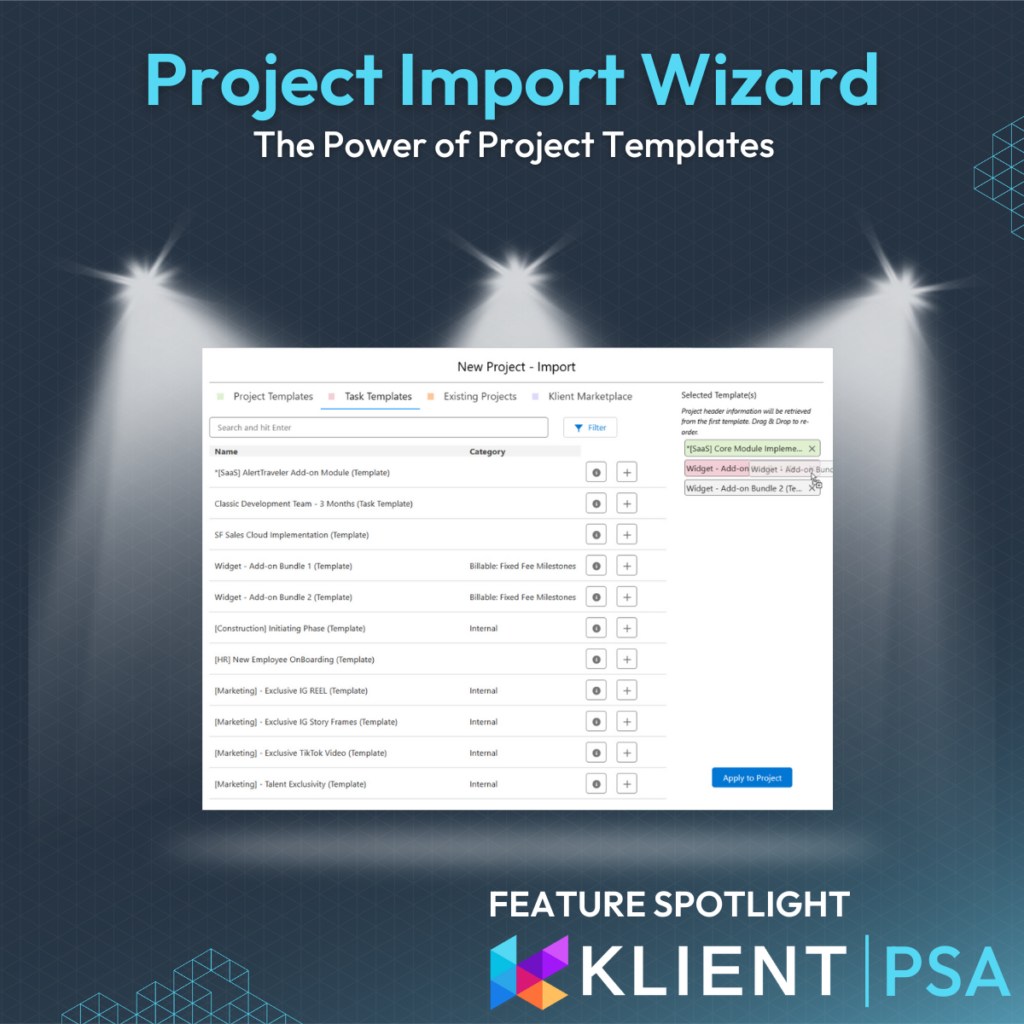
The Anatomy of the Project Import Wizard
The Project Import Wizard has two main sections:
Import Sources (left side): Organized under four tabs, this is where you’ll select your source projects.
Project Ordering (right side): Displays projects selected from your source, where you can reorder them by drag and drop.
The first project highlighted in green becomes the template for the new project’s main details, including description, attributes, and rate card. Subsequent projects are loaded in order. You can import from four sources:
Project Template: Start with a strong Project Template.
Task Template: Combine multiple Task Templates to create a single project, and even insert a Task Template into an existing Klient Project. Task Templates are similar to Project Template but do not include any project-level parameters.
Existing Project: Take any good running project. You might need to reset a few status and change resource to placeholder but it’s worth it to start with a good successful project.
Klient Marketplace: Use our Klient Marketplace templates to jumpstart your use of Klient PSA. These templates—used by the Klient team over the years—help structure and streamline various business processes, making it easy to hit the ground running.
🔦 How We Do It at Klient
At Klient, we don’t just use templates for customer projects. We have templates for all major processes in our business. From Employee Onboarding to IT Onboarding & Offboarding, Customer Support, Software Development, and even our SOC2 Type 2 Control Matrix — we’ve built templates to streamline operations across the board. These are the same templates available to you in our Marketplace.
How to Use the Project Import Wizard
While you can use an existing project to start a new one, creating robust project templates allows you to refine and improve over time.
1- Build a Project Template
Set up a project with all relevant details—project attributes, tasks with descriptions and estimates, checklists, and placeholder resources. Organize it with parent sections, use caps lock, and add emojis in task names for clear identification.
2- Mark as a Template
On the project record, mark it as a template by checking:
Project Template
Task Template
3- Launch the Project Import Wizard
Access the wizard when creating a new project or through the Workspaces Action Menu to apply your templates.
With these steps, you’ll have a reusable template that evolves and improves with each iteration, helping you streamline project setup and maintain consistency across your projects.
✅ New: Use the Import Wizard from the Project Record
You can now access the Project Import Wizard directly from the Project Record, even after a project has been created. This means you can insert additional Task Templates into any existing project & easily scale your project structure as your customer needs evolve.
No need to recreate anything, just open your project record, launch the Import Wizard, and add what you need. This enhancement makes the wizard even more powerful, supporting your project from start to finish.
SCREENSHOTS
PODCAST EPISODE
Listen to our Feature Spotlight Unplugged: Project Import Wizard episode. A deep dive conversation that covers all you need to know about this feature.
RELATED INFORMATION
- Project and Task Templates (article)
- New Project – Import UI – Projects & Templates (release note 49.7)
- Klient Marketplace (release note 49.7)
- Estimate with Project Templates (video)
- Harness Your Business Knowledge with Project Templates (video)
- Successfully Onboard Employees with a Structured Project Template (video)
FAQ
The Klient Project Import Wizard is a powerful tool designed to streamline project setup and management by allowing users to import project and task structures from various sources. It enables faster project initiation, promotes consistency across projects, and facilitates better forecasting and estimation by leveraging proven templates and existing project data.
The Project Import Wizard can import several key elements to quickly build out a project structure. These include project details, tasks with descriptions and estimated hours, checklists for organization and guidance, resource or placeholder assignments for accurate forecasting and rate management, and task dependencies for efficient workflow control.
The wizard significantly improves efficiency by allowing users to start new projects from existing templates or projects rather than building them from scratch. This saves time during the initial setup phase. It also ensures consistency by applying standardized task structures and details across projects, which aligns with established quality standards.
The Project Import Wizard supports importing from four primary sources: Project Templates (providing a strong foundation with project-level parameters), Task Templates (allowing the combination of multiple templates or insertion into existing projects without project-level parameters), Existing Projects (leveraging successful past projects), and the Klient Marketplace (of
A key enhancement to the Project Import Wizard is its ability to add templates to existing projects. Users can access the wizard directly from the Project Record of an existing project. By selecting Task Templates or other sources, they can import additional tasks and their associated details, which are initially added to the bottom of the existing project structure. These new tasks can then be easily rearranged and linked within the project
Klient extensively uses templates for various internal processes beyond just customer projects, including employee onboarding, IT onboarding/offboarding, customer support, software development, and even their SOC2 Type 2 Control Matrix. These internal templates are the same ones available to users in the Klient Marketplace. This means users benefit from proven structures and workflows that Klient itself uses to streamline its operations.
The recommended process involves building a robust Project Template with all relevant details (attributes, tasks, checklists, placeholders), marking it as a template on the project record, and then launching the Project Import Wizard when creating a new project or from an existing project record. This allows for the refinement and improvement of templates over time for continued efficiency and consistency.
A recent upgrade has relabelled the “Insert Task Template” button on the project layout to “Project Import Wizard.” This change reflects the wizard’s expanded functionality to add templates to existing projects through an improved, guided experience. Users who previously used the “Insert Task Template” button should be notified of this name change and its enhanced behavior.
If you like our Feature Spotlight, you might be interested in our Klient Tips series:
View All Klient-Tips
Found this helpful?
Here are some similar articles in our serie Klient Feature Spotlight