The July 2026 Klient PSA Product Update webinar covers everything shipped in version 51.9 — led by Mass Timesheet Operations — and then goes deep on one thing every services team struggles with: getting time logged, on time and accurately. The Time Logging Deep Dive walks through four layers of Salesforce time tracking in Klient PSA, including a live look at logging a week in about five minutes with the TIMEY1 time agent and the SKILL Time1 on MCP Data1. Hosted by Rosalie Chassat (Customer Success) and Yanick Abraham (CEO), with Nathalie Adam on Q&A.
Webinar chapters
00:00 Welcome & agenda
02:53 What’s new in Klient PSA 51.9
04:26 Resource Planner: group-by-role colors
06:04 Project Workspace: chunked task loading & Transpose
07:45 Sage Intacct: two-way expense sync
09:42 Release notes & Upgrade Cheat Sheet
12:52 What’s coming next
15:00 Idea Exchange & automated AI delivery
18:22 Time Logging Deep Dive
19:56 Capture: QuickTime, My Timesheet, Calendar, Jira
23:06 Stay on track: notifications & dashboards
24:30 TIMEY1: the time agent
27:36 SKILL Time1 + MCP Data1 (live demo)
32:23 Mass Timesheet Operations
39:25 How to get the agents & skills
What’s new in Klient PSA 51.9
Version 51.9 went GA on July 16 and is a lighter, fix-heavy release with a handful of notable features — many of them shipped straight from customer requests on the Idea Exchange. Five items carry an upgrade consideration (an admin action is needed after upgrading), all flagged in the release notes. Jump to any feature below, or use the chapters above to watch that part of the demo.
Resource Planner — group-by-role colors 04:26
The Resource Planner’s Group by Role view now carries the same color-coded utilization bars as the rest of the planner, so you can group your team by role and read each person’s workload at a glance. It’s a fast follow to the Group by Role option added in 51.3 — a direct response to customer feedback. See how it fits the broader resource management picture.
Project Workspace — chunked task loading & searchable Transpose 06:04
Large projects load faster and more reliably: a new custom setting controls how many tasks the Project Workspace loads at once (default 1,000), so orgs with very large projects can tune it to their environment. Project Transpose — which shifts all the dates in a project in one move — now has a searchable project selector, so you can find the right project instantly instead of scrolling a long list.
Sage Intacct — two-way inbound expense sync 07:45
The Sage Intacct connector is now two-way: expenses logged in Intacct sync back into Klient, so your project financials stay complete. Run it on a live batch, on a schedule, or on demand with a Get Expenses from Intacct button on the Expense utility page. It brings Sage Intacct in line with the QuickBooks expense sync shipped earlier this year, which also gains an online credit-card payment setting in 51.9.
Time Logging Deep Dive: log time faster with AI 18:22
Accurate, on-time timesheets are what make every downstream report, invoice, and margin number trustworthy — and they’re the thing teams most want to avoid doing. This segment maps everything Klient PSA gives you for time tracking across four layers: Capture, Stay on track, the AI layer, and Validate. Use it to pick the mix that fits your organization.
1. Capture — get time in 19:56
Make logging effortless and people will actually do it. Klient PSA gives your team several ways to capture time: Quick Time and My Timesheet dropped right on the Salesforce home page (or as a Global Action, one click from anywhere), a calendar integration that pulls a read-only view of your Google or Outlook calendar so you can add a meeting to your timesheet in a click, and the Jira Time Tracker for teams who live in Jira — log time on a Jira issue and submit your timesheet without leaving it.
2. Stay on track — keep it accurate & on time 23:06
Klient PSA’s missing-timesheet notifications automatically email anyone who hasn’t submitted a full week, so chasing timesheets isn’t a manual job. Two out-of-the-box dashboards back it up: the Timesheet Validation dashboard surfaces who hasn’t logged, what’s unapproved, and where time is missing, and the Pre-Invoicing dashboard confirms all billable time is approved before you invoice. Every underlying report can be cloned and extended.
3. The AI layer — TIMEY1, the time agent 24:30
TIMEY1 is Klient PSA’s timesheet AI agent — one of the platform’s nine AI agents. It drafts your timesheet from what you’ve already logged and what’s scheduled but not yet logged, pulls in calendar meetings you forgot to record, and auto-matches each entry to the right project and task — all conversational, so you can tell it to drop a line, add a line, or ask “how much have I logged this week?” before you confirm and submit. It runs inside Salesforce and on Slack today (Teams is pending Salesforce’s connector). TIMEY1 has been submitted to the Salesforce AppExchange and approval is expected within days.
SKILL Time1 on MCP Data1 — a live demo 27:36
Rosalie demoed her own setup live: the SKILL Time1 running on the Klient PSA MCP (MCP Data1) in Claude. A scheduled task reconstructs her previous day every morning at 8 a.m., pulling from her Google Calendar, Slack, and Gmail to draft a timesheet — showing which source each entry came from. She reviews it conversationally (“this looks a bit high”), pastes her browser history for a sanity check, and says “log it” — a full day logged in about five minutes, with better notes than she’d write by hand. Where the TIMEY1 agent is bounded and works for everyone, the skill is free-form and adaptable for more technical users, and the instructions run across LLMs. MCP Data1’s new version is CLI-free and adds a hosted mode, so tools beyond Claude — Copilot and others in pilot — can use it too.
4. Validate — Mass Timesheet Operations (new in 51.9) 32:23
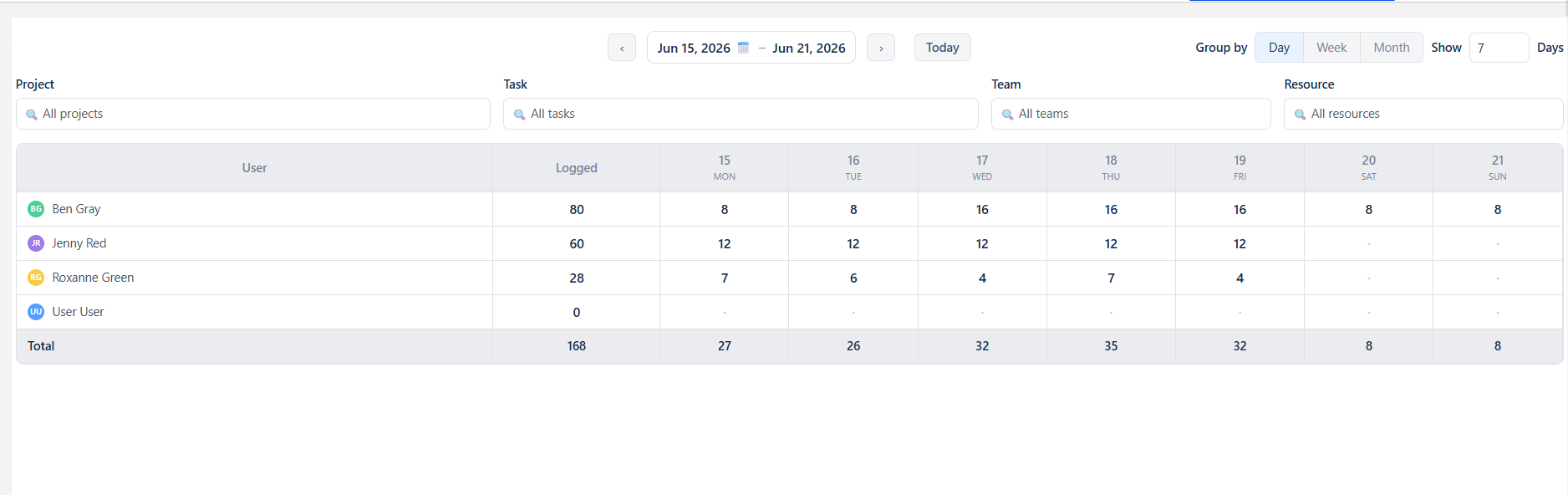
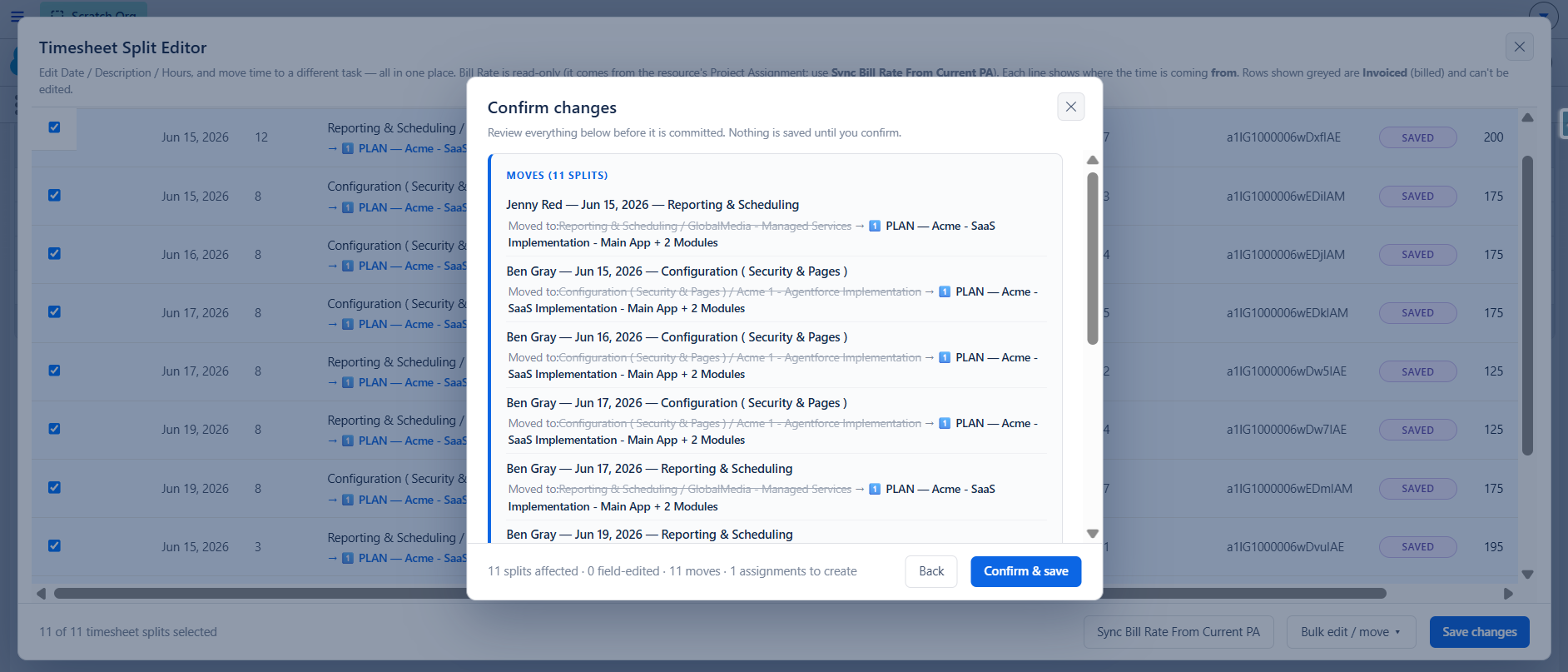
The headline feature of 51.9: a new Mass Timesheet Operations interface for moving and editing time in bulk — something that used to take a lot of manual work. Search by project, task, or team; select multiple lines and columns; then right-click to bulk edit the date, note, hours, or Jira fields (controlled by a field set), or move entries to the correct project in one action. It’s a common cleanup: shifting time that was logged to a generic internal project onto the right customer project, so your cost and margin data is accurate. Access is controlled by a permission set (an upgrade consideration). Its companion, Mass Timesheet Approval, lets managers review and approve time in bulk, grouped by project, resource, or role.
How to get the agents & skills 39:25
Everything is available from the Klient Customer Community: click your avatar and open My Products. SKILL Time1 (and the other skills and the MCP) carries a one-time $1,000 activation fee — a lifetime enablement fee per org, payable by credit card or on your regular invoice — after which you download a zip and follow the admin guide, or simply drop it into Claude and let it install. Note the split: the skills and MCP don’t consume Salesforce Flex Credits, while the agents (like TIMEY1) do. See the full lineup on the Klient PSA AI agents page and the Klient PSA MCP page.
What’s coming next
Most of what’s on the roadmap — visible on the Klient Community — came straight from the Idea Exchange:
- TIMEY1 (timesheets) landing on the AppExchange shortly, with STAFFY1 (resource management) following around September
- Flexible work schedules — the most-voted customer idea ever — targeted for August
- Snap Workspace improvements — incremental mode, coach marks, tooltips, and presets (a dedicated Snap Workspace webinar is under consideration)
- Continued KLARA (support agent) improvements, plus email notifications when the status of an idea you submitted changes
Yanick also shared that Klient now runs a fully automated software-delivery loop — ideas are scoped (with SCOPEY), built, documented, and QA’d with AI before release, with the Idea Exchange as the first project running end to end. It’s the same idea Rosalie summed up on the closing slide: “With skills, you never do a thing twice.”
Frequently asked questions
What’s new in Klient PSA version 51.9?
Version 51.9 (GA July 16, 2026) is a lighter, fix-focused release led by Mass Timesheet Operations — a new interface to move and edit time entries in bulk. It also adds group-by-role color coding in the Resource Planner, chunked task loading and a searchable Transpose in the Project Workspace, two-way inbound expense sync for the Sage Intacct connector, a QuickBooks online credit-card payment setting, and Mass Timesheet Approval improvements, plus a range of fixes. Five items carry an upgrade consideration (an admin action after upgrading), all flagged in the release notes.
What is TIMEY1?
TIMEY1 is Klient PSA’s timesheet AI agent. It drafts your timesheet from what you’ve logged and what’s scheduled, pulls in calendar meetings you didn’t record, and auto-matches entries to the right project and task — conversationally, so you can adjust before you submit. It runs inside Salesforce and on Slack. TIMEY1 has been submitted to the Salesforce AppExchange with approval expected within days; registrants will be notified when it’s live.
What’s the difference between the TIMEY1 agent and the SKILL Time1?
The TIMEY1 agent is bounded and works out of the box for everyone — it fills and submits your timesheet inside Salesforce and Slack. SKILL Time1 runs on the Klient PSA MCP (MCP Data1) in a tool like Claude and is free-form and adaptable — better for more technical users who want to automate their own workflow (for example, reconstructing a day from calendar, Slack, and email each morning). The skills and MCP don’t consume Salesforce Flex Credits; the agents do.
Does TIMEY1 work if I schedule time against the project instead of tasks?
Yes — TIMEY1 and the time skill work whether you schedule time at the project or the task level. Best practice is to schedule against tasks for the most accurate reporting, but neither is required for the agent to draft and submit your timesheet.
Can TIMEY1 or the time skill approve time?
No. Version 1 is built to fill and submit your own timesheet, not to approve others’ time — it’s not a manager tool. Approvals are handled by Timesheet Approval and, new in 51.9, Mass Timesheet Operations and Mass Timesheet Approval.
How do I get the Klient PSA time skill and MCP, and what does it cost?
From the Klient Customer Community, click your avatar and open My Products, then choose the MCP (MCP Data1) and the skills. There’s a one-time $1,000 activation fee — a lifetime enablement fee per org — payable by credit card or on your regular invoice. Klient MCP Data1 is required to run the skills. After purchase you download a zip and follow the admin guide, or drop it into Claude to install.
When is the next Klient PSA Product Update webinar?
Klient runs a Product Update webinar every month, typically the fourth Thursday at 11:00 AM ET, hosted by Rosalie Chassat and Yanick Abraham. See the upcoming sessions and register on the Klient PSA Events page.
Want to see any of this in your own org? Book a Klient PSA demo, or catch up on the Klient PSA MCP webinar and register for our next professional services automation (PSA) webinar.
Free download
Download the webinar deck
Get the full slide deck from this session — we'll email it straight to your inbox.
PDF · free · no spam
Full webinar transcript, lightly edited for readability.
Rosalie Chassat: All right, let’s get started. Good morning, good afternoon, wherever you are joining us from. Thank you so much for being here. Welcome to our July Product Update webinar, What’s New in Klient PSA? It’s really hard to believe we’re already halfway through the summer, and the World Cup is already finished. And Yanick, I think you We’re even coming back from vacation, vacation already behind us.
Yanick Abraham: That part of the vacation is done, yeah. Discovered the eastern provinces of Canada, it was great.
Rosalie Chassat: Yay! I’m Rosalie, I’m part of the success team at Klient, we have Yanick as well, our CEO, that’s joining us, as always. And we have our amazing colleague, Nathalie, who’s in the chat today, that will be answering your question, and she is truly super knowledgeable. I got so much positive feedback this week from customers about Nathalie, so just wanted to shout it out here. Before we start with the webinar, let me just start with a quick poll. I know it’s the summer, maybe we have a different type of crowd in, the webinar, so we just want to know if this is your first Klient webinar. Yes, no, I’m a regular, or no, I’ve been to a couple. If this is your first.
Yanick Abraham: Or more.
Rosalie Chassat: Welcome. Couple or more, yeah. As people are answering the polls, let me just remind you that these webinars are meant to be interactive, so please use the React button. Also, be sure to tell us in the chat, ask questions, and tell us if you love a feature we’re talking about, if you agree with something we’re saying, if you don’t agree, if you want to know more, etc. The more people, the better. Especially if I look back at the MCP webinar we did a few weeks ago, there was so much action in the chat, really helpful. Also, it helps us. We got back to you on all those questions, and I think it really got the webinar going, and also, I think we have really good feedback, it was one of the best webinars, so keep it up! Perfect! Alright, okay, so on the agenda for today, first we’ll go through, what’s new on 51.9. So, 51.9 went GA last Thursday, so this is our current version. You can see… oh, let me just double check, yeah. Perfect, yeah. Then we’ll have a look at what’s coming next. We’ll talk a little bit about our roadmap as well, so we’ll spend some time there. And then most of the part of the webinar will be on time logging best practices, so that’s our special topic. And, that includes a first look at our time logging agent, TIMEY1. And the Time skill in our Klient MCP, the MCP Data1. So, we’ll come back to that later. Alright.
Yanick Abraham: And, they, like, today, make me very happy, Rosalie, because I’m not gonna be the only one demoing. They’re gonna be doing.
Rosalie Chassat: Yeah. First ever in Premiere, Rosalie sharing her screen on a webinar. Let’s cross our fingers that everything goes well, but yeah.
Yanick Abraham: And now on top of sharing your screen and demoing it, you’ve been part of the development of that skill, so this is even more exciting. We can see how that AI stuff is impacting the way we run our business, and how everybody is discovering new roles and new responsibilities, so… Thank you for participating and improving that time skills with it.
Rosalie Chassat: And even in general, I think you were off on vacation two weeks, and from the moment you left to the moment you come back, already, like, there were more team members and people using skills, and there was already so much new things, so it’s crazy how fast it’s going.
Yanick Abraham: Yes.
Rosalie Chassat: Alright, so we’ve just grouped it in the slides so you can see, but, 51.9 was a little bit smaller in terms of feature. There’s less things. We have four most notable features, I would say, the bold ones, which we’ll cover in a little bit more details. And also, please be aware, all those little red light emojis are upgrade considerations, so that means an admin needs to do something on your end when you upgrade in order for end users to see the change, so we have 5 in 51.9. The good news is these are really easy to find in the release notes, we’ll come back to that later. So, let’s get started! 51.9, Yanick, I’m passing the ball to you.
Yanick Abraham: Research.
Rosalie Chassat: First one are group by role colors, and this is kind of a follow-up from the group by role option we released in 51.3.
Yanick Abraham: Yep, so we’re not going to demo a ton of functionality today, but as you can see from the list, there’s a lot of fixes that came into play. We have those kind of release, that sometimes we do improvement. You will see that the next one, it’s all about your ideas. This one, it’s about your fix, because all those fixes are either that we found in ourself, or it’s tweaking that you guys requested. So there’s a lot of interesting stuff. This being said, to demo today, we’re gonna be covering those, starting with that role, like you’ve mentioned. So, to access it, we’re gonna go to our resource planner, and from the resource planner, we’ve introduced that new grouping here on the gear setup. You can group by role, resource, by project, and by role. By grouping by role, I can see here my team, and what we’ve brought is just the fact that now all the color coding in terms of usage from your different resources there. Prior to that, we didn’t bring those colors in, so it was a bit more difficult to follow through. So, now you can absolutely group and see the visibility of your Resources directly from here, even grouped by role.
Rosalie Chassat: And this is just a good example to do a parenthesis. Whenever we release new features, which we do all the time, it’s important, the moment you start testing them, send your feedback if you have any follow-up feedback. So this is the people right away after we release the group by role, they told us, we need the color, so we just added and rolled it in a few releases after, so the sooner you tell us about those, then the faster we can incorporate that in the product.
Yanick Abraham: Absolutely. The next two are related to project workspace. One is not visible, but it’s linked to the way we load workspace. So we have customers that have, and even internally, we have projects that have more than a thousand tasks, and some time, depending on the load, it would be either slow, or it would, at some point, hang. So, we’ve made a lot of improvement that you don’t see, but there’s also now a custom setting for the number of tasks it’s gonna load, so depending on your specific environment, by default, it’s losing 1,000 tasks, but if you need to make it a bit less, let’s say to 500 tasks, then you can just edit that custom setting, so it will help customers that have two big projects. And we’ve introduced that transpose. The transpose was, again, released a few… iteration ago, but now what we did is to simplify your life. For a company that have a lot of projects, just having a scroll list was a bit tricky to find a proper project, so… It’s a simple thing, but we just added a search when you’re doing your transpose. And if you, recall, transpose, it’s really changing all the dates in your projects. To, in one swoop. This way, you can either transpose for the entire project, or for a specific child with their children, but this is a very useful functionality. You can access it from here, it can be a button as well in the project itself. So, that search should help out people using that functionality.
Rosalie Chassat: And this is yet another option of what we mentioned. Transpose was released, and then right after, people emailed us mentioning that searchable thing, so the sooner, the better.
Yanick Abraham: Yeah, absolutely. The next thing, the Sage Intacct, the inbound expense sync. I won’t be demoing it, but I’m gonna look through it, within the release notes. So, this is, if you haven’t been on our feature app for a long time, this is our new, release, release notes sections. You can see that we are under 51.9.5. If I’m looking for the, Sage one, actual…
Rosalie Chassat: Yeah, you can do it that old-school way if you want, or you can use the search bar that I’m just gonna point out.
Yanick Abraham: So I should additionally use the search. So, from that, you can see here in the release note what has been changed. I just want to point out those release notes, they’re usually very robust and contain all the information. If don’t, let us know, and we’re always improving those. You can see that now, it used to be a one-way system, now we’re doing both directions, and we’re bringing back the that you log in Intacct, we’re bringing them back in. And there’s different ways of doing it, so there is a toggle to enable in the custom setting if you wanted to do it on a live batch. You can do it on a schedule or on demand, and if it’s on demand, you just need to drop that Get Expense from Intacct button, directly on the expense utility page, so you can access it from there. Otherwise, you can find out all the functionality from that release note. But yeah, we’re continuing to improve our connectors, iconic connectors, this time it was Sage Intacct, yeah.
Rosalie Chassat: Yeah, we’re trying to get them to the same level, so we had done the QuickBooks a few months ago, I think, the expense part, so we’re just… keep sending us feedback, whatever platform you’re using, whatever connector you’re using. Alright, perfect, and if… I don’t know if we can go back to the release note while we’re at it, but it was just to mention earlier, I did talk about the… if you scroll a little bit up. Oh, Yanick, that was one of my points. So, to get the full experience of the release notes, you should definitely be logged in. You’ll see a couple more toggles at the top, so if you’re seeing the screen that Yanick was seeing, that’s totally fine. But what happens when you do log in, you’ll see there’s a couple more toggles, so new since my version that you can see, upgrade consideration, hot feature, you can also, if you do new since my version, now it says you’re… well, Yanick, this demo org is on very old version.
Yanick Abraham: No, it’s that user, it’s not the norm.
Rosalie Chassat: But it would show you only those, and you can even, at the top, now that we have, like, agents, MCP, and a couple more, you can also filter by product, so if you just want to see, the Klient PSA or just the agent’s product, you could also filter by batch. categories, you can do just the time and expense, so you can really play with that, and of course, the search function, which I really like. And then the last little bit on the top right would be the upgrade cheat sheet. You may have noticed this button or not, but essentially what it does is, if you are logged in, then it’s grabbing all the new features, the notable features from your current release to the current, to the one that’s the current one. Just know that it starts from 51.7, because it’s something new, but once you’re on version 51.7 or after, it’s always going to grab everything in between. So, do check it out, have a look, give us any feedback if you want us to improve that, but it’s supposed to be a faster, easier way for you to upgrade, so you can get access to those new features.
Yanick Abraham: Yeah, this, again, that’s one of your idea, your creativity, that pushed us to put that button here, the Update Cheat Sheet, so it’s really, instead of scrolling across and finding those bubbles or those alarm emojis, we’re just bringing them back all in one swoop, so this way it’s easier when you’re doing an upgrade. This is really for upgrade consideration. Also, if you want to distribute this at the end, we just put all the information across all of the functionality we’ve delivered across those releases, so we have everything in one PDF. This being said, it should be very useful, and again, this is a new functionality that’s been delivered a few weeks ago.
Rosalie Chassat: And we have a few other ideas we already, like, discussed that we want to incorporate to that, so, yeah. Perfect!
Yanick Abraham: And to your point, we’ve added all the skills. because we won’t be showing them again. People might not know as well, but you can play around, so if you want to just see the list better, you can collapse all, so there’s a lot of options. But, we also put the skills release notes, the MCP release notes, and we have our different agents that are also listed here. So this is a one-stop shop for everything related to our Klient products, not just Klient PSA.
Rosalie Chassat: Yeah, and I really like the… now you just did the collapse all version, I think, which is why you have it all stacked up. Sometimes it’s overwhelming when you have, like, the million lines, so also if you just want to see when the release happened, that’s kind of a clean view. Yeah. Okay.
Yanick Abraham: Nope,
Rosalie Chassat: I think we’re good on that front. And, surprisingly enough, I think that’s it for 51.9, isn’t it? Because we have the mass timesheet operation that we’ll come back to a little bit later.
Yanick Abraham: Yeah, we’ll do it after your best practices, and when you show it, show us the MCP.
Rosalie Chassat: So, and that’s the big thing from this release, by the way. This is just a little recap. Alright, so next thing we want to talk about is what’s coming next, so we’ll switch gear a little bit. Here you can see our product roadmap. Which you can access from that community we were just showing. This is just a screenshot. I won’t go through it all, but here’s a few things that are included in there. So, on the agent side, you can see we have TIMEY1, one that’s coming, followed by STAFFY1 a little bit later, September. And then on the Snap workspace side, there’s a couple of things. As you may be aware, this is a new interface we launched in January. We talk about it a few times on the webinar. Many customers are already using it, but we want to make it a little bit more accessible and easy for spreading it across your team and your organization. So in the next version, we have a few improvements coming, so we have the incremental mode that’s coming, we also have some coach marks, tooltips, presets as well, so, that new face should be great, and I’m really gonna… we’ll see if people are interested, but we are thinking of doing a Snap Workspace special webinar. If nobody seems interested, from the chat or the emoji, maybe we won’t do it, or let me know in the webinar feedback, but we are thinking about it, so… All right. And then another thing that’s finally coming, and I feel like we talk about it on every webinar, but the flexible work schedule. We should be able to demo it, it should be available in the product on the next webinar in August, so… woo! That was the… for people that are just coming in, this was our most voted feature ever, so finally coming in. Alright.
Yanick Abraham: a longer feature to develop, so that’s why it took a bit more time than I expected.
Rosalie Chassat: And what’s really cool about our roadmap this month is nearly everything is coming from the idea exchange, so all the light bulbs, it means someone submitted their idea on the ideas exchange. We have a full process, for how we select ideas, and maybe, Yanick, I know we talked a little bit about it on a previous webinar, but do you want to tell us a little bit more how that works?
Yanick Abraham: For the idea, and looking at the idea exchange, yes, again, so if you log in our community, you can access our idea exchange. From here, you can share your idea. I know that Milton just asked about something regarding our agents, so go ahead, Milton, and submit your idea right from here. And then what you can now see is that you can see the different ideas that have been selected that are in development, so we’re going to be updating those fields. On a regular basis. And it’s what is really cool, and maybe this could be another webinar, is that we have achieved this week. the full software development cycle automated with AI, starting with those. All those are tasks in the project, so now you write those, and then we have our scope team that’s gonna scope those tasks. Then we have our development team and the development agent that are developing it. Documentation is written automatically and posted and published. QA is done with AI as well. And then we are going to be releasing all those to you right after, so we’ve achieved that, and the idea exchange is the first project where we’re running that loop automatically with our best practices of software development, so it’s very exciting. So please go ahead and submit. Again, from here, you can… there’s a lot of options, but you can filter out If you prefer seeing a list, you can list it. If you don’t want a group, just remove the grouping, and then you can also sort With the most voted on top, if you wanted to. So go please check. I know, we know, I know that, that SCOPEY approach, you can create it this way, but you can create it with SCOPEY. SCOPEY is a version 0.3, so, very soon we’re gonna improve SCOPEY, and it’s gonna help you even more to create your new idea, but you can try it out, right away.
Rosalie Chassat: Yeah, and we launched this a couple of months ago, so you may have submitted ideas, like, a while ago, and you weren’t seeing any movement. We were kind of waiting to gather more and more ideas, so if you go back, then you should see all those status updated. You can see, if you voted for any ideas as well, you can kind of go by my votes and see those. Also encourage you to, yeah, submit ideas, but also vote for ideas, because someone may already have submitted it, and you can group it by categories.
Yanick Abraham: Yeah, so yeah, that’s voting, that’s coping, that’s gonna automatically, and also, the, I wanted to say that KLARA, because we’re not gonna talk about it, but KLARA got a big, revamp yesterday, so, We are hopeful that the results are going to be even better. She was doing a proper job, I think now she’s going to be doing a good job. We’re gonna keep, implementing it. And what I wanted to say is that you’re not getting notified now when we’re changing the statuses, but very soon you’re going to receive an email when we start planning or developing or delivering one of your ideas.
Rosalie Chassat: Yay. All right, this is fun. We’ll see where we got on next webinar, give you a little update on that situation. And I just pulled the poll, I was curious to know if people submitted ideas already, so it looks more people didn’t than did, but we still have about a third of people that submitted ideas, so… Keep at it.
Yanick Abraham: Please do it, because as you can see, we are delivering them.
Rosalie Chassat: Yep, yep. All right, perfect. Okay, so let’s move on to our time logging deep dive, which is the special portion of the webinar. So, the goal of this section is very simple. The goal of time logging is really simple, actually. Everyone should be logging their time on time, and it should be accurate. That’s what makes all your data, reporting trustworthy afterwards. So a lot has been built in Klient as you would have seen in the webinars, over the past year, to allow you to just do that. In your organization, you may be using some of these things, one of these things, or none of these things, I hope at least one thing. So this whole portion is really about making you aware and helping you adopt some of these. And then making sure you’re able to select which option makes more sense for your organization. So, we’ll cover these. Layer 1 and 2 will go a bit quick on these, because we have documentation on all these topics if you want to know more, but just mentioning it for awareness. And then we’ll save a good chunk of the webinar to demo TIMEY1. Which is not yet available in the AppExchange, but very soon. And the SKILL Time1 and the MCP Data1, so that’s what we’ll do. And then the last bit, the validate section, will show quickly timesheet approval, but mostly we want to demo the mass timesheet operation interface, which is the new thing from 51.9. So we’ll save a bit of time there. And of course, if you have any questions throughout, let us know. We may revisit them at the end. All right, so, Yanick, I’ll let you go, and I’ll just run a poll in the background, just to know what people are using.
Yanick Abraham: So the first thing I want to look at is the different tools we have, and I see that Jack from Mentor is on the line, so Jack, I still owe you, we had a good discussion this week about the homepage, so I still owe you sending me those, but you can just take a screenshot right away if you want to. This is the homepage that we are delivering in the new package. You can reproduce it if you don’t have that same look and feel. But in here, what we want to do is we want to make everything simple for logging time, so we know people don’t like to do their timesheets, so we’re trying to make it easy. And you will see that Rosalie made it very easy with her MCP skills. This being said, we have our QuickTime that can be dropped here on the homepage, so your team can just pick any kind of project and task. and log their time directly from here. As you might know as well, that you can drop it here in the global action, so anywhere you are in the system, you’re going to be one click away of being able to log your time. This is called Global Action, if you want to drop it there. On the home page, you can also put my timesheet directly in this interface. So again, it’s a one-stop shop, so you don’t need to figure out and go in different tabs. Everything is on the home page. And in the case that you are using, or you want to use one of our connect, connectors to your, either Google Calendar or Microsoft Calendar. you can just proceed and connect your calendar here. In this example, it’s the Outlook calendar that’s been connected, and this is going to bring as a read-only view of your calendar here, and as you can see, you can just pick one, add it to your timesheet, select a project, a task if I wanted to. And then I can save it, and you’ll see it’s being added here on top, so we’ve demoed this already quite often, but this is another cool feature that we’ve added. Plus, we do have a Jira time tracker, so for people, using, Jira and want to use, our Jira time tracker, I’m sorry, I had the, the screenshot, let me just find it back. So you can have the log time directly within Jira issue, if you have our time tracker, and you can even have your submission and your timesheet available directly from Jira also, so this is a separate package. But this is, how you can easily log time as a team member on your different projects.
Rosalie Chassat: Yeah, and if I can add, I see most people, the majority of people are using my timesheet for logging time. If you go in the release note and you can select the category, time and expense, then it will pull everything that’s new, let’s say from the last year, anything time-related, so that would be a fast way to know, like, we added over the months, like, little new buttons, toggles, and visual things in my timesheet, so if you want a little refresh. That’s a good place to start.
Yanick Abraham: And we know the struggle of having people logging their time, but also making sure that everything, everybody’s logging them in time for either the end of month, or the next week, so on Monday. So that’s why we have in the package our timesheet notifications, so this is the intent. It’s gonna send an email to people that have not submitted a full week. Timesheet, so there is some intelligence there. And it’s bundled with one of our reports, so if I’m going in Klient again. And if you search for timesheet validation dashboard, it’s gonna bring you a nice dashboard that’s gonna tell you a lot about your timesheet. So either people that haven’t entered any timesheet yet, people that are not logging time, timesheets that haven’t been approved. even if you’re tracking or not. So you can easily just go within that dashboard and see all the relevant information. So that’s one of the dashboards that includes some time info. But we also have the pre-invoicing dashboard, so before invoicing, you want to make sure that all the time is approved. And you can see from here that, for example, we have unapprovable billable timesheets split. It’s all linked to Roxanne Green across all those different projects, and all those are reports. That you can clone and you can modify, you can add other columns if you wanted to, so all that is available through our dashboards and through the reports linked to those dashboards.
Rosalie Chassat: Yeah, and in case this is the first time you, are made aware that we have out-of-the-box reports and dashboards, I just dropped in the chat the article that highlights all on all the topics, all the ones out of the box, so have a look if this is the first time you hear about that.
Yanick Abraham: Exactly. Alright. Okay, now the, AI stuff.
Rosalie Chassat: Fun part.
Yanick Abraham: Okay, so TIMEY1 has been submitted on the AppExchange, it should be approved within the next few days, so I’m sorry if we are teasing you and you cannot benefit from it right away, but it’s gonna come soon enough. What I can show you is I can still demo it to you in our emulator, but it’s represented realistically what the agent will do. so TIMEY1, it’s a time agent, so it’s, the idea is to help you submit your timesheet, and the main goal is to really resurface Information that you might have missed in creating your timesheet and resurface information that you don’t have to key in manually. So, first thing I can do is I fill my timesheet, and what it’s gonna look at, to start with, it’s gonna look at what you’ve logged so far, but what also you’ve got scheduled that you haven’t logged any hours yet, or not. So, this is a timesheet that is suggested to me. I could just go ahead and confirm it. But let’s say, because my Google Calendar might be connected as well, or my Microsoft Calendar, I can even bring my calendar meeting that I’ve not been logged in. to come and complement those projects, the tool will do an automatic match or search between your project and task. And if this is not correct, you can always start and telling him that, no, actually, this drop that line, add that line, or Things like that. So, and then you can just go ahead and confirm your timesheet for it to be submitted. So, this is how TIMEY1 will be working. There is some other functionality, so how much time I’ve logged this week? So you can really… you can talk to the time agent, and it’s going to help you out. And if you just want to say, oh, add a task, add a line, it’s going to be able to do it as well.
Rosalie Chassat: Yanick, we have a Jason that’s asking if this is gonna work if you’re scheduling time against task, even though we tell customers they should, if they’re scheduling time against project, not task.
Yanick Abraham: Yes, it will work on the way the plan as well, so he has to do something.
Rosalie Chassat: Even though, disclaimer, you should really do it against us, but…
Yanick Abraham: No, it’s okay. I’ve made my peace with it, Jason can do on the project itself. And those agents now are also available on Slack, so you’re gonna be able to do the same thing on Slack itself, so you can fill my timesheet on Slack, and hopefully with Teams, we’re waiting for Salesforce to provide that Team out-of-the-box kind of connector. If they don’t supply it in the next months, we’ll see if we build it ourself. But for Teams, people using Teams and not Slack, you’re gonna just have to wait a little bit more. This being said, there is some other tools that you can interconnect agents with, third-party tools. So, this, you can find those as well. Okay, so I’m not sure if you wanted to say anything else on TIMEY1, Rosalie?
Rosalie Chassat: I think that’s it. I can share my screen for the next portion.
Yanick Abraham: Yes, please do.
Rosalie Chassat: Alright…
Yanick Abraham: I’m gonna be the host for once.
Rosalie Chassat: share my little friend here. All right.
Yanick Abraham: Rosalie, tell us!
Rosalie Chassat: Seeing, are you seeing my Claude right now?
Yanick Abraham: Yes, we are.
Rosalie Chassat: Perfect. Okay, so next portion, we want to say, how can you leverage AI to log your time faster? So this is kind of my little setup. I always hated to log time. I hate it, and I’m really bad at it. If you ask Ariane on our team, she always has to chase me on Monday morning, and then… yeah. Anyways, so this is my current solution. What I did is I’m using the Klient MCP Data1, I have the Time skill. And here on the left side, you can see my daily timesheet reconstruct. It’s actually a scheduled task that I have running every day at 8am. Because, and it’s pulling everything from the previous date, right? So what it does, very simple, it just runs automatically, there’s a blue dot when it’s ready, and then, here I change the name, of the account so you don’t see, but essentially this is the draft that it comes up with. Personally, I’m a non-billable resource, and most of my tasks are against this one project, but it’s kind of dressing this for me. What’s really cool, it’s telling me which source is using, so my Claude is connected to my Google Calendar, Slack. Claude, of course. So it’s pulling that Gmail, and this is kind of the breakdown, so I’m looking at this. The notes is what is gonna populate in my timesheet as well, so this is pretty cool. It’s telling me 875, and I’m thinking, hmm, I feel like I worked less than that yesterday. Then I’m looking a little bit, needs your call, okay, reviewing that, and I’m thinking, okay, this is what I responded to it, like, I feel like I worked a little bit less than this. Or there are some places that I didn’t actually work like it was an active work. So it says, yeah, you’re right, yesterday you said goodbye, but then I counted some time, but it doesn’t really count. So yeah, it brings me to 7.5. I’m like, okay, good. This is what’s cool as well with, this, you can just go back and forth. So it’s revising it, and then, yeah, makes sense. And personally, what I also do, I like to copy-paste my browser history from the previous day, takes me 2 seconds, but then I get peace of mind. Is it really accurate? So this is what I did here, and it says, good news, the history actually backs up your 7.5 instance, so also I feel much better about logging my time after this. It’s also telling me what, has been changed. So this is really useful. This is my new draft. And then all I need to do is just say, log it, and it’s pushing it, to my timesheet, and I’m done. So this literally takes me, like, 5 minutes. My personal next step, because I know, Yanick, you’re a fan of that, is, like, my next step would be, hey, can you… Update the skill so it reflects whatever you learned from this interaction, or something like that. So that’s something I like to do, like, on a recurring basis, but, for now, it took me 5 minutes. It’s logged. Also, my notes are much better than if I had to write them myself, because I’m a bit lazy, and I’m trying to do it fast, so I may just, like, take some shortcuts, or put the notes very boring. Now it’s telling me exactly what I’m doing, logged against the right task, and sometimes it will ask me, now it’s… it knows it well, because I’ve been using it a while, but it asks, like, hey, I feel like this could fit on this task or that task, which one would you like to log against? So I really like that as well. And I think, personally, I’m a non-billable resource, but if you are a billable, you are logging time on some billable task, and it’s showing up on invoice for customers, then, for example, you may want to tweak a little bit how you format your notes for these type of task, so… Yeah, lots you can do. Yanick, I don’t know if, you have anything you want to add about that cool, cool Time skill.
Yanick Abraham: This is amazing. This is just great, and the fact that this is a big difference between skills and agents. Agent, it’s more formal, it’s, like, bounded, it’s not as free-form, and it’s not for everyone, those MCP and those skills, it’s for maybe more technical people, or People that are a bit more open in terms of what can be done. But, the fact that you are able to just, like, what if I paste my browser history, can help me out, and can… this is just beautiful, so you can make it evolve, that’s the beauty of skills. Those are Claude skills. They can be adapted, they are not out of the box for other LLMs, but they are very… the instructions are instructions, so they work across all those LLMs. But no, it’s fantastic, and thanks for… Rosalie was a big part of the version 2 of, that Time skill, so time one, but the second version of it. So, thank you for putting it together.
Rosalie Chassat: Exciting. Alright, Yanick.
Yanick Abraham: And then we’ll come back to a functionality we added, regarding that, exactly what you’ve mentioned, so submitting times, but what if we want to move hours around? This is something that was not easy to be done before, changing Time entry on project was always a bit tricky and needed a lot of different operation, so now we’ve introduced a new UI that’s gonna be able to do some of those moves and edits, so very exciting to bring that to you. It does work with a specific, a specific permission set, so if you want to have access to it, you need to assign you that permission set, or assign that admin, accounting admin that permission set, because…
Rosalie Chassat: Put that in the upgrade consideration and the release mode for that.
Yanick Abraham: Absolutely. So it’s called Mass Timesheet Operation, and then you can search by project, task. In my case, I might want to be looking… oops, I’m not in a good environment, sorry. I want to do it on your timesheet, Rosalie, because I figured out some cool stuff about your timesheet this morning. So, let me just select my specific team. So, let’s say I’m gonna go with the advisory team. I could… those are added, filters, so I could add more filters if I wanted to. For now, I’m gonna focus on the advisory team. Let me go back one week. So you can easily see the different time that’s been entered across the board, and if you know that you need to move some of Rosalie’s time, or if you want to see the detail of someone, you can click the line, let’s say Nathalie, and we can click on the Rosalie’s line. We need to talk about that 29 hours, Rosalie as well. But you can select multiple lines, and you can even select different columns like this. And then you can just right-click and do exit and Move. Okay, so in our case, what we’re going to do, I’m just gonna go back this week instead, and we’re gonna be looking at that specific day for you, Rosalie. So my right-clicking is gonna show me the different time across my different projects. I can click to be able to sort those with whatever column. In this case, I figure… I’ve noticed this morning, when I was prepping for this webinar, that, for example, your quarterly check-ins, the prep, and you’re all logging them to a custom… an internal project instead of logging them on a custom project. And this is the goal. We want to know exactly the cost of our customer, right? So how much costs for an NT to support them, for what’s ID to do quarterly check-ins, things like that. So this is where we should move those lines, maybe to a more specific line that’s going to be a different project. You agree with me, Rosalie? You can proceed.
Rosalie Chassat: I have good excuses as well, but I’ll tell you about.
Yanick Abraham: So I can select multiple lines like this, and then I can just do bulk exit and move, and then there’s a few things I can do. I can change the date, I can change the note, I can change the hours. You can see here we have Jira pick lists, Jira fields. This is controlled by a field set, so you can add whatever fields you want here. And what I want to do is, in this case, I just want to move it to the proper customer support project, and I’m going to pick up that advisory team instead of just logging it randomly, and then I can apply it. So we can see that now those are going to be moved to this specific project, and I could, if I wanted. to do it, I just… press the save button, and it’s going to do and apply, that, and move those hours, to my, to my specific project. So that’s the new interface. Hopefully, it’s going to help you, people that have a lot of movement to do, or things that, people not entering. Usually, we try to fix that issue, up front. But sometimes, this happens, and you still need to move things around.
Rosalie Chassat: Yeah, and if I can add something, I know we released 51.9, like, a week ago. Already from the customer calls I had in the past week, it came up a few times, this feature, that people wanted to upgrade to get that, so for those people that will be using this, we would like, I would, and the rest of the team would really like to know, like. how much time it’s saving you, because I feel like it’s one of those that you used to spend, I don’t know how much time, and now it’s shrinked, so please do share with us, once you’ve, like, upgraded and tested it out. And also, I don’t know if you wanted to mention that, Yanick, for that portion, but in our case, all my tasks are, again, customer success project. We know that we want to move towards more having those task blocks, again, the right customer. Historically, we never made the move, and I know why, because that would mean that in every single, customer project, we need to add a task, or we need to, like, adjust these, and it would just take too much time to go in every single project, or every single task, and add an update, but the good news is, I could do that directly with time, with the Time skill if I wanted, but even you can use the agents if you wanted, you can just say. Hey! We want to start logging time against customer. Can you create a customer success task on all the projects for our current customers? And then it’s just gonna do it for you, and then moving forward, I’ll tell my skill tomorrow, hey, we just added these moving forward, can you log it against that type of task? And off we go. And that was, like, a few minutes of work, and then out of the sudden, Yanick will be happy, because when we look at the data, we’ll have accurate information on how much time was spent on every project, every task. So yeah, I know a lot of customers in that situation that they’re not 100% there with time logging, and there’s some, like, cutting the corners, I would say. So hopefully that helps you bridge that gap.
Yanick Abraham: I was gonna say that. Yeah, in the past, you could add those tasks in the template, but this would be applied only to future projects that we create. So now, in the past, you needed to go in each individual one. You could do it with Data Loader, but it’s a bit tricky. So now with the agent, it’s a single prompt that’s gonna do all of this. This for customer success, for support. It’s key to have a support project where your support team can just log into the proper account, so this way you can really see who’s working on which account, and how much account, really, what are their specific margin. For your accounts. I’ve noticed in terms of our agenda, Rosalie, I didn’t mention another UI that some customers maybe didn’t know existed. We have a timesheet, a mass timesheet approval, so if you hit timesheet approval here, you’re gonna be able to see that interface, which is going to bring you all your different, if you search. It’s gonna list all the different time… Don’t have any things to approve, but I can see all the different time that needs to be approved, and you can group them by project. I don’t have a lot of information, but you can group that by project, project resource, and role. I’m still on my wrong environment to demo it, but this is the mass timesheet approval, so it’s the other step of moving things, approving things, they’ll go end-to-end, so this… you have all the tools you need. And in regards of getting those skills, I saw the question, so if I’m going back to our customer community… I can find my Klient browser. And I open up that feature browser, and if I go and click my face here, and I do my product. you’re gonna see that you can access all our agents and all our skills, so this one is the SKILL Time1 that Rosalie just showed you. There’s… the way it works, there’s a $1,000 activation fee. It’s a one-time thing, you’re gonna be able to use it, for the lifetime of your environment. The only thing, it consumes some flex credit from Salesforce. But that’s the only thing you need to do. You can pay directly by credit card, or we can invoice you on your regular invoicing, but this is the way you would get them. Once you’ve paid, you’re gonna be able to install and download, so I have that It’s gonna download that zip, and then there’s a procedure to follow in the admin guide, or you can just drop it in Claude and say. Go, and it will actually just go and install it, and you’re gonna be able to do it. One thing to mention, is that we are, as much as we’re developing our product itself, we are also developing a lot of our… in regards of our MCP, and in regards of our, skills. In that new MCP, Data1, the new version, is CLI-free. Before you needed to have Salesforce CLI installed, now you don’t have to do it. And we have created an hosted mode, meaning that other LLM than Claude can run it, so we’re doing some pilots with Copilot, Copilot Studio, and others, so now it’s, it has a hosted mode, so this way everybody can use them, use that MCP, not just only Claude.
Rosalie Chassat: And Yanick, just if I can bring a question about timing, we had the question, can you use timing or, the MCP Time skill to approve time? No, yeah.
Yanick Abraham: Good question, let me look at the documentation. I don’t think so. I think the version 1, the idea is to be to submit, it’s to do your time, it’s not to approve, so it’s not a manager, tools, it’s to submit your time, fill and submit. That’s a good idea for a subsequent document.
Rosalie Chassat: Log it in the idea exchange.
Yanick Abraham: Now you know how.
Rosalie Chassat: Alright, and if we move to the conclusion slide, because speaking of MCP, if you did miss it on June 30th. So, a few weeks ago, we did a special webinar just on MCP, 30 minutes, we’re just demoing, showing MCP stuff, so all the basics. If you miss that, and you’re somewhat interested a little bit in skill, please have a look at it. And yeah, it’s a funny one. The next slide, let’s show it, Yanick. We have some quotes early in.
Yanick Abraham: We have one more minute I want to show you, because we’ve put a lot of effort on our website and on the resource site, so if you go on events and webinar and resource on our live website. You’re gonna see the one that you can register, this one’s gonna be removed this afternoon, and this is where you can get the MCP webinar content, and you have the video that’s following you, and you can just click on this relevant time tracking. And then you can listen to our beautiful voice talking about MCPs and data.
Rosalie Chassat: We’d watch it back-to-back after this webinar. -Oh.
Yanick Abraham: Okay, you wanna see the other slide? This one?
Rosalie Chassat: Yes, inspiration of the moment. Yanick is a very creative person. This is the inspiration, and I think it sums up very well where we’re at, and yeah, with skill.
Yanick Abraham: I had a discussion early this morning with Sharish about skills, and he was saying something like that, and I’ve just coined it this way, like, with skills, you never do a thing twice. When you do it once, and it’s something that you have to do at some point, I just create the skills right away. It takes 5 seconds to create the skills. And then it’s a… the question is to distribute it, and to use it, and to maintain it, so that’s another set of things that you need to do, but, yeah, the skills are very powerful, and on your side, it’s unleashing your creativity, Rosalie.
Rosalie Chassat: Yeah, yeah, you have many ideas, never had the time, so skills are making it possible, very exciting times. Yep.
Yanick Abraham: That’s why we’re developing so fast, what we’re developing now is because we have…
Rosalie Chassat: I have it delivered.
Yanick Abraham: We knew what it was, and now it’s just like we’re just getting out of our brain and making it in the product.
Rosalie Chassat: Alright, so… Conclusion, couple, in a nutshell, release notes, you can have a look. KLARA, support, always there, accessible from the community. My products, we just showed it. We also have… I just want to do a little section. If you don’t know what to do in the next 5 minutes, just grab one of these two links and leave a review about Klient, what you love about it. On one of those sites, AppExchange G2, it really helps us.
Yanick Abraham: Yes, September.
Rosalie Chassat: Nope. Yeah, big fun. You can also, give us a referral. If you know someone that may be interested in Klient, I drop the link here as well. And then otherwise, make sure to register to our upcoming webinar, the next one, end of August, and we have the September one that’s already available, as well. And let me just pull our end of, webinar feedback, especially, like, we’ve done some different type of formats of webinars, we try to mix it up a little bit, so we are always keen to know, was this one more useful, less useful? What can we do to do it better? These webinars are for you. So, we want to make sure we hit the mark. And did you have anything else you wanted to add, Yanick, before we finish off this webinar?
Yanick Abraham: Oh, please use our MCP, it’s gonna change your life. It does change our life, for sure.
Rosalie Chassat: And we’ll send you a notification whenever the time agent is available, it’s just that right now you cannot buy it, but…
Yanick Abraham: Yeah, but the time skills and the project skills and the MCP, they are available, they’re $1,000, it’s not a way of making money for us, it’s a really small amount, it’s just to… it’s a name enablement fee, but you should absolutely try it out. Those don’t cost flex credit, it’s easy to get in, so please use them. It’s for you.
Rosalie Chassat: And that’s not.
Yanick Abraham: Thank you, Rosalie.
Rosalie Chassat: Bye bye!
Yanick Abraham: May one.
Rosalie Chassat: Alright, let’s stop the webinar. Stop recording.
Free download
Download the webinar deck
Get the full slide deck from this session — we'll email it straight to your inbox.
PDF · free · no spam