A big month: 28 new features and enhancements across 51.10 and 51.11 — headlined by Flexible Resource Schedules, the most-voted idea on the Ideas Exchange, and the Klient PSA MCP now publishable to a whole team through Microsoft Copilot Studio.
Webinar chapters
00:00 Welcome and agenda
03:14 My Timesheets — Group Rows by Project
04:39 My Timesheets Calendar — Full Task List in Add to Timesheet
05:39 Mobile Timesheet — Whole Week Entry
07:55 Mass Timesheet Operations — Editable Billable Flag
09:17 Timesheet Approval — Task Column on Mass Approval
11:17 Timesheet Approval — Scheduled Hours on Mass Approval (By Split)
13:42 Resource Planner — Flexible Resource Schedules
17:46 Resource Planner — Fields Below Resource Name
18:45 Resource Planner — Partial-Day PTO Start and End Time
20:01 Resource Planner — Exclude Time Off from Allocation Totals
21:40 Resource Planner — Skill Filter with Filter Logic & Per-Skill Proficiency
23:23 New Project Page — Template Files Copied to New Projects
24:47 Global Kanban — Hide Specific Columns
26:11 Global Kanban — Assignee Filter
27:08 Project Kanban — Filtered Parent Task Picker When Creating Tasks
27:53 My Deadlines — Manager View
30:24 Project Workspace — Copy/Paste Includes Assignees & Checklists
31:34 Generate Invoice — Auto-Selected Organization for Single-Organization Companies
31:49 Generate Invoice — Skip Information-Only Time Entry Invoice Lines
32:36 Snap Workspace — Snaps Delta Mode (Incremental Mode)
34:41 Snap Workspace — Prepayment Separated from Revenue
36:41 Klient PSA MCP — Hosted Mode with Microsoft Copilot Studio
38:46 Roadmap and what’s coming in 51.12
39:34 Klient Community — Self-Registration on the Feature Hub
40:27 Klient PSA eLearning — Revamped Courses
44:26 Ideas Exchange and next webinar
Admins: read the upgrade considerations first
Rosalie flagged this at the top of the webinar and it bears repeating: this release has noticeably more upgrade considerations than usual, and several are behaviour changes rather than config toggles. The four most likely to catch you:
- Resource Schedules need field-level security granted on the new fields in any custom permission set — otherwise users silently keep seeing Work Schedule numbers.
- Template files now copy with no off-switch. Review your templates and remove anything that shouldn’t reach a customer project.
- The nightly time-rollup job ships off — enable it on Klient Utilities → Scheduled tab, or nothing recalculates.
- Projects with prepayments need their snapshots rebuilt, because old ones double-count. Revenue will read lower afterwards — that’s the correction, not a defect.
Use the upgrade considerations toggle in the release notes for the full list.
What’s new in Klient PSA 51.11 and 51.10
Timing first: 51.10 shipped July 30 (mostly Snap Workspace), and 51.11 releases August 27. At the time of the webinar the current version was 51.10, so most of what follows arrives with 51.11.
Group Rows by Project 03:14
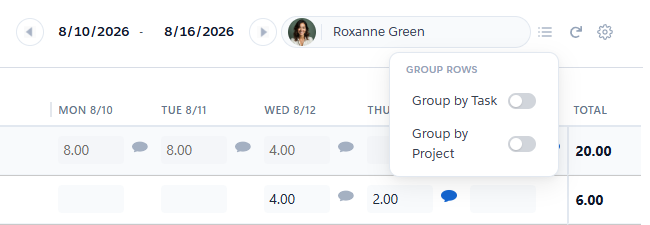
The Group Rows control now offers Group by Project alongside Group by Task, as two independent toggles — roll your week up by project, by task, by both, or off. Each group shows per-day and weekly subtotals, and your grouping state saves per user. Existing users who had grouping on keep Project + Task; new users start ungrouped.
If your timesheet looks nothing like the demo, you’re on 51.2 or earlier — 51.3 introduced the current look and feel everything else builds on.
Calendar task list and whole-week mobile entry 04:39
In the Add to Timesheet window, the Task and Milestone pickers now show the full list the moment you click in, instead of only after typing. And the mobile timesheet can capture a whole week at once: pick a task, enter Monday to Sunday on one screen with per-day notes and a live week total, save in one action. If your team logs time on a phone, that’s the one to tell them about — and calendar integration remains the easiest route to Salesforce time tracking that doesn’t depend on end-of-week memory.
Mass Timesheet Operations — editable Billable flag 07:55
Administrators can now correct the Billable flag directly in the Split Editor, including on already-approved time, instead of rejecting and re-approving each timesheet first. Set Billable to Billable, Non-Billable, or leave “Keep existing”; the confirmation shows before/after lines. Approved entries keep their status and invoiced time stays protected.
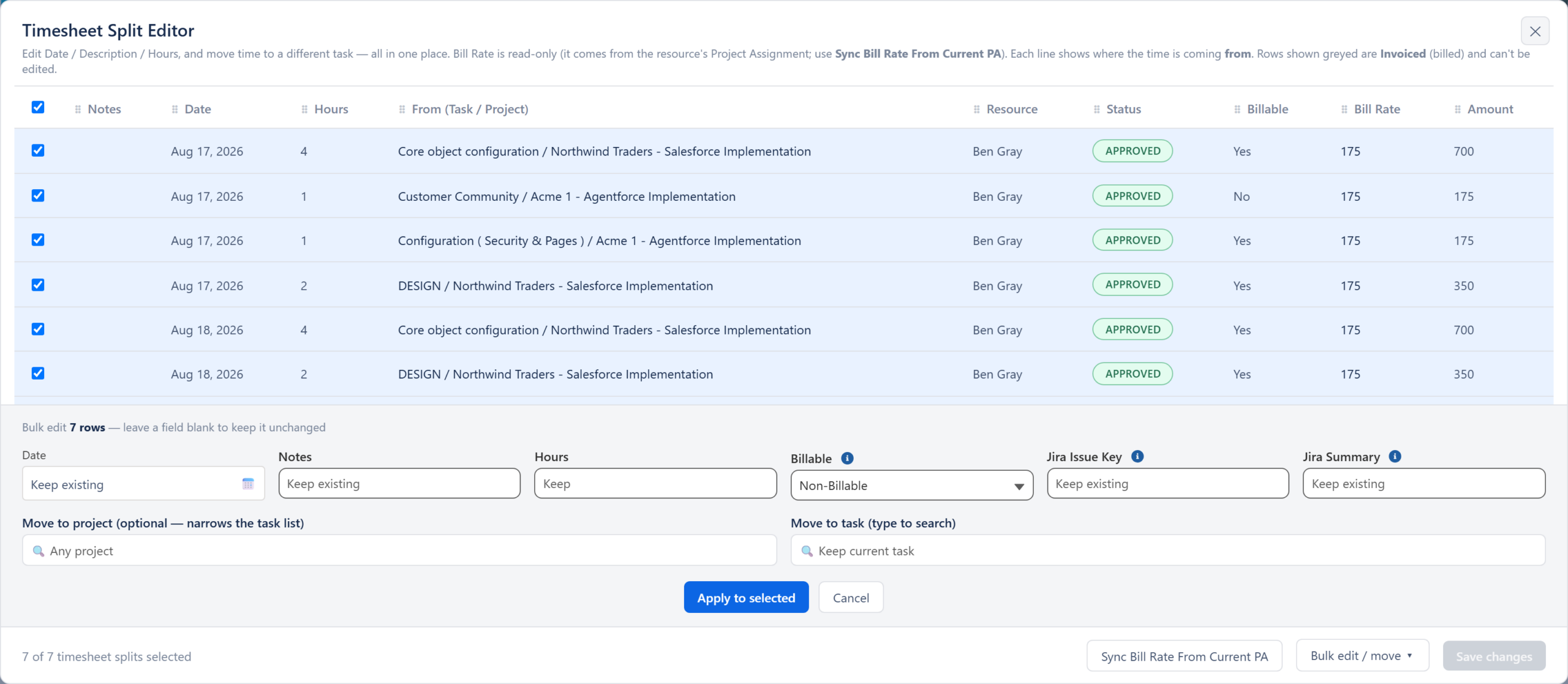
Entries whose Billable value changes move onto their own timesheet detail, so expect more detail lines in reports grouped that way. Add the read-only Billable column to the Split Editor field set if you want it visible.
Mass Approval — sortable Task column and scheduled hours 09:17
Mass Approval gains a sortable Task column showing the task names behind each entry, in both the by-timesheet and split-level views — context approvers used to leave the screen to find. The split-level view also now shows each split’s scheduled hours next to its actual hours, so you can compare planned against logged instead of approving blind.
Two items mentioned but not demoed: an optional nightly reconciliation job that catches projects whose hours drifted out of date, and clearer skip reasons in the Jira time tracker when an issue’s default project or task can’t be used.
Flexible Resource Schedules — the headline 13:42
Go back through a year of these webinars and this one was “coming up in the roadmap” nearly every time. It was the most-voted idea on the Ideas Exchange, and it’s real in 51.11.
A resource still has one Work Schedule. What’s new is that you can add Resource Schedules — dated overrides with a Start Date, End Date and Mon–Sun hours that fully replace the Work Schedule for that period, then stop on their own. A four-day week for a quarter, reduced summer hours, a phased return: recorded once and read everywhere — planning, scheduling, utilization, availability, timesheets and time off.
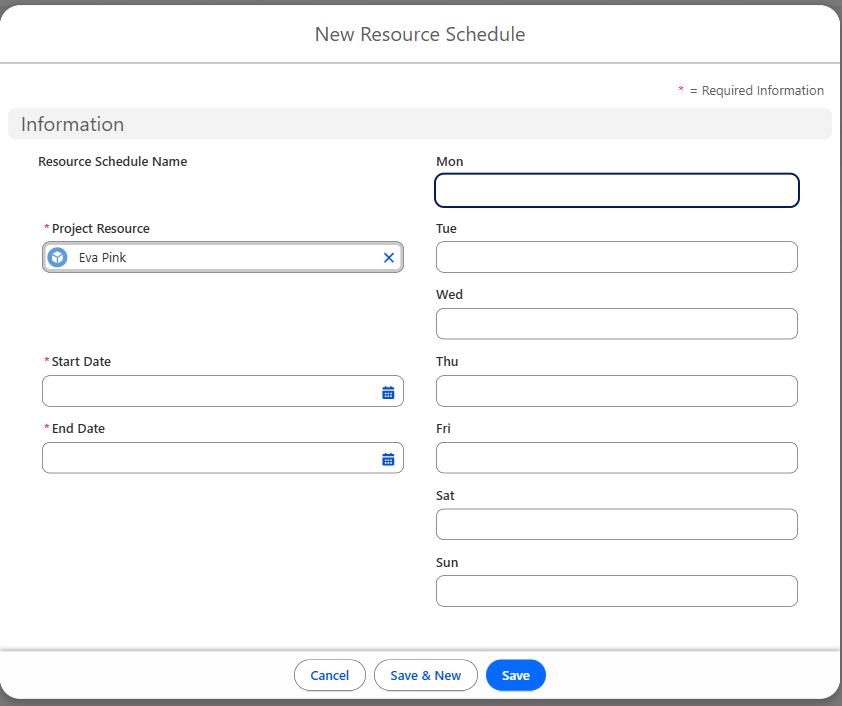
Three rules matter before you roll it out: a Resource Schedule governs its dates completely (a blank day is a non-working day, not a fall-back), no two schedules may overlap — not even on a shared boundary day — and capacity resolves one calendar date at a time. You create them on the Resource Schedules related list of the Project Resource, and recalculating already-generated assignment schedules is manual (Utilities → Recalculate Resource Schedule).
Because capacity math runs on the schedule, this is a real gain for Salesforce resource management: availability and utilization finally reflect the pattern people actually work, rather than a workaround built from time-off records. Rosalie’s ask — upgrade when 51.11 lands, test it, and tell the team whether it saves the time you hoped.
Resource Planner — fields, times and time off 17:46
The line under a resource’s name is now driven by a field set, so admins choose what a planner sees at a glance — role, region, practice, whatever informs the staffing call. It ships pre-populated with Project Role, Region, Practice, Location and Organization, and in Group by Resource it replaces the old role-only line.
Alongside it: Start/End Time pickers in Time-Based Scheduling, now applied to every day a schedule covers rather than just the first; a new Exclude Time Off from Totals toggle that finally separates hiding those blocks from removing them from the total (the old Hide Holiday/PTO toggle did the first but not the second, which is where the confusion came from); and partial-day time off with a start and end time, so the Day view blocks only those hours.
Skill filter with AND/OR logic and proficiency 21:40
In 51.11.1 you can combine skills with your own AND/OR logic and parentheses — {1} AND ({2} OR {3}) — and filter each skill by a proficiency percentage. So “more than 50% proficient in Sales Cloud, plus either of these two skills” is one filter. Empty logic means all selected skills are required; an unrated skill counts as 0%; saved views remember it.
Template files copied to new projects 23:23
Files attached to a project template are now copied onto every project created from it — New Project page, project board, batch clone and the Clone Template Project API — matched by name so re-creating doesn’t duplicate. The catch: this starts happening with no off-switch, so review your templates for anything that shouldn’t reach a customer.
Kanban — hide columns, assignee filter, scoped parent task 24:47
Three changes, two from customer requests. You can hide any Kanban column and restore it later (hidden columns drop out of search, card counts and drop targets); a new Assignees filter narrows the board to what someone owns or contributes to, on both Global and Project Kanban; and creating a task from the Project Kanban now scopes the Parent Task selector to that project’s work breakdown structure. This release also brings coaching cards across new functionality, so your users get told what’s new without you doing it.
My Deadlines — manager view 27:53
Managers can switch from their own deadlines to “My Team (incl. me)” or drill into any direct report. Team membership follows Klient teams, direct reports come from the User Manager field, and non-managers never see the picker. It’s off by default and must be enabled — deliberately, since it shows managers work they couldn’t see before. Canceled tasks are also now excluded from the default views.
Project Workspace — copy/paste includes assignees and checklists 30:24
Pasting with “Paste All Task Visible Fields” now carries the source task’s team assignments and checklist, items copied in order and always starting unchecked. Copy several tasks and each keeps its own.
Generate Invoice, Snap Delta mode and prepayments 31:34
Billing: if a company bills under a single organization, Generate Invoice stops asking you to pick it. And a Billing Type can now opt out of the information-only time entry lines that invoice generation adds to Fixed Fee and non-T&E invoices, via a “Do Not Create Time Entry Invoice Lines” checkbox — fixed fee, expense and billable T&E lines are unaffected.
Two Snap Workspace items shipped in 51.10: Delta mode, where a designated primary snapshot refreshes incrementally instead of rebuilding from source (which matters on projects with thousands of tasks), and the ability to remove that primary designation without deleting snapshot data. Then in 51.11.2, prepayments are tracked as cash rather than revenue — revenue totals no longer include them, and a new “+Prepay” toggle draws a balance line that rises on receipt and falls as invoices draw it down. That’s the fix for prepayments double-counting, and it’s the item with the most upgrade work attached.
Klient PSA MCP, now publishable through Microsoft Copilot Studio 36:41
Two MCP servers are live: MCP Data 1 for project, time, schedule and resourcing operations, and MCP Knowledge 1 for the Knowledge article lifecycle. Both act as the signed-in user, with that person’s own permissions and audit trail. The headline is hosted mode: the Klient PSA MCP can now run as a shared remote server that Microsoft Copilot Studio connects to, so you can roll an agent out across a team instead of everyone installing locally — and every request still runs under each individual’s Salesforce identity, with no shared service account. Thanks to Ben at Mentor Group, who worked through the Copilot Studio setup with the team.
Also: setup no longer needs the Salesforce CLI (a one-time browser sign-in connects under your own identity), a new getCurrentUser capability scopes “my timesheet” and “my schedule” automatically, and MCP Knowledge 1 no longer requires the Author Apex permission — normal Knowledge access is enough. Rosalie’s guidance if you’re curious: start with a proof of concept, not a broad rollout.
Community, eLearning and the Ideas Exchange 39:34
Self-registration is live. Getting someone community access used to mean asking the team to create a user; now anyone can create their own from the login page — “Not a member”, fill the form, and it picks up your company domain to tie the account to the right record.
The eLearning has been rebuilt. The 11 courses launched in February 2025 are now hosted in the customer community and tied to your community user, with completed progress preserved; they sit under the Complete Mastery path, with content refreshes coming. New alongside them is a feature-specific course type — Snap Workspace, My Timesheet and Revenue Recognition available now, each with a knowledge check and a rating box the team actually reads. Separately, roughly 100 documentation articles were updated with screenshots in the last few weeks, on the reasoning that screenshots are what make a feature click.
And on the Ideas Exchange, five months in, the numbers answer the question customers really ask — does anyone read these?
- 110 ideas submitted since March 2026, about 23 in the last month alone.
- 37 converted into real development work — 29 in development, of which 16 shipped in 51.11, and 8 already live.
- 60 currently in voting.
Flexible Resource Schedules came from there.
What’s coming in 51.12 35:37
51.12 is expected September 24, the same day as the next webinar. On the list: Kanban manual sorting, a project import wizard from Workspace, Snap Workspace presets, and Resource Planner draft mode and absence view — plus a fuller prepayment demo with depletion curves, and continued work on the TIMEY1 and STAFFY1 agents.
One open question from the webinar: the team asked whether anyone runs EOS (the Entrepreneurial Operating System) internally, and what you use for documentation. Worth answering if it applies to you.
Get the slides
Want the deck Yanick demoed from? We’ll email you the full August slide deck — all 26 slides, including the upgrade-consideration notes.
Free download
Download the webinar deck
Get the full slide deck from this session — we'll email it straight to your inbox.
PDF · free · no spam
Frequently asked questions
What does the “No group” section mean in my Timesheet view?
It means those rows have no group to roll up into — typically because you only have a single line for that project. With the new Group by Project toggle, rows that don’t fall into a group land in their own “No group” bucket. It isn’t an error or a misconfiguration.
Can Klient PSA push time into a payroll system like Rippling, so statutory overtime is captured there?
Not today. You can enter overtime hours and see visually that you’ve gone past your expected work-week hours, but there is no dedicated overtime field or counter, and no native integration of that kind with payroll applications. The team flagged it as something they could look into — so if a statutory requirement in your country depends on it, tell your CSM and log it on the Ideas Exchange, which is demonstrably where features come from.
When is 51.11 available, and which version am I on?
51.10 was released July 30 and contained mostly Snap Workspace improvements, so that was the current version at the webinar. 51.11 — everything else here, including Flexible Resource Schedules — releases August 27. 51.12 follows September 24.
Is a Resource Schedule the same as time off?
No. Time off covers vacation and PTO. A Resource Schedule is a dated override of someone’s normal working pattern — a four-day week for a quarter, reduced summer hours, a phased return — which fully replaces the Work Schedule for the dates it covers and then stops on its own. Because capacity, utilization and availability are all calculated from the schedule, modelling the real pattern gives you accurate numbers.
Why doesn’t my timesheet look like the one in the demo?
You’re almost certainly on 51.2 or earlier. 51.3 introduced the current timesheet look and feel that everything in this webinar builds on.
Do I have to enable the My Deadlines manager view?
Yes — it ships off, via “Enable My Deadline Manager View” in Setup → Custom Settings → Klient User Configuration. That’s intentional, because it exposes work to managers they previously couldn’t see.
Anything I must do before upgrading to 51.11?
More than usual this month, and several items are behaviour changes rather than optional toggles. The big four: grant field-level security on the new Resource Schedule fields in custom permission sets, or users silently see Work Schedule numbers; review project templates, since attached files now copy with no off-switch; enable the nightly time-rollup job if you want it, as it ships off; and on any project with prepayments, delete and rebuild the snapshots, because old ones double-count. Use the upgrade-considerations toggle in the release notes for the full list.
Join us next month
The next product update webinar is September 24 — the same day 51.12 is expected — with a deeper look at prepayments and Snap Workspace. Register for the next Klient PSA webinar, and if you can’t join live the recording lands here afterwards, as always.
Rosalie Chassat: So glad to have you with us end of the summer. Welcome to our August product update webinar with Klient. I can’t believe we’re almost already done with the summer school starting next week here in Montreal. Surprisingly, Klient been super active in the summer past few months in the sense we released a couple of cool things. So it hasn’t really slowed down, but yeah, exciting today. I’m Rosalie. I’m part of the customer success team here at That’s Klient, and as always, we have our CEO, Yanick, fully recharged after your bunch of vacations.
Yanick Abraham: Yeah, and I’m very excited to be here because once again, we have an incredible pace of innovation this month and not only on our feature, but how we wrap the feature, how we document the feature, but also all in the goal of onboarding you better So stay tuned until the end. We have nice cool stuff to show in terms of onboarding you better
Rosalie Chassat: And, as you may have noticed from this slide, Natalie is on vacation this week. So we have our amazing colleague, Alex, that will be manning the chat today. Happy to have you with us today, Alex. He knows Klient Inside Out, works closely with Natalie. You would have spoken with him as well, because he’s everywhere, wears many hats So he’ll be there with us today. Before we get going, let me just pull the first webinar. Yeah, there you go. So is this your first Klient webinar? We’re always curious to know who joins those webinars that we end up doing every month So please take a second to answer that. And while you do, just reminder, use the chat or the Q&A if you have any questions, and please let us know in the chat, even if it’s not a question. Like, I love this, I hate this, we want to know, and that helps us keep going as well. There’s a lot to demo today, Yanick, as well, so I’m sure that will be good encouragement to keep pushing through it. Perfect, and it looks like, oh, we have a bunch of recorders that are just, like, joining even during the summer, so thank you guys, and hello to people joining for the first time today. All right, let’s have a look for our agenda today. So we’ll talk about what’s new on version 51.11 and 10, which has a few things. Then we’ll talk about what’s coming next, our roadmap ideas that are in development And then we have quite a little chunk on customer community update, which includes e-learning, self-registration, new documentation, a bunch of cool things
Yanick Abraham: Screenshots
Rosalie Chassat: Thanks, Jets So A lot. Let’s move on to… yeah, so here, as always, we just do a recap on two screen. This is everything we’ll cover today. It’s a lot, but we will manage. So it touches all interfaces As you can see, so let’s just dive in with the first one. Again, if you have questions, just drop them in the chat. We’ll try to address them as we go.
Yanick Abraham: Not talk too fast. There’s a lot of feature that I’ll still try to keep a normal pace. And so yes, please don’t hesitate to ask questions and also redirect us if you want to some of those features to be bonafide Let us know. This is a great tribune for you guys as well. First thing we want to start with is our timesheet. So we, you know that we’ve revamped the timesheet. It looks a lot better, a lot more slick. All the important information is showing better. But in the past, it was easy to group by task so you could group by your project, your timesheet by task So now what we added is group by project, so it’s very easy to see how much time you spent on each one of your project, in this case, Northwind, 30 hours and 10 hours. So again, to have a reliable timesheet and making sure that your people filling the timesheet And better, you’re going to be able to do so. You can see as well that you have that collapse all or expand all that you can use. Plus, you can bundle both combined by project and by task, so you can You can decide what you want in that regard. So this is the first part of the my timesheet, which is the group row by project
Rosalie Chassat: If I can add as well, if you’re looking at your own timesheet in your org and it looks completely different from this, you’re probably in version 51.2 and before. So 51.3 is the one where you have this new look and feel.
Yanick Abraham: And in regards of new functionality, we’ve added calendar a little while ago. If you’re not using it, you should absolutely enable it. This is going to bring your Google Calendar, your Salesforce, Google, or Microsoft Calendar, depending on which one you’re connecting to. And then you’re going to easily be able to add to timeshe Before you were, you needed to start typing to be able to select a task, so now you just bring the full list of tasks showing. You will see we’re going to unify those pick lists of tasks and project. We have a few other interface to talk about this, but Moving forward, we’re going to streamline and make it simpler for you to select, search, and pick the proper task and project when you’re at When you’re doing operations It’s with a small improvement on that regards. Going back to the deck
Rosalie Chassat: Keep telling your feedback. Sorry
Yanick Abraham: Keep sending your feedback on that one. I know most customers are using the calendar integration to timesheet. So yeah. This is one I’m, we don’t have a poll, I think, about this one, but I would be curious how many people use it. But we’ve had some requests to bonify it, so mobile timesheet is definitely something that you guys should encourage your staff to use. So, again, no reason to do your timesheet It is available if you want to train, teach your people on it, you can just drop the component on the page. I think it’s even available out of the box as a tab. So you can just access it on in here. But this is used This is intended to be used on the mobile. So when you create a new tab you want to enter new time, and now you are going to have a new option here all week. You just click on it, it’s going to pick the current week. You’re going to still need to select your project and your task, but you’re going to be able to select And then turn your time directly from here across all the different days in the week, including the weekend, if this is something set up in your org. So again, limiting the number of click people that do your timesheet once a week on Friday, that’s going to be simpler But again, it’s to facilitate time entry so that all week is going to help you out on that mobile interface calls Yeah, and I know this was probably a request anybody using the mobile to log their time had that request. And then if that was the reason you weren’t using mobile, then now you can. There you go Always two sides Okay, another interface we introduce to edit and do some operation on timesheet, timesheet that’s been submitted. Let’s say you have somebody, the use case could be, let me open up the UI first. So mastime shoot operation. So let’s say my team, Roxanne and Jenny told me that they work on Monday or Tuesday on one of the project, and definitely they need to create some hours. Their timesheet might have been submitted, they might have been even approved, so This UI, this is the intent of this UI to be able to make modification to timesheets submitted through our interface. So first, I’m going to select those two like you just saw me do it. I’m going to sort by project. They told me that it was that QuickBook thing that we should probably create it some hours So we can see here that I have my Jenny Red and Roxanne Green on that QuickBook integration. One is billable. Yes, those two are billable. One is submitted, one saved. So what I’m going to do, I’m going to select both. I’m going to edit those. I’m going to, this is a new feature, so now I’m going to mark them as non-billable so that billable fill. I’m going to apply to selected. And just like this, it changed and to apply to the system, I need to save it and then it will switch those timesheet to non-develop So again, an easiest way of modifying time before to be able to do this must have been 24 clicks maybe. So now within a few three or four clicks, you’re going to be able to do some of those changes
Rosalie Chassat: And just to add what’s new in this version because we released that one last version, the mass timesheet operation is about the billable flag that we’ve added. Exactly. That billable flag year and the fact that you can edit that billable flag in here as well. Yeah, and I just dropped this as one example of a new feature we added that we have whole set of documentation. So if you want to learn more about mass timesheet operation, it’s still relatively new. Just have a look at that link I dropped in the chat. And I also see Alex dropped the link from last month’s webinar where we do quite a nice demo, Yanick, as well.
Yanick Abraham: Exactly. So improving that interface, and while we’re talking about mass approval, we can talk about the mass timesheet approval now, which is kind of the contour interface to this one now. So if I just do timesheet approvals It’s going to get us that interface. I’m going to search for a wide range. We have a lot of data. And what we’ve done is you’ve been able in the past to be able to group by project, per resource rule. But now what we can do is that you can also sort And that’s not a good example, that specific task. But you can now sort based on whatever columns that you want. You’re going to be able to sort your No, it was my My range is too big.
Rosalie Chassat: One more reason to use this sorting function because you have so many.
Yanick Abraham: Oh, no Yeah, and I don’t know if you noticed, maybe I should just reload. All our functionality now are coming with those Coaching cards. So this way you know that those new functionality are coming, so now you can sort this way, and all those different tasks, like I said, can be sorted as well. Sorry, my data set is bad. I dropped with another set before, but those sorting gonna help out in terms of approving times across your team, and Across your organization. And I think to add on that interface, Jose No, I think that’s fine.
Rosalie Chassat: Okay, so the sorting has been added. And then the next one will be schedule hours. Okay, so in the same interface
Yanick Abraham: Give me a sec, I’m here
Rosalie Chassat: I didn’t freeze just want
Yanick Abraham: of a proper data set So, when you have scheduled hours on your different tasks, you’re gonna be able to see those scheduled hours. Very sorry, don’t know what happened with my data, but you’re gonna be able to as well, see those schedule hours on your different tasks, and be able to, which is a field that we didn’t have in that UI previously So this way you’re going to be able to match what they worked versus what they were scheduled on. So Yep, I don’t know what happened. So this is where the data should be. And Let’s move on on the next one, I guess
Rosalie Chassat: We know that one works because I know you did it earlier. It’s just now today, right now, it’s not working.
Yanick Abraham: Yeah. I think it’s my resource. It’s Hakhsan. I’m not finding Raksan here. So yeah, I’m sorry about this.
Rosalie Chassat: Yeah. We have two more, I think, on the time logging aspect of things. Yeah.
Yanick Abraham: Here we go. You see schedule hours, Bengray do have some schedule hours finally here so you can see the different columns. You’re going to be able to prove based on those schedule hours. Why not? And the takeaway from this is maybe we should do more scheduling. This is a demo org, but if you see that that column is quite empty, maybe you should start scheduling your resources. Yeah, I’m going to come to this. You’re going to see that the previous interface I’ve shown you, there was a lot of time entered. I’m going to come back to it, and you’re right, I should have properly scheduled my different project before.
Rosalie Chassat: Best practice.
Yanick Abraham: And I now have help though. This is what we’re going to come back later on. Our MCP isn’t helping us tremendously. All right. This is two other things that we won’t be demoing something on Jira Time Tracker where you’re going to be able to do a press selection skips and time roll up. I don’t we have a release note associated to those. Anything specific you want to add Roseani?
Rosalie Chassat: No, just in general, just keep in mind we always add new things to Jira if you’re using any of our Jira time tracker, Jira sync, let us know. We usually add some new things every month. Exactly. And now this is the core of what we want to discuss today, the resource planner. And there is the first one. It’s been the idea that’s been the most voted. It’s been a long time coming. We wanted to have it before the summer break. It came just after
Yanick Abraham: But you’re going to see it’s very useful. It’s a flexible work schedule. Do you want to introduce it? Do you want me to continue?
Rosalie Chassat: Now it’s there Yeah, I think if you look back at all our webinar recordings, pretty much every webinar for the past year, we say that it’s coming up in the roadmap. And that was definitely the idea that had the most votes because all our customers do have multiple resources, and it’s very common for a resource to have more than one work schedule. So you have your normal schedule, and then maybe you just had a kid, I don’t know, or it’s the summer, and then you move to four days a week, but then the problem is you can really just have one schedule So either you decide to change your schedule, but then all your past data is wrong, or I mean, you just didn’t change it and I don’t know what workaround customers were doing, but it wasn’t great. So now we have the solution. That’s the bottom line.
Yanick Abraham: Yep. Yeah, and it’s something different than time off. So those are not vacation. It’s really I’m changing for summer. I’m just working a different work schedule. So now we support that model. So what I’m looking at now is the project resource Ben Gray And we can see as 40 hours work schedule. This is a standard schedule of working 8 hours per day. And then we have 2 lines of resource schedule here. The first one, it’s for the month of September, and the beginning of October for 32 h. So he’s not working on Friday And then coming back next summer with that new functionality is going to be able to apply all this and you are also going to be able to apply this for the Christmas break, but also for next summer. So he’s already booked that he will be working three days a week Skipping Monday and Friday. So this is the setup. So this is what you need to add, the resource schedule, and this is what needs to be populated when you want to work with different work schedule for your resource. Then what happened if I open up my resource planner A few things all show up and we can analyze the data. So we have Ben Gray. We can see that for the week of 24th of August he has. He is at 100 schedule for 40 h While the first week of September is over budget by 24% for the same 40 hours, which makes sense because we said we’re not working on Friday And then we can see here on September is coming back at 200% because yeah, 32 hours is new normal for the month of September This also worked with holidays, so it’s all tied in, it’s all together. And you can see it in different ways. So if you recall when you’re scheduling, so let me schedule in October when it doesn’t have any new resource schedule, his old schedule is going to come across So when I do this, you see the standard UI in terms of scheduling for that specific resource. But if I pick up a date within that month of September and I try to do some scheduling, you’re going to see a new portion being shown here. So this is the new resource schedule for this period. We didn’t override by default this value. This is the first iteration. So we just wanted to our customer to get used to it. So if I really want to apply it, I just need to modify my real schedule here on top when I’m going to do my scheduling But we’re representing it, and we’re representing it on both time-based scheduling and standard scheduling. So when I’m scheduling this way, I have to do that modification, but if I’m scheduling it from another interface, it’s going to apply that standard number of hours of 32 hours across my week, skip my Friday for now And next summer is going to skip my Monday and Friday.
Rosalie Chassat: And for that feature specifically because so many people were asking for it, please, when 51.11 becomes available, you upgrade, have tested and let us know if you have any further improvement you’d like to see if it saves you so much trouble now, like we want to hear it Yeah. Yep, absolutely.
Yanick Abraham: Another improvement that we can see from that resource planner is here under the resource name, you can see that we have the role first, but now we are able to also show other information that’s controlled by a field set. And you can see that we’re showing the practice and then the The region and the practice, and if I just click the eye indication, I’m going to see all that information. And this is all this is all controlled by the field set. So I can see my region, North America, practice professional services. I have a lot of question lately about the practices and how you can filter segment about practices So again, this is a good way of showing which resource are part of which practice So this is controlled by a field set. Then we are starting to evolve our time-based scheduling. So in two fronts. So first, we can see Jenny Red here She has some time off, so she has a partial time off, so if I’m opening up my time off record You can see here that now we have new fields on the time off that you need to drop if you’re an existing customer, start time and end time. So this way you can define from which time your time off are resulting. And if we go back to the resource planner Go back to the resource planner. We’re going to start. This is the UI that we’re adding functionality and improving as well. I don’t know if you guys knew, but you can always switch to our view. And then you can see that, for example, it was for next tomorrow for Jenny Red, she has a 4 h block from 1 to 5, as you can see, there’s a lot of label. We’re repeating the same information. We’re improving this. So next release you’re going to see some improvement in regards to that UI. But this is to support more and more start and end time on scheduling, and start and end time on time off. So those functionality have been added. Going back to my week view, going through those functionality, there’s another one requested that sometime you want calculation based if there is holiday, if that person doesn’t take a holiday. So now you can see there’s a exclude time off from total So I can just remove it, and then this way the the time off the calculation of the time off just regroup are going to be changed based on the based on excluding that value or not. So you can see that my 32 h is 100% include my time off But if I’m removing at that 24, 75%, so depending on what you do and operate with, this is going to be useful. So it’s not just hiding it, it’s excluding the calculation of it.
Rosalie Chassat: Yeah, correct me if I’m wrong, before, if you just use the Hide Holiday PTO toggle, then that’s where people would be confused because the actual total didn’t
Yanick Abraham: Yeah. Yeah, you would hide it, but not calculate it. So sometimes you can join both together. This being said Yeah. Perfect. Both are useful for different scenarios. Okay, next thing, it’s about skills filtering. And filtering in general, this is something that we know we need to improve and that we, I think it’s a good start that we’re doing with the skills and we’re going to keep improving it So now I have my different resource I’m searching for. This is a customer that has that information. So now I could just filter out for resource that have specific skills as well. So let me just With everyone in the system And then I’m going to add a few skills. So let’s say I want to add my cells for Sales Cloud skills and it’s going to ask me from which proficiency. So I want somebody that’s more than 50% proficient in Salesforce Sales Cloud And I can even bona fide this and add another skill so I can just type, let’s say I want somebody that knows Service Cloud as well more than 75. Give me some luck and reduce my expectation. 25% of service cloud And then I can even apply some filtering logic. So if I want to do ORs or ends in terms of my skills here, and then just applying this, I’m going to give me my in this case, my sole resource that can do it. So it’s Eva. So Eva is able to To do this, if I look at our skills indeed, she has Salesforce, Sales Cloud, and Service Cloud. And if I want to make it an OR instead of an N, you’re going to be able to do it with our logic and what now we’re going to try to do is to do the same with all other fields And then I’ve cross field. So this and this with this, etc. So it’s been a long time coming as well, but it’s a bit tricky in terms of providing the proper UI, but we’re getting there. And then you can see that those filter are just added on top so you can easily clear them this way. You’re always aware of what you’re filtering against Cool.
Rosalie Chassat: Okay. Yeah, I think that wraps it up for that. And I think skills is one of those things not all customers are using yet. But we keep adding those little improvement to it. So I think there’s more and more reason to start using it now that it’s like fully supported everywhere in the product.
Yanick Abraham: Absolutely. Project. Next, new projects. So when you’re creating a new project from our templates, now we do support that files that are attached to your templates are going to be carried over. So for example, if I’m looking at my SaaS template here From looking at all my different related objects, I can see that I have a file, jumpstart, that is something that I want to carry over, either something I’m going to send to my customer, or not a checklist, checklist, you should be using our checklist or any to-dos need to be a project and task This being said, if you have a deck that you need to send, or if you have a specific document that you need to be carried from new project to new temp project, you just need to add your files here. And if it’s a project template or when you’re going to use the project import wizard, it’s Send that file also NetSync recreate that file as well Okay, so that was the new project page template. Next one, Canva. We have a bunch that we’re moving in project management, but it’s all different interfaces. So we may be jumping
Rosalie Chassat: Yeah, all small stuff across the board. But again, it’s always about ease of use and making it simpler, easier for you. Kanban is something that we’ve been
Yanick Abraham: improving slightly recently, so we are adding new stuff, again, you can see that we have those coach marks, so for your user, it should be easy to see what’s new and what’s coming, so it’s gonna make your job easier to do that training to your team. So now you can hide columns, and there’s different way you can do so You can just come in here and the toggle and you can do hide empty columns and it’s going to hide the empty columns. And you can see here on top that you have the filter again that’s showing it that you have seven empty columns that have been hidden And you can also see that we have some eyes here that this way you can easily block whatever column you want to block or not block, but hide. So this way you can really focus on the only columns you’re working with. So this simplify Things a lot in term of managing your board and managing your different stages. Even when you have some, let’s see, never want to see your completed or if you’re using sprints that’s going to be useful also. I think also like in our company, for example, we have so many statuses, you don’t want to be scrolling horizontally and also some status only apply to certain teams, but they’re still all there. So really just make it easy, customize it. And then of course you should save that in your presets Yep. Absolutely. We always see that smaller asterisks saying that we can still save it The other one on the Kanban is the assignee filter The assignee filter, this is
Rosalie Chassat: On the right.
Yanick Abraham: Yeah, I’m sorry, got lost with the other one, which is the parent task. So here, the assignee filter I can let me switch go to global Kanban So this… those AI that works on both the project Kanban and the global Kanban, the SNE as well. So in my global, I can see that I have all my different resources that are showing here. So let’s say I just want to see Roxanne Green and maybe Eva. I can just pick and show the different tasks that Eva and Roxana are assigned on. So should that assignee pick list or that assignee filter. That’s one. And then when you’re creating a new task, we have a new The new parent task that’s going to help you select and this one is loading. So it’s now it’s filtering. I think before the filter was not was not applied. So the filter and the ease of use for the filtering Kind of lagging now That filtering is being applied across that parent task, so you can easily search and pick your task when creating on the Kanban
Rosalie Chassat: Hey And these, I know at least two of those three were like customer feedback. I remember having calls with customers mentioning this, for sure. So let us know if that works well for you moving forward.
Yanick Abraham: Nope. Am I lagging, Rosalie? I’m still, no, I’m good.
Rosalie Chassat: All good.
Yanick Abraham: My computer is a bit sluggish. Okay, next one, my deadlines We like that one, so we have a… people are using it because they’re asking functionality, so manager view, it’s one that’s been asked for. And also the canceled task. So we have a complete task that do specific stuff, but cancel start to do specific stuff as well In this case, we’re just not showing canceled task within that my deadline. So any completed task or canceled task will not be showing those my deadline. The purpose is to see your open task Whatever the overdue or in the future. So that’s one thing. And the second thing is that if you have that setting enabled, so again, it’s a custom setting, and if I’m the manager, it’s another linkage that needs to happen between the user and the manager, then I can see who I’m managing. So I can see my team, but I can see Jenny Red if I have multiple people So I can just select, and then this is where I see Jenny’s task, and what she has to do, and what is overdue for her, so it’s a really simple list if you just want to see what you have assigned to your team, or what your team are working on, what’s upcoming for them in the next few weeks. You can easily use it And then when it’s time to just ask her or tell her or get that text advance, you can just open it up. And depending if you’re using chatter, if you’re using Slack, you can easily just communicate with her through that task. Unless you have agent that you’re gonna do some nice cleanup of your deadlines and what’s overdue, and what needs to be closed. You still need to do a manual pass, or your resource needs to do it. So this, my deadline is a good way of seeing what’s left open that your resource need to close
Rosalie Chassat: Yep. Yeah, and if I can add, I mean, I do encourage you, any future interested in to look at the release note that there’s an upgrade consideration. But for this one, you did need to enable that functionality. Otherwise, if you go in, you won’t see that. So just keep that in mind if you want to use it Yeah
Yanick Abraham: Because this one, it’s a control thing and you’re going to start seeing the manager are going to start seeing things that They didn’t see before, so we just want to control that through that setup. The other one will be about generating invoice. So we auto select Oh, we did skip it. No, no, I’m gonna show it. We did skip one, though, the project workspace copy paste including assignee and checklist. Maybe we can just mention it, but it’s a few, yeah, a few releases ago, we added the copy pasting and there was still a few things that weren’t copy pasting, and then we just added it on that release. Maybe it’s worth just
Rosalie Chassat: Doing a quick demo for that one.
Yanick Abraham: Yes, absolutely. So you see two things that we were not copying. So I’m selecting my task here. It’s in yellow. I just do control C on my keyboard. I’m going on this one and do control V. So it asks me what I want to see. Paste the name or paste everything. So I’m going to paste everything And you see that in the background there’s a blue there. So there’s checklists, and there were resources assigned on my plan task. So now you can see that by copying it, I have checklists and my resource is now also assigned to my task. So those are the 2 things that were not carried over when you were copy and pasting
Rosalie Chassat: Yep.
Yanick Abraham: So now I copy and paste support that checklist and resources, which is very useful. So yeah
Rosalie Chassat: Yeah, so And if you’re not using those task indicator columns, you should definitely add it to your view and save it as a preset. If you’re using checklist especially.
Yanick Abraham: Yep All right. Generate invoice.
Rosalie Chassat: Okay, so let’s move on to the next section, which will be the generate invoice. And when the section that I’m going to drop for now and just talk about it. So we auto select the organization when you only have one organization when generating invoices and we
Yanick Abraham: This is a mode that’s a billing type that if you don’t want for none time entries, if you don’t want the details to come across on your invoices, you need to enable this. So this is something specific to have less noise on your invoices. So if you have an interest Please go look at the release notes. I’ve been going through a lot of those release notes we have and seriously, I’m very pleased with what the team have been building because very interesting information and explain better how to use and why is it used for than ever before, so let us know what you think about our documentation also Snap Yep. Snap, there’s a few things. First I’m going on my project. We have something called now a debt snap Delta. Okay, so when you have very, very big project with thousands of tasks, with hundreds of people assigned across multiple years Those projects, if you just try to run the standard snap creation, it’s going to stop at some point. So we have another mode you need to run for this. And this is the part of the other mode. And what it does, it’s it’s based on a primary snap on your project. And for now there’s only one. So The primary snap We’ll just go ahead and look at changes and apply the changes instead of recapturing everything. So it’s a delta mode. So we’re capturing what in the past and in the future, and just recreating those snap that routine. So it’s two things. So you now need to have that primary snap selected on the project, and then the routine to call it, it’s called by flow. You can call it by a Salesforce flow to run those delta. If you need this, if you’ve been using Snap and you have no problem, then you don’t need this If you’ve been using Snap and some of the projects are taking a lot of space and deletion takes very long, then look into that functionality and enable it if you need to. This is intended for very big projects But this is making… and this is kind of the wrapper around the snap for not functionality, but in terms of generation of the content and data, now we support any type of project. The next limit is very, very far, so we shouldn’t have any Snap creation project issue anymore. Which is a good news. Two other things that we have been doing. So in the Klient utilities, we do have a new remove primary snapshot from project that’s going around this. I think we’re going to do more about the utility interface in the next webinar So I’m going to skip this one for now. But what we did is also an improvement in regards to the prepayment. And so when you add a prepayment in the pass on the revenue side of things, on the Snap workspace, it would double count it. Now we have a prepayment at its special line. So it’s going to generate automatically on its special Special line here, you can see, let me just switch to all time. I’m going to see it better. So we can see here that we have a prepayment that’s been made for 32,500, but it’s not affecting the revenue line. In the past it would affect that line by 32k. It’s a prepayment. It’s not real revenue But yeah, so now it’s been decoupled, and you can see it separately in the revenue columns. If you want to see your prepayments being depleted and being fulfilled as well.
Rosalie Chassat: And if I can finish off for Snap Workspace, we do have a bunch of new things coming in the Snap workspace on the 51.12. Yeah. So next webinar we’ll talk about a few more things. But yeah, pretty much every
Yanick Abraham: Yep. And I’ll have a better demo on the prepaid with a better depletion in terms of curves and so we can go deeper in that scenario as well if you’re using prepayments.
Rosalie Chassat: Perfect.
Yanick Abraham: Okay, so I think this concludes the demo in terms of overview of the Klient PSA. Yeah But now we want to talk about this MCP
Rosalie Chassat: Let’s do it. It’s Yanick’s favorite topic is the MCP. We can do so much with it, and if you are not… we have more and more customers now starting to use it, so I do encourage you to go ahead and do a proof of concept first if you want to. But you absolutely need to start using RMCPs. Thank you to Mentor Group and Ben. He’s been a tremendous help to us validate our procedure for Microsoft
Yanick Abraham: Copilot. So now our MCP can be hosted by Microsoft itself. In the past it was Claude and mainly local. We do have something for distribution across your team. I know some of our customers have asked about this We can already do that. But if you want to have a Microsoft hosted or MCP now supported. And just to give you some example, and we have a question about what we should do about webinar in the future, but we want to do one about MCP. But for this demo today, when for me this morning, what it It’s all the data you saw, even the missing data. You didn’t report it. But like all the timesheet entry, all the the different resourcing, the snap prepayment, all that has been populated through the MCP and the skills. He did the upgrade consideration, the machine, we call it the machine Skynet was taken, so that’s the machine. So the machine has done the upgrade consideration to my demo org automatically. So there’s a pick list to be added for the prepayment, the MCP and the skills did it It tested, now we came to a point that a Klient we are able to test our functionalities directly and even take screenshot. And it gave me a click path. So just because it’s connected to Klient, it’s connected to my business, it’s connected to my project, my task, my resource It can do a lot, so please use it. We’re going to share more success stories and different way of using it in the next webinar if you’re interested in that.
Rosalie Chassat: Yeah, and of course for the MCP, we do have like great documentation as well that you can have a look if you’re not sure. And I get this question a lot from customer, like, where do I find info? There’s a bunch. The best, best, best would be, I think, the webinar we did in July, so you can find it in previous webinars, but we also have like whole feature documentation, like what it is, how it works, how to set it up. It’s all in the feature hub Yeah, and so if you’re questioning and what would be the proper way of doing it, what’s involved, what’s required from our team, the entire procedure is there. So you can just go ahead and read it and let us
Yanick Abraham: Yep.
Rosalie Chassat: Okay, we have seven minutes left, so let’s make it count. I’ll go quickly through that. But as always, in case you’re not aware, you can go to the community product roadmap and have a look at what’s coming up. Just as a little reminder, timeline wise, currently we’re on version 51.10, which was released a few weeks ago 51.11, which is everything we presented today, will be released next week, August 27 ish. So in about a week, which gives you plenty of time to review the webinar, the notes until then. Then 51.12 is landing end of September, and that’s what the next webinar is going to be on A few interesting things coming up, you can have the full list there. I won’t go through it, but yeah, resource planner draft mode is something that’s coming the next release, which is really exciting.
Yanick Abraham: Yes, what if scenarios are coming to Klient
Rosalie Chassat: All right. And then, okay, let’s move to the next one. Okay, so we have a few customer community update that we want to make. We’ve been doing a lot of work in the back end, especially Yanick personally also. So these are little announcements. First of all, as of now, you can self-register, self-create your own community user. So if you are a community user already Don’t need it, but anyone else on your team that wants to access, they can just go to the login page, not a member, sign up, and then they have access to everything there So do tell your team. And then it just picks up your company from your email domain. So that’s how it’s signing it to your account in our end
Yanick Abraham: And it comes as a standard user, not an admin, so it cannot grant or buy anything. So but at least it’s going to get access to that knowledge. Yeah, yeah, yeah, those are separate permissions, yeah.
Rosalie Chassat: Perfect. Then the one we want to spend maybe a little bit more minutes, and I guess we’ll skip the rest. e-learning. So yeah, the e-learning, we’ve had those since February 2025. What we’ve done is a complete revamp. We’ve changed where they were hosted, so now all the webinars can be accessed through the community. We’ve revamped that tab So worth having a look. You will see our existing 11 courses. So complete mastery section. Those are the courses we already had. So if we click on it, you can see the full courses. By the way, this is all now connected to your user. So if you did complete those courses already, your progress is already saved If you started but didn’t complete, you’ll have to start again, or whatever. But yeah, this is in my profile. You can see all your progress. We have a bunch of different badges and specific to the e-learning. Yeah, here you can see all your progress, which one you’ve done, haven’t done So this is really great. This is the model we’re moving towards. Wow, Yanick, you did great and everything is complete. If we go back to the e-learning as well, you will see we did add some new format of e-learning, so feature-specific. I don’t know if you can find them, yeah. So at the bottom, if you scroll down, the feature courses, so you can see there is a bunch there that are available. The gray one are ones that are coming soon So have a look. There’s topics like, for example, revenue recognition and surveys, where maybe you don’t know, like, it’s a new thing you want to start using, you’re considering it. Have a look through that course. It’s like the best way to know what it does, how it works. The SNAP one as well, a very good example. I get a lot of questions from customers, like What is SNAP, or I don’t know how to explain to my team So very good one to, again, like, have a look through it. Do we want to start using it or not? So, very good starting point there. And I just want to say that exciting stuff is that now we have images, and we have screenshots, something that we didn’t have before in some of our new article, and now those screenshots even are being taken automatically for us, so you can see here, and that’s the… I’m pretty
Yanick Abraham: proud of that specific section here. Choose the right chart so you can really see I have a proper example of all different chart and just so you know what the power of it all the data that you’re looking at for that snap and the project underneath has been created with the skills and the MCP, and then it even decided to take the screenshot with the 2 days line here for that graph here, but it moved the 2 day line to see a bit of the future for the burn down, because it was a better perspective So it’s crazy what you can do with AI projects and MCPs. So very excited about this. Give us some comments. Now, you’ve been able to put comments on our documentation for a little while if you’re logged in, please do it, because now we’re really on top of it. We’re going to be monitoring it. We’re going to be correcting all documentation. So if you want to have more information If documentation is missing, a screenshot, just use that comment button and tell us, and then we’ll act on it and the machine will create what’s missing.
Rosalie Chassat: Yeah, there’s a bunch more we can cover on the next webinar on that topic. Just again, have a look at our documentation. We always improve it, add screenshots. This part, I’ll go quickly through it. Maybe we talk about it next time, but just know there’s a lot. Yeah. What I want to do before we finish off is I just want to launch a very short poll. Again, Yanick mentioned it. We want to look at different topics or additional webinars we may want to do on different topics. So this is a very specific one. We just want to know if you know about anything about those topics, it will help us decide
Yanick Abraham: EOS entrepreneurial operating system, is that something that you do internally? I know we have a few customers, is that something of interest? And then the other one is documentation. We have an MCP that’s helping us with all the documentation we do, so I was wondering if you guys are using any documentation, and if this would be worth it To maybe have a webinar about our knowledge MCP. So that’s the reason of those questions.
Rosalie Chassat: Yeah, I’ll leave it up there. As always, also log your feature requests on our ideas exchange. The next webinar, if you just go the slide before All right, next webinar, September 24th in about a month. So be sure to register, watch previous recording. After today, I will send you a follow-up email that recaps everything that we discussed and much more. And then if you have any follow-up questions on webinar, feel free to just respond to that email. I will end this poll and I just want to make sure that we have enough time to Launch the webinar feedback poll. So please just take a few seconds to answer that. And Yeah, we want to know if there’s any specific feature that you are really interested in today. There were so many I couldn’t do a poll. But be sure to add it in the open-ended like I really am excited about this or that feature. I know the product team is always very interested to know of all the things that we’re going to release, which one was really the most exciting for customers So we can do more of that. Yanick, did you want to add anything else? No, we’re out of time, so thank you again for being here this month. And we’re going to have an exciting one next month as well.
Yanick Abraham: Perfect. See you in September! All right, see you later. I will stop the recording, but keep the webinar open for those that are answering
Rosalie Chassat: the poll.
Free download
Download the webinar deck
Get the full slide deck from this session — we'll email it straight to your inbox.
PDF · free · no spam