The June 2026 Klient PSA Product Update webinar walks through everything shipped in version 51.7 — a redesigned My Deadlines, the new Project Workspace Resource View, a first look at the TOUCHY 1 touchpoint agent, and the launch of the Klient PSA MCP — hosted by Rosalie Chassat (Customer Success) and Yanick Abraham (CEO).
Webinar chapters
00:00 Welcome & agenda
03:08 Klient Utilities: Recalculate Estimated vs Actuals
05:03 My Deadlines redesign
09:14 Project Workspace: skills clone from templates
11:54 Project Workspace: new Resource View
16:36 Workspace: inline editing, undo/redo, remove assignee
18:30 Jira Time Tracker, Snap & other improvements
19:35 TOUCHY 1: touchpoint agent demo
26:17 Klient PSA MCP
31:03 What’s coming in 51.9
33:48 Community & Feature Hub updates
37:31 Website refresh & upcoming webinars
What’s new in Klient PSA 51.7
Version 51.7 is the month’s feature release (version 51.8, shipped alongside it, was security-focused). Jump to any of the new features below — or use the chapters above to watch that part of the demo.
Klient Utilities — Recalculate Estimated vs Actuals 03:08
A new action on the Klient Utilities page rebuilds calculated cost, revenue, hour, and budget roll-ups across Task Assignments, Tasks, and Projects in one batch — scoped to a single project or all of them. Run it whenever those figures drift after data imports, bulk schedule edits, or rate and role changes.
My Deadlines redesign 05:03
A cleaner, faster My Deadlines with color-coded pill navigation (Overdue, Today, This Week, Next Week, Later) and live counts, a column picker backed by the My Deadline Columns FieldSet with saved presets, inline quick-add with a project typeahead, and project/task templates now excluded from the list.
Skills clone from project templates 09:14
Task skills now carry over automatically when you create a project from a template — alongside tasks, task teams, checklists, and sections — so you no longer have to re-add skill requirements by hand after cloning.
Project Workspace — new Resource View 11:54
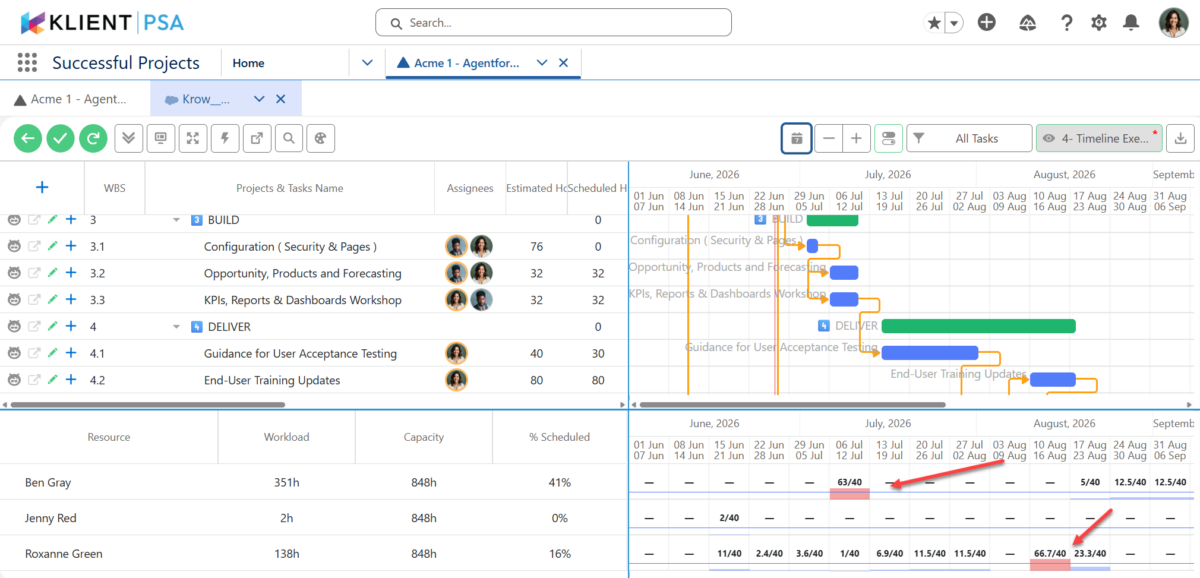
Two new Project Workspace toggles, Group by Role and Resource Workload, turn the Gantt into a resource-management view: see who is doing what, spot overallocation through red histogram bars, and compare assigned hours, available hours, and % scheduled — on a single project or the global workspace, all saved to your Workspace Preset.
Workspace editing improvements 16:36
Datetime inline editing directly in the Gantt grid, undo/redo extended to assignee add/remove/replace (with guardrails when hours have been logged), and one-click assignee removal.
Jira Time Tracker — multiple project roles 18:30
Resources who hold more than one role on a project or task can now choose which role they are logging against from inside Jira, and that role is stamped onto the resulting Time Entry — so Jira time lines up with how you bill and report in Klient. Work also continued on large-volume Snap generation.
TOUCHY 1: your new touchpoint agent 19:35
TOUCHY 1 is Klient’s touchpoint agent for customer success managers, project managers, and consultants — anyone who runs a lot of customer calls and follow-ups. It does two jobs: it preps your meetings, and it turns what happened on the call into updated work inside Klient PSA. Every action is staged for your approval — nothing is sent or changed until you say so.
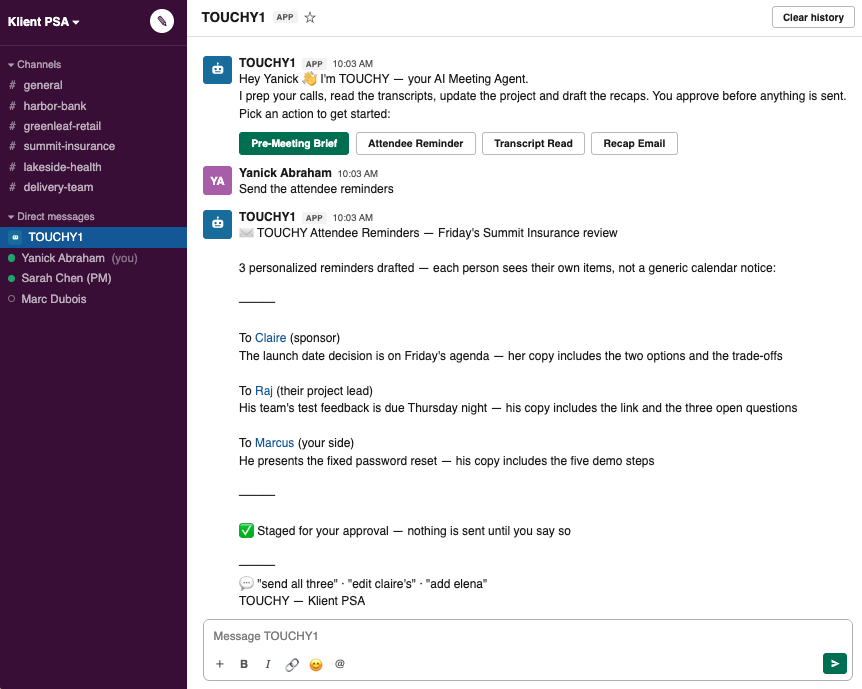
Before a call, TOUCHY 1 builds a meeting brief — an account overview, a risk level, overdue tasks, open cases, and recommended next steps — and can draft personalized, per-attendee reminders so each person sees their own items, not a generic calendar notice.
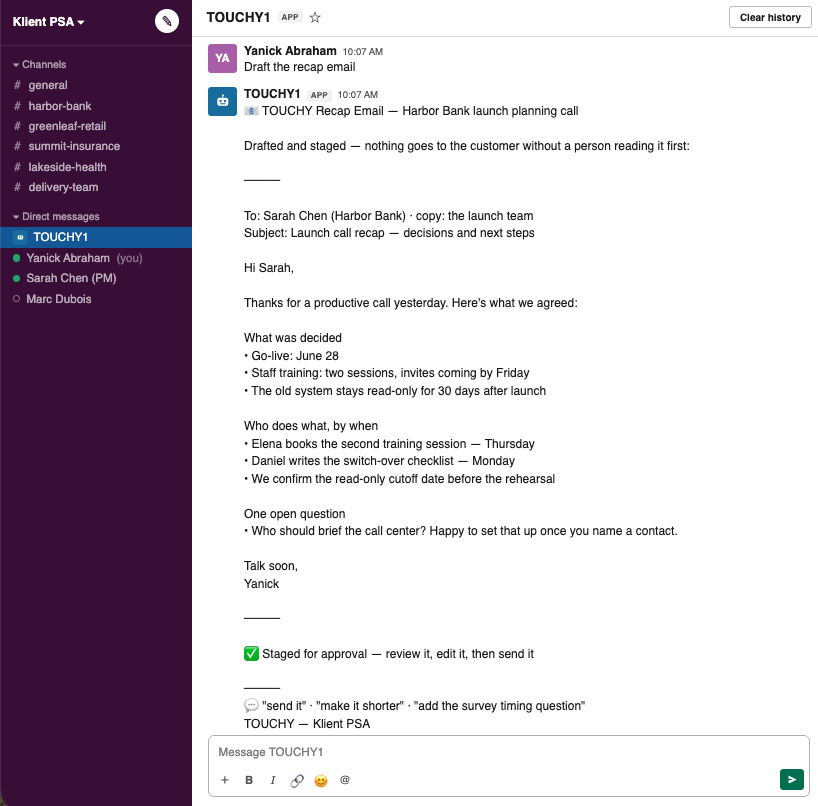
After the call, point TOUCHY 1 at the transcript and it writes meeting minutes, action items, or a follow-up recap email — then syncs project tasks, posts to Chatter, marks work complete, and sends the email, all recorded inside Salesforce.
TOUCHY 1 is available on the Salesforce AppExchange. It joins PLANNY 1, Klient’s daily project-prioritization agent, with TIMEY 1 (timesheets) and STAFFY 1 (resource management) coming later this summer.
Klient PSA MCP: connect any AI to your Salesforce org 26:17
The headline from Agentforce London: the Klient PSA MCP servers are live. MCP (Model Context Protocol) lets any AI — Claude, Claude Code, Copilot, Cursor — do real work inside your Salesforce org through Klient PSA, not just chat about it. You install the MCP, connect with your own credentials, and every security and validation rule in Klient is enforced.
There are three servers — MCP Data 1, MCP Admin, and MCP Knowledge. The Data MCP ships 31 tools for working with projects, tasks, resourcing, and time, plus project, assignment, and time Skills that package common workflows. A dedicated, deep-dive MCP webinar follows this session. Explore it on the Klient PSA MCP page and the full AI agents catalog.
What’s coming in version 51.9 31:03
Landing mid-July, version 51.9 brings:
- Expense sync from Sage Intacct into Klient
- Mass timesheet approval improvements, plus new mass timesheet operations
- Kanban improvements, including filtering by assignee
- Copy-paste for assignees and checklists in the Project Workspace
- Two new agents — STAFFY 1 (resource management) and TIMEY 1 (timesheets)
- More KLARA (support agent) improvements
- Flexible work schedules — the number-one customer-requested idea
Frequently asked questions
What’s new in Klient PSA version 51.7?
Version 51.7 adds a redesigned My Deadlines (pill navigation, a column picker with saved presets, and inline quick-add), a new Resource View in the Project Workspace (Group by Role plus a Resource Workload histogram to spot overallocation), task skills that now clone from project templates, datetime inline editing and undo/redo for assignees, a Klient Utilities recalculation action, and Jira Time Tracker support for multiple project roles. It also includes a first look at the TOUCHY 1 touchpoint agent and the new Klient PSA MCP servers.
What is TOUCHY 1?
TOUCHY 1 is Klient’s touchpoint agent for customer success managers, project managers, and consultants. It preps meetings — account overview, risk level, overdue tasks, open cases, and recommended actions — and, from a call transcript, drafts meeting minutes, action items, and follow-up emails, then syncs project tasks, posts to Chatter, marks work complete, and sends email inside Salesforce. Every action is staged for human approval. TOUCHY 1 is available on the Salesforce AppExchange.
What is the Klient PSA MCP?
The Klient PSA MCP is a set of Model Context Protocol servers — MCP Data 1, MCP Admin, and MCP Knowledge — that let AI tools such as Claude, Claude Code, GitHub Copilot, and Cursor do real work inside your Salesforce org through Klient PSA. They run with your own credentials, so all of your permission and validation rules are enforced. The Data MCP ships 31 tools, plus project, assignment, and time Skills.
What is the Project Workspace Resource View?
The Resource View adds two toggles to the Project Workspace Gantt. Group by Role reorganizes the timeline by role and resource; Resource Workload adds a histogram below the Gantt that compares each resource’s assigned hours against their available capacity, with red bars flagging overallocation. It works on a single project or the global workspace and saves to your Workspace Preset.
Do I need to upgrade to use the new features?
Yes — the features demoed are in version 51.7. Version 51.8, a security release, shipped alongside it and is the current version, so upgrade to 51.7 or later to use them. TOUCHY 1, PLANNY 1, and the Klient PSA MCP are separate add-ons available through the Salesforce AppExchange and the Klient Feature Hub.
When is the next Klient PSA Product Update webinar?
Klient runs a Product Update webinar every month, typically the fourth Thursday at 11:00 AM ET, hosted by Rosalie Chassat and Yanick Abraham. You can see the upcoming sessions and register on the Klient PSA Events page.
Enjoy & register for our next professional services automation (PSA) webinar.
Full webinar transcript, lightly edited for readability.
Rosalie Chassat: All right. Good morning, good afternoon, wherever you’re joining us today. So happy to have you. Welcome to our webinar, What’s New in Klient PSA for the June Product Update Webinar Edition. Welcome, everybody. I see there’s still some people joining in. All right. So, for anyone we haven’t met yet, I’m Rosalie, I lead the customer success team here at Klient, and as always, we also have Yanick, our CEO, who’ll be running our demos today. Hi, Yanick!
Yanick Abraham: Those are the… another exciting one, a lot of moving pieces, but I think we’re all set up for another great webinar.
Rosalie Chassat: Yes! And we also have Natalie, who will be supporting our chat and Q&A, so please do ask questions, leave comments, those really keep us going, Yanick. And so, as you may know, and that’s our next slide, yeah. We were pretty busy last week. Yanick, do you want to tell everyone where we were, in case people missed the memo?
Yanick Abraham: Yeah, we’ve been on the, traveling the world lately, and the last stop was the Agentforce in London, Agentforce World Tour, so one of the biggest, Salesforce events in, in Europe. And where we had the chance to meet a lot of our customers. This was the exciting part. We had some pretty cool announcements, too. We released our MCP servers the day before. So, it was great meeting you all, and seeing you all, and looking forward to the next one.
Rosalie Chassat: And if you were, in London and you don’t see your picture there, because I forgot to take pictures with our customers the whole morning, sorry about that. Next time I’ll get better, but we got a couple of them. All right, so let’s get started with our very first poll. We always do this, so I don’t know if this is your first webinar, and I think I’ve launched it. I don’t know if it worked. Alright, so we want to know if this is your first webinar or not. Alright, there it is. Okay. Now let’s have a look at our agenda for today. So, 51.7 and 51.8 were both shipped last Friday. So 58, 51.8 is a current version. Sorry, there’s a typo there. 51.7 is the one where all the features landed, so you can see Klient Utilities, my deadline, workspace improvement, other interfaces improvements. 51.8 is just security-focused, so nothing really to mention today. After we cover everything that’s in 51.7, we will do a demo of TOUCHY 1 Agent, which we’ve been teasing on last webinar, so we’re delivering today. We also want to talk a little bit about MCP, Klient PSA, MCP, and then we end up with product roadmap, community updates, as always. Let’s get started. Perfect. We see, it’s just regulars today, aren’t great. Alright, so… Let’s start with our very first feature of 51.7, which would be the next slide, Yanick. There you go. Klient Utilities.
Yanick Abraham: This is something we don’t talk so often about, right?
Rosalie Chassat: No, no, so Klient Utilities, I think we’ve never demoed it on a webinar, so let’s tell people what’s new with this new utility, and then maybe do a little recap, what else can be found on that page.
Yanick Abraham: Yep. So, Sorry, like I said, a lot of moving pieces, and I should have closed a lot more maps before. And so, We have released a new utility, inside the Klient Utilities, so if you go in the main menu, and you type utility, you’re gonna see that menu here, Klient Utilities. This is usually don’t go there, because everything goes according to plan, but sometimes you might need to reset some information. In this specific case, we’ve introduced some billable flags in the past. on the time, the task assignments. And, just to be able to roll back all the previous data, if you wanted that functionality, you needed to run this recalculate estimated versus actual from task assignment to project. So this is the one that you would run. It would not, it would just recalculate all the roll-up that we’re already recalculating, so it won’t change any of your data that you might have input manually, it’s just going to recalculate or roll up. And pretty much all our interface, the way those work, if you press a button without selecting a project, it’s gonna do it across all your projects, otherwise you can just pick the specific project you want to run this on, and it’s gonna run it. Pretty simple, just wanted to mention this, and if I’m not wrong, next release, we’re gonna be showing a new revamped interface of this. We’re just waiting for some new stuff in it, but we’re going to have a new interface for the Klient Utilities as well.
Rosalie Chassat: Yeah, and if you want to know exactly what’s included at Utility, there’s a full detailed explanation in the release notes.
Yanick Abraham: Yep. Next. Alright.
Rosalie Chassat: Next up, a page that a lot of our users are spending their day on, actually, My Deadlines, which is typically accessible from your homepage. We finally gave it a full redesign based on a lot of feedback that we got, so, The whole point of my deadline, because people are often confused, so the whole point is to help you focus on your work. based on your deadlines. So, Yanick, do you want to walk us through what’s new in my deadlines in.
Yanick Abraham: Yes.
Rosalie Chassat: 0.7.
Yanick Abraham: So for all your team members, this is really an execution play, so somewhere you go to to do your work and see what’s upcoming and what you need to deliver. So you can reach it directly from the main menu through My Deadlines, but like you said, we like to drop it in the home page as well, so you can just drop the component on the home page. And this is the new look and feel of my deadlines. You can recognize it with the different pills that you have here on top that’s telling you, we’re focusing on, by default, on the 2 days pill, where we have 3 tasks that I need to deliver today, I have eight this week, and don’t look at my past, I have a lot of overdue. I should do a little bit of cleanup of my projects. But what we’ve added, besides that new look and feel, we added some fields here on top, where you could create a task before. Let’s do create more MCPs, so this is my task, but as you can see, on the right side, there’s a search project that’s now popping up. In the past, you could only create a task without projects, now you can add it, so if I press enter. it won’t put any project. If I had searched for that project, I would be able to just put it underneath any of my projects that I have within the system, so I can always map. Okay, so this is one of the added functionality. What we’ve also added, it’s a search, so if I search, it’s gonna return all my results. When you only have a few, it doesn’t really matter, but when you have 749s. tasks, then searching is very important, so, that search is going to return you all the, link, or all the tasks that you have, assigned to you, within your My Deadlines. Another thing, and it’s regarding the columns that you see. I’m not sure… the filtering or the sorting was already in there, Jose, but you can sort pretty much everything, every column, but now, as well, you can add more columns into this grid. So, let’s say I’m adding those two, and if I wanted, I could even add more columns. Through my, my, my field sets, so… become… Do you still hear me okay? I think I’m struggling with my internet.
Rosalie Chassat: Yeah, yeah, field set is the My Deadlines columns, columns is the name of the field set.
Yanick Abraham: Yeah, so if I’m going where I’m gonna show you, because it’s, we have some new people in the webinar, so it’s always good to maybe some refresher minds. So, to be able to change and add some columns, you just go in Setup, Object Manager, because this interface is linked to task, you go in the Klient Task. You click on FillSep. And then you just need to find the My Deadlines columns, and here is the column that you see, and the order is within the order I’ve just shown you as well. This is the order where the order is controlled, so you can add any field from drag… dragging from top to bottom, or just move things around, save it, and then the rest of your team are going to be able to use it. And this works as well on custom fields, so it doesn’t need to be only the Klient field. It works on custom fields also. I feel I’m forgetting something here, Jose? Is that the only thing we added?
Rosalie Chassat: Just that, previously, yeah, previously, templates, tasks were included in the My Deadlines, but we fixed that, so now templates are not showing there, which makes much more sense.
Yanick Abraham: They’re not the execution project.
Rosalie Chassat: Exactly. Perfect, and share feedback if you like the new look, if you don’t like, if anything is still missing, let us know.
Yanick Abraham: Yes.
Rosalie Chassat: Alright.
Yanick Abraham: improve.
Rosalie Chassat: So, project, project workspace. So, our very first one, we want to talk a little bit about skills that are now cloning for project templates. So I think that one is really worth an image, or a video is worth a million words, because it’s a tricky one to just explain with words, so let’s… let’s check it out.
Yanick Abraham: Yes, so, we have a concept of skills, where you’re searching across Klient. Give me a sec, I’m gonna… I’m gonna move here… And… where’s my projects? Ugh.
Rosalie Chassat: So if you are using skills, you are using templates, that’s when you wanna… Keep an eye on.
Yanick Abraham: So I’m lost in my tabs. Give me a second… oh wait. So, in that specific project, for example, if I’m looking into my project, have here an opportunity sales process notification, or actually this one here, opportunity product and forecasting. Let’s say this needs some specific skills to be able to execute that work. We have a concept of task skills. So you can see here in my task itself, you can add a task skills, and what it does, it’s when you’re looking into your schedule, and you can do this in the workspace with the right side panel, or you can do it… if you drop the component, you can do it directly on the task itself. But what it does, it’s when I’m looking at my schedule here, and if I want to search for resources, it’s going to default that skills and certification right here, meaning that when I’m going to search, it’s going to only return the resources that have that skills. And you can see first column is schedule hours and available hours, so I can pick one, any of those resources and add it to my project plan. So the default include that, that skills. You can add it directly in the object here, if you wanted to, but you, we have also a button here that you can add and remove skills. So, let’s say I might have one on business intelligence, and then you can add those skills, so when you’re gonna search, not sure I’m gonna get any results, but yeah, I got a few less results, but I can now have that search working with the skills associated to it. And what we’ve done, this was existing, but what we’ve done is that now when you’re cloning projects, so when you’re using the project import wizard or any other means. Those skills are gonna follow through, meaning that your project templates are gonna stay intact.
Rosalie Chassat: Perfect. And now you’re looking at the task page, but also from the task side panel, you have the same.
Yanick Abraham: You have that same schedule, if you recognize it, this is the same schedule modules that we have across.
Rosalie Chassat: Perfect. All right. Our next one, this is the big one of the release, the Project Workspace Resource View. And that one, again, without an image, very hard to explain, so let’s have a look. Mainly, we added two toggles, so that’s how you’re gonna see the difference when you log into your project, so, let’s check it out. I think a lot of people are gonna be interested in that one.
Yanick Abraham: Yeah, this is a great one, and in terms of what it can do, it’s gonna help you plan and schedule better, and it’s a cross between the resourcing and the workspace. It does work on the specific project, but it also works on the global workspace. So what I’m gonna do here, I’m gonna open up my workspace, and this specific project that we’ve been looking into, you can see we have here a few tasks. Those two tasks we were looking at, they’re a 32-hour schedule. With 32 hours estimated, this spread across a week or so. What we’ve introduced is those new. toggle, so what I’m gonna do, I’m gonna open up the resource toggle, and right now, you can already see that some red is showing, so it’s a really nice, neat view to see a combination of your task and your project on top, but here at the bottom, you can see your people. And then you can see their effort. So you can see this one is in red, because those 63 hours that are assigned to… should I have had my… Assignee column, let me just move it. that are assigned to, Ben Gray. Ben Gray is, going over, is allocated time here, you can see, with the 63 hours over a week of 40. So absolutely, I need to move things around. So, in this specific case, I could change one of the tasks, I could add some people, or I can just maybe stretch the task itself. And then it’s gonna update the schedule on top. We have a small little glitch in this version that you still need to press the refresh button, but it’s a small glitch that’s gonna be fixed in the patch soon. So you can see now my hours is getting close. I could do the same with the other task and stretch it. This way, I would solve my problem. So it’s really a combination of the project planning and task planning with the resourcing, so hopefully it’s gonna give you a lot of new insight into your project. This way you can really spot easily where you’re over-scheduling your resources.
Rosalie Chassat: Yeah, and that one, for anyone doing scheduling, those people sending hearts are saying, yes, I want to try it tomorrow. Once you’ve upgraded, please, this is really one we would like to have your feedback. Tell us, like, oh, I used to do it that way, now I do it this way, or, oh, it’s just missing this and that, because, yeah, we really want to hear your feedback on that one.
Yanick Abraham: And like I said, it does work on the global workspace also, so if I just use my toggle and resource workload, I’m gonna be able to see across my different… I’m still looking at one… Akiro. But it’s actually… it’s within the project, that you can use it from here, the resource workloads via the same button. So that’s the first thing with the resource view on the global… on the workspace itself. What we’ve also added, and for that, I’m gonna just remove the grid aside… I’m gonna rewind the resource workload to start with. The other one is group by role. So here on the left side, now what you can do is that you can group your task by role, and it’s taking the owner, who’s the owner of the task, so the leftmost resources, the one with the orange circle, and then it’s grouping it by the role itself, so we can see here the developer, project manager, and all my unassigned tasks. So you can group it this way. And when you couple it with your resource workload, you can also do the same. So now you’re gonna be able to see, as a group of developer, in this case I only have one resources, but you can see that they would be grouped, grouped under their role. So just another way of, of seeing your resources. When you have several people with the same role, you want to be able to see their availability, or their scheduling, or the location, you’re going to be able to see it clearly from here.
Rosalie Chassat: And again, I mention it every time, but we’ll do again. You can save all this as presets, so for those views that you’re probably using when you’re assigning people to different tasks, you may want to include that into your new presets.
Yanick Abraham: Exactly.
Rosalie Chassat: All right.
Yanick Abraham: So that’s a neat interface, the refresh, I’m sorry about the refresh thing, but it’s gonna be fixed in the next, next release.
Rosalie Chassat: Alright.
Yanick Abraham: The other thing, the inline editing of date and time. Yeah. So, now you, It was multiple inline editing, correct? Is that it?
Rosalie Chassat: It’s the date time, it’s another.
Yanick Abraham: They timed it out.
Rosalie Chassat: And then you can already edit it, yeah.
Yanick Abraham: So, we have other fields. The next one, I’m not gonna demo it, but for the start date time, you’re gonna be able to inline it the same way as this one. We have an undo and redo, if you recall, you can do Ctrl-Z, and you can do undo, in the, in here in the workspace. You can always go back in our legend to find all the different shortcuts that you can do with the system, but you can do undo and redo. And now we’re also bringing back the assignee, so when you create assignee and you add assignee to a task, if you do undo, redo, it’s gonna follow up. This, in the past, we were skipping it, but now you can do undo on the assignee as well. And then the last thing is that on a specific resource, when you’re overing, yeah, you have here about this one, you have a small… if you just keep your mouse, you have a small X, so you can easily remove a resource from a task, so this way you can clear out some assignments, or at least from here, if you don’t need those resources to be assigned anymore.
Rosalie Chassat: So we saved you, like, 2 clicks of clicking.
Yanick Abraham: Okay, instead of clicking here and having to, to go here and remove it, then you can do it with one.
Rosalie Chassat: That’s our ultimate strategy for the workspace. Where can we remove clicks? And every time it’s like, oh, we just remove one here.
Yanick Abraham: magnet. So you don’t have to click anymore.
Rosalie Chassat: Perfect. And that wraps it up for the workspace, and then we just have 3 more, improvements, kind of a couple of things to mention. Nothing to demo on that section, I don’t know, Yanick, if you want to mention them.
Yanick Abraham: No, so our Jira time tracking tracker is gaining momentum, and so we’re adding functionality to it, so if you don’t know, you can go see on their website or on the community, we have a description, but in Jira, if you’re using Jira alongside Klient, now we can sync, but you can also log time directly in Jira. We’ve demoed in the past. So we added in the typical project role. And then we did some change on the permission set group, and we’re working very hard on the new generation of SNAP creation for mass volume. And I think we finally got there, so this is also gonna take care of all the different snap generation, and I think in the next webinar, we’re gonna mention a delta mode as well, so you’re not gonna be able to You’re gonna be able to just snap the delta and not just the full project at once. Working a lot on the… under… under the hood of the Snap at this point.
Rosalie Chassat: Alright, again, any feedback you have, please share it. This wraps up 51.7, but… Of course, today we also want to talk a little bit about AI, most specifically TOUCHY 1. We did say we were going to do a demo today about TOUCHY 1, so let’s just do it. As a reminder, best place to find information on agents is our agent catalog, so we’ll just drop the chat. And just before we do the TOUCHY 1 demo, I just want to do a few recap. PLANNY 1, already live on the AppExchange for a month now, so, we have some, again, from our catalog, you can see the full description, you can go on the AppExchange, download it. We also have TIMEY 1 and Safi that are coming soon. We should be able to do a demo, not in so long. And then, okay, let’s go back to TOUCHY 1. That’s what we’ll demo on today. Yanick, let’s get started.
Yanick Abraham: Yes, and this is exciting. It should be released this afternoon on the AppExchange. I’m going to show you how you can get access to it after. But what it does, it’s really a touchpoint agent. The idea is supposed to help customer success people, but any project manager as well, with their follow-up, or any consultant that have calls. So, we have a new customer, Momentum Worldwide, and this is their self-onboarding project that we have, that Rosalie has assigned them, and that they have to go through. And we’re gonna open up this specific self-onboarding kickoff call task here. And within that task, you can drop our agents, you can drop TOUCHY 1, and TOUCHY 1 here, by default, it does two things. It’s gonna ask you for… it can help you draft a meeting prep, or send a reminder email. So, it knows its context, so it knows on which task and which project it is. It can do search, so now, for that meeting prep, it’s gonna look around and find all the relevant information that it can find, so you don’t have to look yourself. And here, what it got us, it’s that it gave us an account overview, so how many, a number of case, the number of employees, the different contacts I have. But the key thing is that we have insight and recommended action. There’s a small risk level here, because there’s one task that hasn’t been completed, so we have one overdue task. If you’ve seen it in the workspace before, it was read. So the recommended step is that we contact our Andrew Merzilla, who’s running that specific project, so we can go through and validate dates. And you can see, as well that the signature milestone has been complete, but the attendance of the first webinar is not done, so I’m looking at the list now. Is there anyone from Momentum? So we can mark that task as completed. But you can see that it’s gonna give you all that information, plus that overdue task. It can also look into your cases, so if there’s any open cases, it’s gonna be returned. So that’s the first action of TOUCHY 1. It’s a meeting prep. So, I do believe it’s going to be very useful. The other one is that after the meeting is done, if you recorded it and you get some transcript. For this first version, you need to, to upload your files, your transcript in, in the files object, and it’s gonna be available here. And when you click on it, you’re gonna be able to do a few things. So, either write a meeting minutes, or action items, or send a following up email. So, let’s go with the action item first. So, it’s gonna read that transcript, again, with the context of the task and the project, it’s gonna find out what needs to be done, and what needs to be a recap, so what the consultant or the CS agent needs to do. In this case, you can see that all those to-dos internal for you, Rosalie, so create community user and send them, provision the license, confirm permission set, so this is all part of the discussion that happened with you and the customer. And then here you can see that, now TOUCHY 1 is asking you that, do you want me to sync to project task? So I can… it’s gonna search, find a task, and update a task, and create new task if you wanted to. So there’s a few things it can do. It can sync the project task, post to chatter, save to this specific task, or because if you’ve mentioned, you’ve seen that task was overdue, it was not started, they can just say, mark this task completed. Again, maybe it’s… this is more click than just going on top, but it’s just to show you that it can do that for one specific task, but it can do it for all your tasks and your project, so it went in and changed it, so if I’m refreshing now and I’m going back on top, you can see that the task has been marked to complete. So it’s really an agent that’s going to help you with your project to stay on top of your meeting, stay on top of your touchpoint, and give you valuable information before and after. It gives you a breakdown of what needs to be done, but also helping you draft that… oops, that was the reminder email, but if I select the transcript, it’s going to help you write the follow-up email, and you’re gonna see we even have an interface where you can send that email directly, so it’s gonna be recorded within Salesforce. Again, same kind of, recap that we had before, with the proper greetings, next step for setup, what needs to be done, and then, we have an email composer, so you can click validate. If you want to change the text, you can change the text, and then you can proceed with sending it. It got all the email address properly as well. So, yep, it should be very useful, and it should save you a ton of click, not just one, in this case.
Rosalie Chassat: Yeah, and then again, because it’s a conversation, the first draft of email, you can, like, say, oh, make it more short, add this, or remove this, etc, like normal, chatting, exercise, and I know this specific call… didn’t have any, like, dates mentioned on the call, on, like, this is where we meet next, or this is the go-live, but if they did, then it would suggest in the suggestion, like, hey, do you want me to add those tasks with the dates, because they would have caught it from the…
Yanick Abraham: Absolutely. And I think this is where it’s very cool. It’s gonna play with your… not play, but it’s gonna change in your project, so you don’t have to go in and mark tasks as completed. So if the customer said, oh, yeah, yeah, we did this, this, and that, and you said, okay, we are 80% completed in those tasks, so the agent is gonna… first, it’s gonna ask you to do it, but then it can do it itself. So, yeah, saving a ton of click. So this is version 1 of our TOUCHY 1 that will be available on the AppExchange this afternoon, most likely, for you to use.
Rosalie Chassat: Yeah, and I will send a… when I send the follow-up email for the webinar, we’ll include the links to all this, so… Yes. Alright, so that’s for TOUCHY 1. I see people are very quiet today, so maybe they’re so captivated they don’t have time to type in the chat. Next one we want to talk about is, very exciting. We’re still on a high from last week, Yanick. But, our, Klient PSA MCP that we released last Wednesday, so just ahead of Agentforce. We can drop the press release in the chat in case people miss it. If you want to read a little bit, what’s that about, but we’ll just show, show more later. Before we go further, Yanick, on the MCP, can you give everyone, like, the plain English version of what’s an MCP, and what’s the difference with agents? Because I think that’s a point of confusion sometimes.
Yanick Abraham: MCPs, and just to do so, I’m gonna go on our website, I’m gonna show you a few things. First, we’ve revamped the entire website, so if you wanna go take a look and give up your comments on that as well, don’t hesitate. If you go in Products, and you select MCP and Skills. You’re gonna have the detail of the different MCPs we’re releasing. So we have MCP Data 1, MCP Admin, and Knowledge. Those are the three main MCP we’re gonna be, we are releasing. And the idea is that you can connect your AI, and your is important, to Klient PSA safely. The idea is that from the outside, you can interact now with Klient PSA data, and you can do pretty much whatever LLM can do, so if you ever using Cloud Code, Copilot, Cursor, any one of those tools, you’re going to be able to connect our MCP, or install the MCP and run it on your machine, and then you’re going to be able to connect to Klient PSA with your credentials, meaning that all the security rules, validation rules, all those are followed. But you’re gonna be able to access it. And then you can do a ton. So, and if we’re opening up that MCP data, and this is what the webinar is going to be all about, so I’m gonna leave some stuff, but you’re gonna be able to work with project, tasks, resourcing, time, and then you can access pretty much every other stuff that we have, within Klient. And we also, to make it… because the MCP is just a tool. There’s no intelligence in it. There is a little bit of intelligence, but it’s not AI, so we also package some skills to help you work with projects, so you have project skill, assignment skills, and a time skill that would be released very soon. If you go on a website and you want to see all the tools, MCP is the list tools, so those are the 31 tools that are included. Within our data MCP. So, this is a preview of it. Next week and the next webinar, we’re gonna do a full demo on how to use it, and seriously, it’s mind-blowing. We have now projects that are executing themselves. Meaning that, we, Rosalie and I, we add tasks, let’s say, on the idea exchange, and then the, the MCP will look at it, what change, take it, annotate it, create another project, and then do the work on the side, but all with having the product in the middle, so if you’re interested to see how we can automate part of your business with, with Klient. MCP will be.
Rosalie Chassat: Yeah, so Yanick did mention it, but, woohoo, good news! We decided we were gonna do a webinar specifically on MCP, because as we were prepping for today’s webinar, we’re like, okay, we need to dedicate at least a full 30 minutes on this, learning from our experience last week, talking with prospect, customers and, Current customers, that it does take more than 5 minutes to explain, the possibilities, because they’re kind of endless. So, here’s the call for action. If you are somehow interested about MCPs, want to know more about your interest is peaked, make sure that you register. We just dropped the link, in the chat, Natalie just dropped it, so make sure you register. We are doing it next Tuesday, so alert, alert, not the same day as usual, on 9 a.m. Eastern, because we want to make sure all our European customers can also join. So 9AM East, so that’s, like, 2PM UK, 3pm rest of Europe-ish. So, make sure you register to that one. Also, if you are planning to join, we have received a lot of questions from customers on MCP, so please be sure to send those to me, or drop them in the chat if you have specific questions. We’ll make sure we cover those during, the webinar. So, yeah, send us in advance, and if you cannot make it at this specific time, because we know it’s last minute, make sure to still register, then we can send you the recording and all, questions that were answered in the webinar, so some more information we can share there. Perfect! This kind of wraps up what’s new in 51.7, so I just want to do a quick poll. I want to know, we’re always interested, and especially our product team that doesn’t talk to our customers as often, so we want to know which of the new features we talked about today, interests you most, or you’re most excited, to try, so I’ll just leave the poll on the site. And while I do that, I will tell you very briefly what’s coming on our next version. So, again, currently we’re on 51.8 that was released last Friday. Our next release is 51.9, that should be lending mid-July… ish. So what’s new there? Syncing expense from Sage to Klient, some improvements on the map timesheet, approval. Kanban as well, is, getting a little bit of love. So filtering by assignee, I think, is something we’ve added, because we’ve got a few requests on that. Then on the workspace, we’re adding copy-paste for assignees, so we mentioned the… on the redo, so copy-paste for assignees, checklist as well, that should be copy-pasted as well, which is not currently. We also have STAFFY 1 and TIMEY 1 that are coming very soon. I’m not sure if they will be ready for next webinar, but, this summer, at least, we’ll have some more development, maybe we can show something. And then more KLARA improvements. are coming, so KLARA.
Yanick Abraham: KLARA being our support agent that.
Rosalie Chassat: Yes.
Yanick Abraham: Is that true?
Rosalie Chassat: Yes, we did this, which I think, last webinar we announced it, so now it’s KLARA first, and then support team after. Again, we already have some improvements coming, but if you have feedback, share it with us. And then the most important… the most important that I have here in my script, I didn’t even put it on the… on this slide, maybe people remember, but it’s flexible work schedule. That is one that people have very.
Yanick Abraham: Did you put in there?
Rosalie Chassat: I know, I didn’t put it as the most important. Flexible work schedules.
Yanick Abraham: You’ve been asking for it for so long.
Rosalie Chassat: No, it’s customers. I’ve been asking, so on behalf of customers, that was the number one idea, on votes. So yeah, that one we should be able to show you on next version. Anything, Yanick, on the list I’m missing, or the one that you’re most excited about?
Yanick Abraham: It’s mass timesheet approval, but we also have a mass timesheet operation that’s coming out, so moving things, and it’s something that we didn’t do in the past, so I’m looking forward to show… showcase this. It’s a customer request that we’ve implemented, so a very impressive interface.
Rosalie Chassat: Perfect. And then the last thing, as always, you can check out our product roadmap on the community, and submit ideas on the idea exchange, etc. Before we let you go, quick announcement outside of the release itself, so let’s start. I know we have our next webinars, we can… well…
Yanick Abraham: I’m not sure which one I heard.
Rosalie Chassat: Yeah, yeah, we want to show you a couple of new things that we’ve added to the community. So, I think two weeks ago, we sent an email letting you know, hey, you can now add licenses from the community again, and so we added that back, but with that, we kind of added a new section to the community. And that’s what Yanick, will show us now. It’s called My Products, so again, this is one section. You do need to be logged into the community in order to see it, so if you don’t see it, it’s probably because you’re logged out. Yeah, do you want to show us what’s on there?
Yanick Abraham: Yes, so we have a new website, but we’re also improving a lot the community. New content is being added, so you can also see that we have that MCP data documentation that is available now. The Skill Project 1 documentation is also available directly from the community, not just the website. We’ve improved the release notes section as well, with a new grouping, and a better visibility on the release notes side, and we’re continuously improving the content itself. But the new portion is if you click your avatar here on top right, and you do My Product. You’re gonna have a list of your Klient license, plus the add button that you’ve mentioned, Rosalie, so this button is available through my account like before, but we’ve added up, here in the, in the My Products section. And now, this is gonna be the new way of buying all our, add-ons. So, for example, PLANNY 1. TOUCHY 1. This is where TOUCHY 1 is still coming soon, but that’s all… as soon as it’s available. Later this afternoon, you’re gonna be able to purchase it from here. And it’s gonna list your product, what’s available for you. If you are interested in that MCP data one, you can just click on it. You can select the skills with it, because those go very well hand-in-hand. You can review and buy. You need to accept our term and condition as usual, and then you can submit your order, and by doing so, it’s gonna unlock As soon as we’re requesting payment, but as soon as you are… the payment will be received, you’re gonna have a download link. Those MCP and Skills, they’re both zip files that you’re gonna download and run into your cloud, but also you have access to that admin guide, and see exactly how to set it up. This is gonna give you the exact procedure on how to install that MCP. And, how to start using it. So, this is that My Product page, where you’re going to be able to add our new components, our new agents, our skills, and the Jira integration. For now, you still need to contact us for the Jira integration. Eventually, you’re going to be able to add license and purchase license from here also.
Rosalie Chassat: And just before I get scared, anyone get scared, this page and all these functionalities, it’s a permission only certain, authorized people have. So it’s the person that usually, is, like, the billing contact or primary contact. If you’re not sure who that is in your organization, feel free to send me a message, and we can sort it out, but usually it’s one person, maybe you want more than one person, but it’s not everybody in your org that can do this, so rest assured.
Yanick Abraham: Exactly. So, who can purchase? We have it here, we need to have Canide license, and there are only a few people that have that. If you’re logged in, and you don’t have that permission, you can still see it, but you’re not going to be able to purchase it yourself, the same as the licenses.
Rosalie Chassat: Perfect. All right.
Yanick Abraham: Pretty neat.
Rosalie Chassat: Website refresh, yeah, we did put our next upcoming webinar, and we’ve added it to the website as well, so we just knocked down the dates for the upcoming ones, so July 23rd, August 20th, September 24th, and of course, next week we have the MCP webinar. If you click on the link, or if you just go to our website, the webinar section, you’ll see they’re all there, you can register in advance. Yay! What I do want to do is just, before we wrap up, I just want to include our, webinar feedback survey. Perfect. Okay, so this kind of wraps up our webinar. I know it’s kind of the beginning of the summer, so maybe there was a little bit less people today, maybe people are distracted with the nice weather, with the kids. You can watch the webinar afterwards. Otherwise, I hope we see you next week for the MCP webinar, if that’s of interest to you. If you have any questions, ask KLARA, or send me a message, and do we have a hand raised, or is that you, Yanick? Anything you want to add, Yanick, as we conclude the webinar?
Yanick Abraham: No, please use our new product, we’re very excited about it. We are using it daily, internally, and we know how much it helps us, so I’m sure it’s gonna help you as well. So don’t hesitate.
Rosalie Chassat: Perfect, and as always, I’ll send a follow-up email. Have a great rest of your day, everybody!
Yanick Abraham: Yeah, have a good start of the summer, everyone. Thank you.